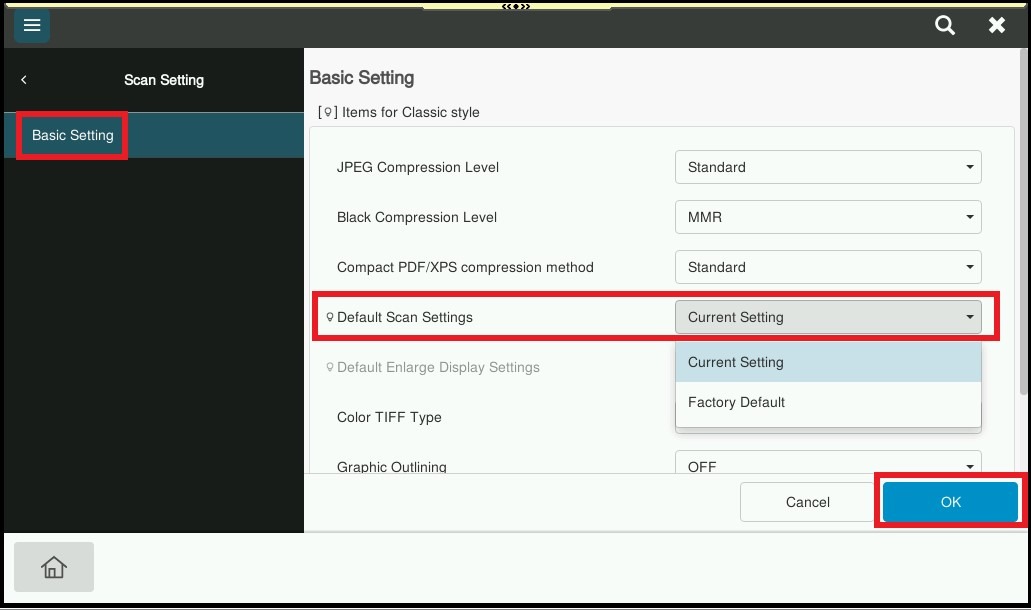
Guide on how to set the default settings for the Scan Option. This will set any settings that you change as the default settings when you scan from the machine.
For the Older Machine series / Non I-Series Machine
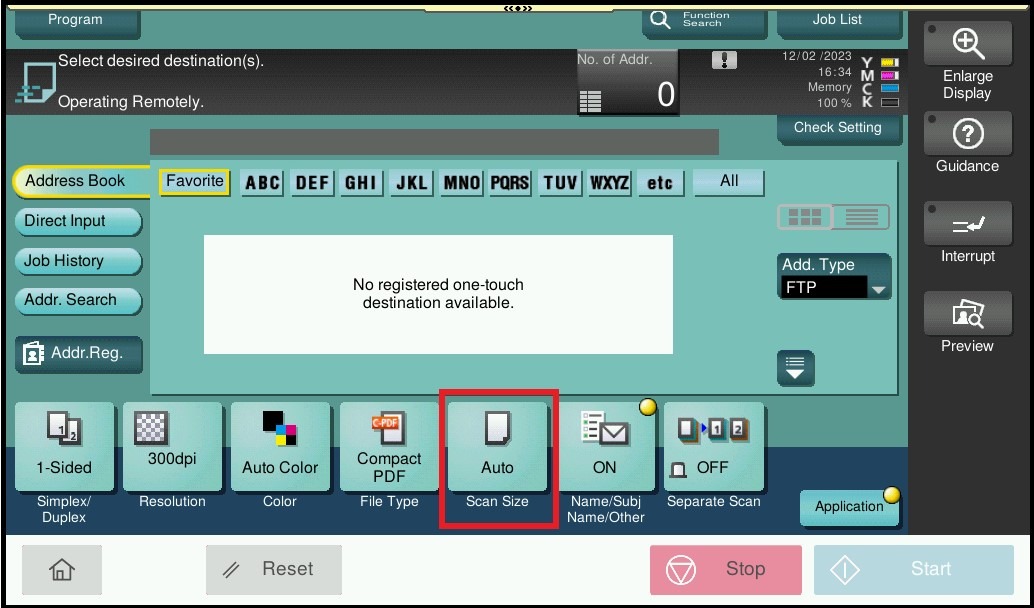
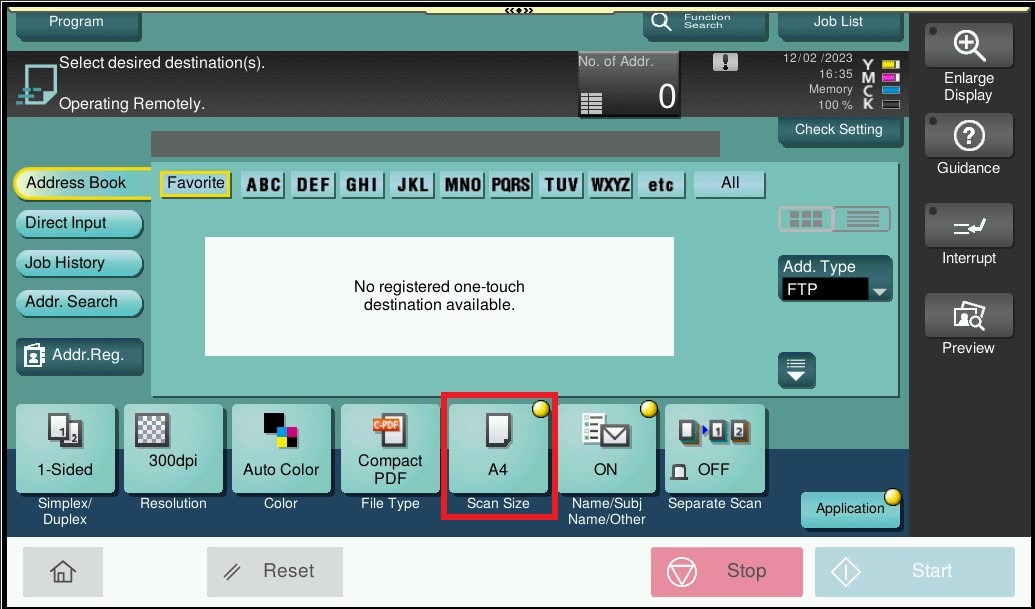
STEP 1 – On the [Scan] option screen, change any settings that you preferred to be the default settings when scanning. For this example, the Scan Size is set from [Auto] to [A4].
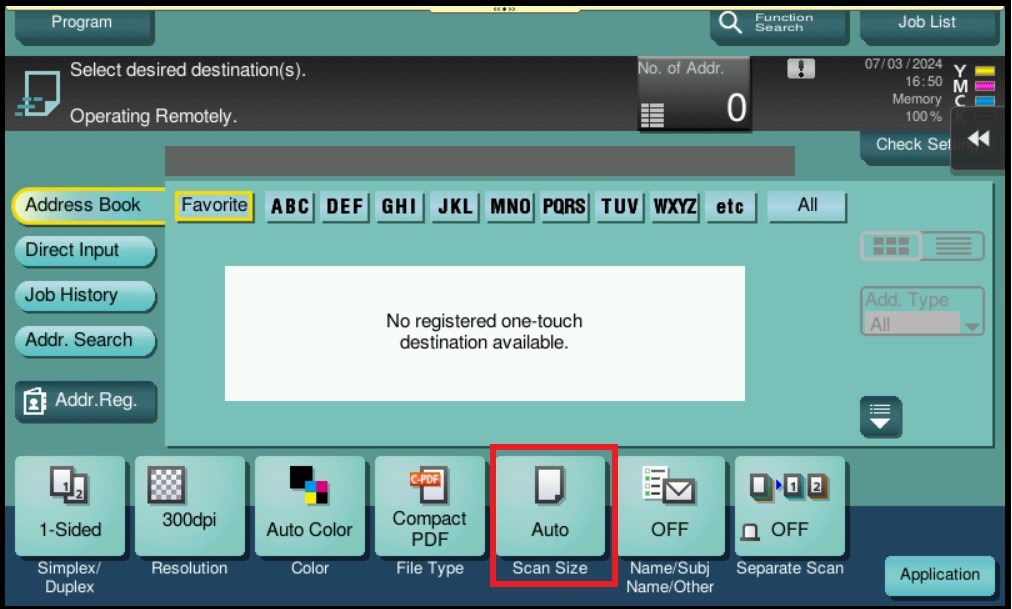
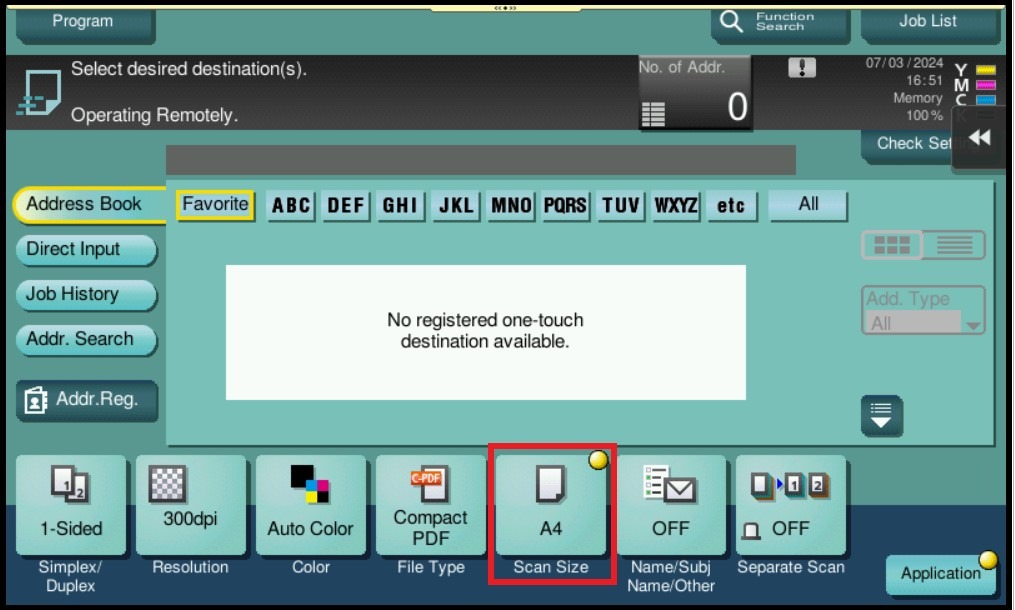
STEP 2 – Select [Utility].
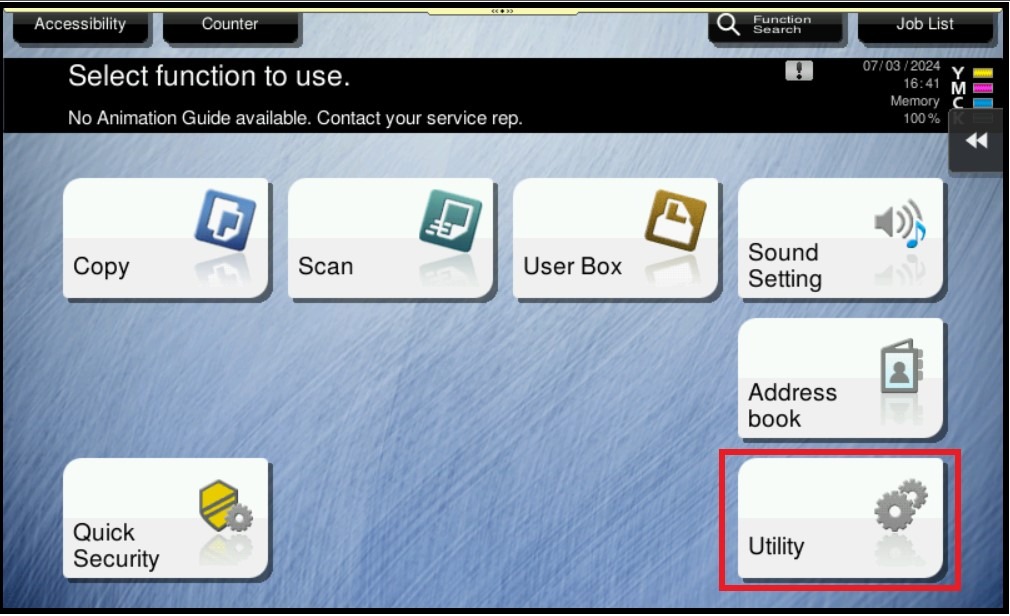
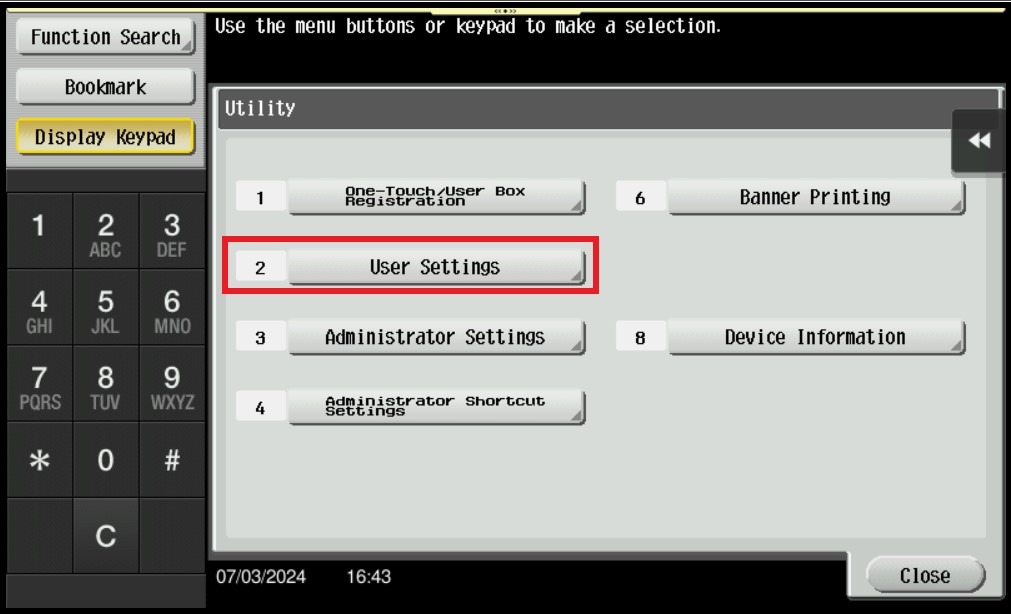
STEP 3 – Select [User Settings].
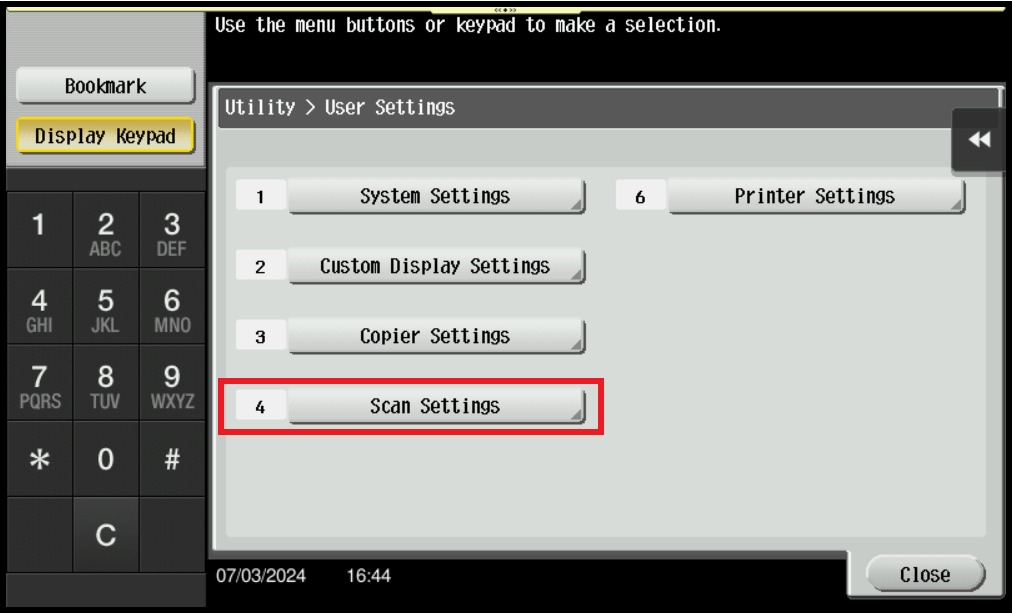
STEP 4 – Select [Scan Settings].
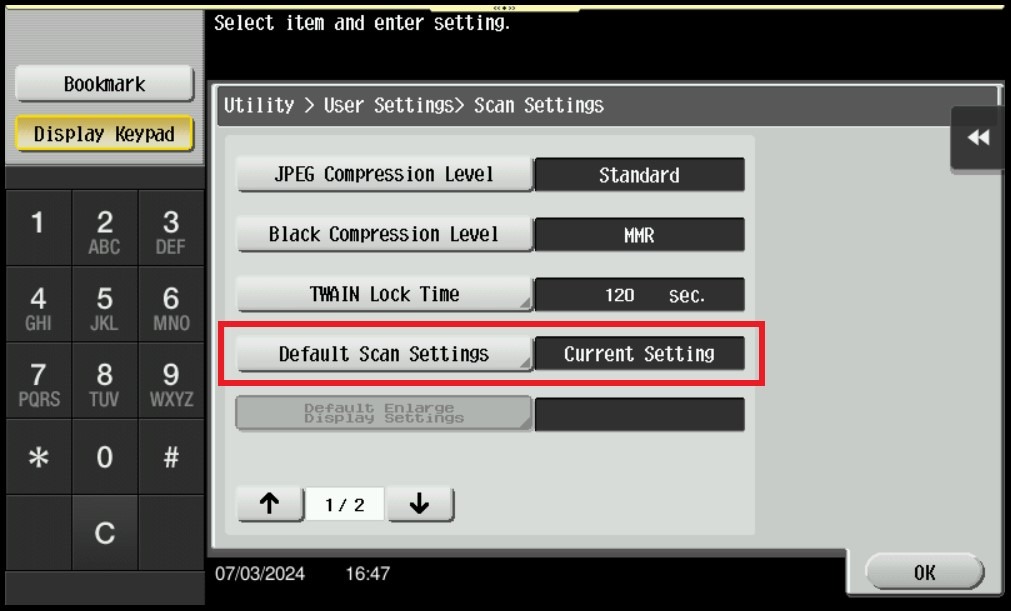
STEP 5 – Select [Default Scan Settings].
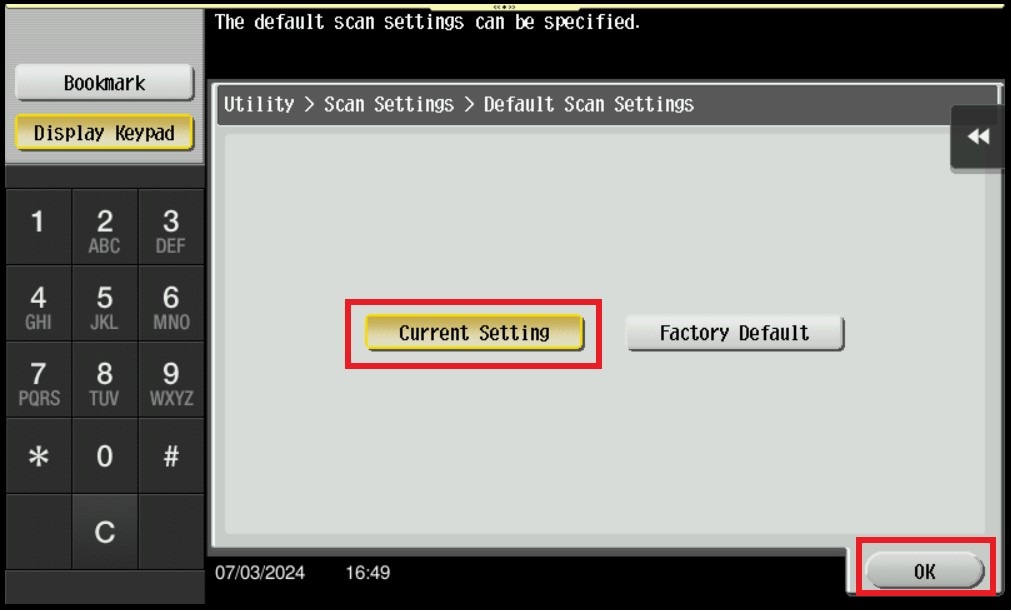
STEP 6 – Select [Current Setting], and click [OK] to save setting.
For the Newer Machine series / I-Series Machine
STEP 1 – On the [Scan] option screen, change any settings that you preferred to be the default settings when scanning. For this example, the Scan Size is set from [Auto] to [A4].
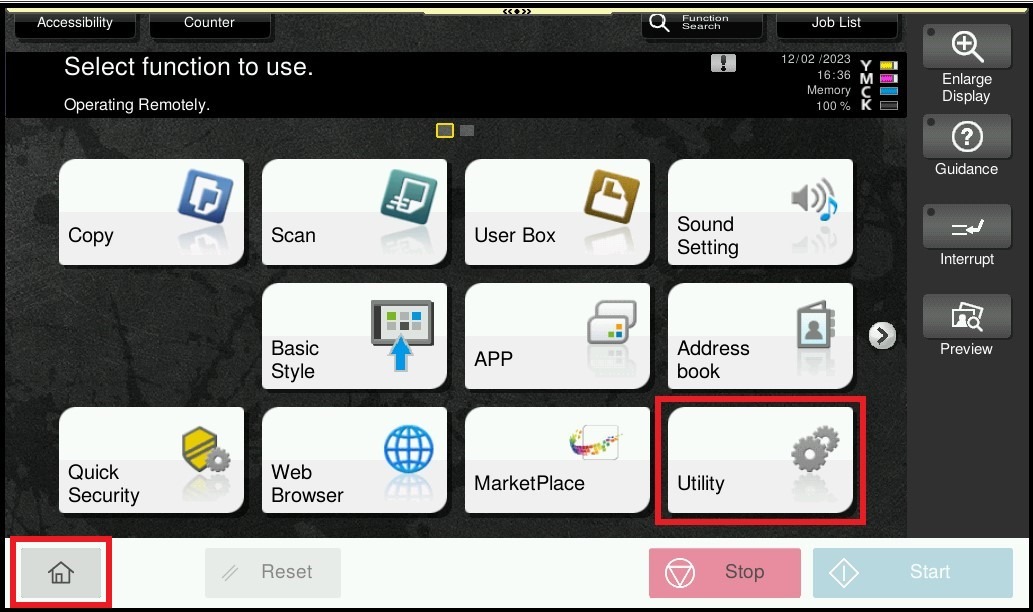
STEP 2 – Select [Home] – [Utility].– [Utility].
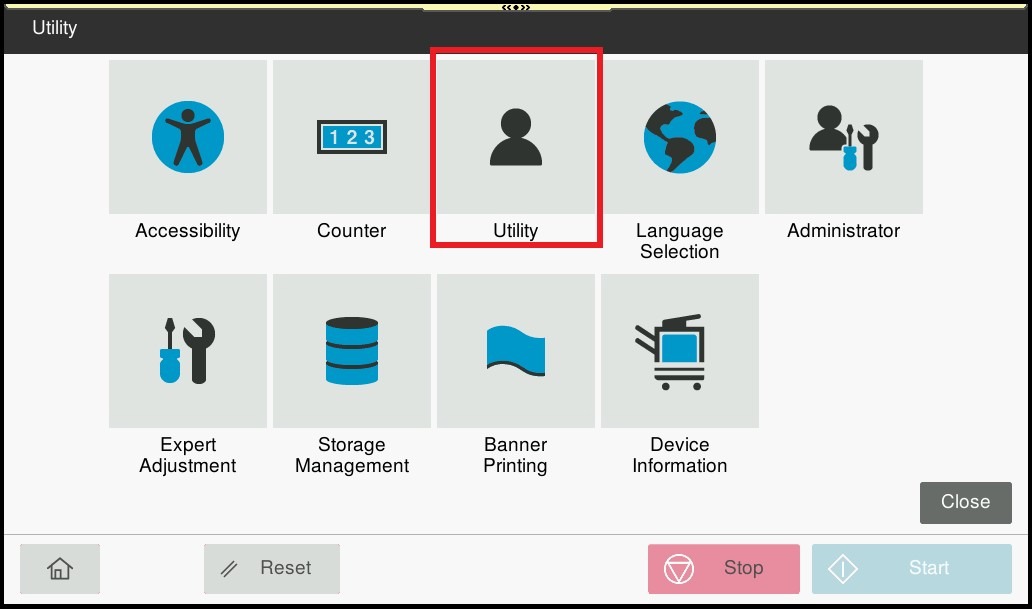
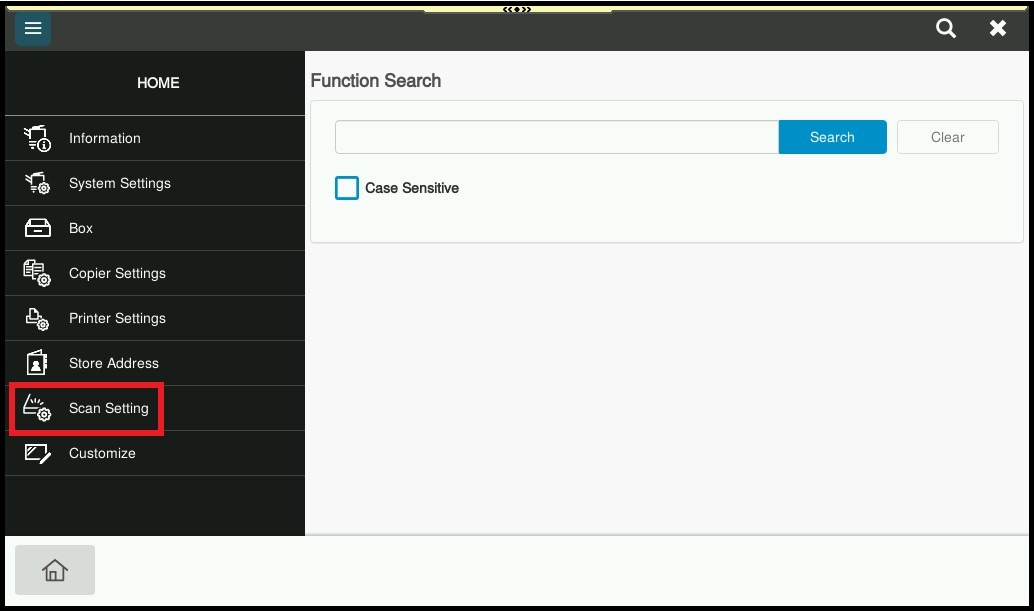
STEP 3 – Select [Scan Settings].
STEP 4 – Select [Basic Setting], change the Default Scan Settings to [Current Setting] then click OK to save the setting.