Guide on How To Add Shortcut For Copy IC On Photostat Machine Main Panel.
REQUIREMENTS:
1. Enable CardShot Option – click Here for the guide on how to use cardshot option for photocopy IC.
2. Register A Program – click Here for the guide on how to register program for photocopy IC.
For the Older Machine series / Non I-Series Machine
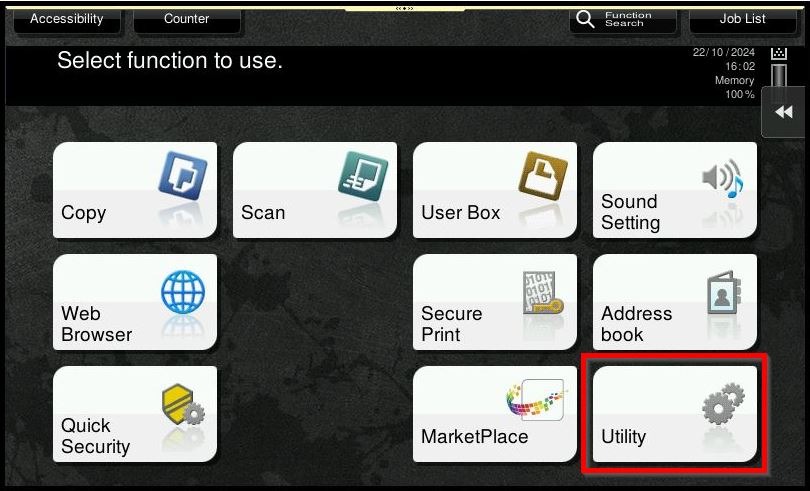
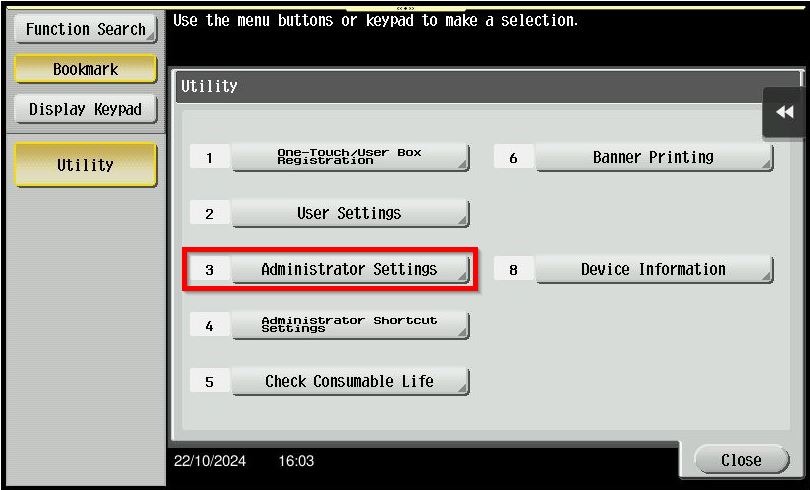
STEP 1 – On the Konica Minolta machine, press on [Menu] button and select [Utility].
STEP 2 – Select [Administrator Settings].
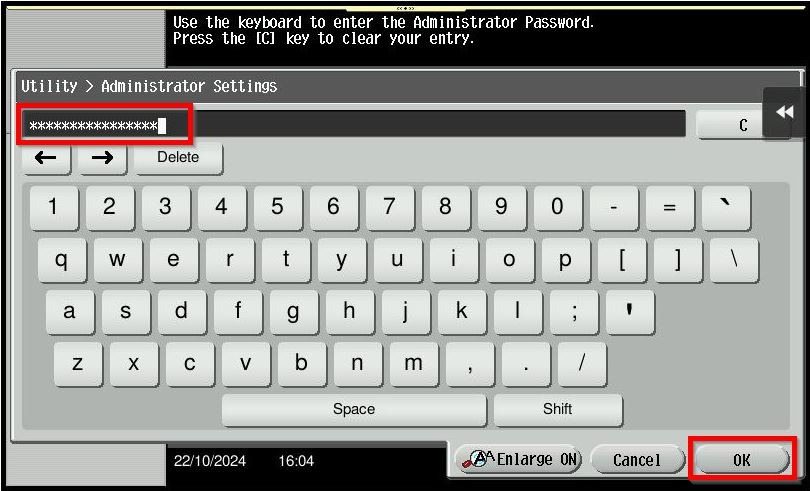
STEP 3 – Key in the default administrator password and click [OK] button.
Default administrator password:
[7801261178012611] or [1234567812345678] or [12345678] or [12341234].
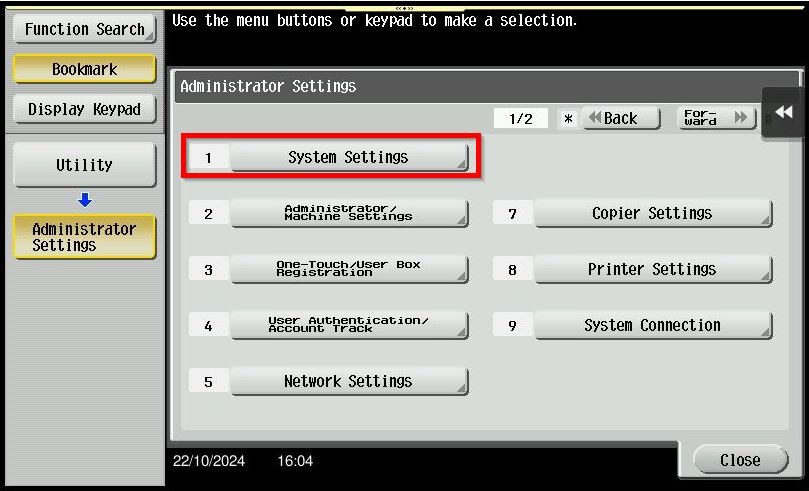
STEP 4 – Select [System Settings].
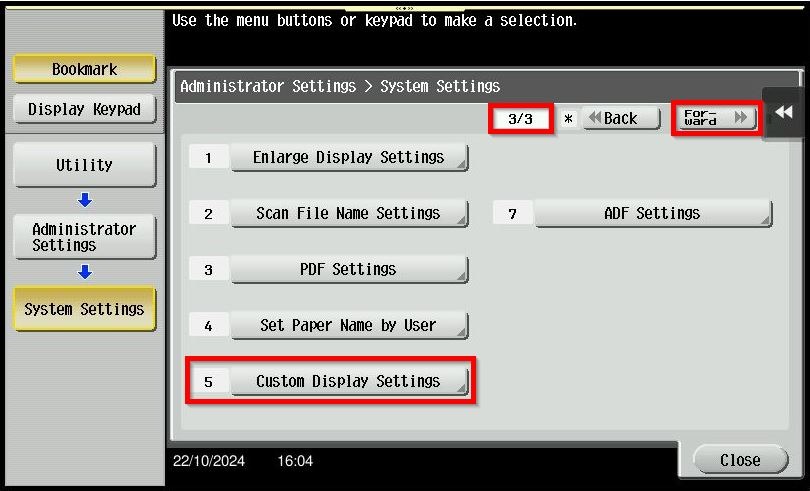
STEP 5 – Click [Forward] button to page 3 and select [Custom Display Settings].
STEP 6 – Select [Main Menu Default Settings].
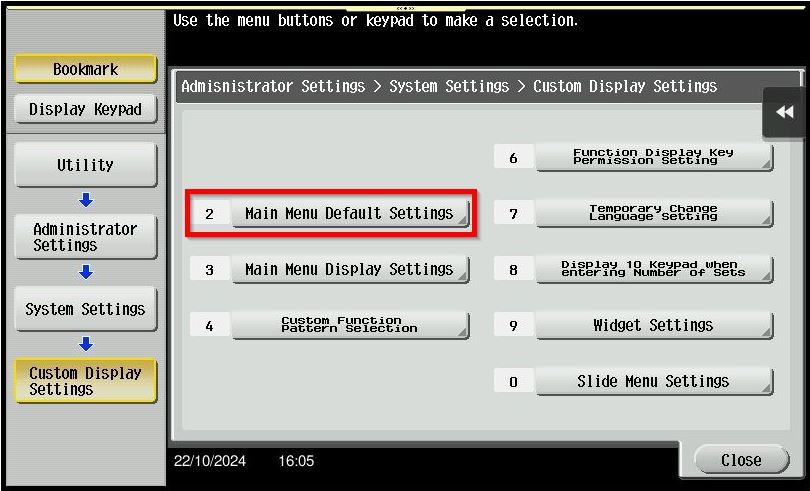
STEP 7 – Select any Main Menu Key under [Do Not Use].
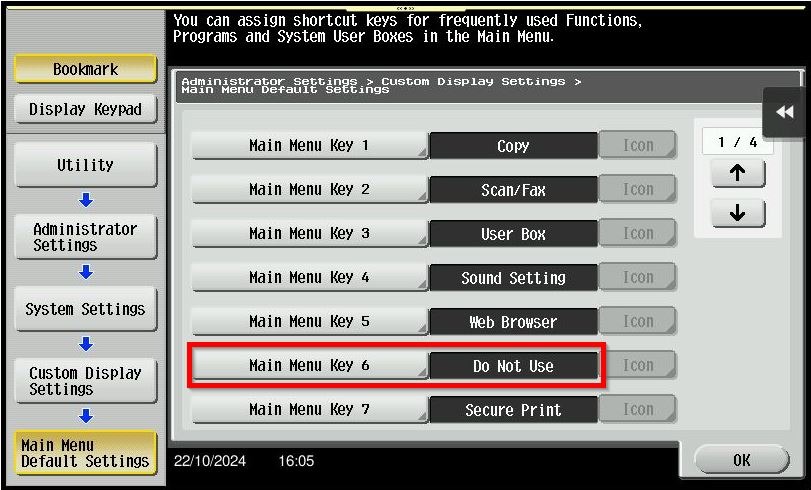
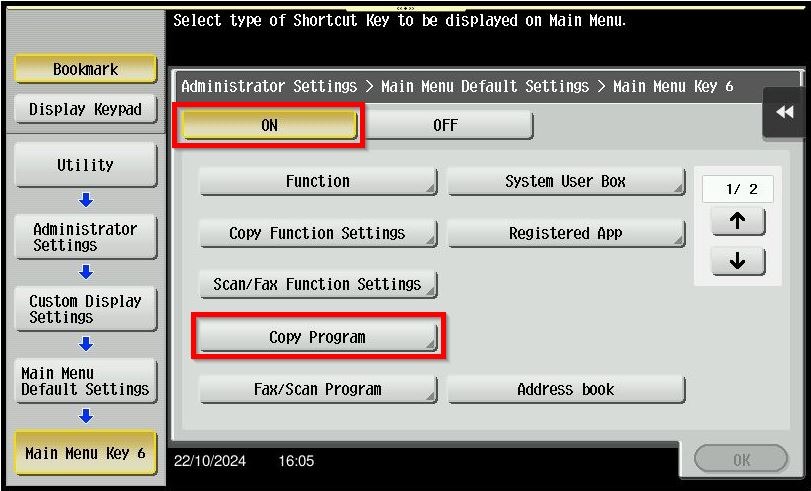
STEP 8 – Select [ON] and click on the [Copy Program].
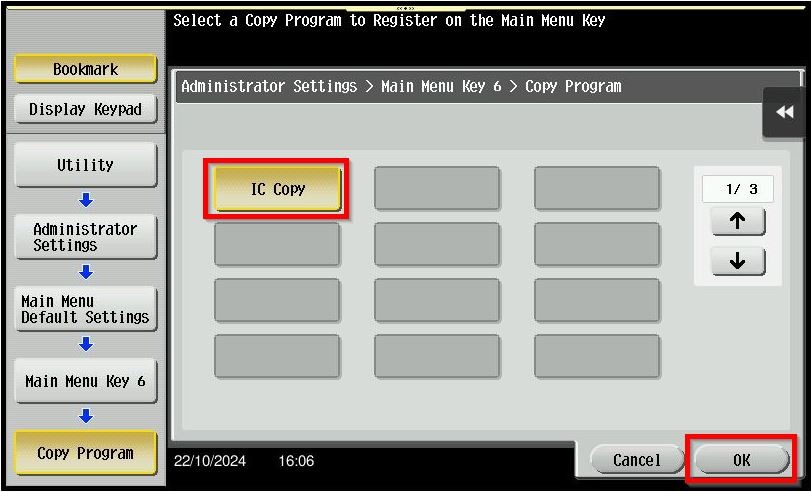
STEP 9 – Select [IC Copy] that registered and click [OK] to save. After complete the step, IC Copy shortcut will show in the main screen.
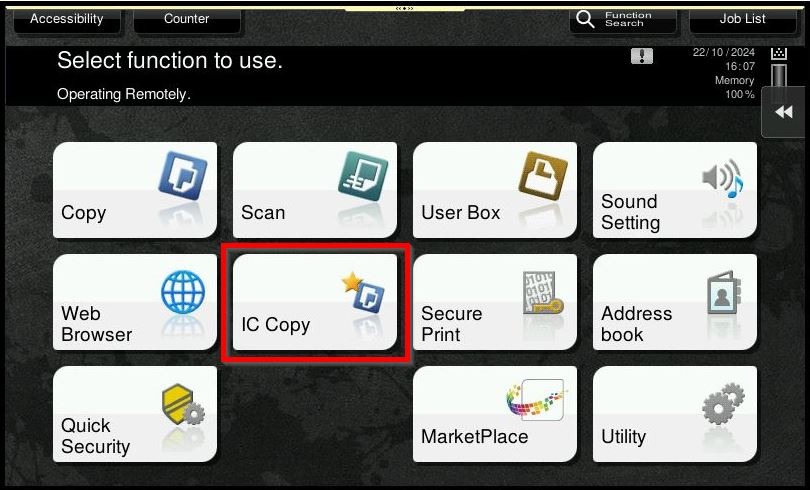
For the Newer Machine series / I-Series Machine
STEP 1 – On the Konica Minolta machine, press on [Home] button and select [Utility].
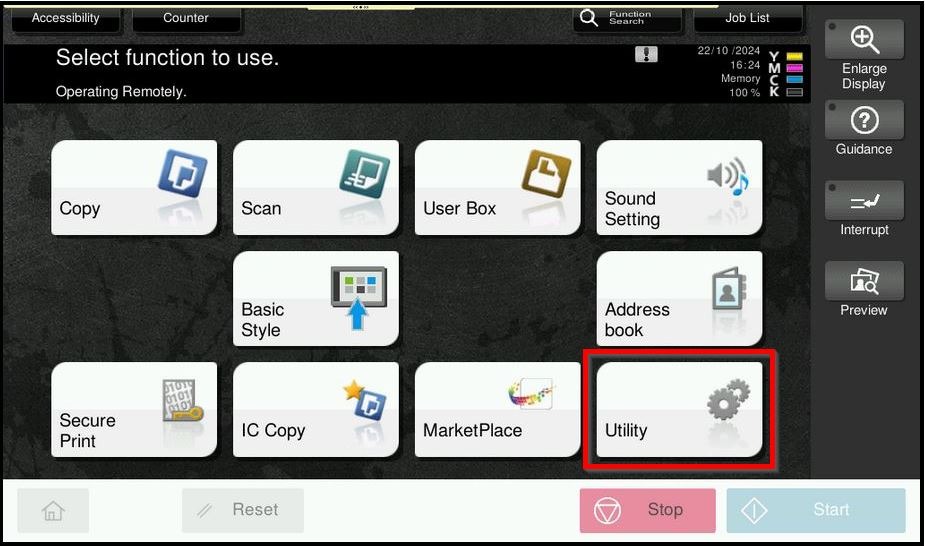
STEP 2 – Select [Administrator].
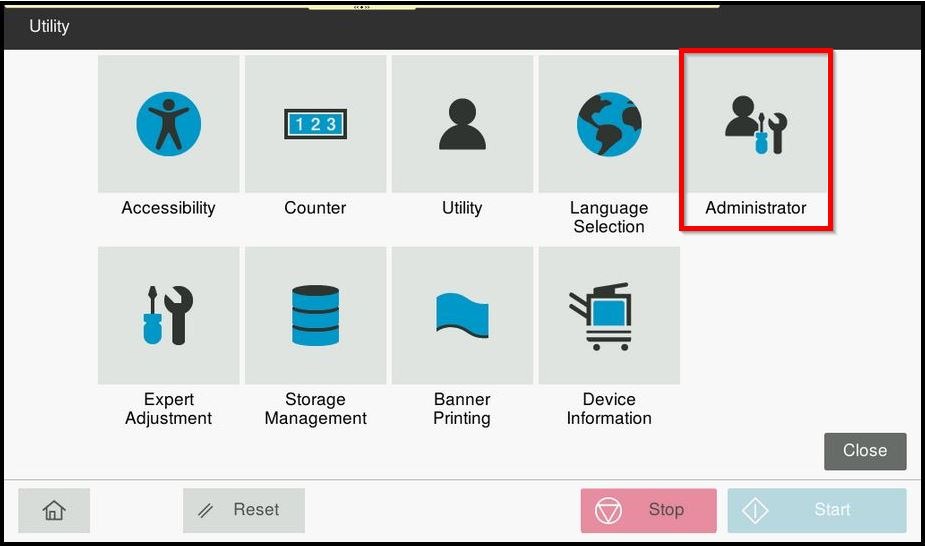
STEP 3 – Key in the default administrator password and click [OK] button.
Default administrator password:
[7801261178012611] or [1234567812345678] or [12345678] or [12341234].
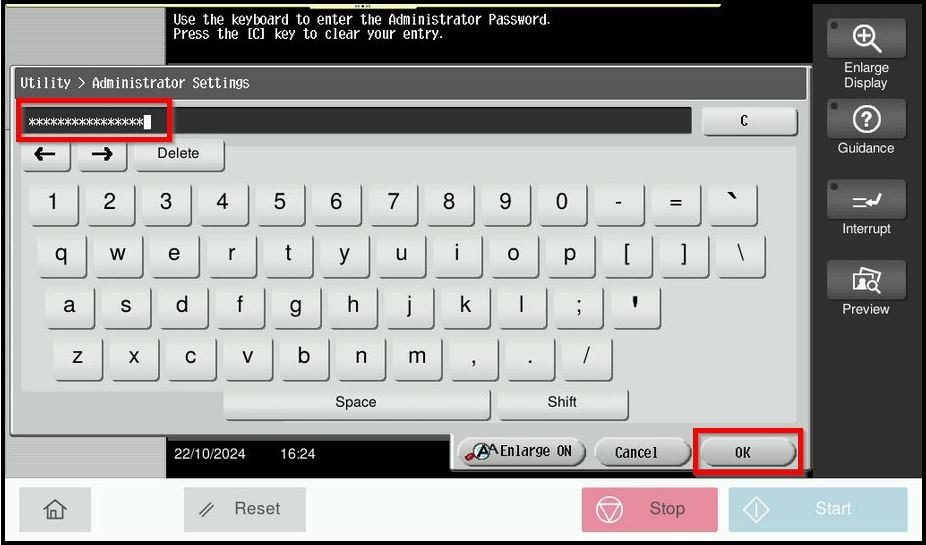
STEP 4 – Select [System Settings].
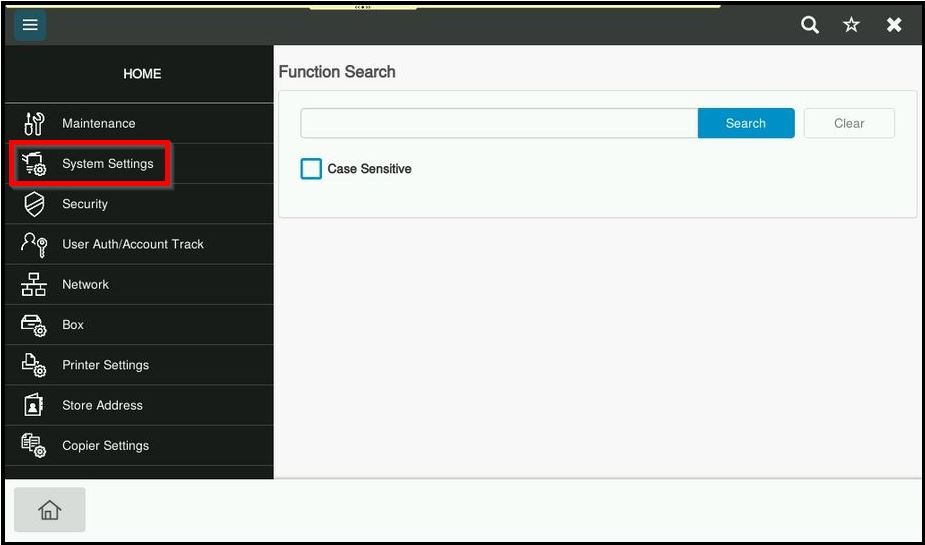
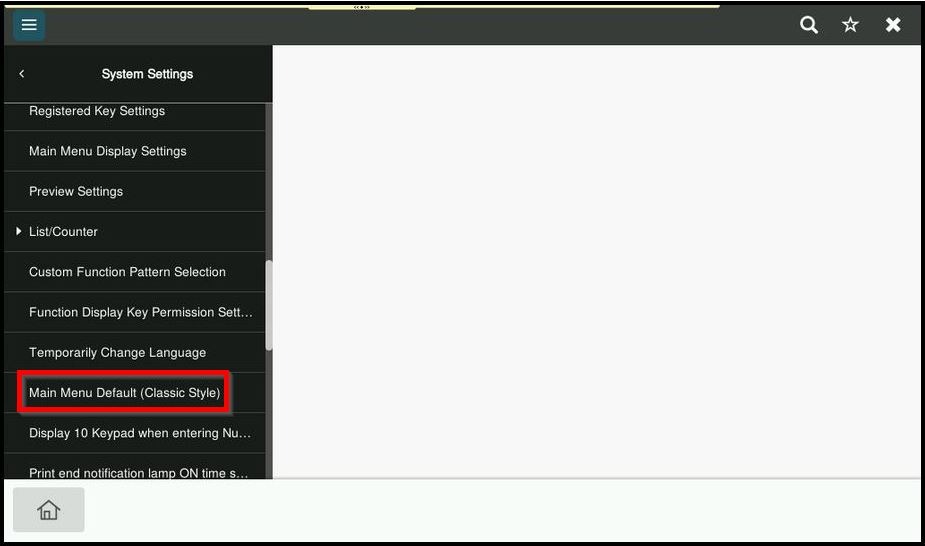
STEP 5 – Select [Main Menu Default (Classic Style)].
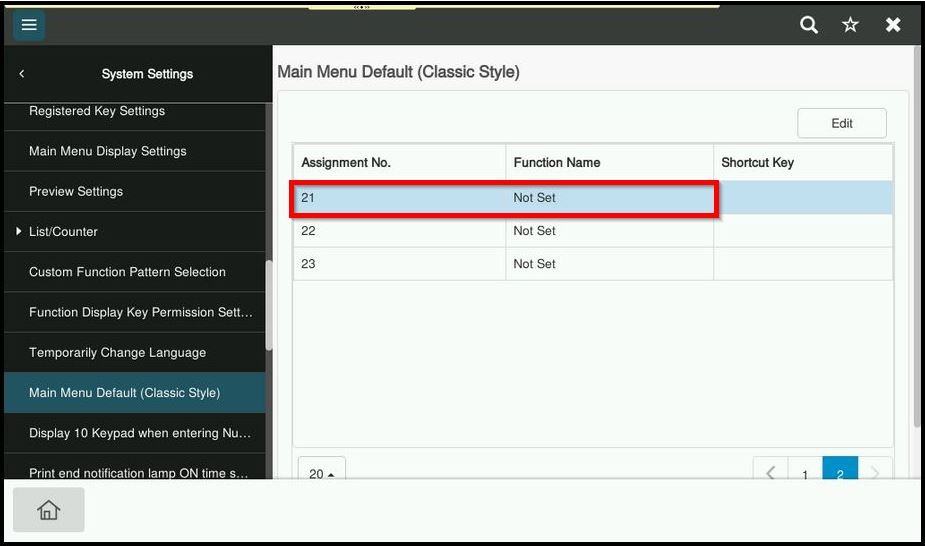
STEP 6 – Select any Assignment No. under [Not Set].
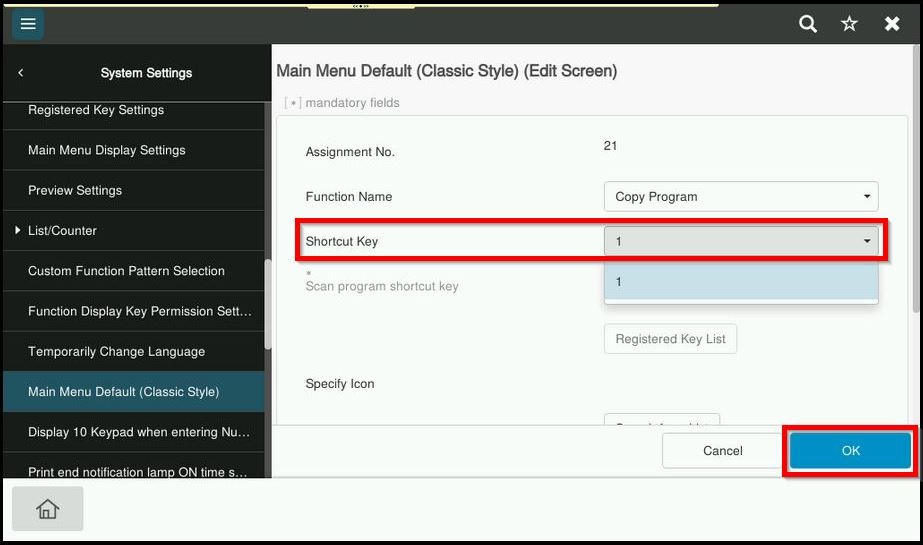
STEP 7 – Under the Function Name select [Copy Program].
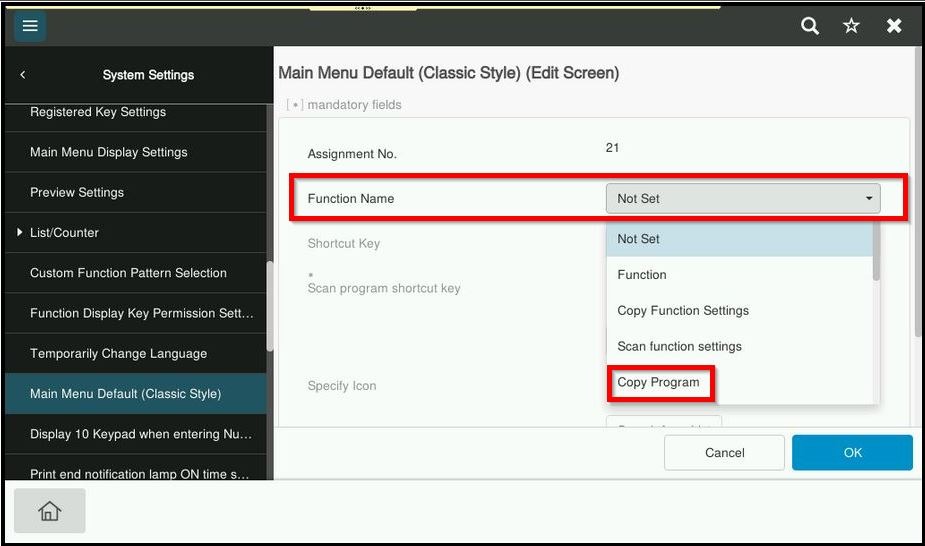
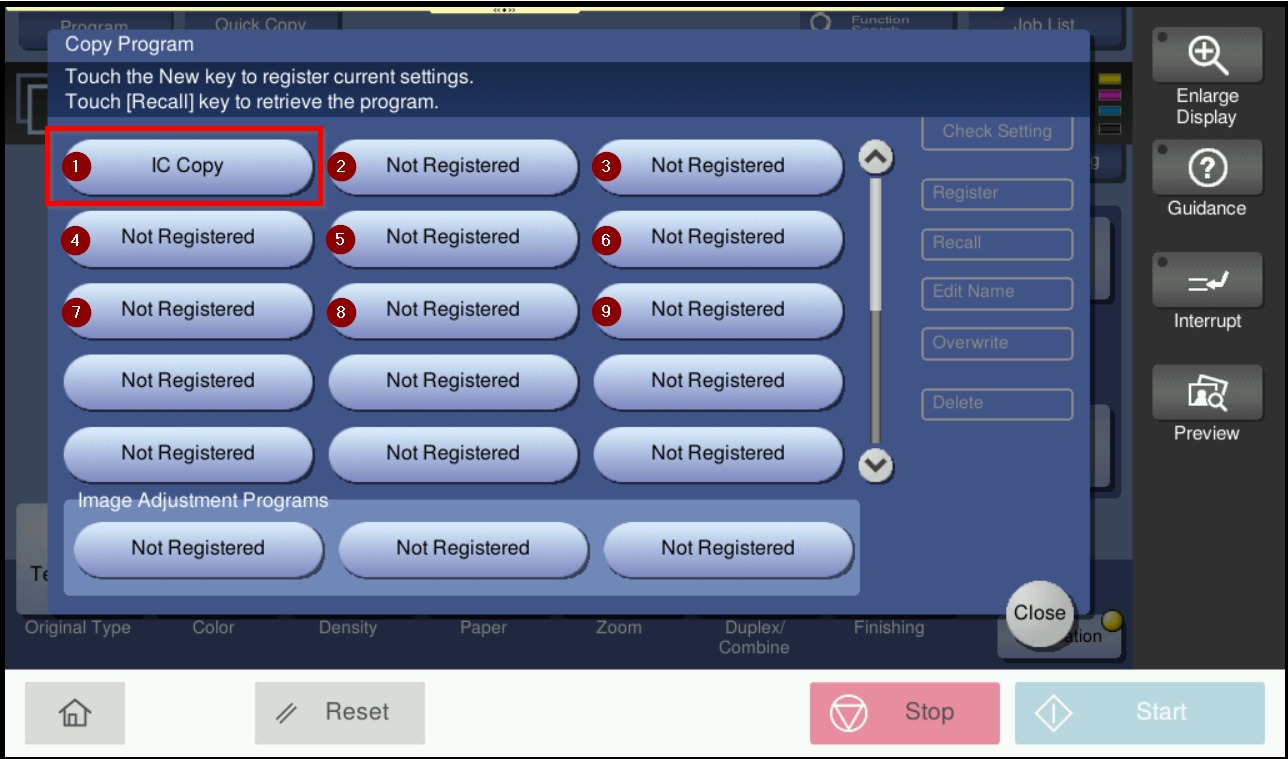
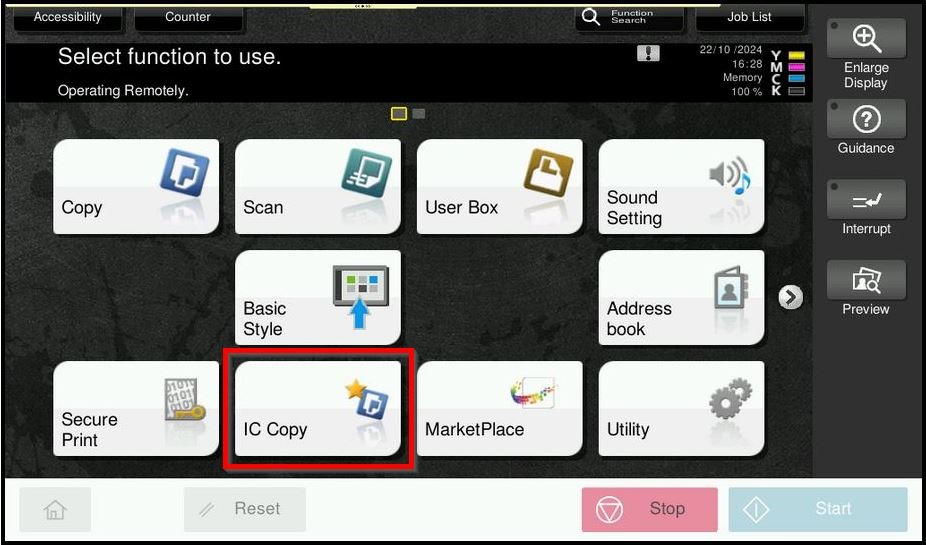
STEP 8 – Under the Shortcut Key select [1](refer back to the program registration that registered) and click [OK] to save. After complete the step, IC Copy shortcut will show in the main screen.