Guide On How To Resolve Can’t Print Via Bypass Tray When Using Konica Minolta Mobile Apps.
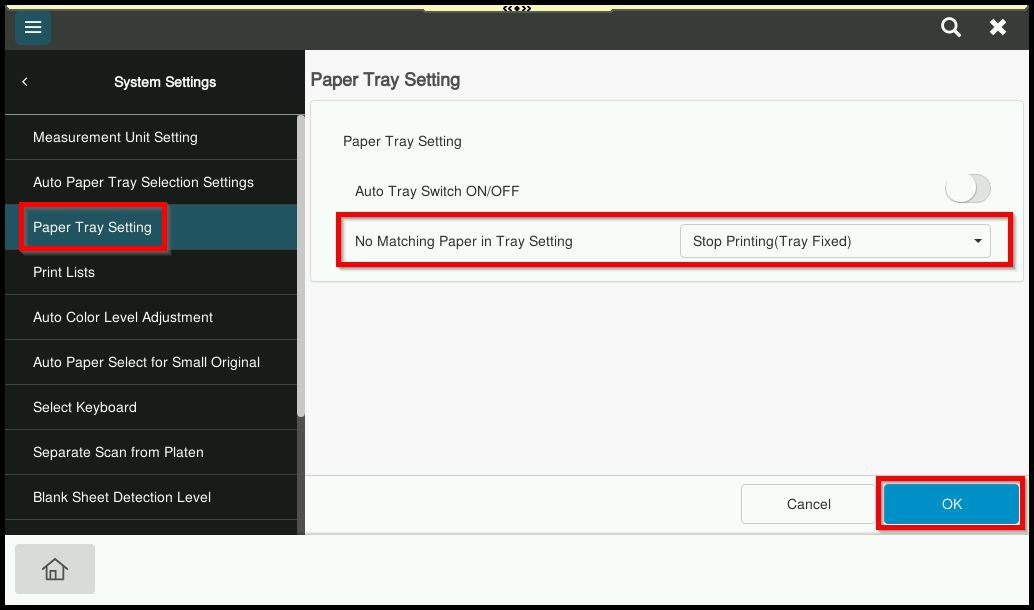
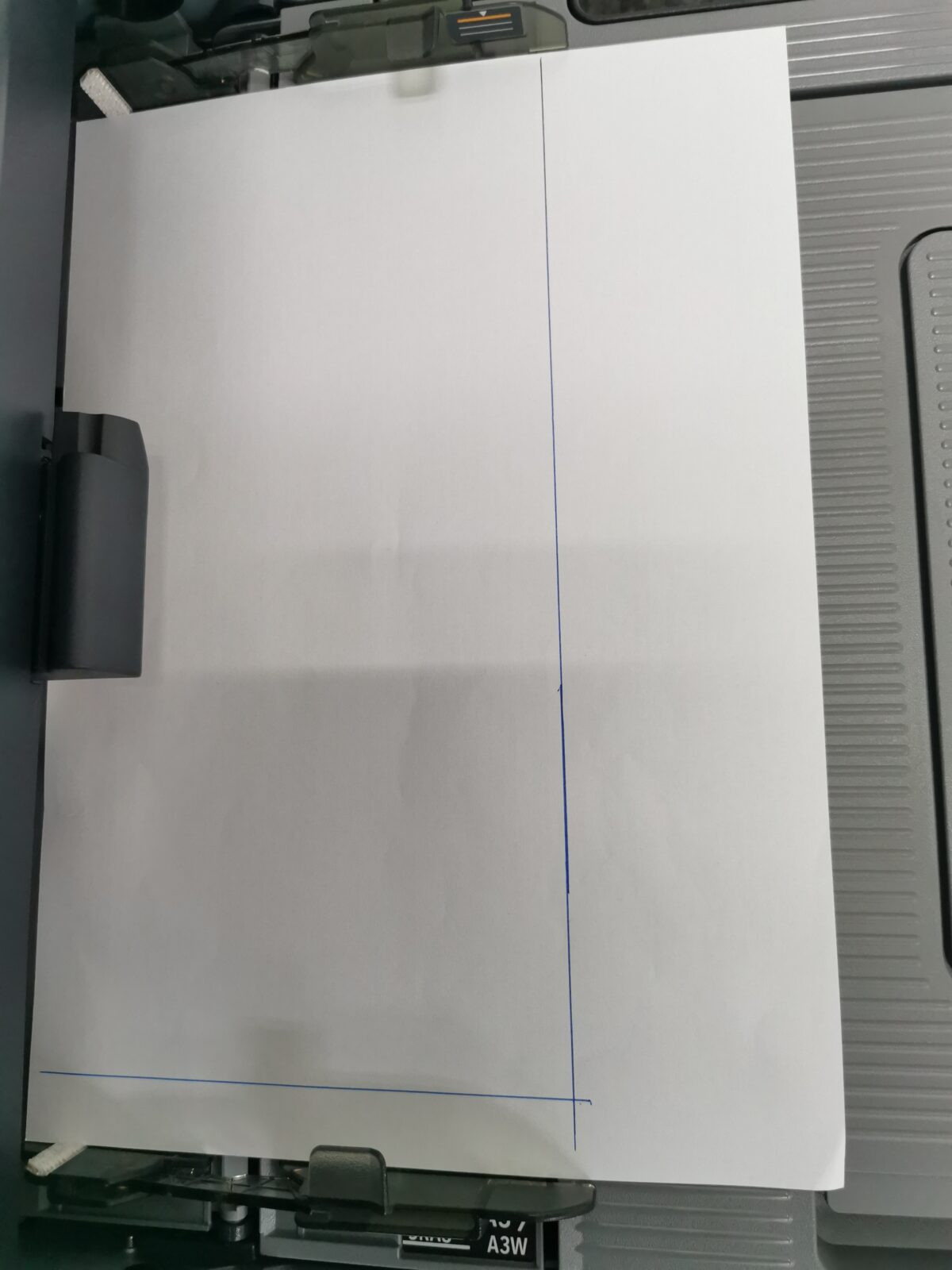
Attention: Please ensure A4 paper is loaded in portrait orientation in the bypass tray. Otherwise, the printer may use others tray for printing.
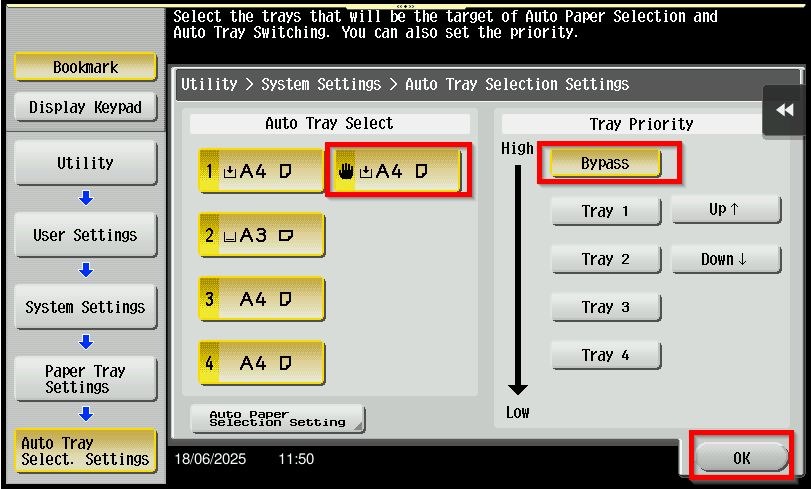
If the bypass tray is set as the first tray under priority order, it may affect printing from the PC. The PC will use the bypass tray as default if no specific paper tray is selected in the printer driver settings.
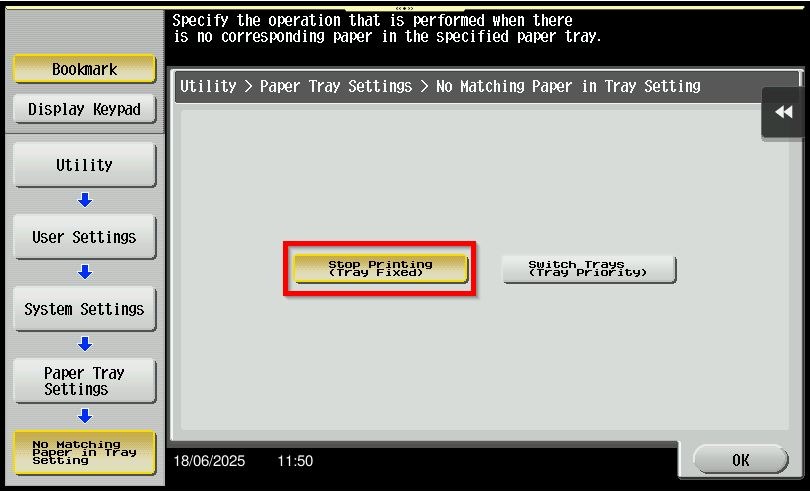
For The Older Machine Series / Non I-Series Machine
STEP 1 – Select [Utility].
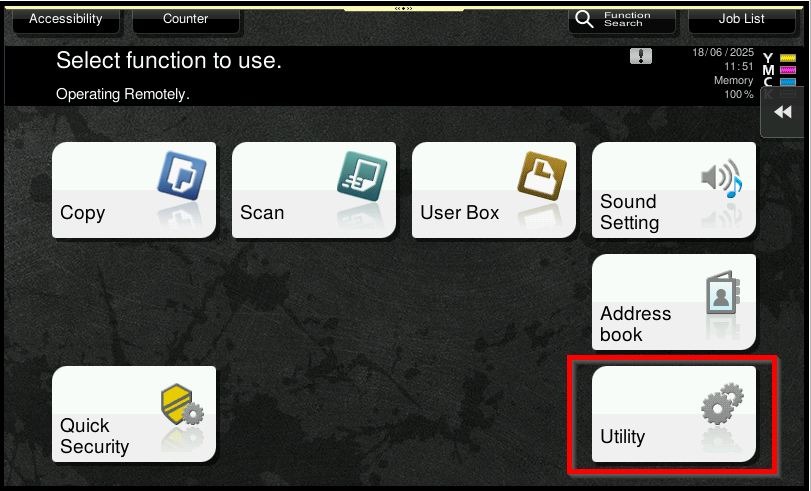
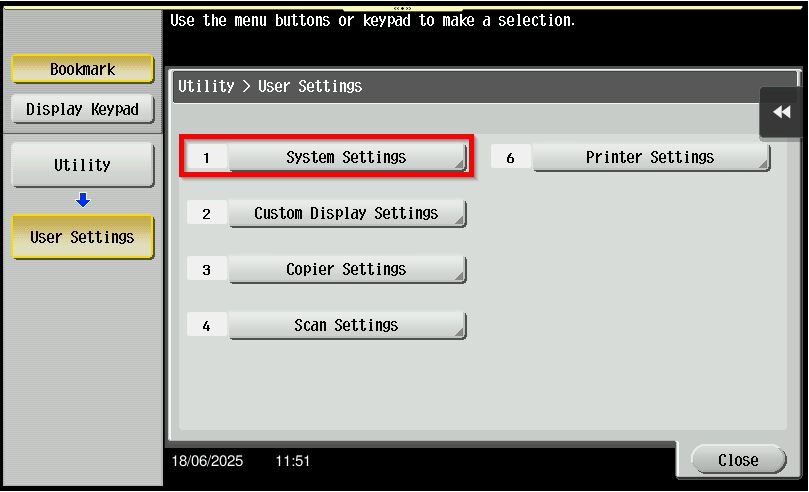
STEP 2 – Choose [User Settings].
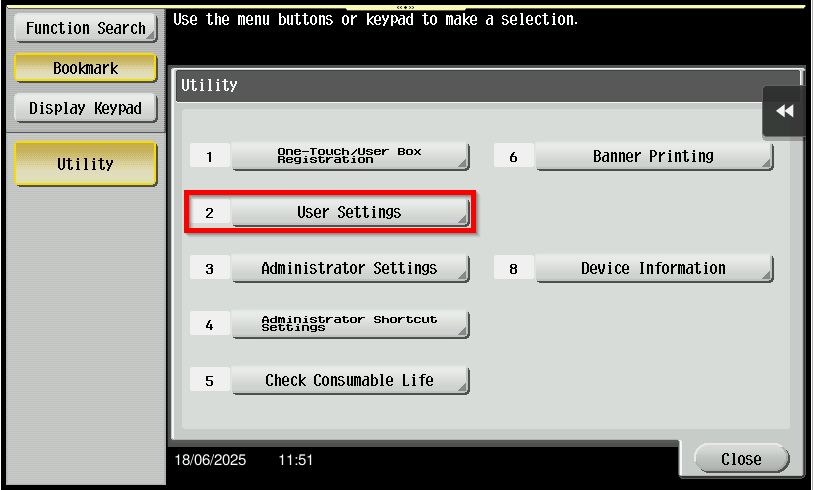
STEP 3 – Select [System Settings].
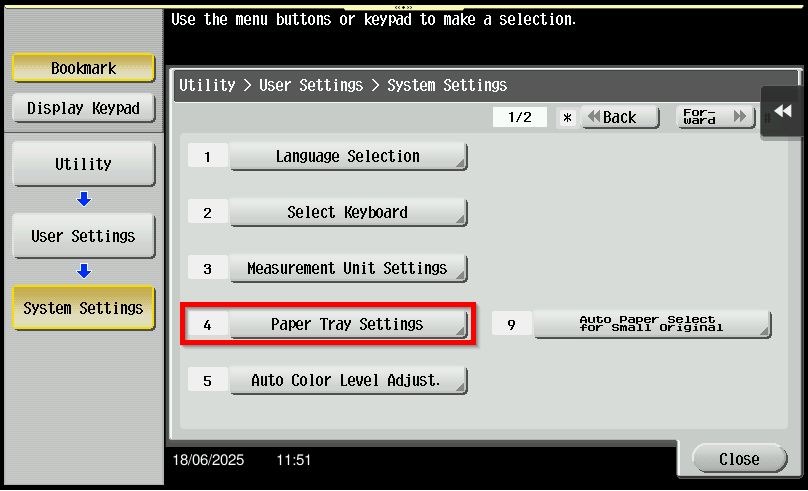
STEP 4 – Choose [Paper Tray Settings].
STEP 5 – Select [Auto Tray Selection Settings]. Make sure the [Bypass Tray] is enable in Auto Tray Select and is on the first tray under Tray Priority. You may click on the up down button to change the tray priority and click [OK] to save.
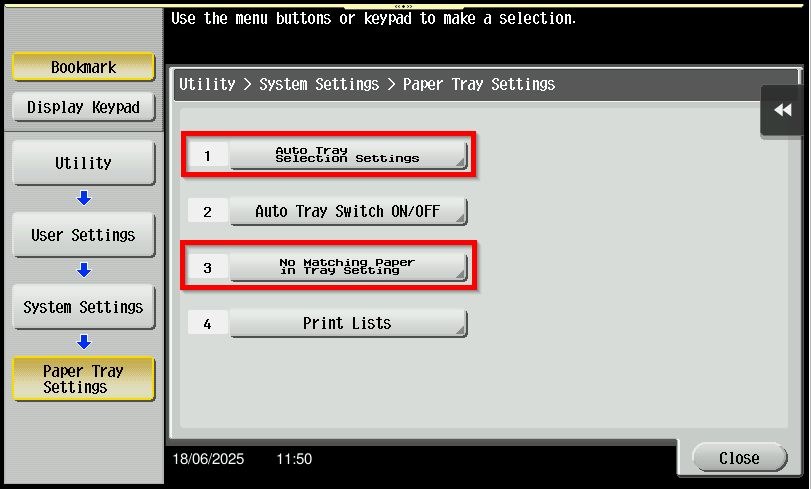
STEP 6 – Select [No Matching Paper In Tray Setting] – [Stop Printing (Tray Fixed)] and click [OK] to save.
For The Newer Machine Series / I-Series Machine
STEP 1 – On the Konica Minolta machine control panel, click on the [Home] button then select [Utility].
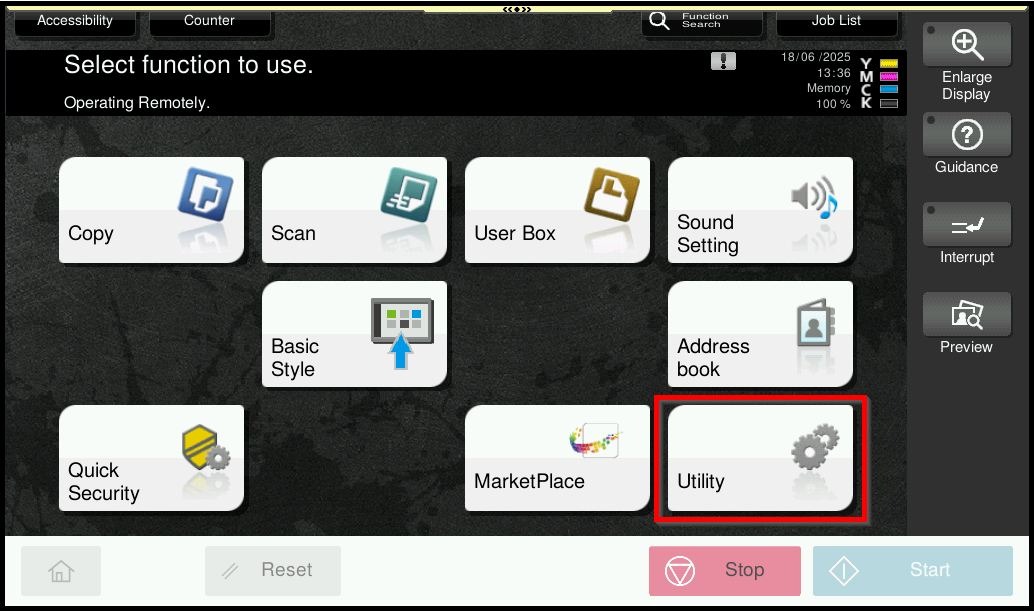
STEP 2 – Select [Utility] again.
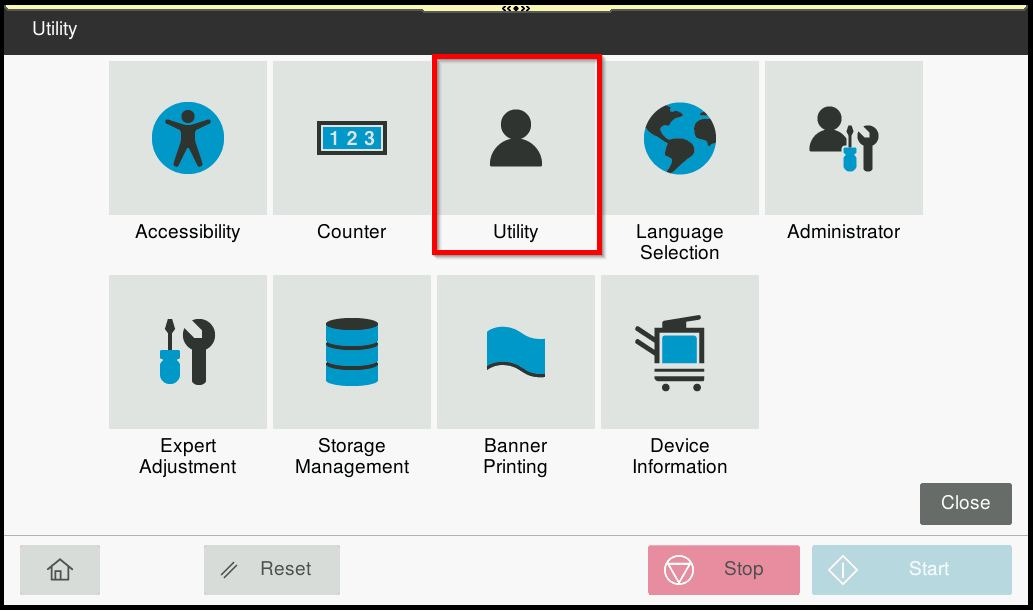
STEP 3 – Select [System Settings].

STEP 4 – Select [Auto Paper Tray Selection Settings] – [Paper Tray Setting].
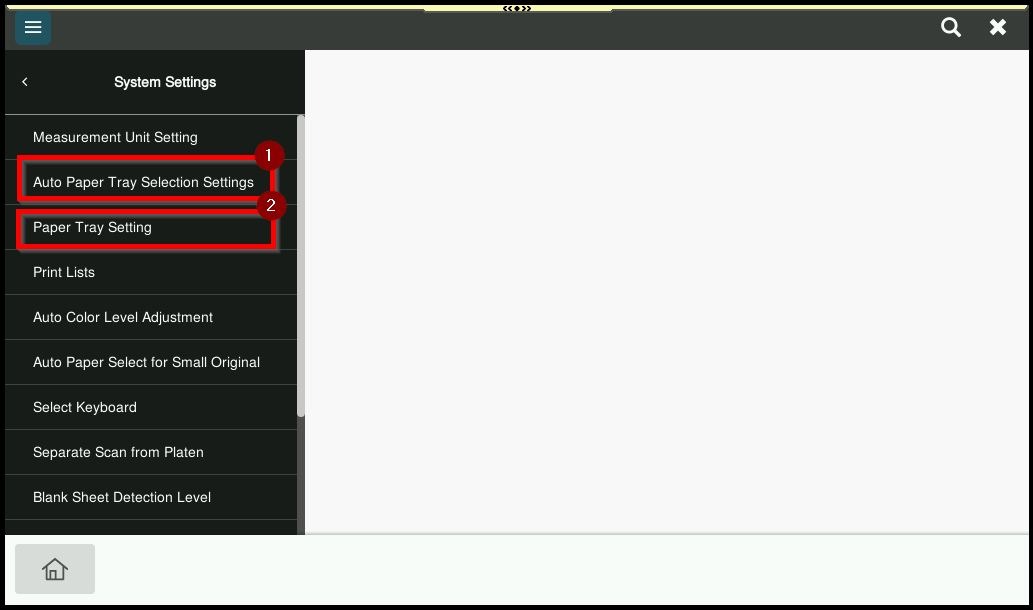
STEP 5 – Select [Auto Tray Selection Settings]. Make sure the [Bypass Tray] is tick in Auto Tray Selection Settings and is on the first tray under Priority Order. You may click on the up down button to change the tray priority and click [OK] to save.
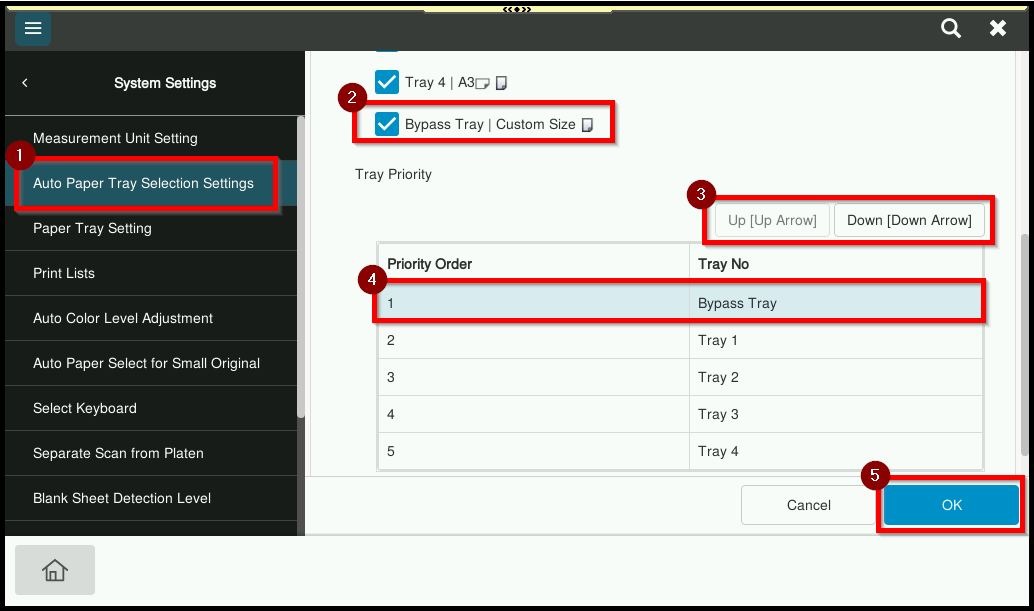
STEP 6 – Select [Paper Tray Setting] – [No Matching Paper In Tray Setting] – select [Stop Printing (Tray Fixed)] and click [OK] to save.