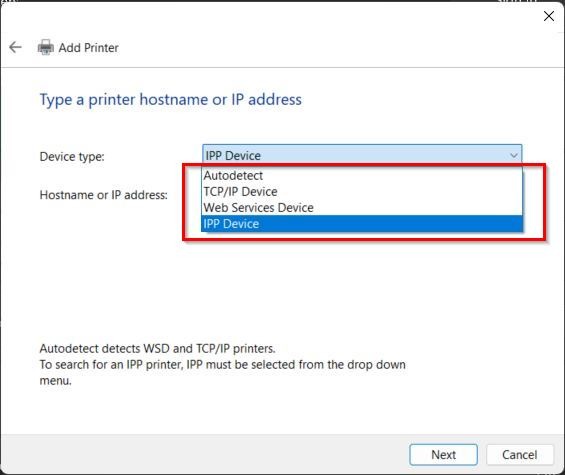
Guide on how to resolved the issue that add printer via TCP/IP device option not found or failed to install under Universal Printer Driver (only on Window 11)
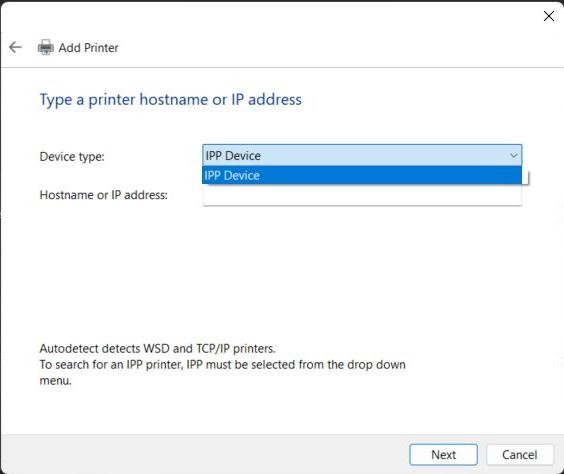
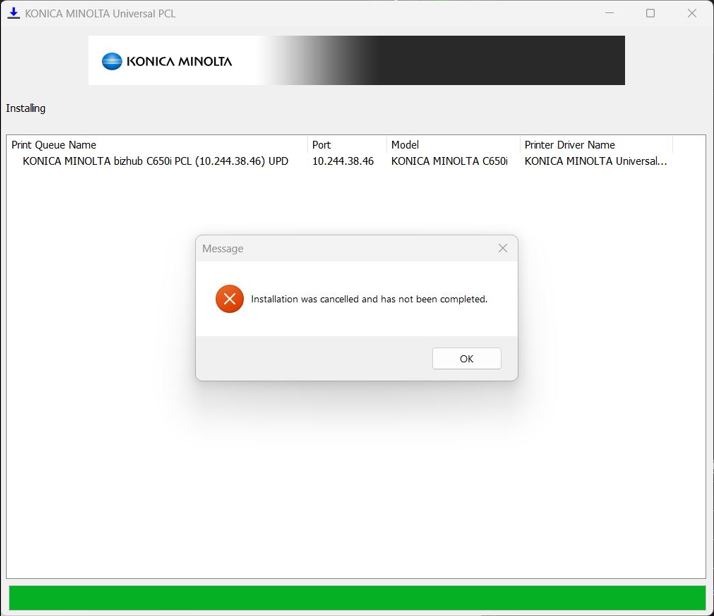
This issue might caused by a new feature in Windows 11 called Windows Protected Print Mode (WPP). When WPP is enabled, it can prevent printer drivers from installing properly. To resolve this, you need to disable this feature. Kindly follow below step on how to turn off this function on window 11.
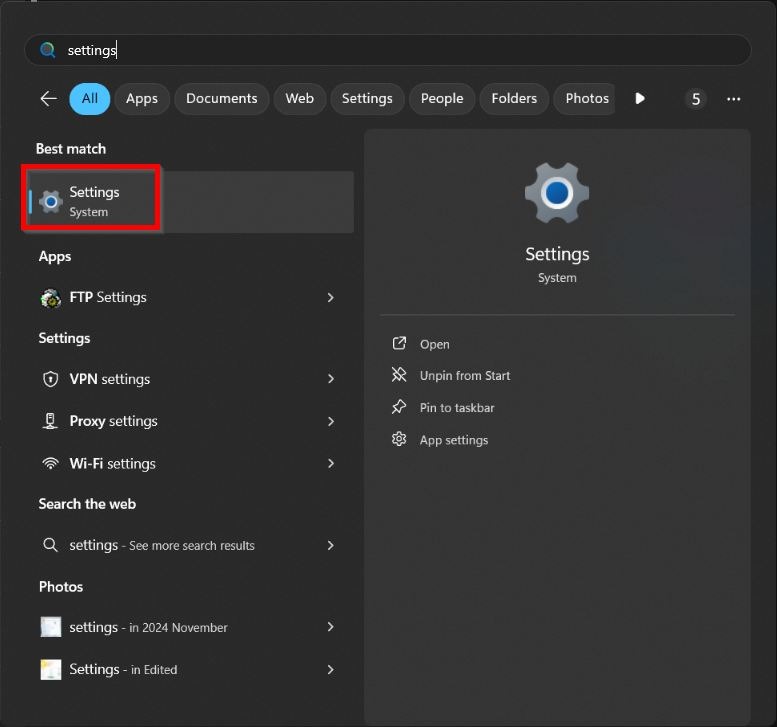
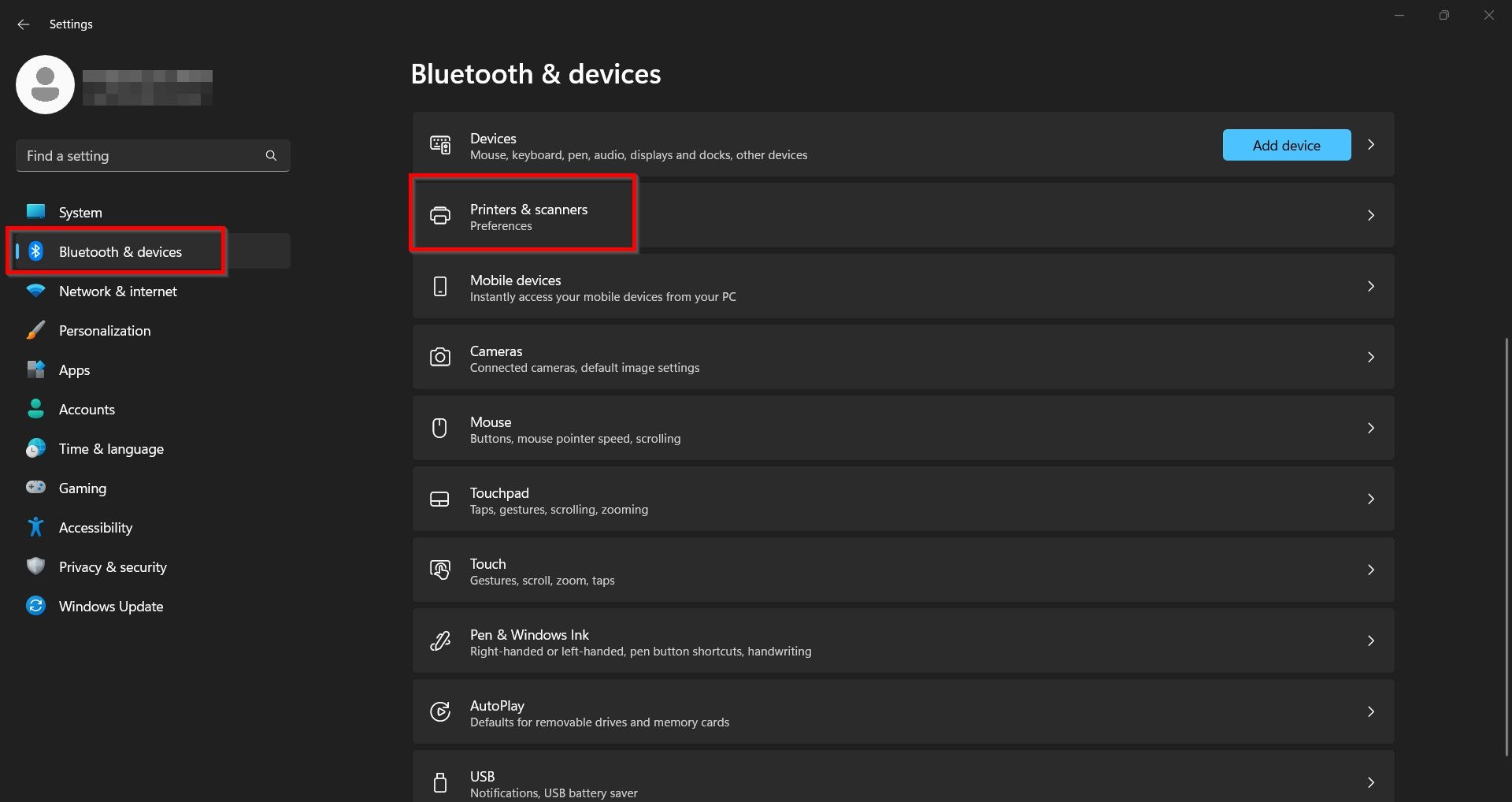
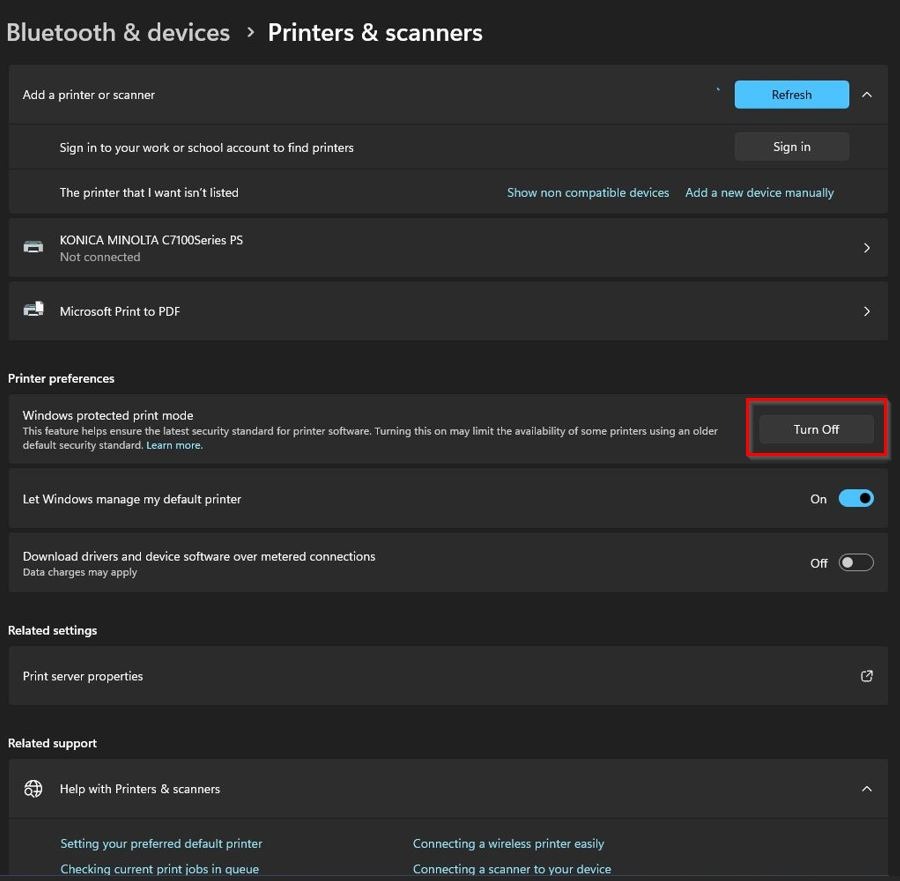
STEP 1 – Proceed to open the Windows [Settings], navigate to [Bluetooth & Devices] > [Printer & Scanners]. Under the Printer Preferences and select [Turn Off] the Windows Protected Print Mode (WPP).
STEP 2 – After completing all these steps, the TCP/IP Device option will display out from the previous hidden option, allowing you to proceed with the printer driver installation.