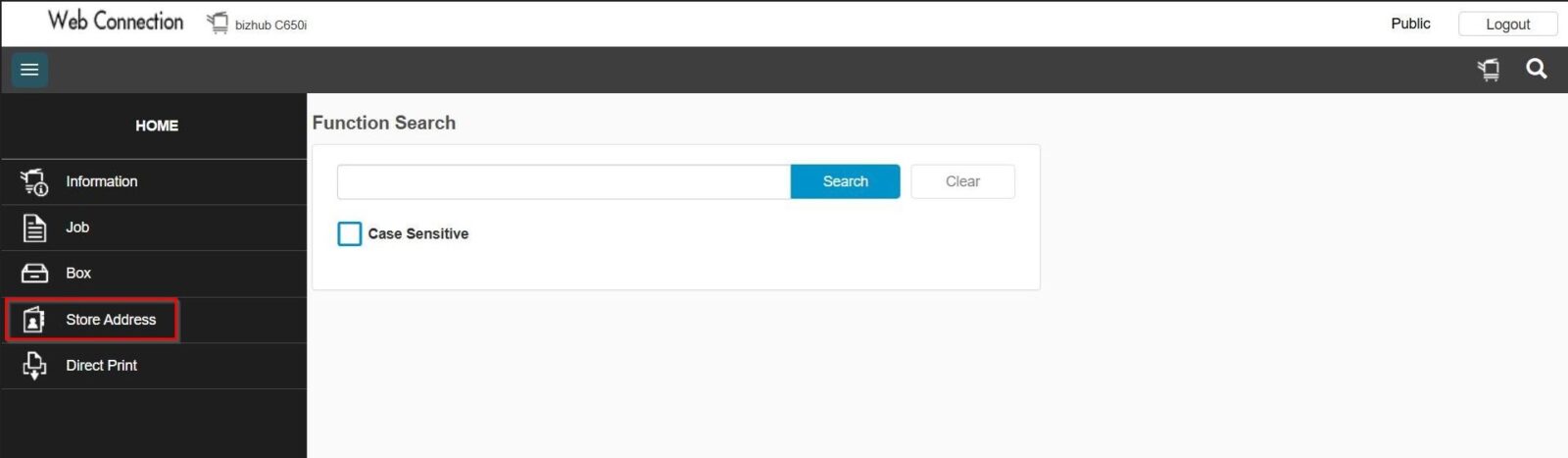
Guide on how to resolve the issue unable to view store address under public user on web connection & machine
By default, the store address option is available under public user. However, in some cases the store address option might be missing and and users may not be able to edit registration details. If this happens, you need to enable the [Registering and Changing Addresses] function in administrator mode. Kindly follow the step below to turn on this function, so that the store address option will be visible and users can edit their registration details.
For the Older Machine series / Non I-Series Machine
Before enabling the function, the store address will not be visible in public user mode
How To allow registering and changing addresses on Photostat Machine
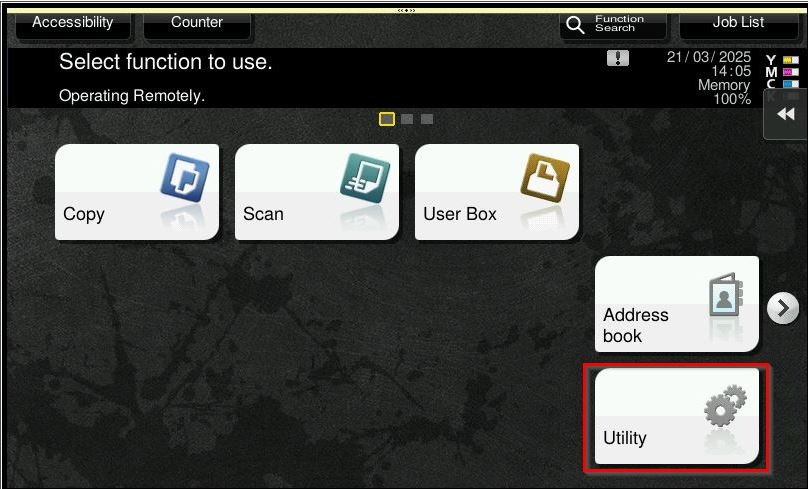
STEP 1 – On the Konica Minolta machine control panel, click on the [Menu] button then select [Utility].
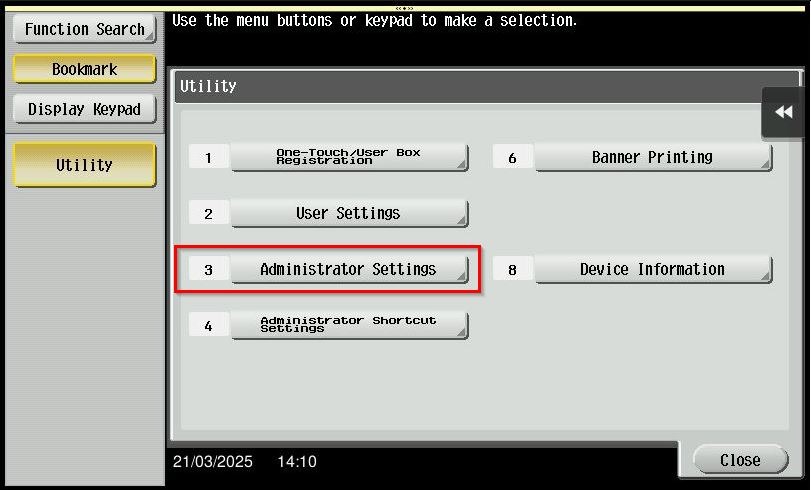
STEP 2 – Select [Administrator Settings].
STEP 3 – Key in the default administrator password and click [OK] button.
Default administrator password: [7801261178012611] or [1234567812345678] or [12345678] or [12341234].
**If the default administrator password not able to login, kindly refer to the IT for the password.
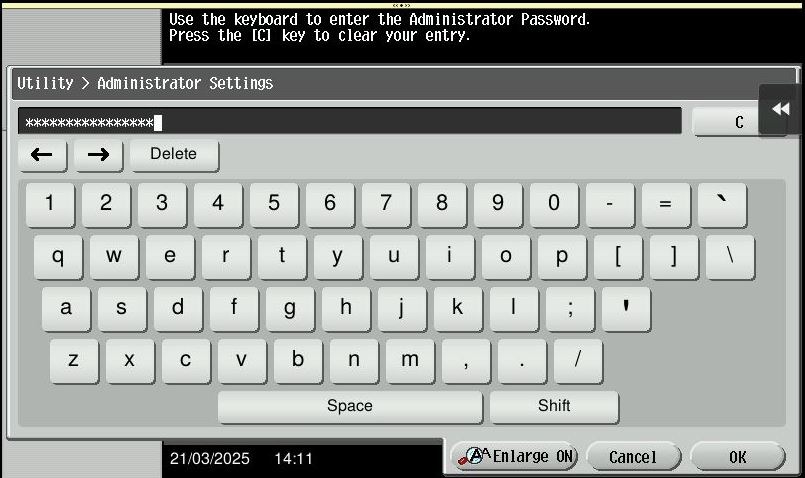
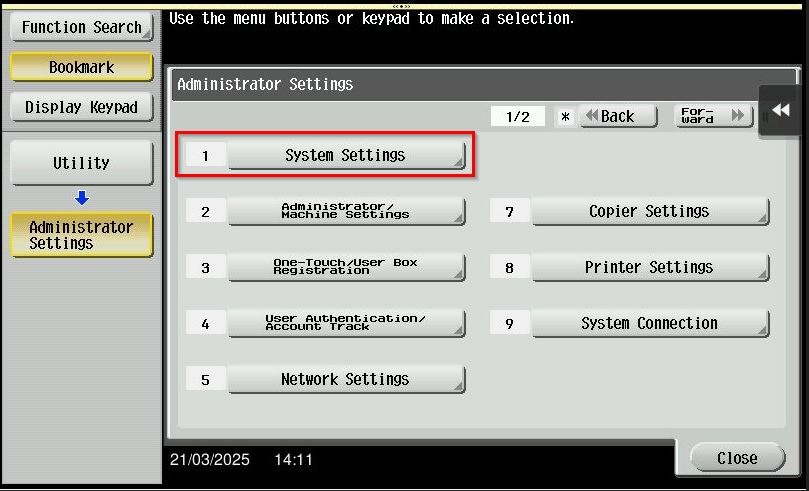
STEP 4 – Select [System Settings].
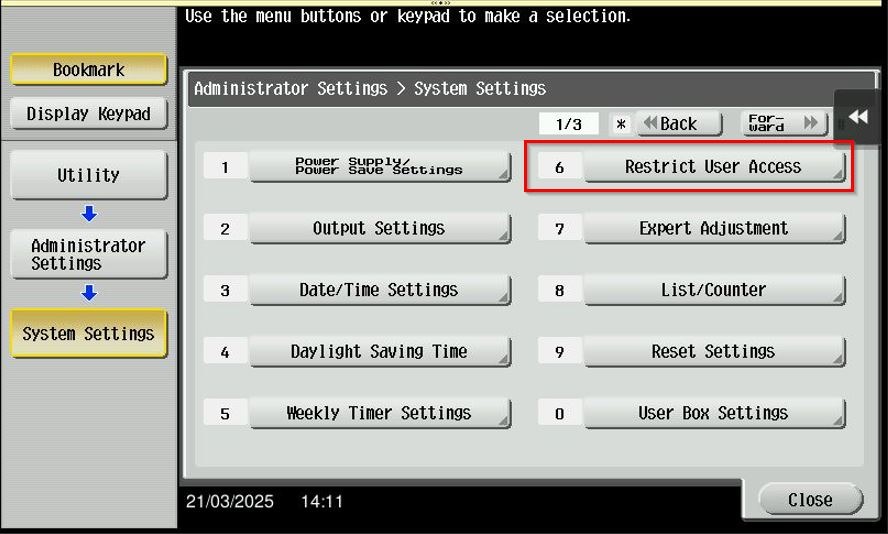
STEP 5 – Click on [Restrict User Access].
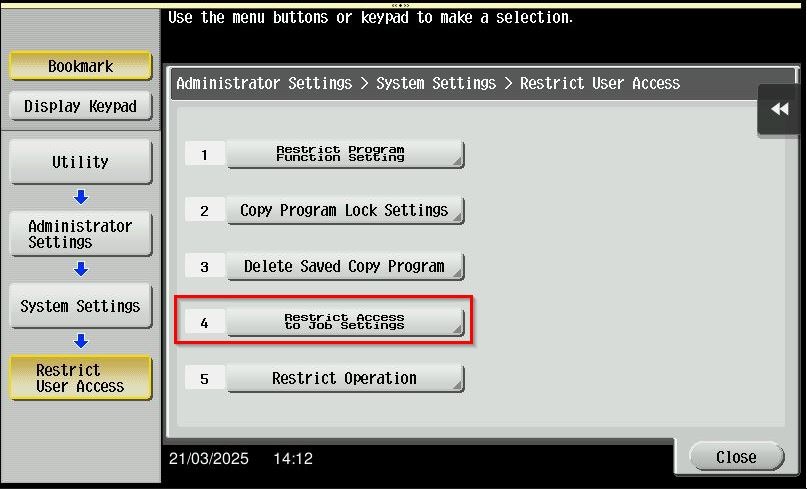
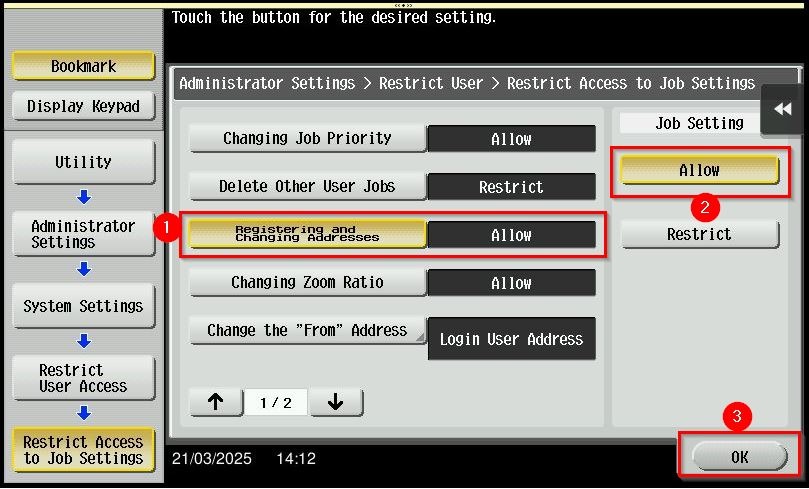
STEP 6 – Proceed to [Restrict Access to Job Settings] – [Registering and Changing Addresses], change to [Allow] instead of [Restrict]. Click on [OK] to save the setting.
STEP 7 – After save the setting, the store address will be visible on the web connection in public mode.
Click here for the guide on how to access the machine Web Connection.
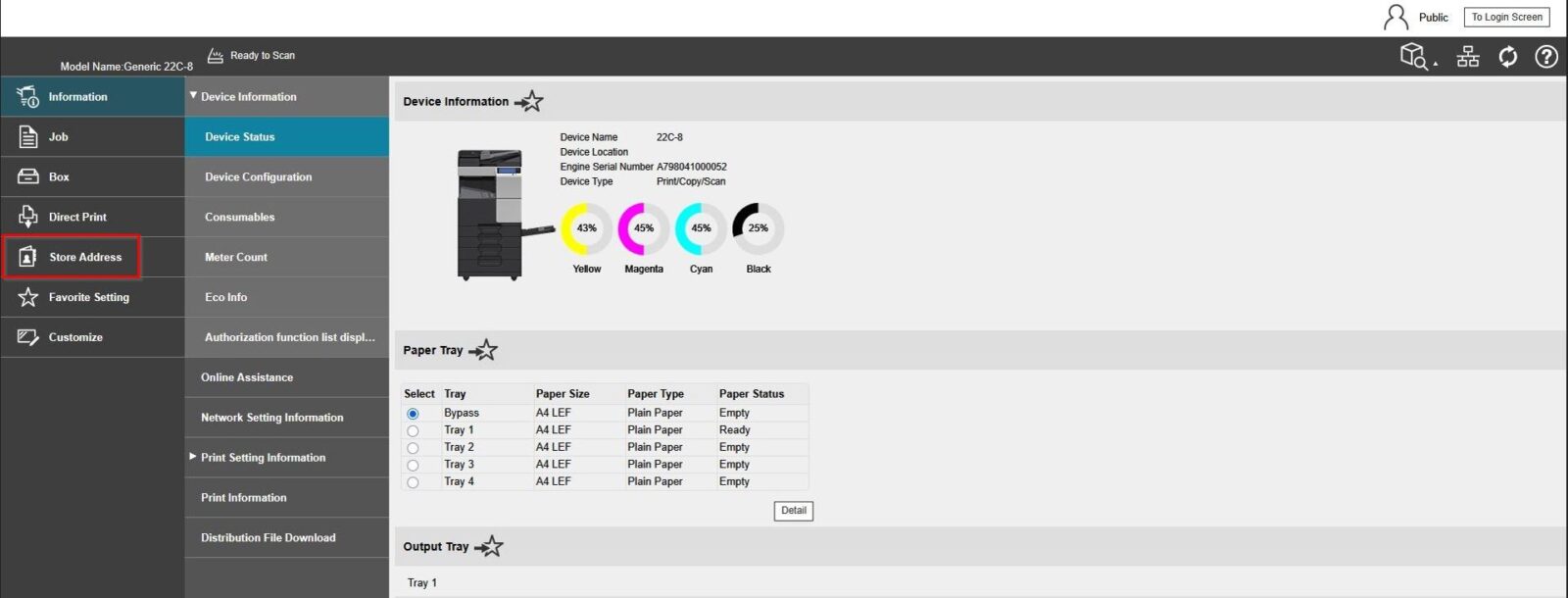
How To allow registering and changing addresses on Web Connection
STEP 1 – At the web browser, enter the ip address of the Konica Minolta. Click here for the guide on how to get the machine IP Address.
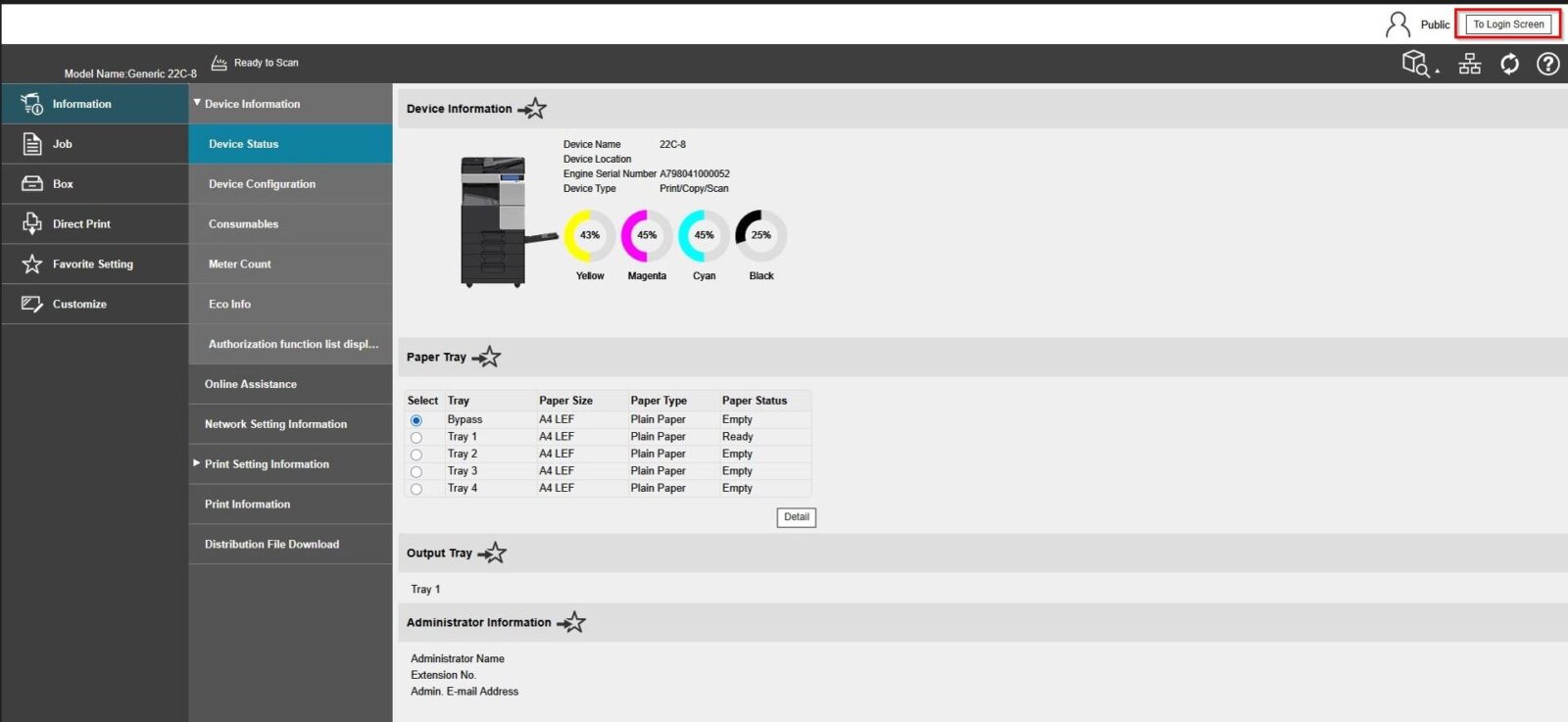
STEP 2 – Select [To Login Screen] to logout from public user, skip this step if the webpage is already on login page.
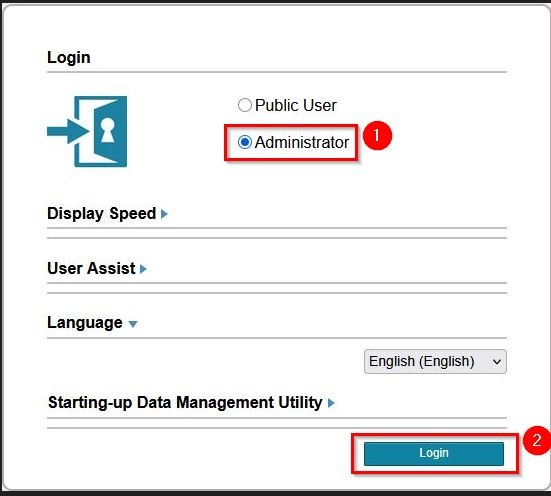
STEP 3 – Select [Administrator] and click on [Login].
STEP 4 – Key in the default administrator password and click [OK] button.
Default administrator password: [7801261178012611] or [1234567812345678] or [12345678] or [12341234].
**If the default administrator password not able to login, kindly refer to the IT for the password.
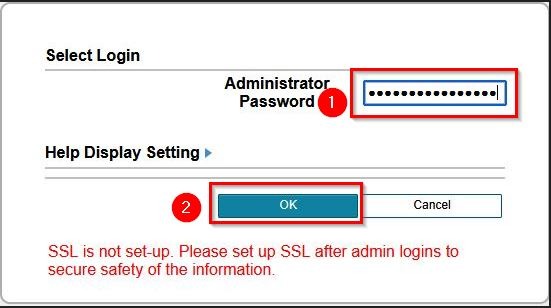
STEP 5 – Select [Security] – [Restrict User Access], change to [Allow] under Registering and Changing Addresses option. Then click [OK] to save the setting.
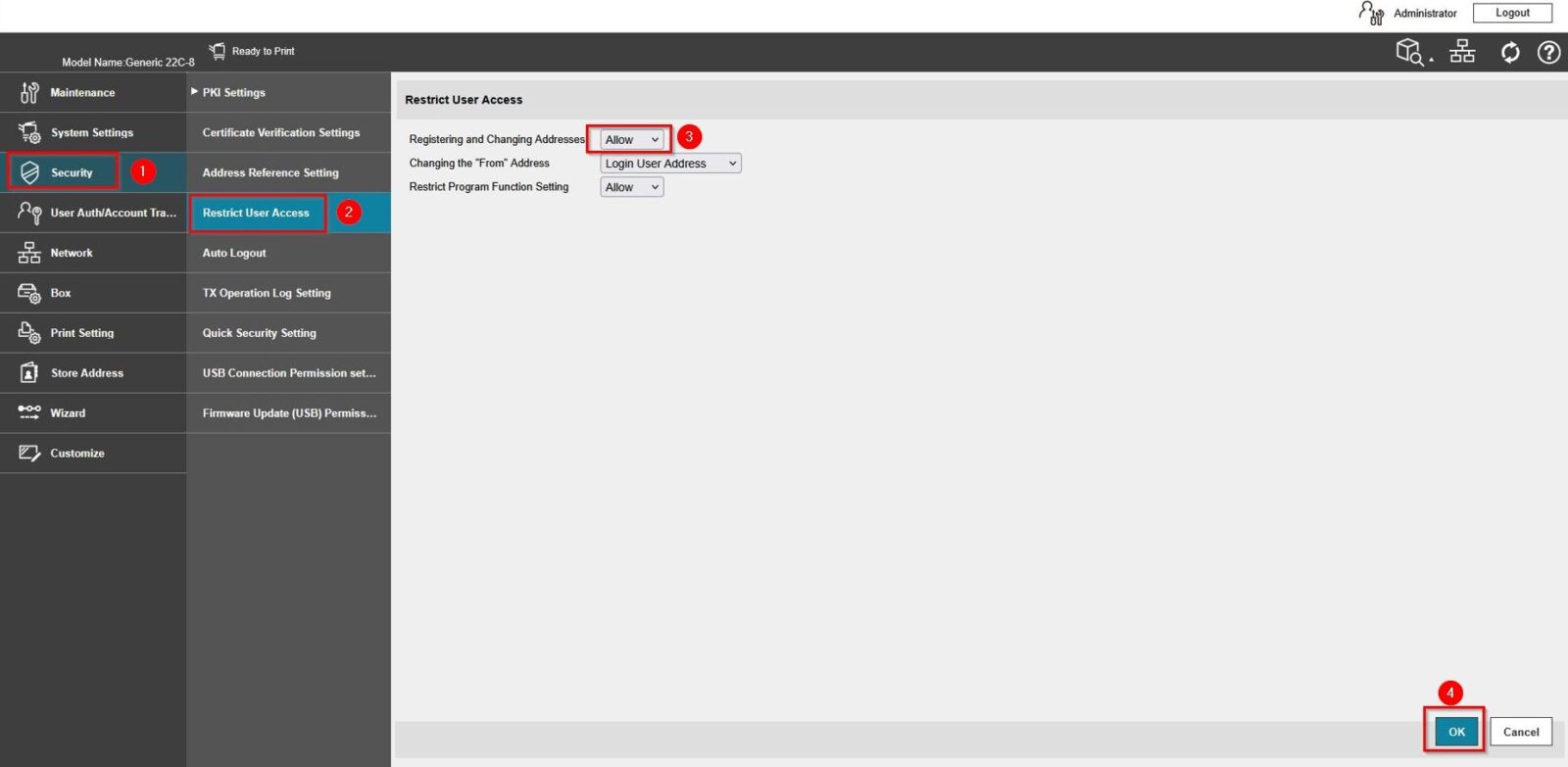
STEP 6 – After save the setting, the store address will be visible on the web connection in public mode.
Click here for the guide on how to access the machine Web Connection.
For the Newer Machine series / I-Series Machine
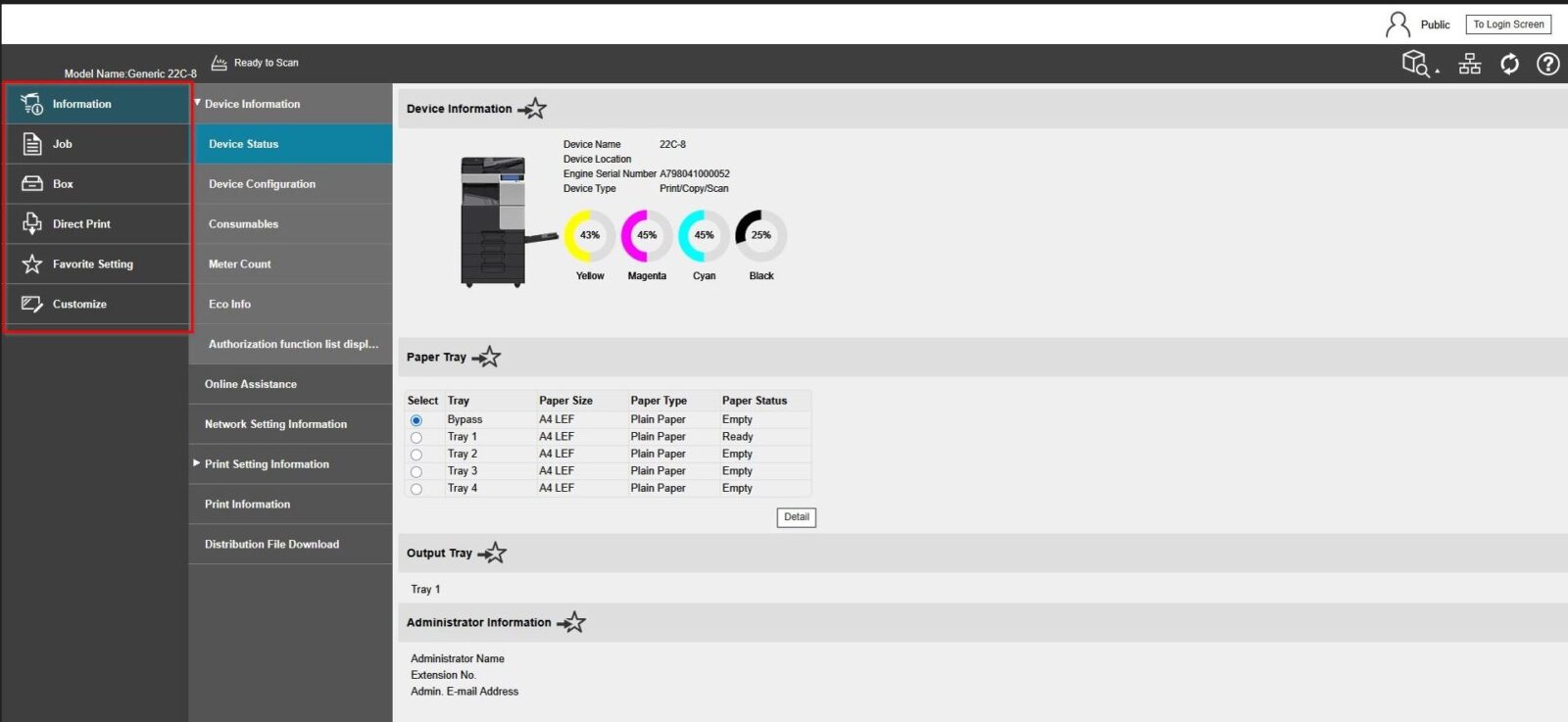
Before enabling the function, the store address will not be visible in public user mode
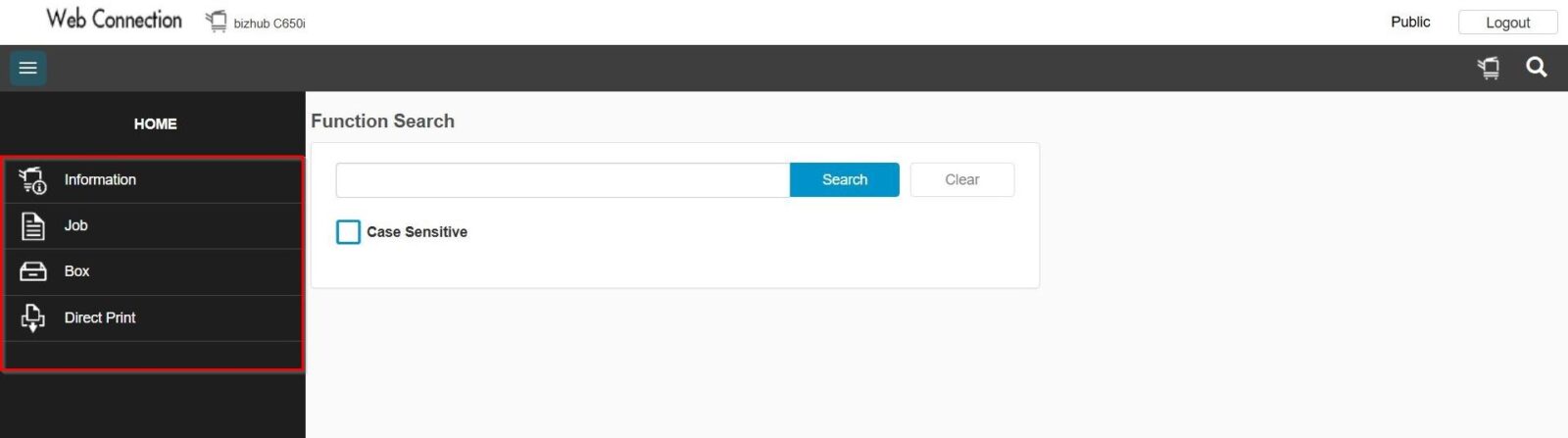
How To allow registering and changing addresses on Machine or Web Connection
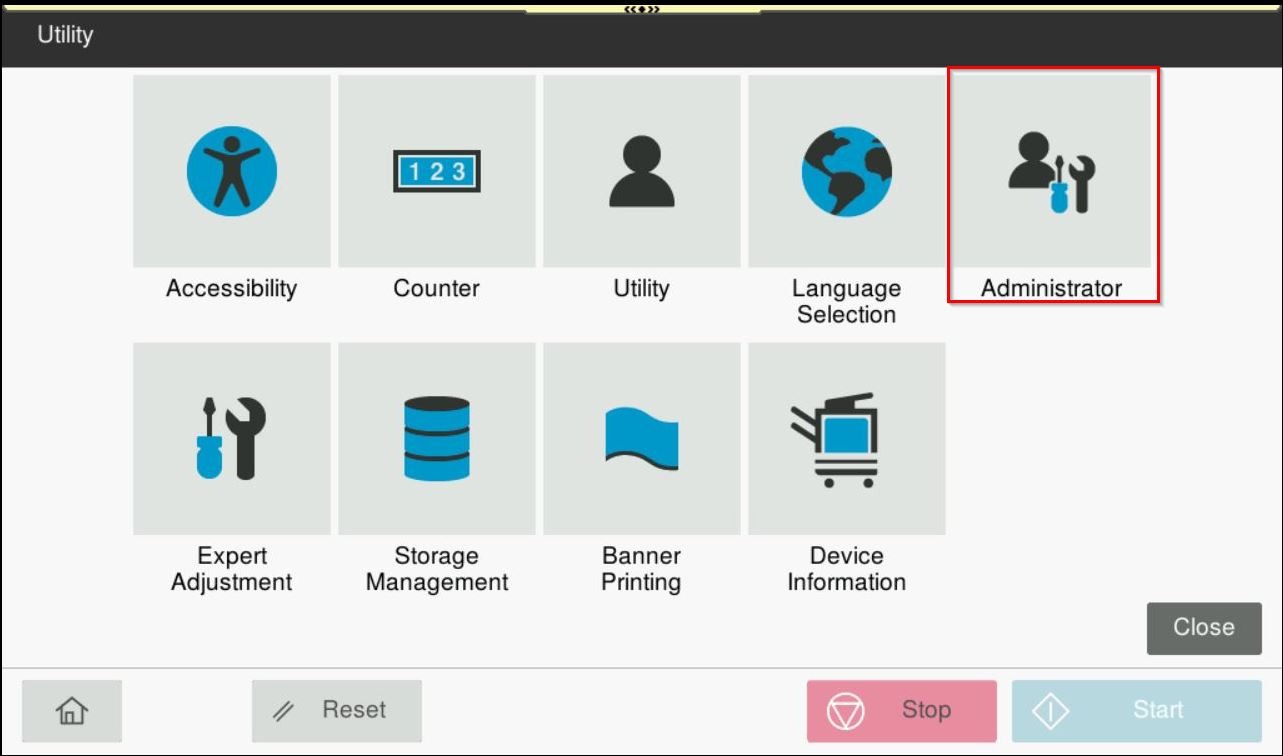
STEP 1 – Select [Home] – [Utility].
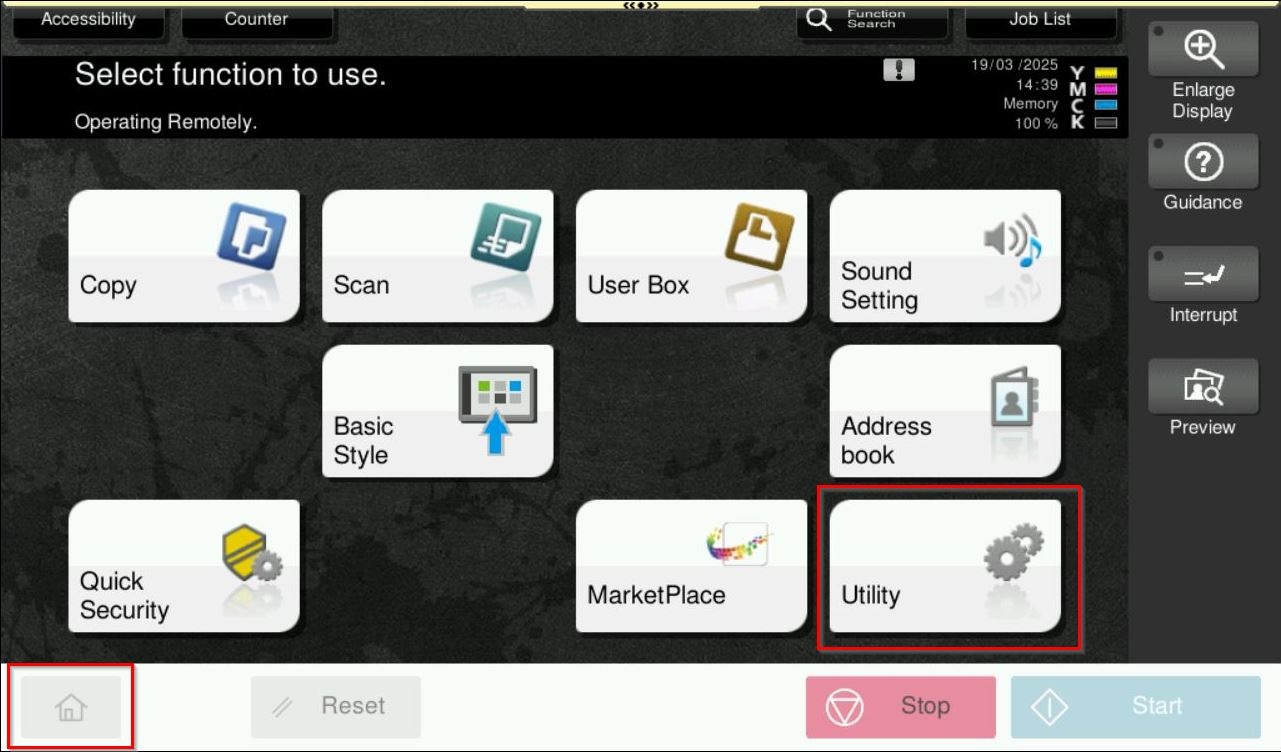
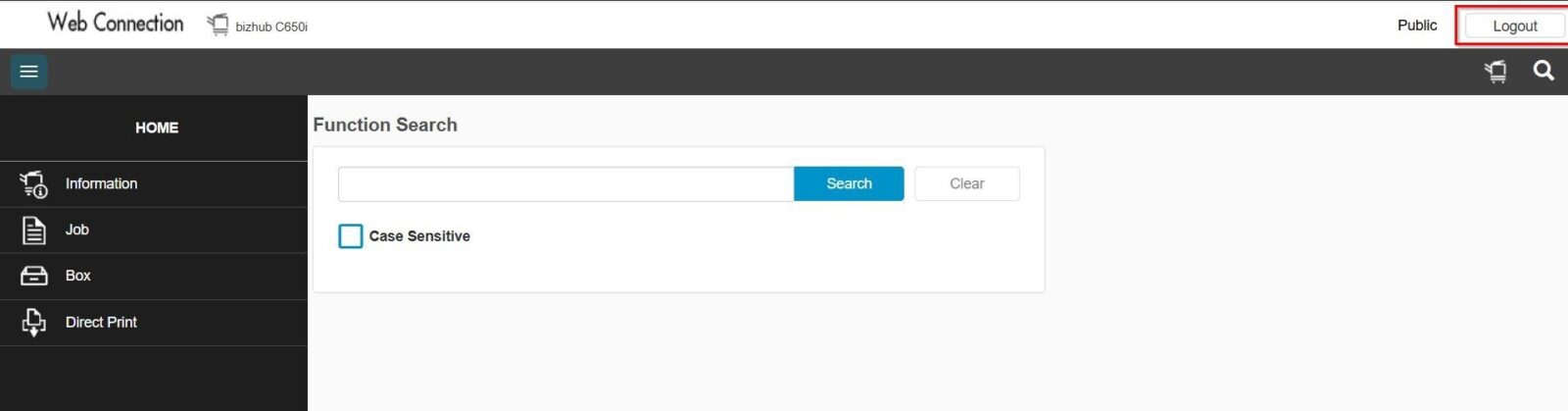
**You may access web connection page via machine IP Address. Click on this to check how to get the IP Address from machine, then key in Konica Minolta Machine IP Address at web browser and log in as admin the Web Connection.
STEP 2 – Select [Administrator].
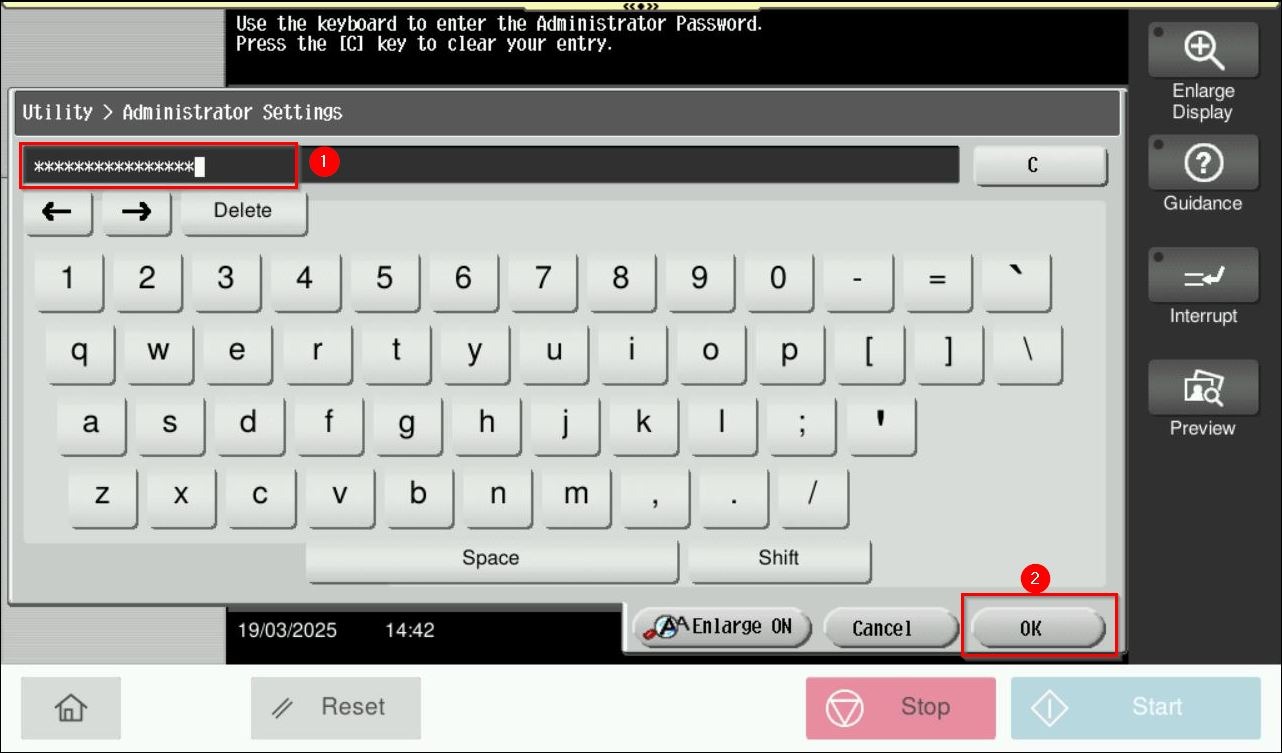
STEP 3 – Key in the default administrator password and click [OK] button.
Default administrator password: [7801261178012611] or [1234567812345678] or [12345678] or [12341234].
**If the default administrator password not able to login, kindly refer to the IT for the password.
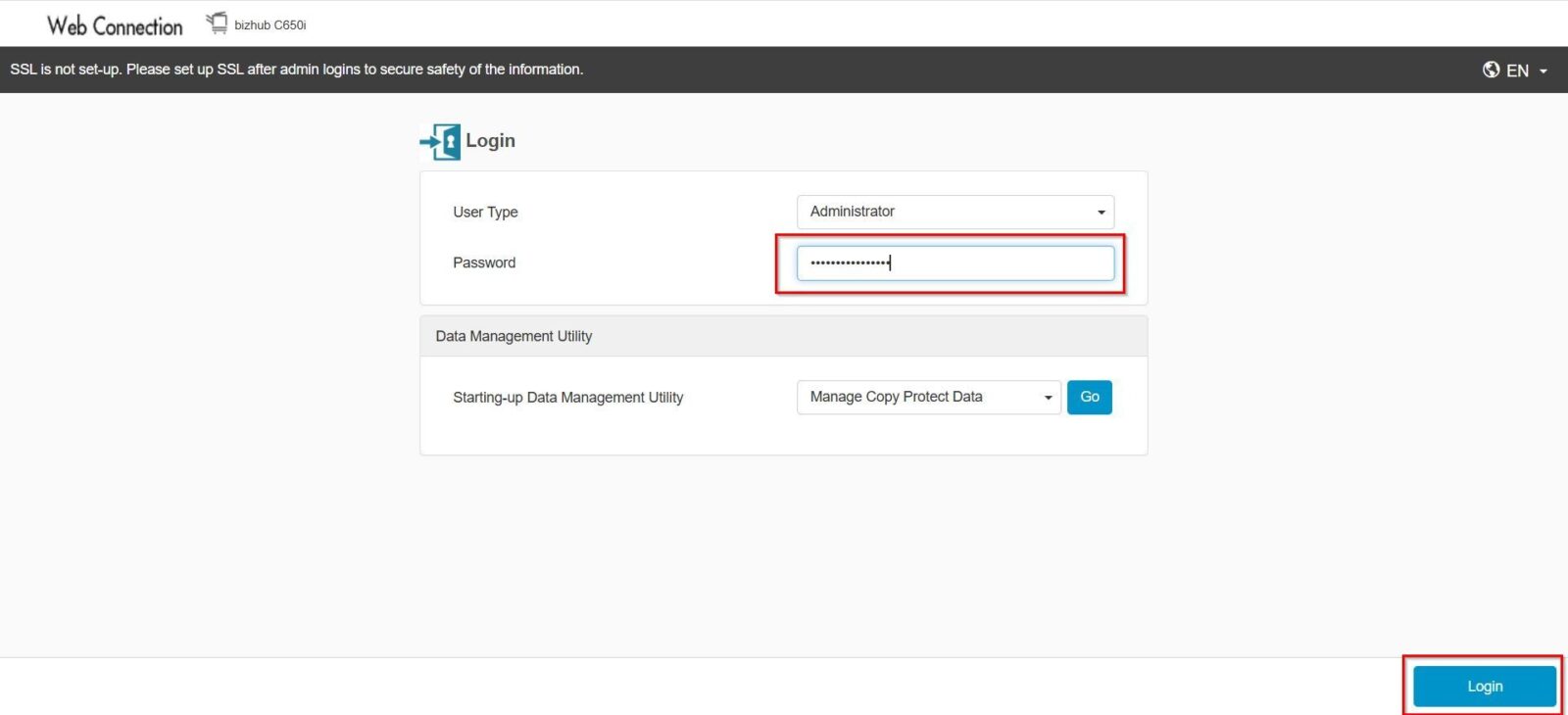
**On Web Connection page login as admin mode by key in administrator password accordingly. The next step will be same option on below to allow registering and changing addresses.
STEP 4 – Select [Security].
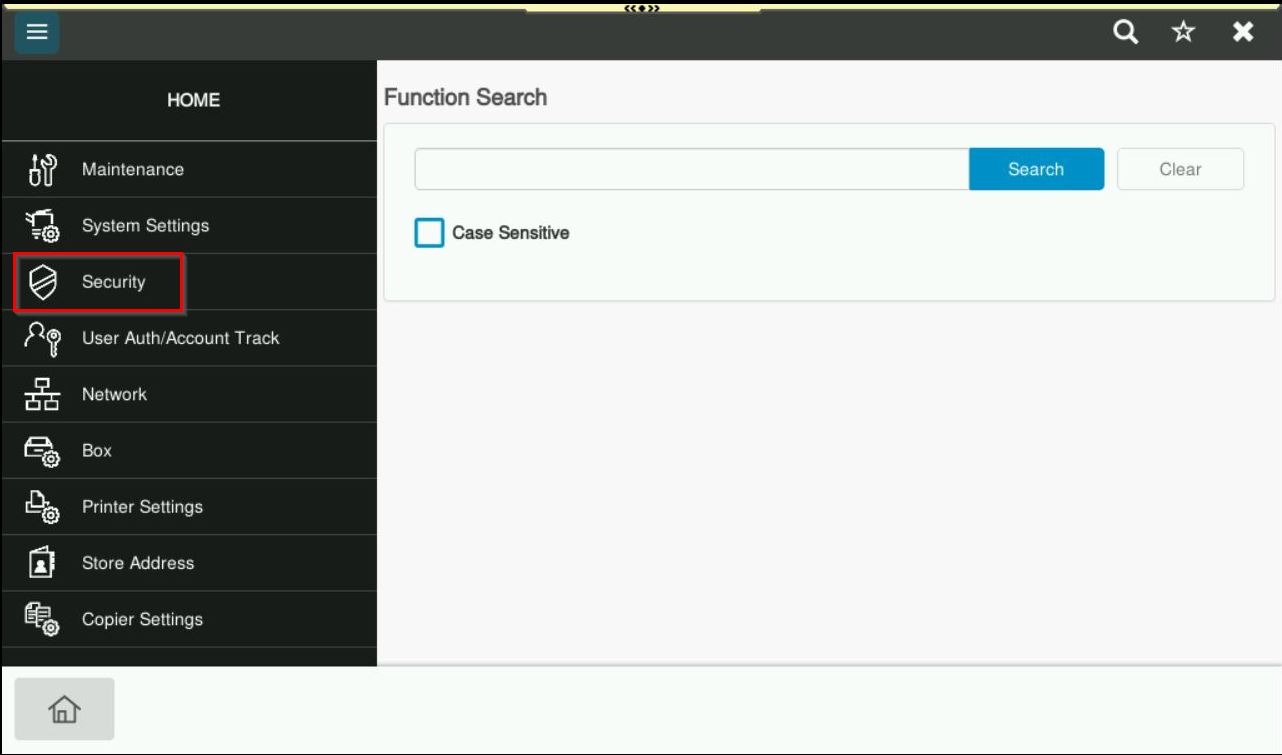
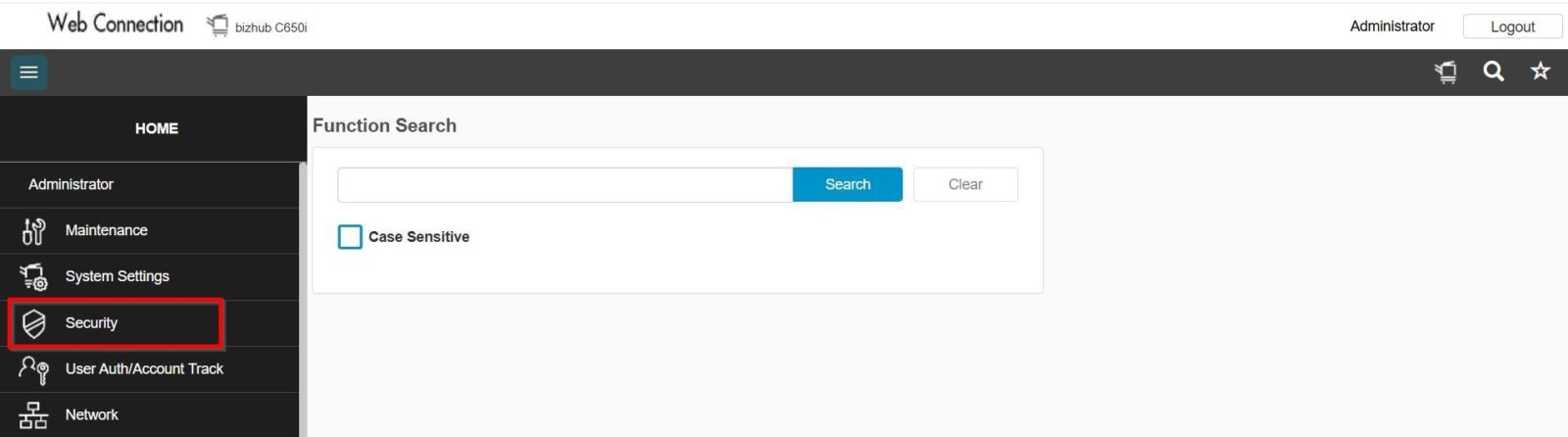
STEP 5 – Select [Security] – [Restrict User Access], change to [Allow] under Registering and Changing Addresses option. Then click [OK] to save the setting.
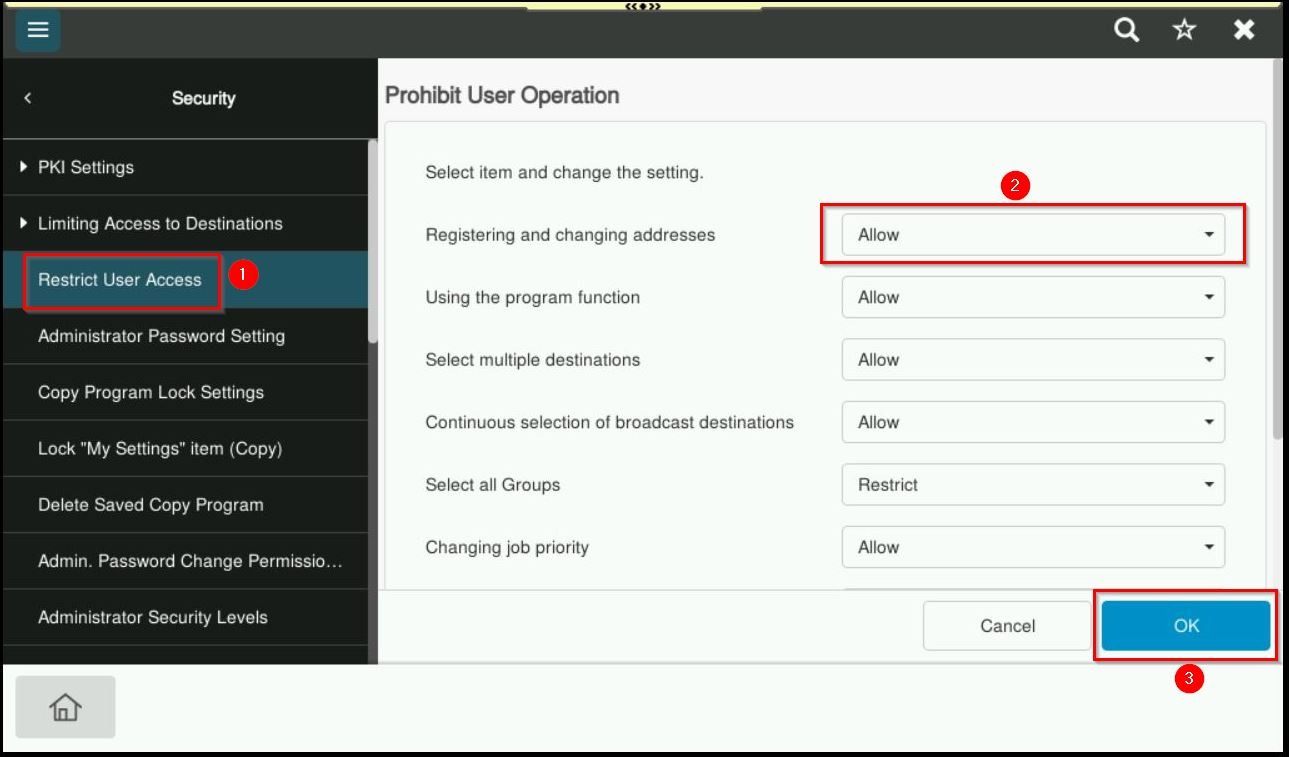
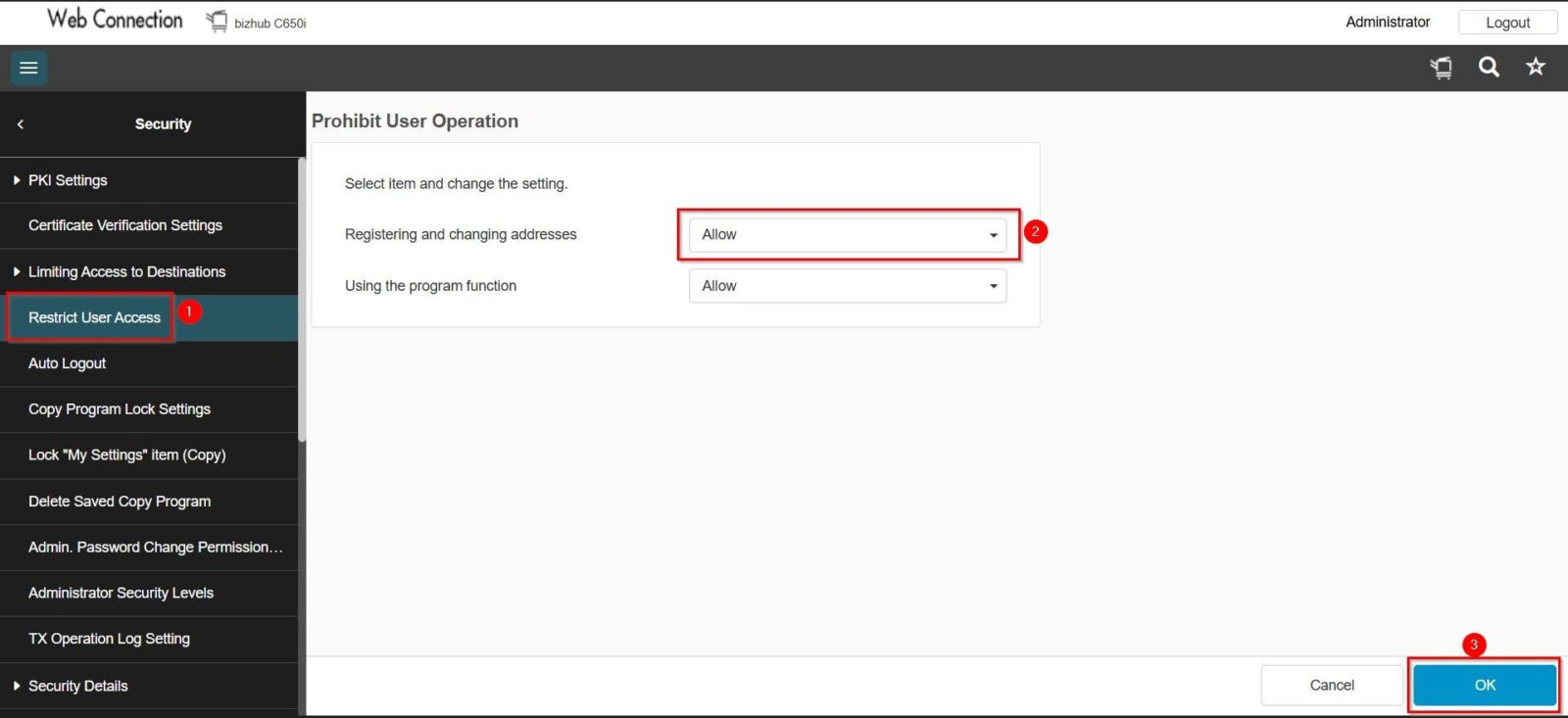
STEP 6 – After save the setting, the store address will be visible on the web connection in public mode.
Click here for the guide on how to access the machine Web Connection.