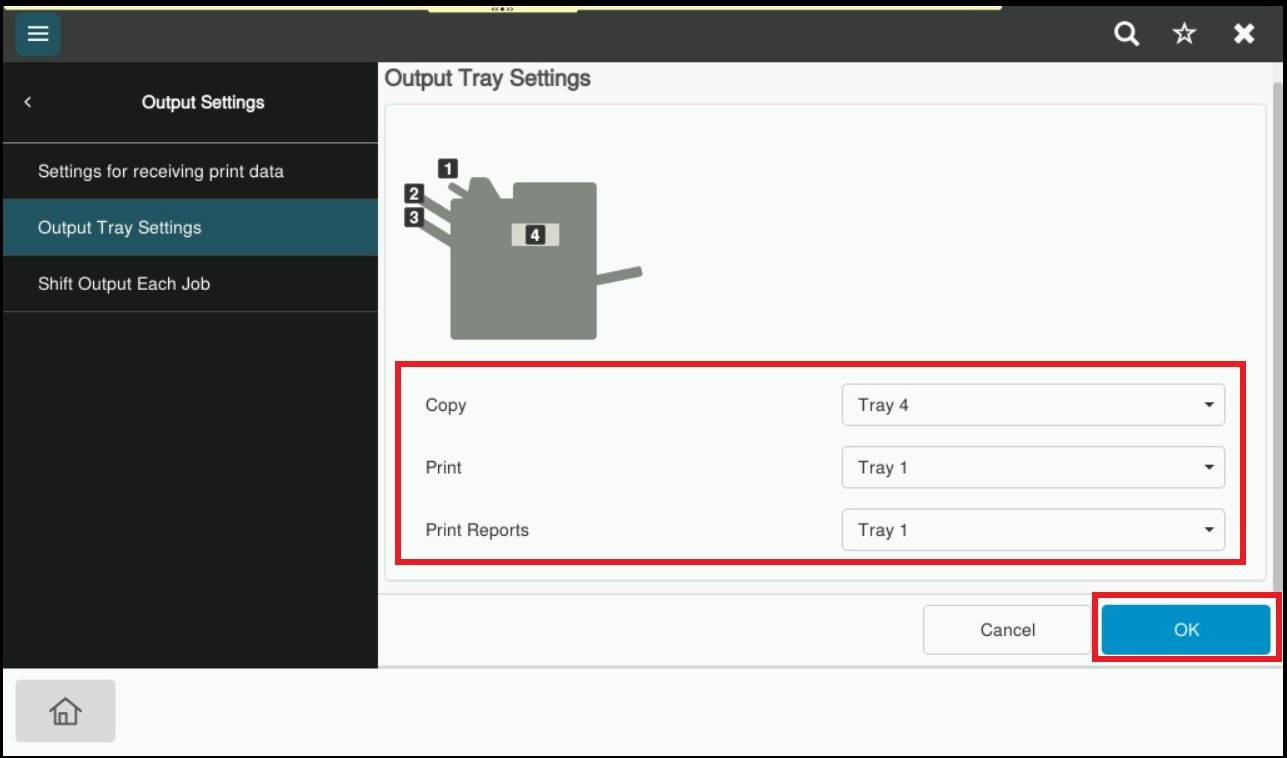
Suggestion on how to setup Output Tray on the machine. This will help us to select which tray to print out for Copy, Print or Print Report.
REQUIREMENTS:
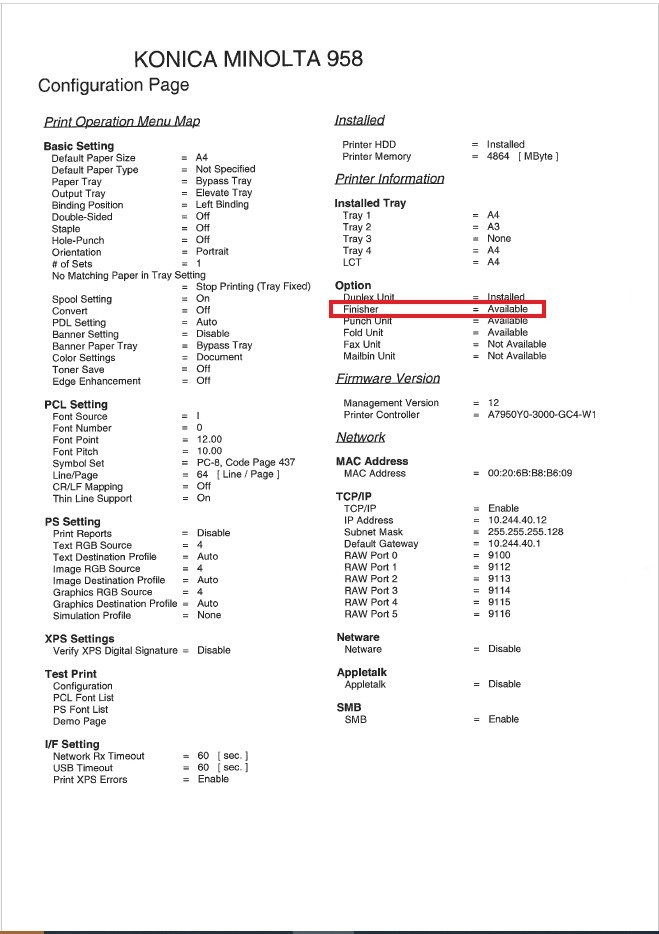
- Finisher– Optional Finisher that is required to use Output Tray in Konica Minolta Machine. Kindly click here on how to print configuration page on machine to check whether the Optional Finisher has been installed.
For The Older Machine Series / Non I-Series Machine
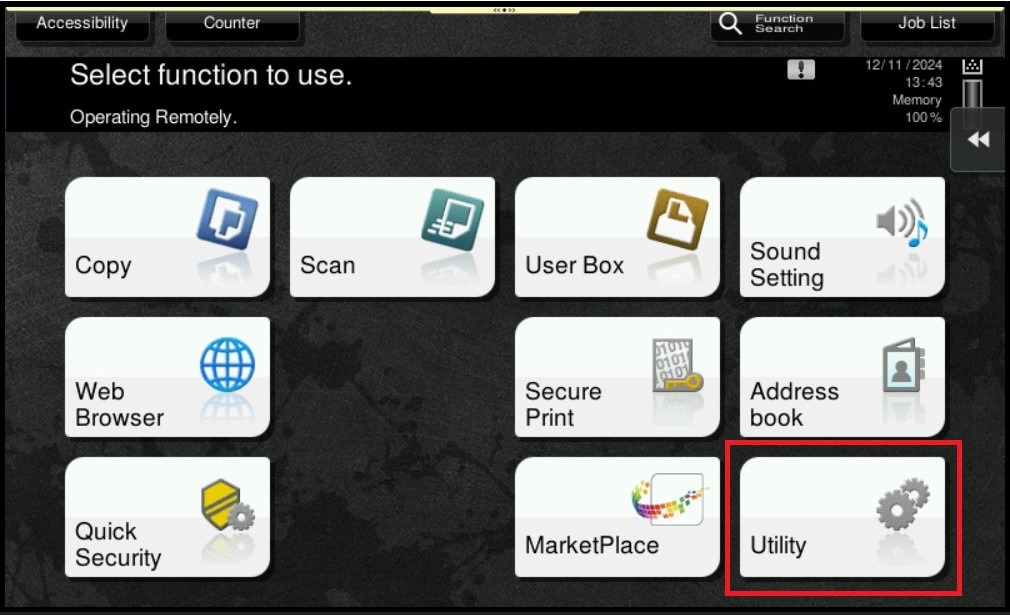
STEP 1 – On the Konica Minolta machine control panel, click on the [Menu] button then select [Utility].
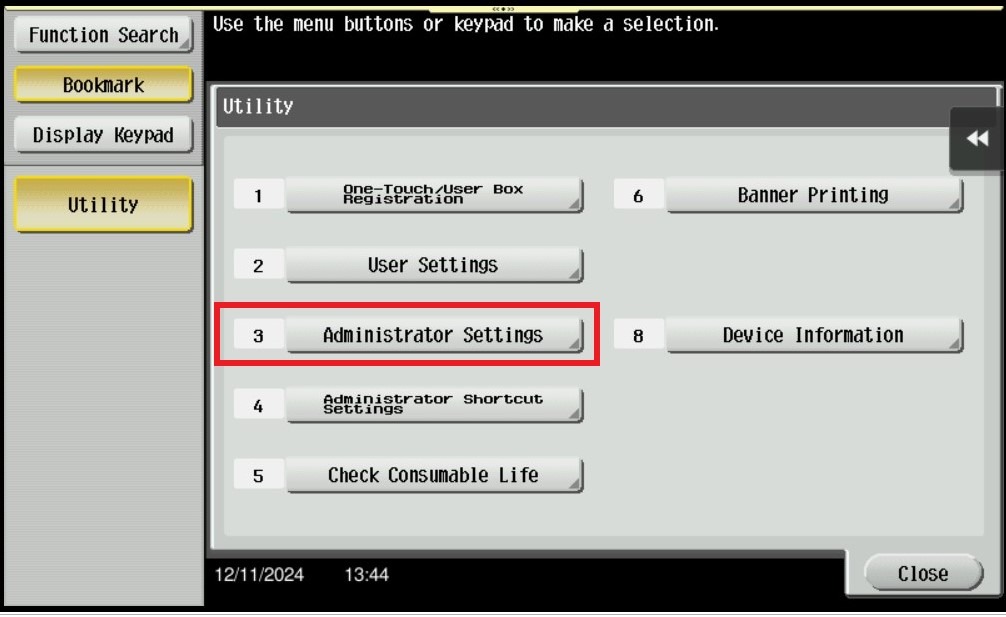
STEP 2 – Select [Administrator Settings].
STEP 3 – Key in Administrator password then select [OK].
Default administrator password: [7801261178012611] or [1234567812345678] or [12345678] or [12341234].
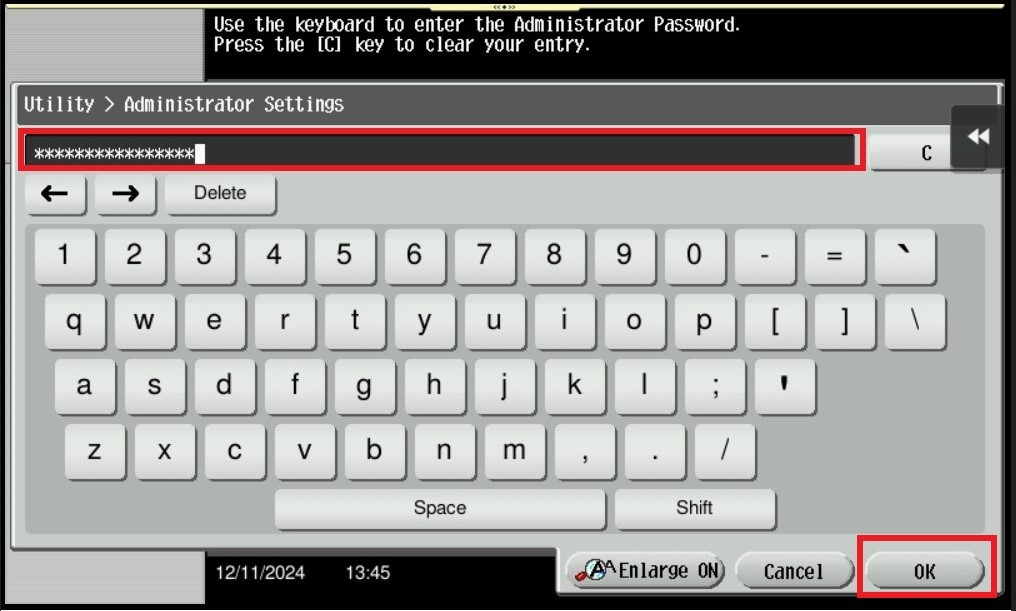
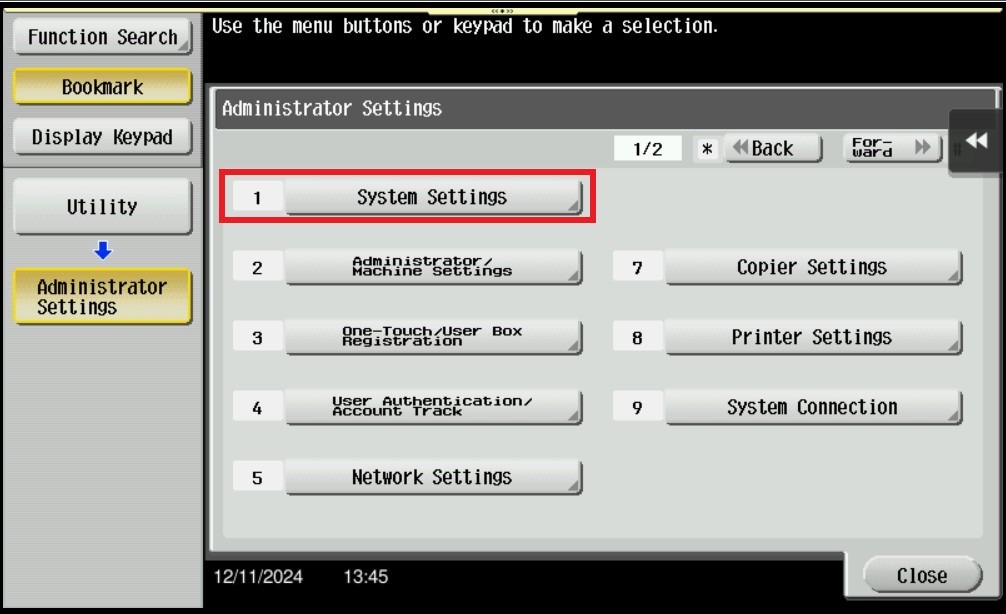
STEP 4 – Select [System Settings].
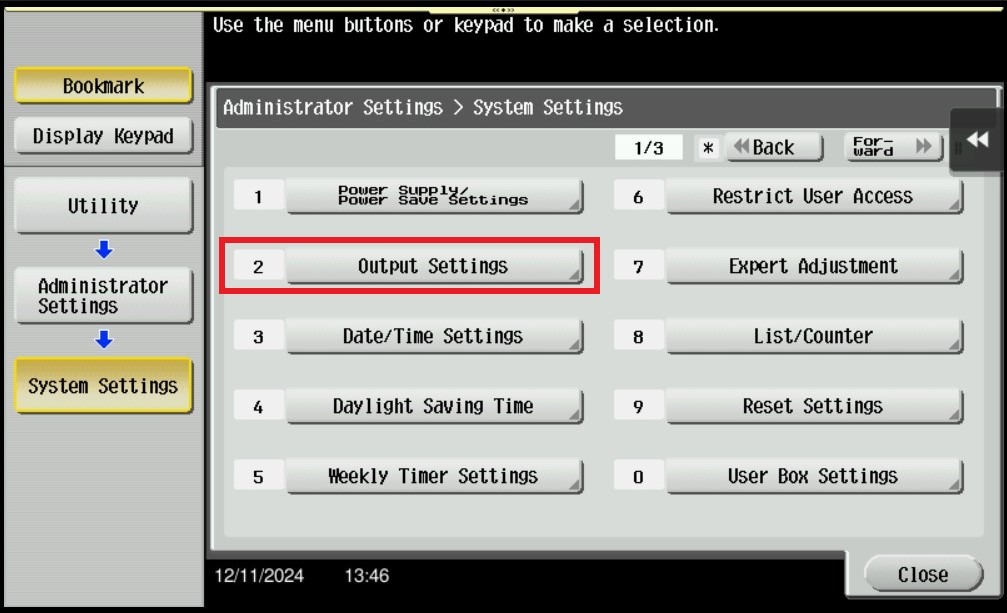
STEP 5 – Select [Output Settings].
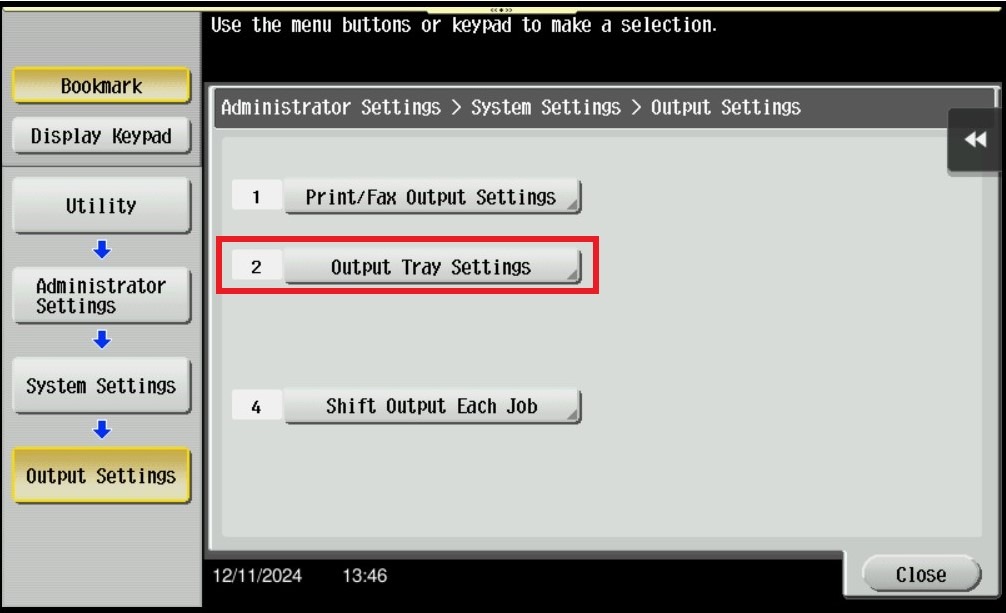
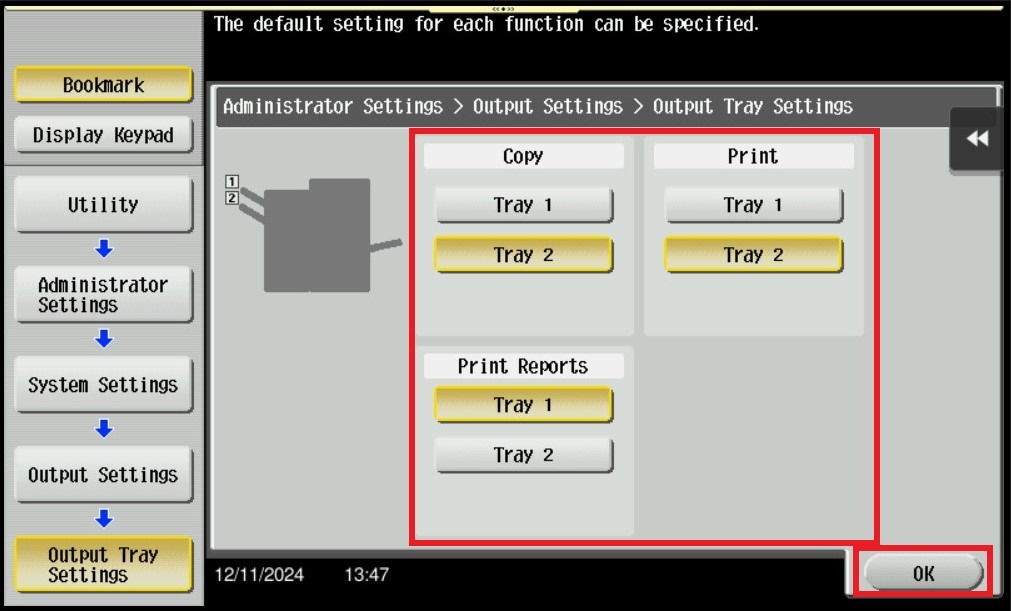
STEP 6 – Select [Output Tray Settings].
STEP 7 – Under the Copy, Print and Print Report, select the output tray(Tray 1/ Tray 2) to be printed out and then click [OK] to save the setting.
For The Newer Machine Series / I-Series Machine
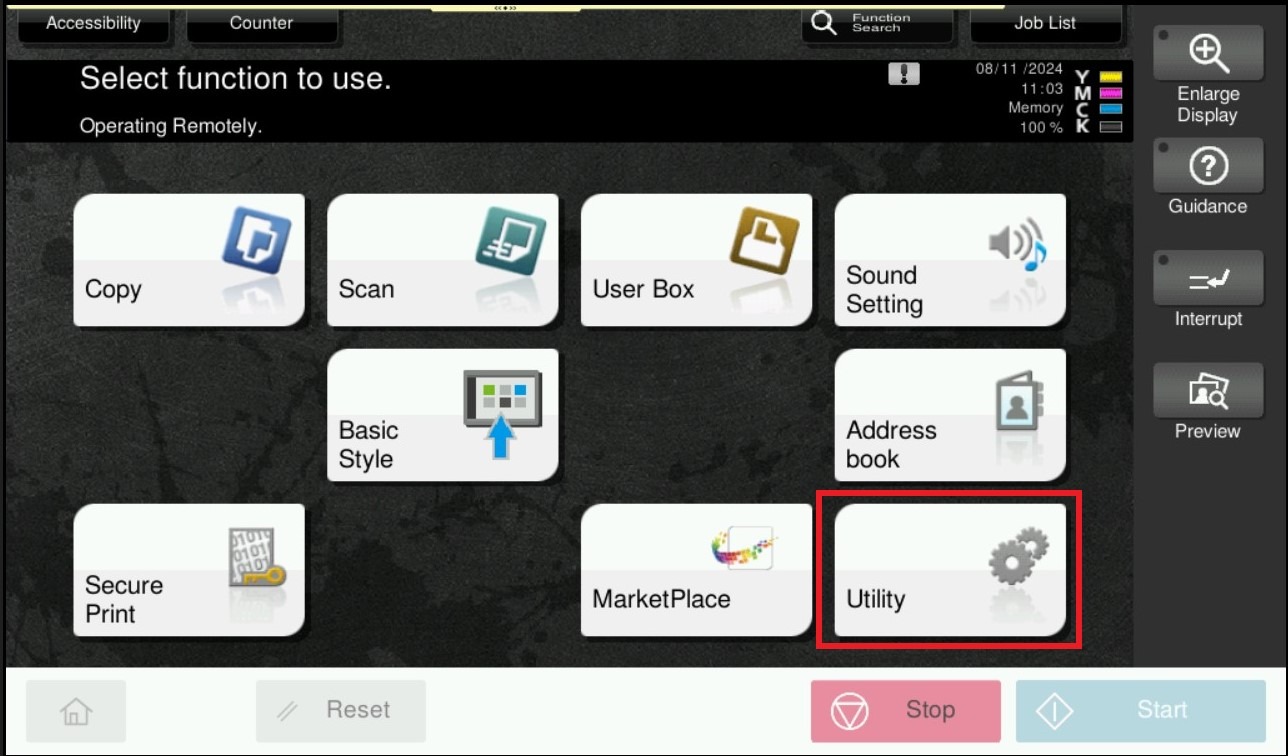
STEP 1 – On the Konica Minolta machine control panel, click on the [Home] button then select [Utility].
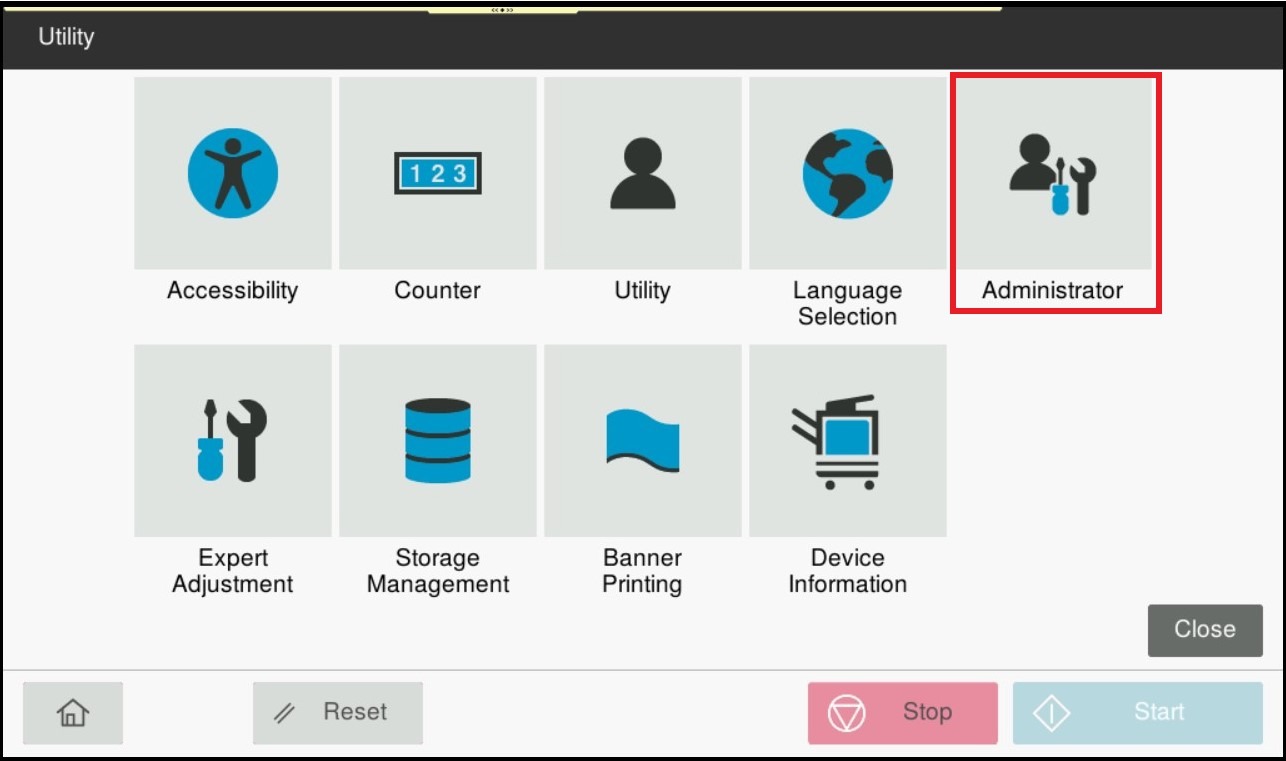
STEP 2 – Select [Administrator].
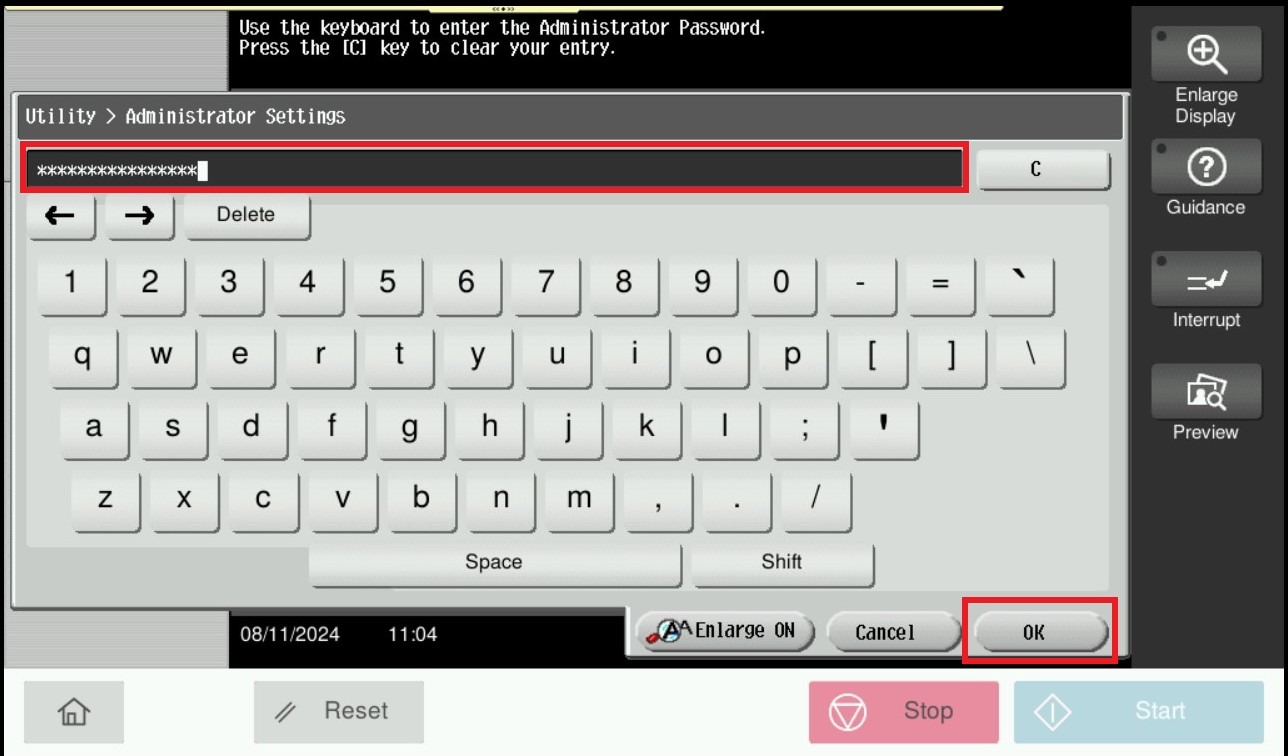
STEP 3 – Key in Administrator password then select [OK].
Default administrator password: [7801261178012611] or [1234567812345678] or [12345678] or [12341234].
STEP 4 – Select [System Settings].
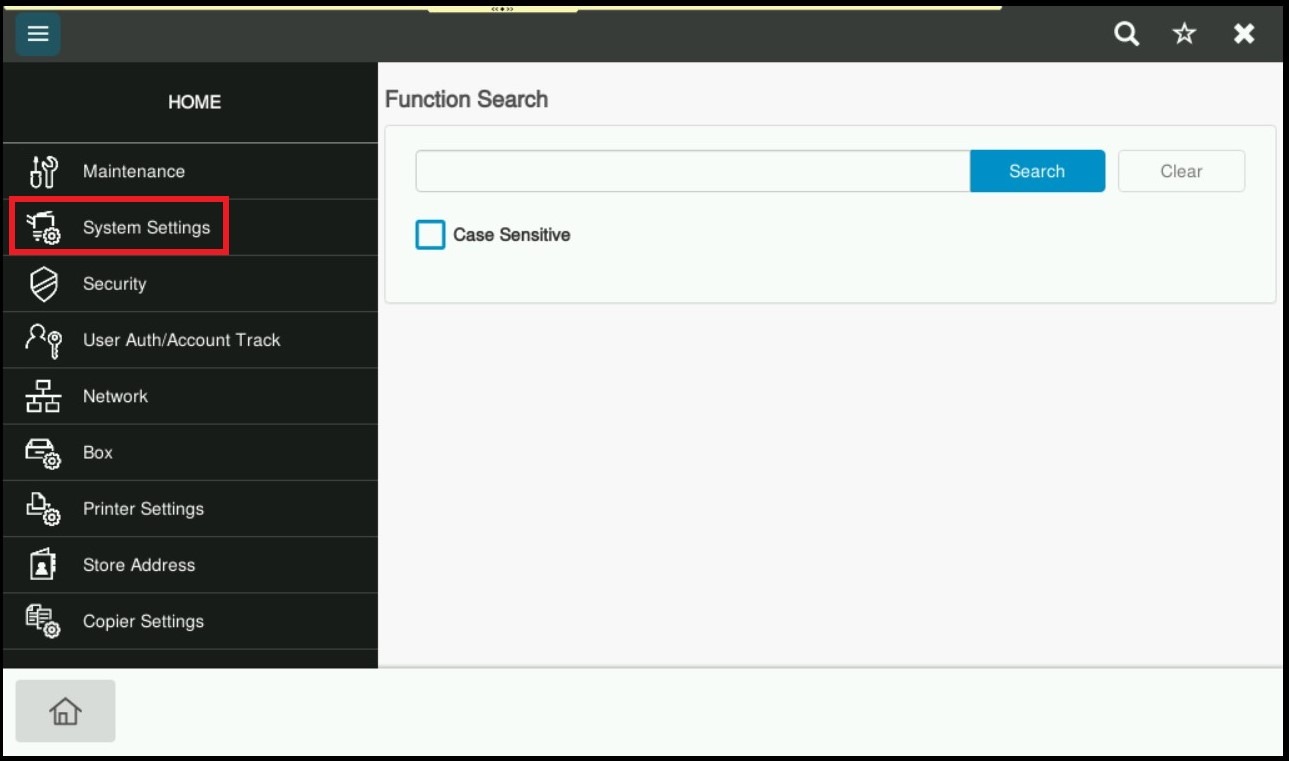
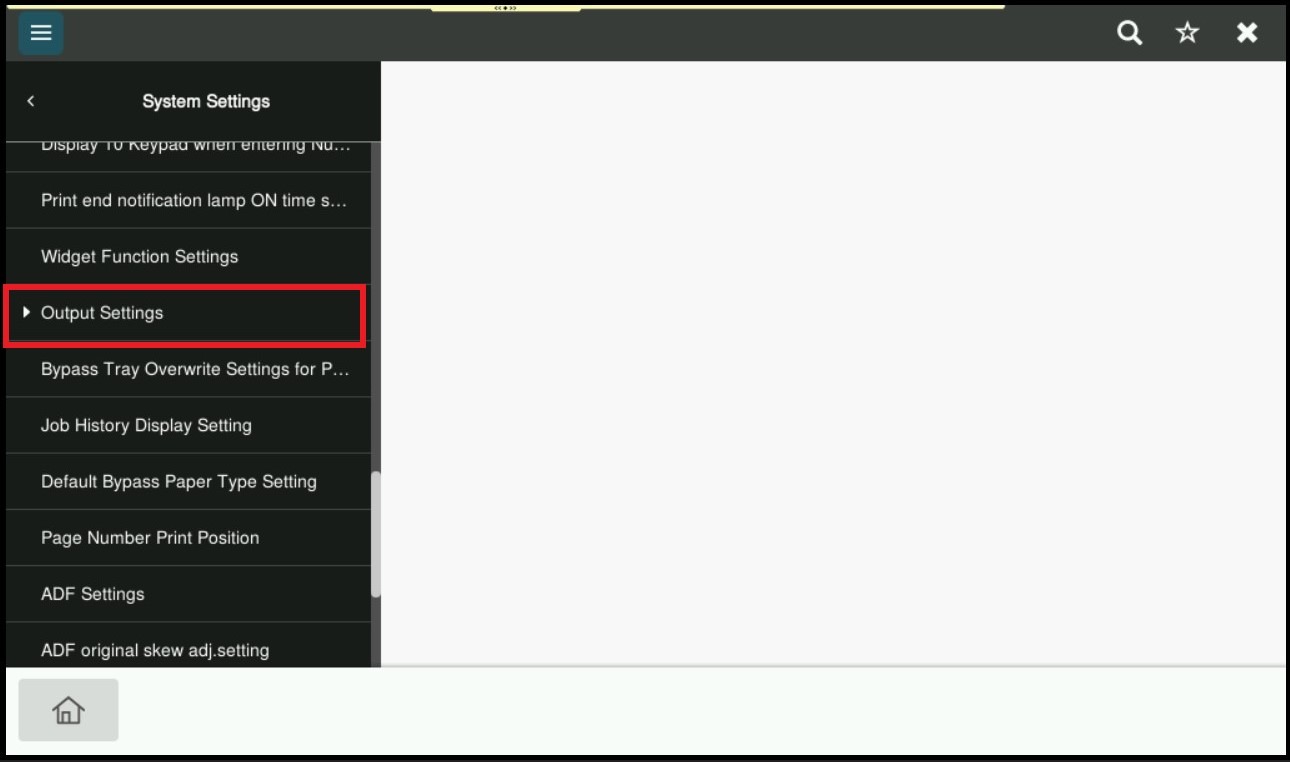
STEP 5 – Scroll down and select [Output Settings].
STEP 6 – Select [Output Tray Settings].
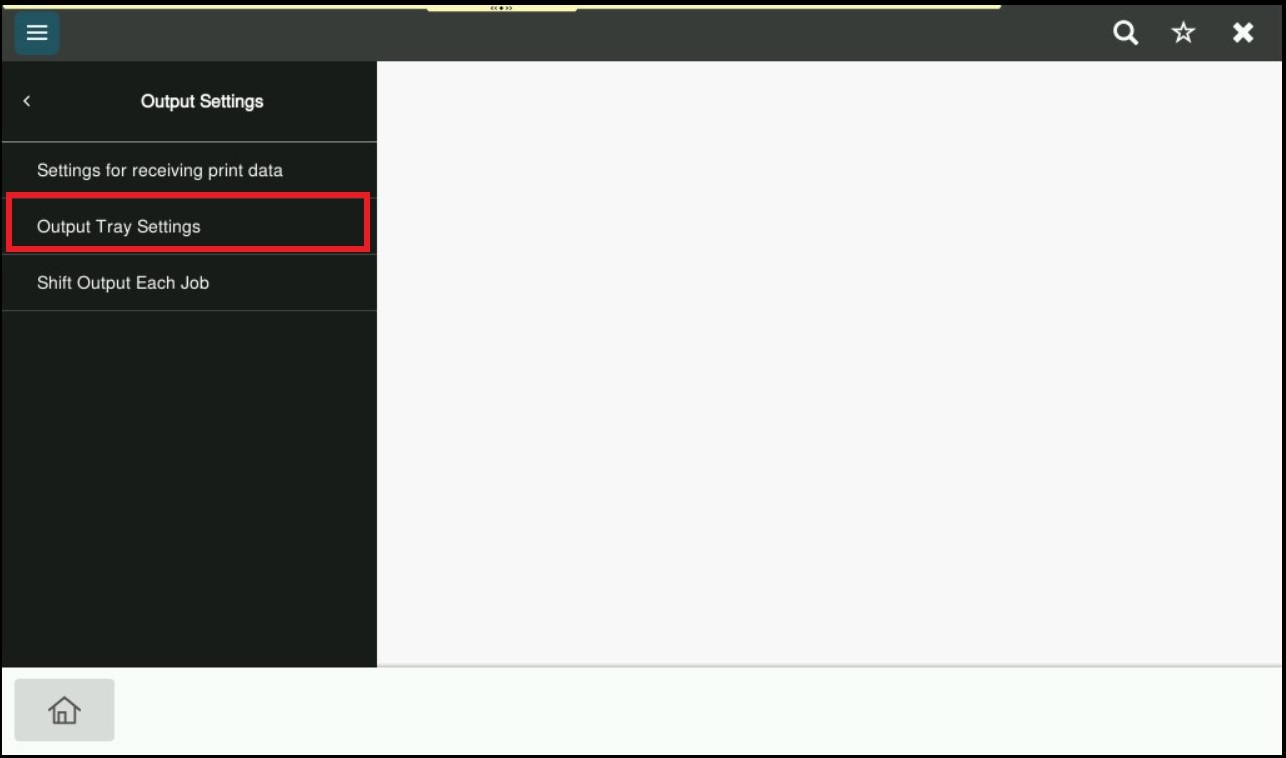
STEP 7 – Under the Copy, Print and Print Report, select the output tray(Tray 1/ Tray 2/Tray3/Tray4) to be printed out and then click [OK] to save the setting.