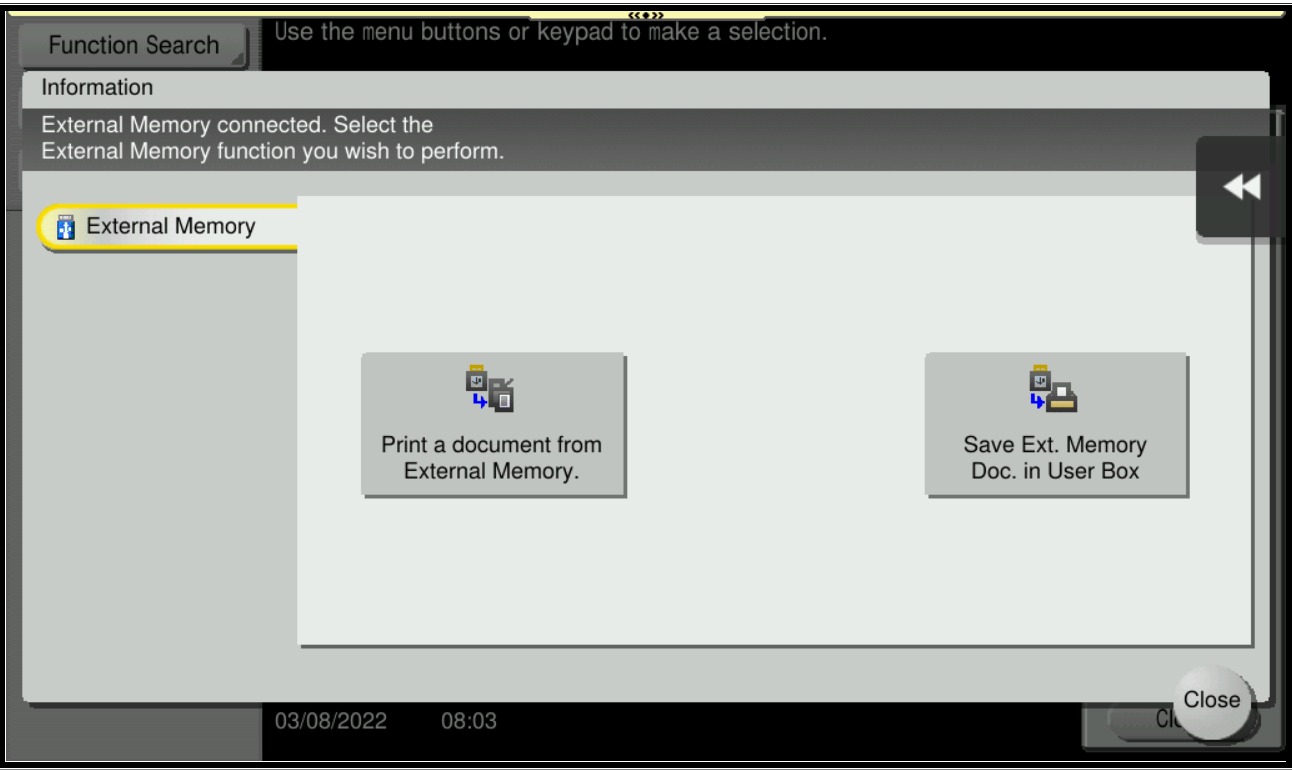
Guide on how to resolve the issue unable to scan and save document to an External Memory or Thumb Drive when user authentication is enable
When the user authentication is enable on machine, it is necessary to configure the settings to use a external memory for each registered user under user authentication settings. Kindly follow below step on how to enable the external memory setting for each registered user.
For the Older Machine series / Non I-Series Machine
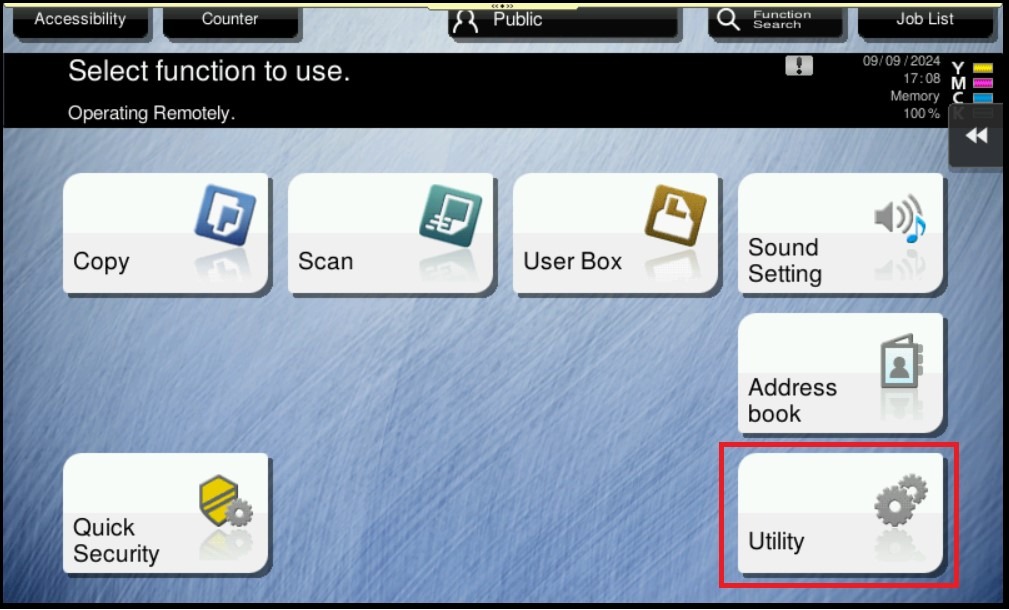
STEP 1 – Select [Utility].
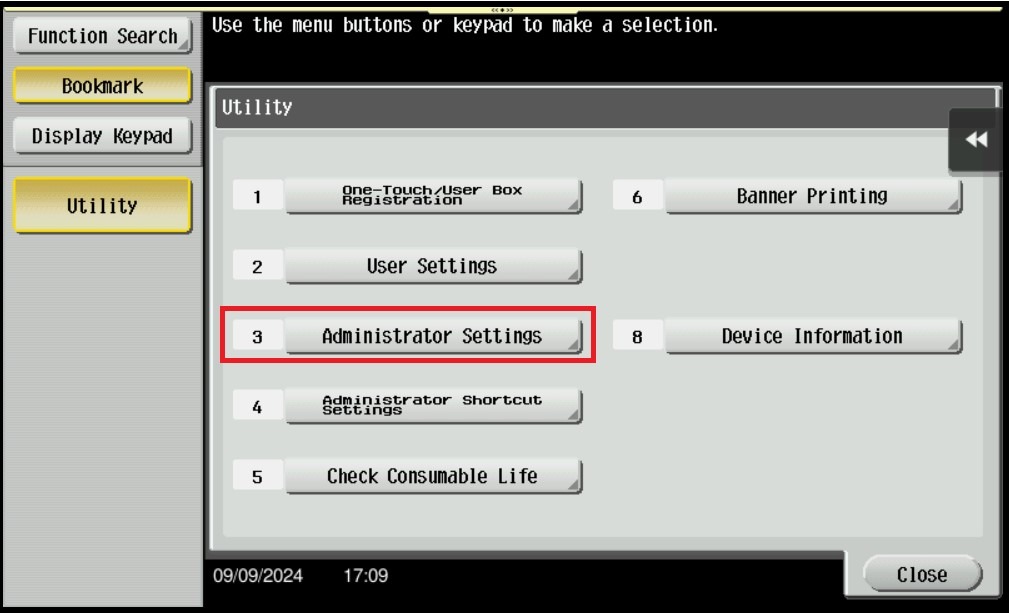
STEP 2 – Select [Administrator Settings].
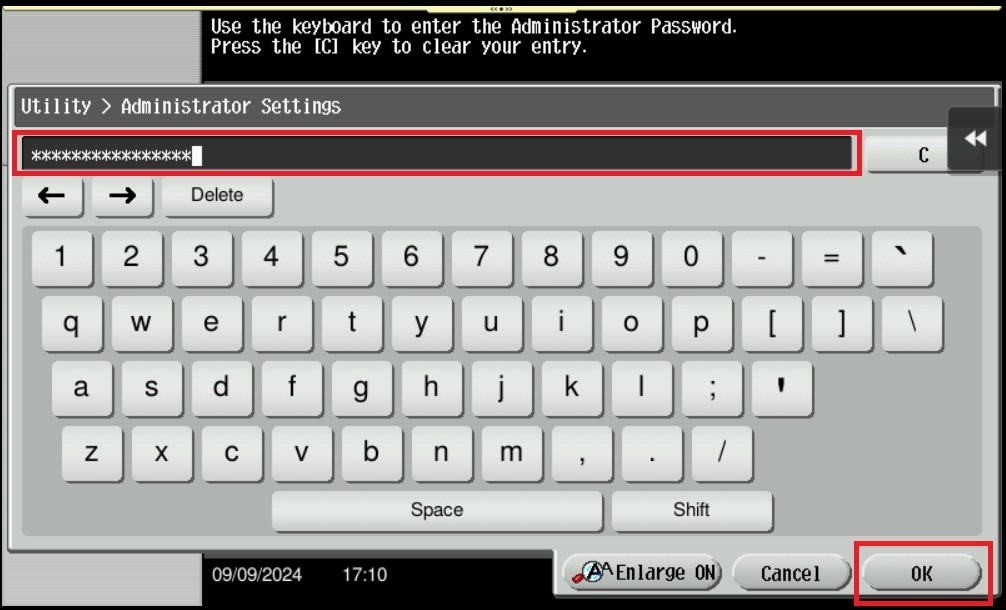
STEP 3 – Key in the default administrator password and click [OK] button.
Default administrator password: [7801261178012611] or [1234567812345678] or [12345678] or [12341234]
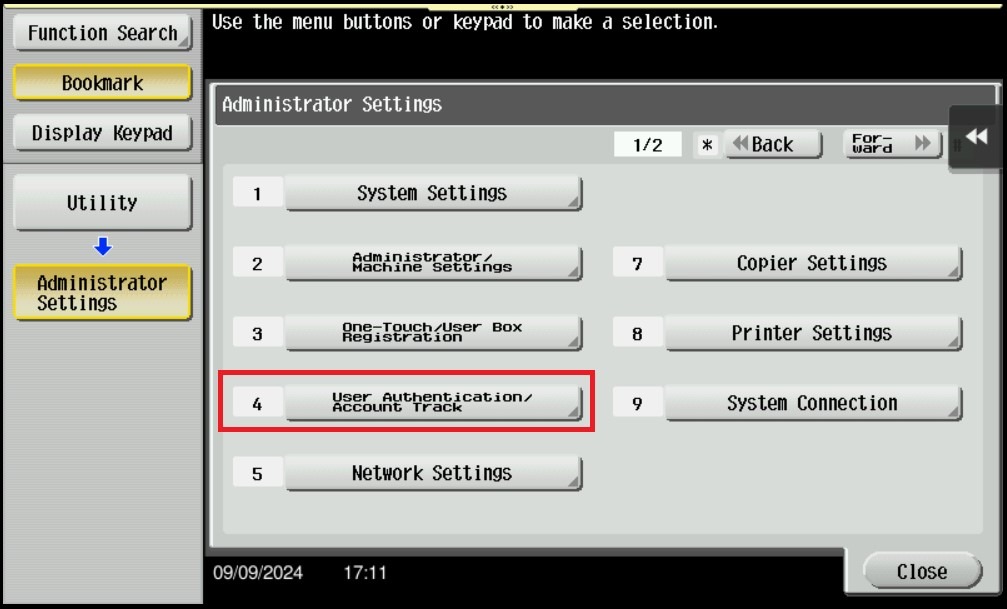
STEP 4 – Select [User Authentication/Account Track].
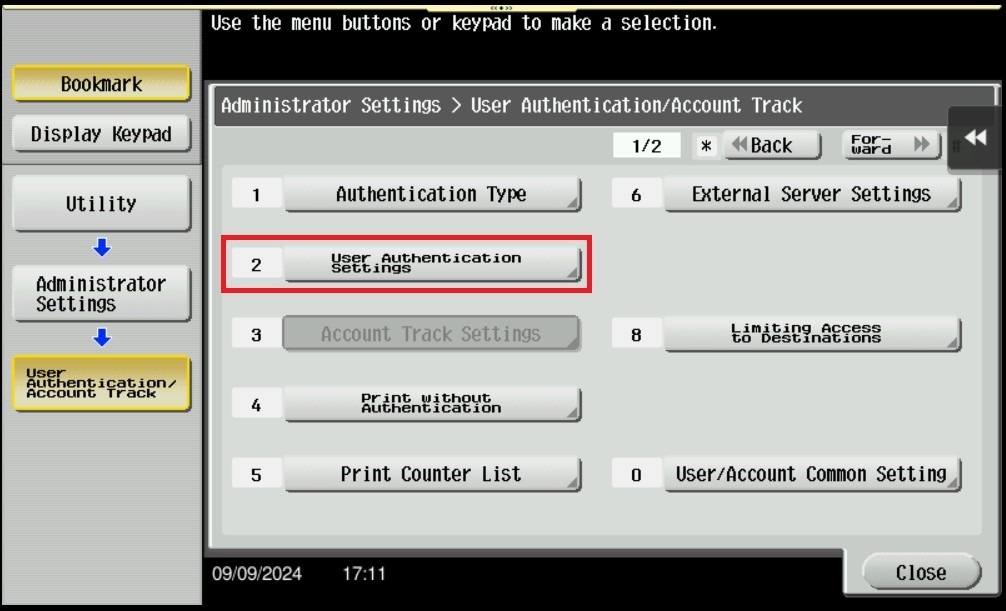
STEP 5 – Select [User Authentication Settings].
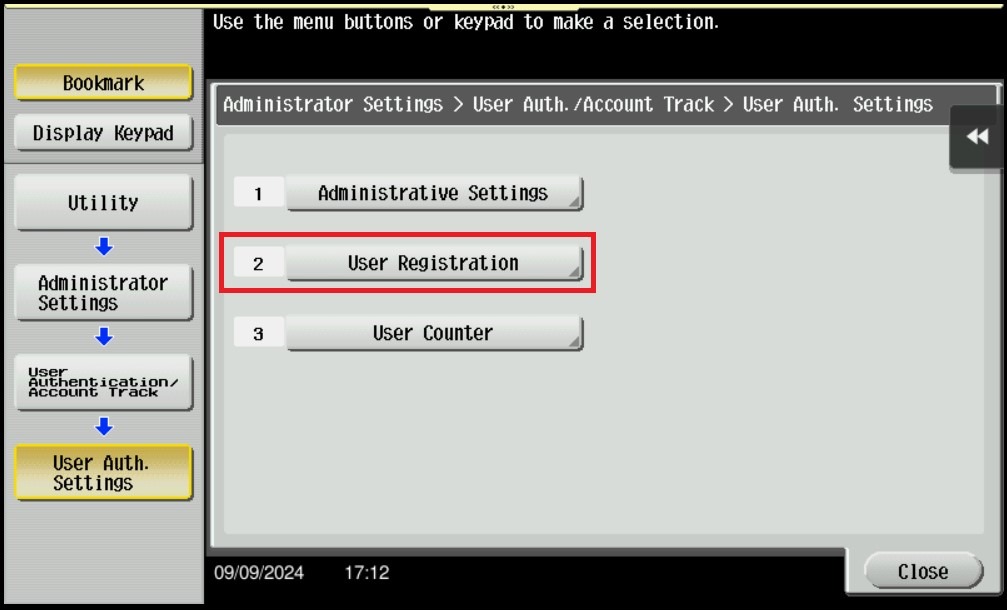
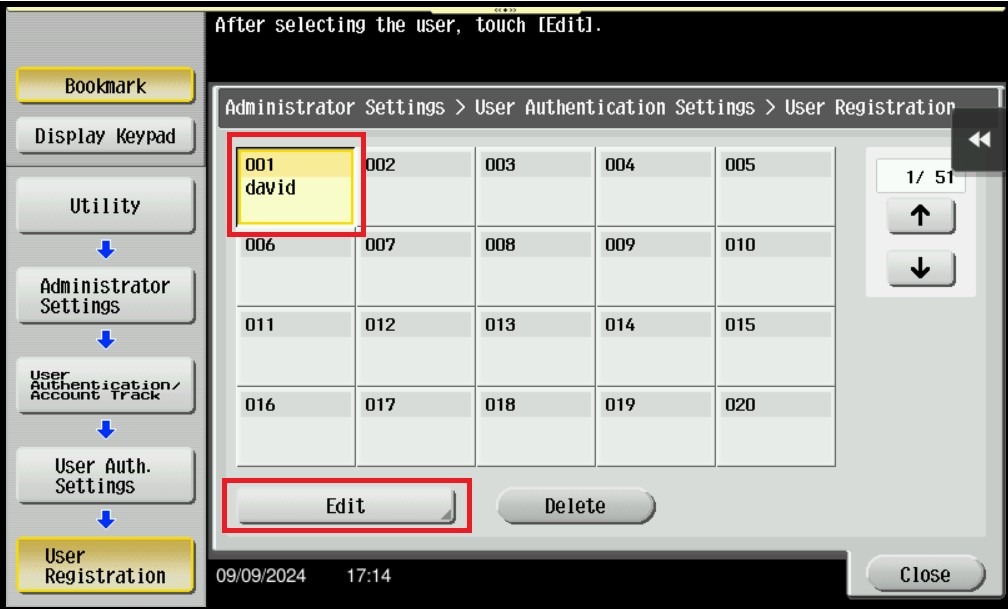
STEP 6 – Select [User Registration].
STEP 7 – Select the user that want to edit, then click on [Edit] – [Function Permission/Authority].
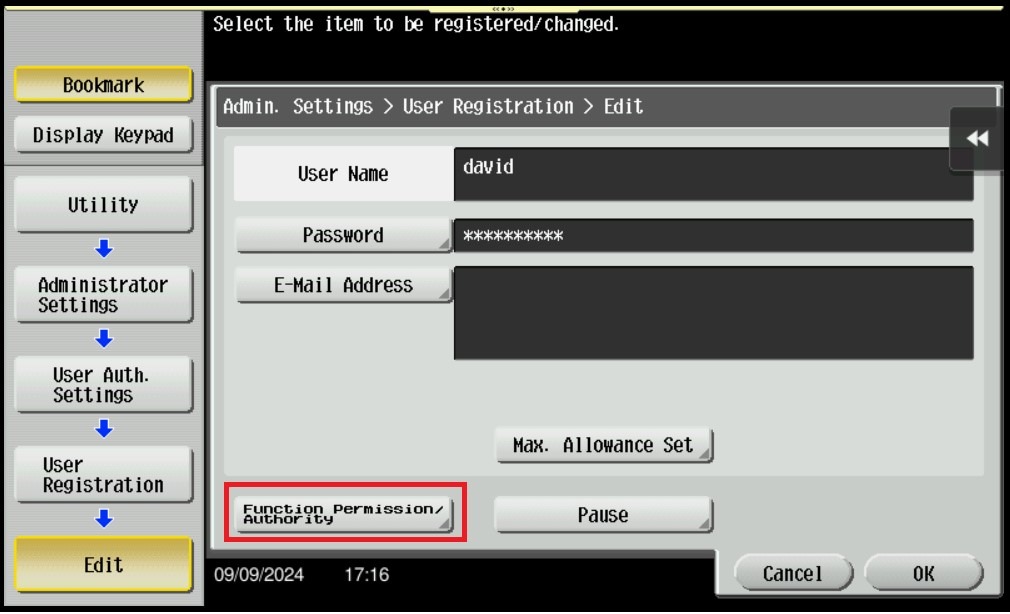
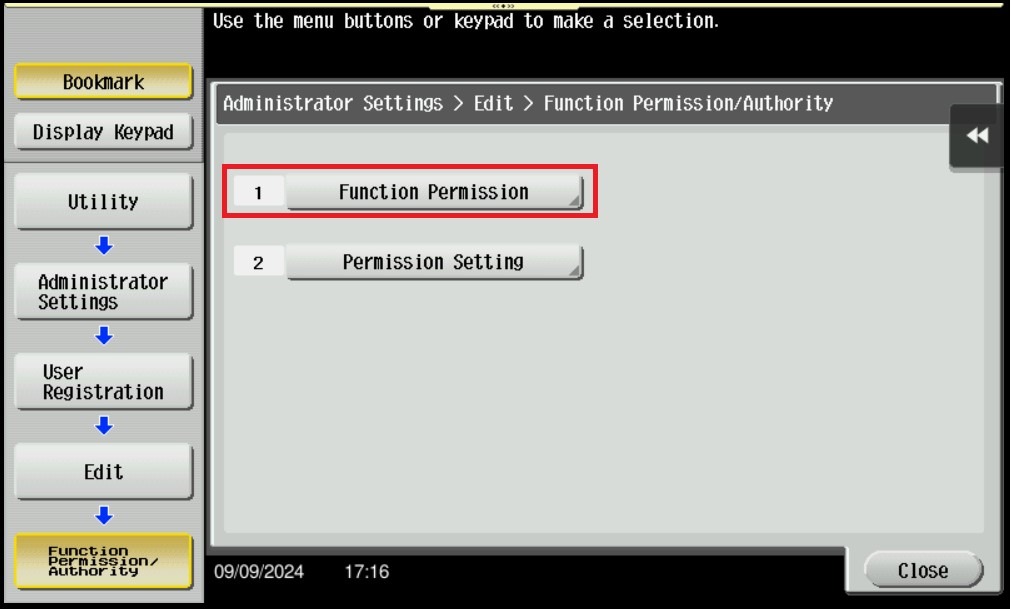
**For public user, navigate to last page of User Registration by click on [↑], select Public, then click on [Edit] – [Function Permission].


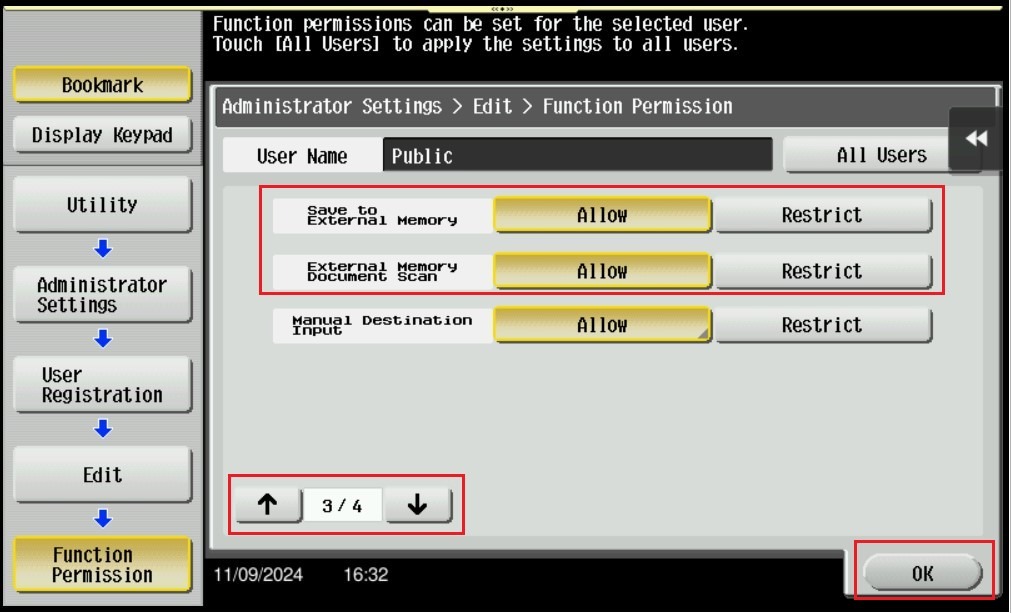
STEP 8 – Select [Function Permission], navigate to [3rd Page]. Select [Allow] on [Save to External Memory] & [External Memory Document Scan] and click [OK] to save the setting. This is to enable the scan function for the specific user when a thumb drive is plugged in to the machine.
Important Note: Only thumb drives with file type FAT32 is accepted on the machine. NTFS file type and encrypted thumb drives will not work on the machine.

**For Public User, navigate to [3rd Page]. Select [Allow] on [Save to External Memory] & [External Memory Document Scan] and click [OK] to save the setting. This is to enable the scan function for the public user when a thumb drive is plugged in to the machine.
For the Newer Machine series / I-Series Machine
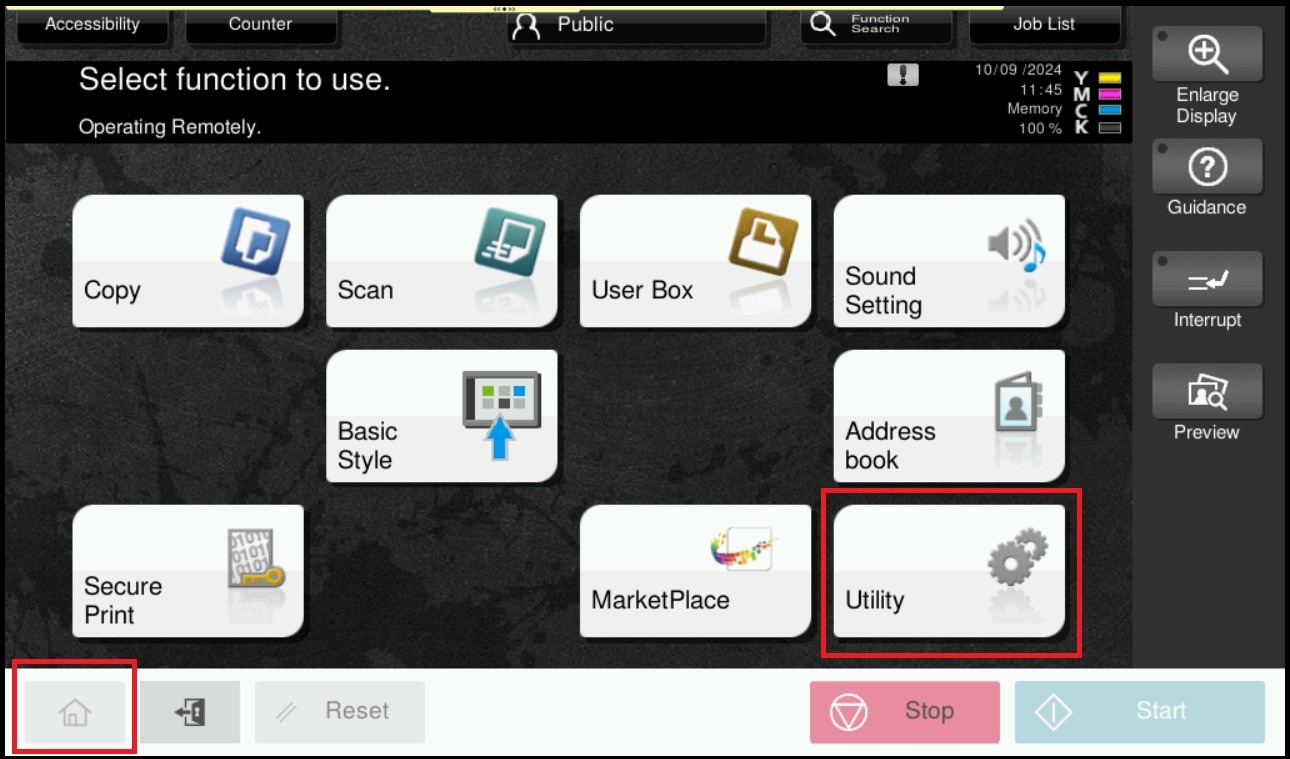
STEP 1 – Select [Home] – [Utility].
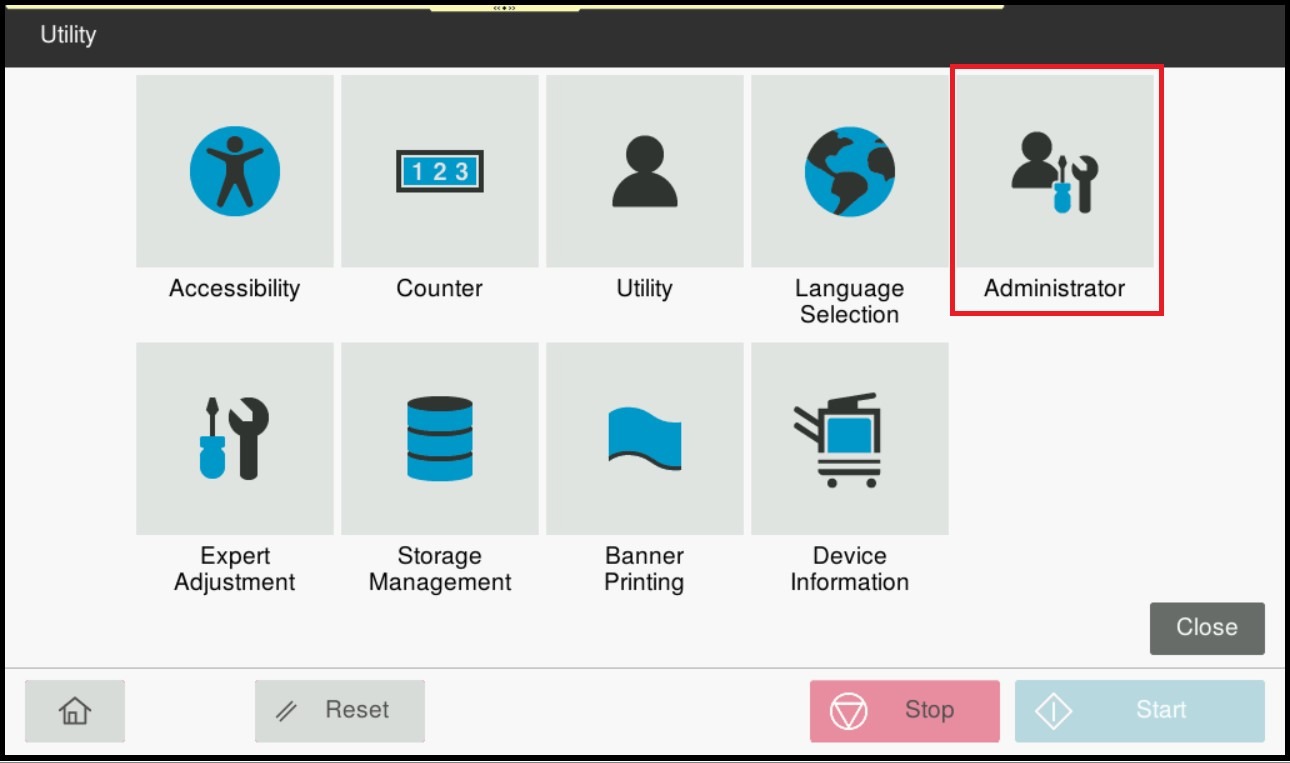
STEP 2 – Select [Administrator].
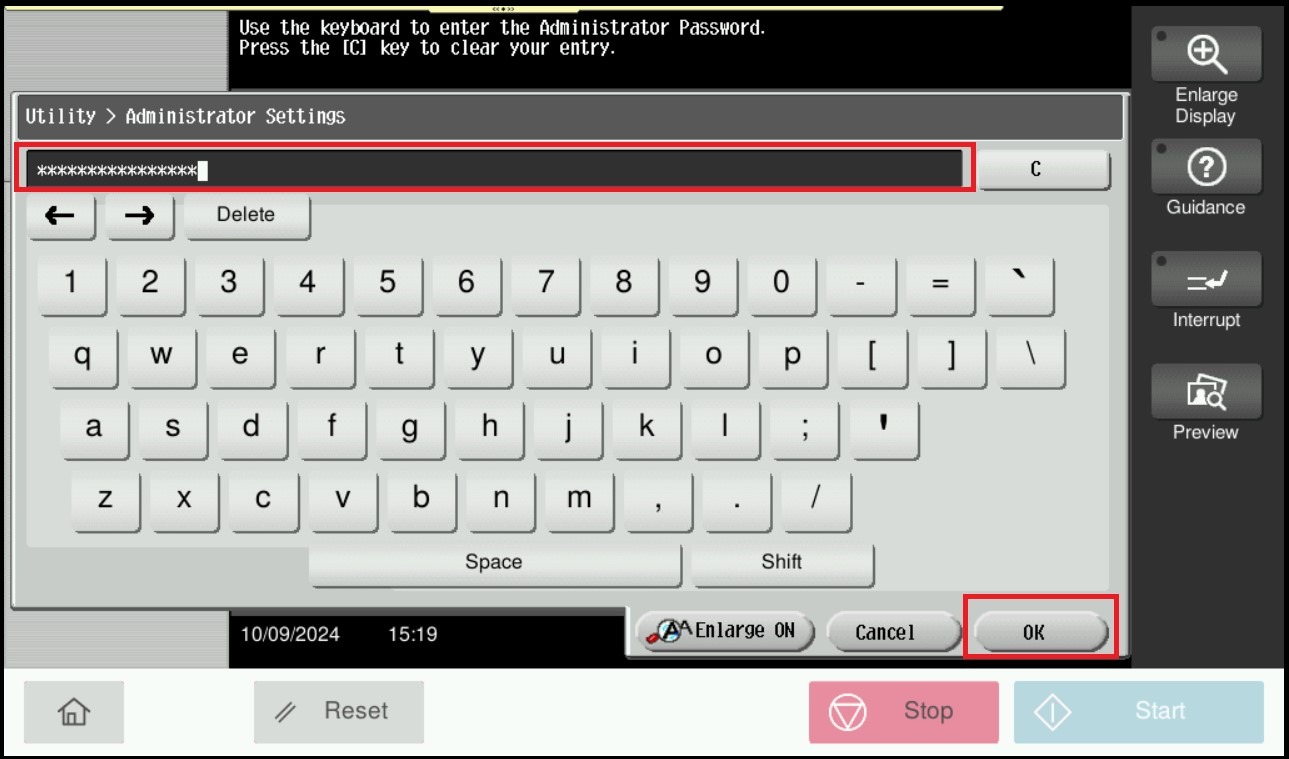
STEP 3 – Key in the default administrator password and click [OK] button.
Default administrator password: [7801261178012611] or [1234567812345678] or [12345678] or [12341234]
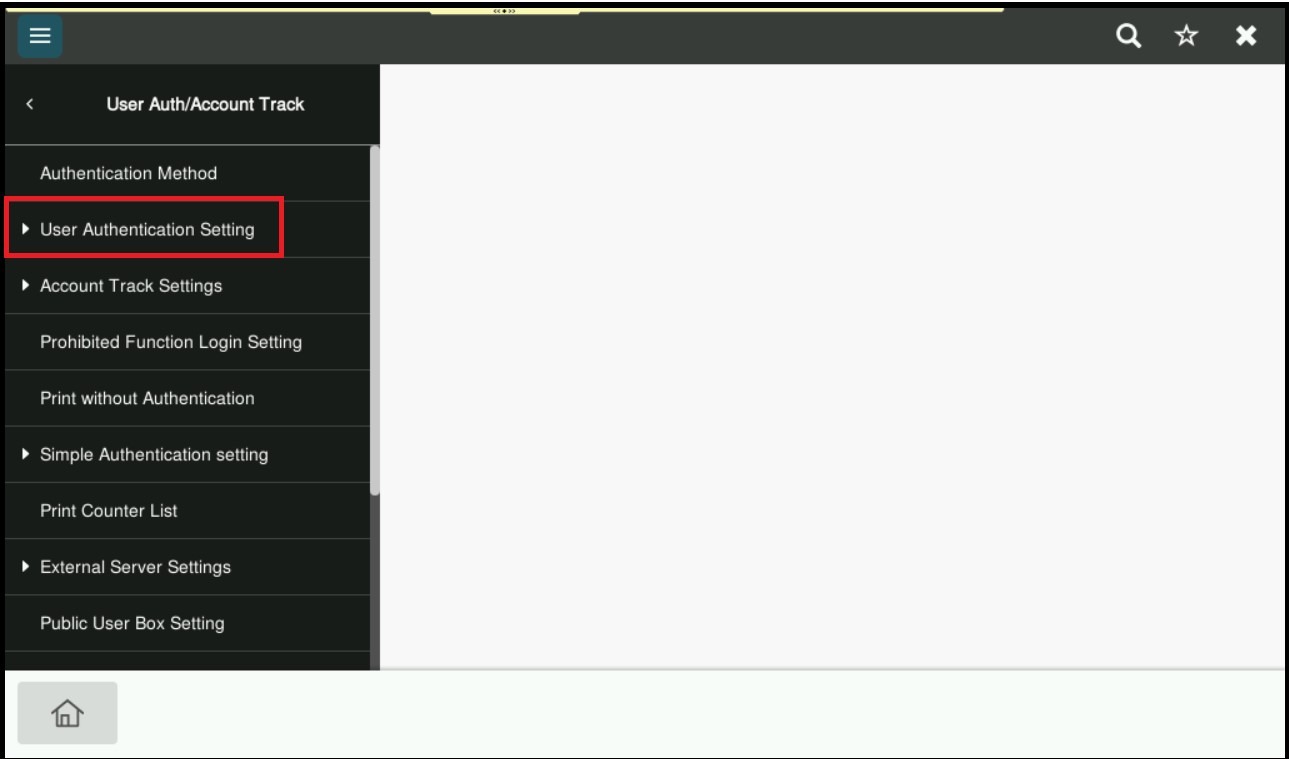
STEP 4 – Select [User Authentication Setting].
STEP 5 – Select [User Registration].
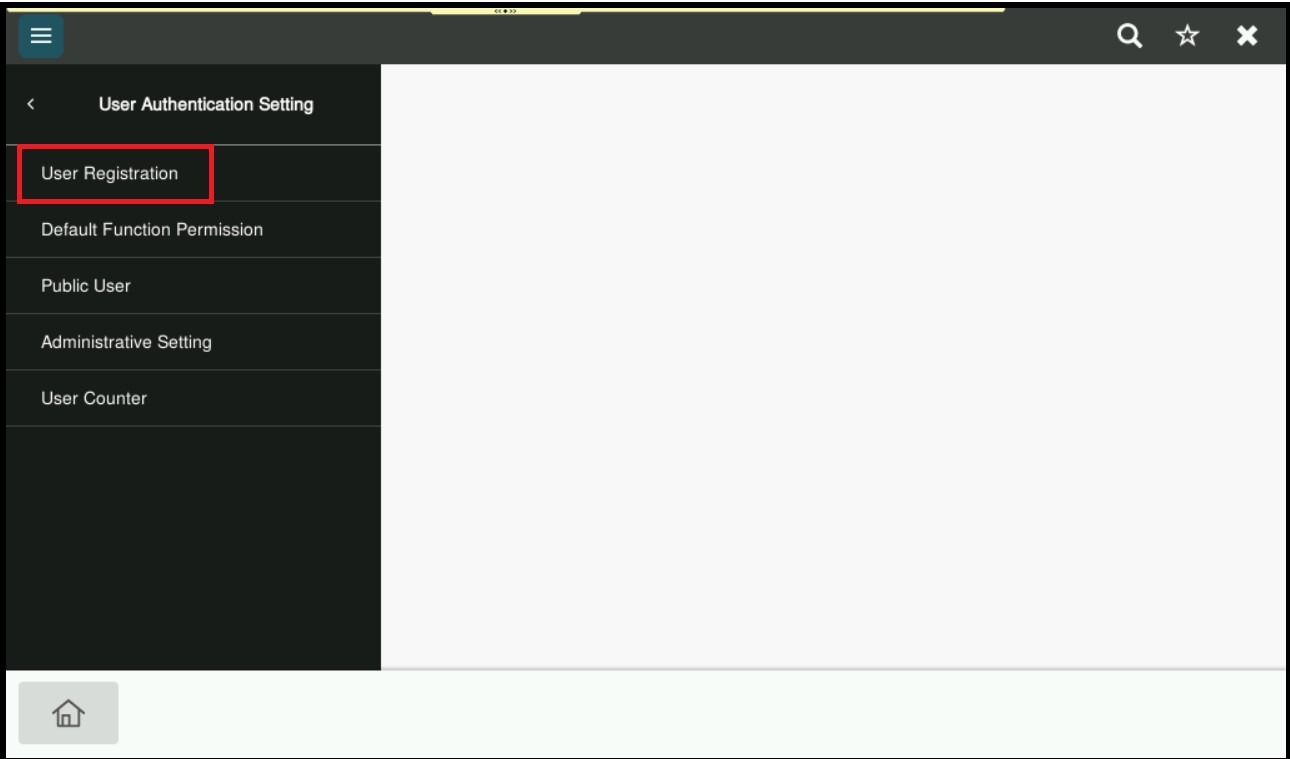
STEP 6 – Select for the specific user, then click on [Edit].
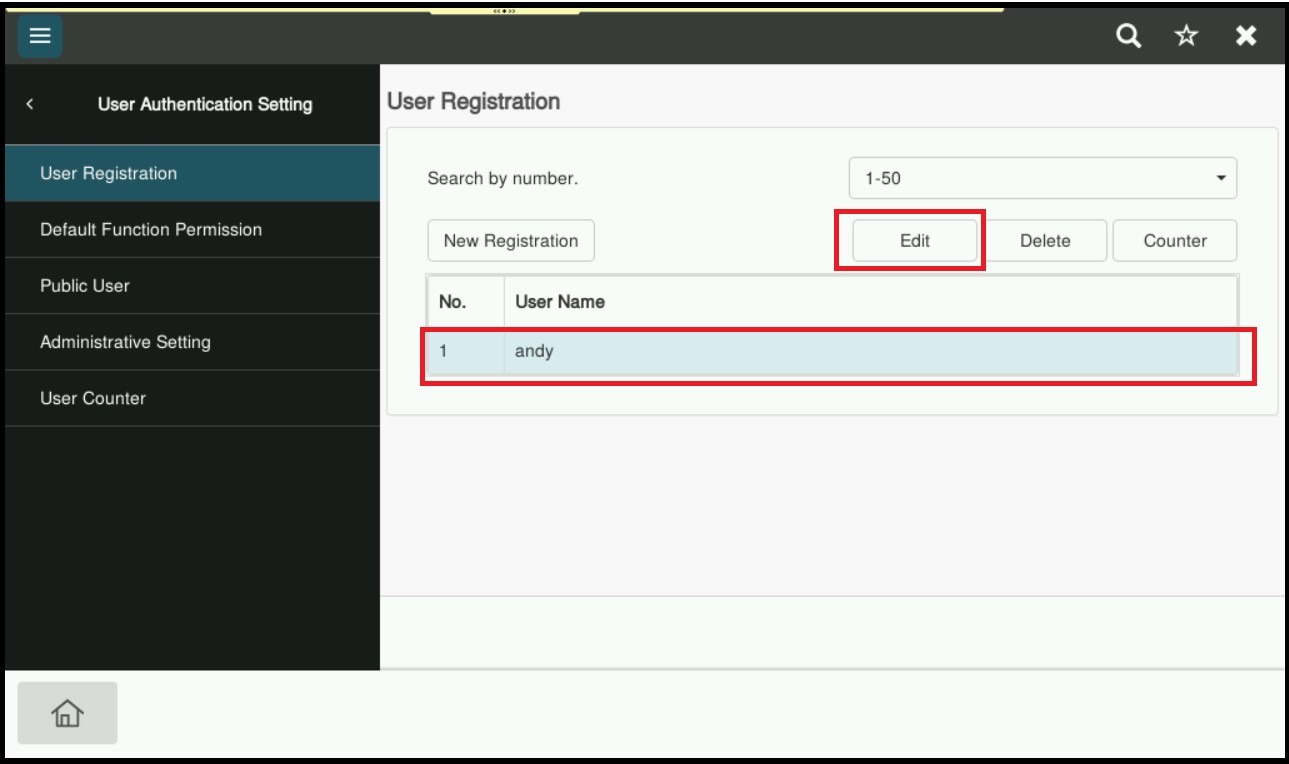
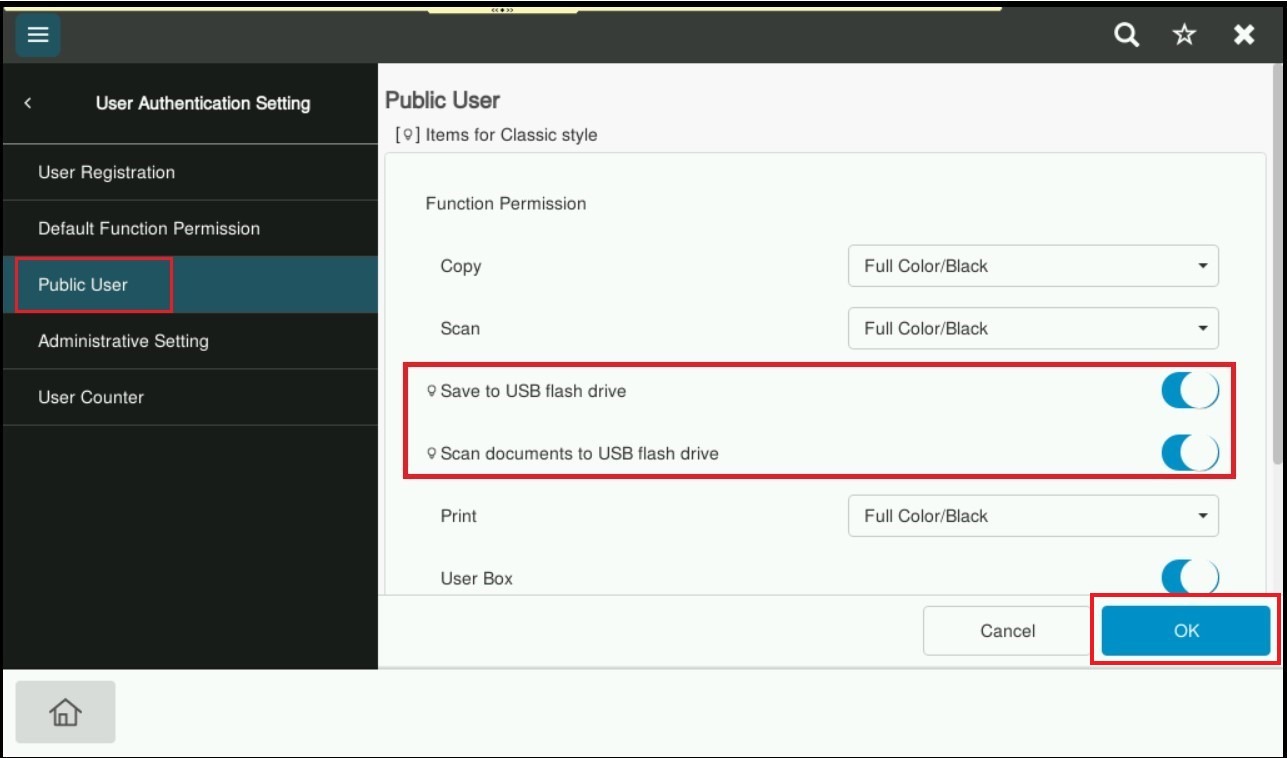
STEP 7 – Scroll down and select [Allow] on the [Save to USB flash drive] & [Scan documents to USB flash drive] the icon will change to blue color and click [OK] to save the setting. This is to enable the scan function for the specific user when a thumb drive is plugged in to the machine.
Important Note: Only thumb drives with file type FAT32 is accepted on the machine. NTFS file type and encrypted thumb drives will not work on the machine.

**For Public User Only, kindly select [Public User] – select [Allow] on the [Save to USB flash drive] & [Scan documents to USB flash drive] the icon will change to blue color and click [OK] to save the setting.