

Guide on how to properly install a printer driver on a Windows PC.
REQUIREMENTS:
- Machine IP Address – click Here for the guide on how to get the machine IP Address
- Downloaded Printer Driver (Windows 7, Windows 8 & Windows 10)– click Here for the guide on how to download the Printer Driver from the Download Centre website
- Downloaded Printer Driver (Windows 11 & onward)– click Here for the guide on how to download the Universal Printer Driver from the Download Centre website
Before the installation begins, make sure to extract the ZIP file for the INF file to be visible when installing the printer driver.

For Window 10 Installation
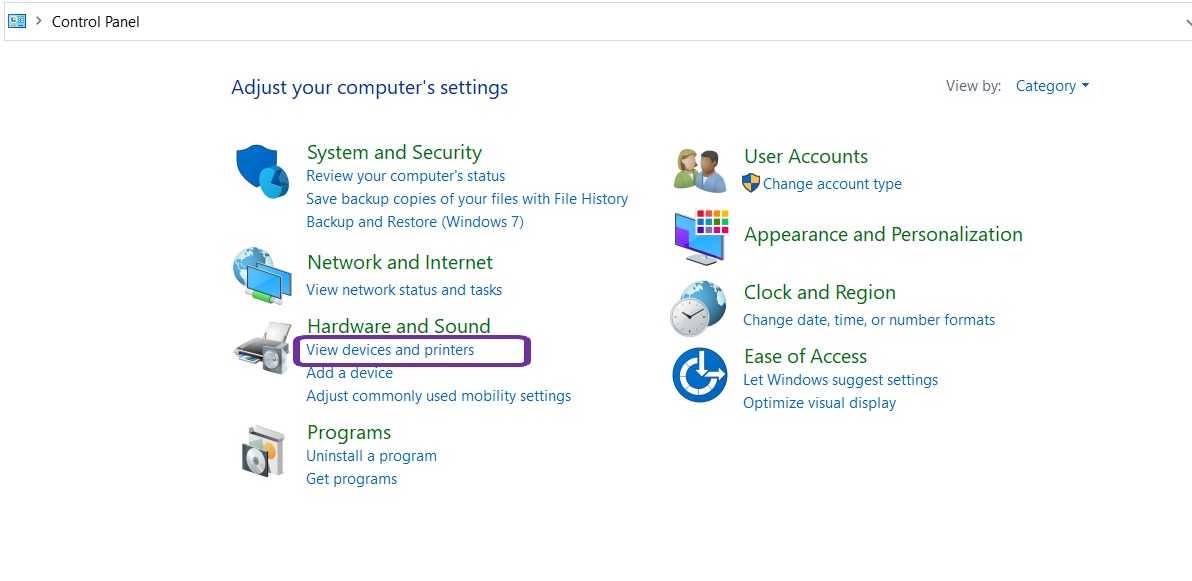
STEP 1 – Go to computer Control Panel and select Devices and Printers.
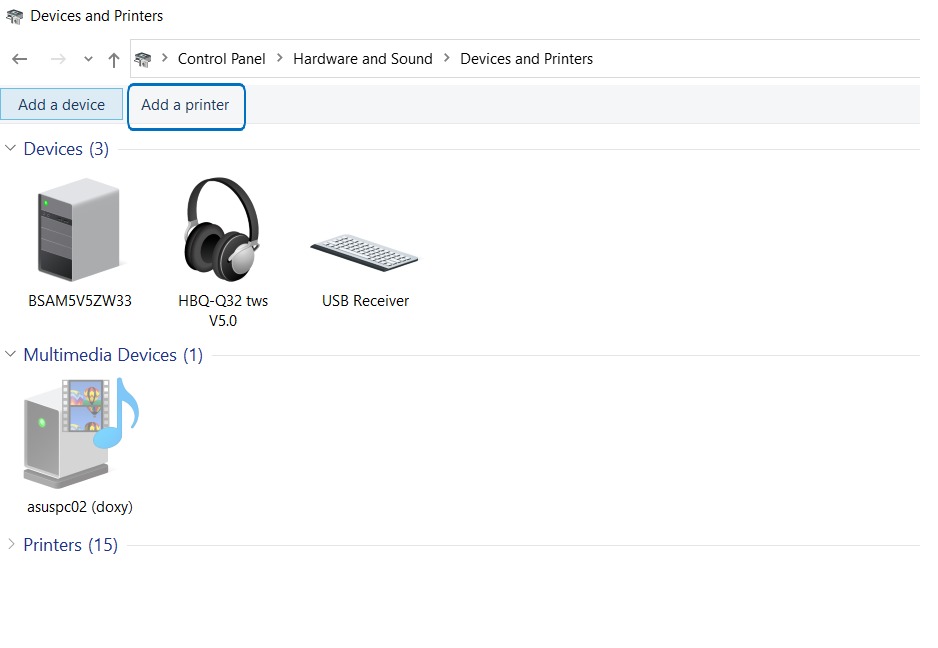
STEP 2 – Select Add a printer
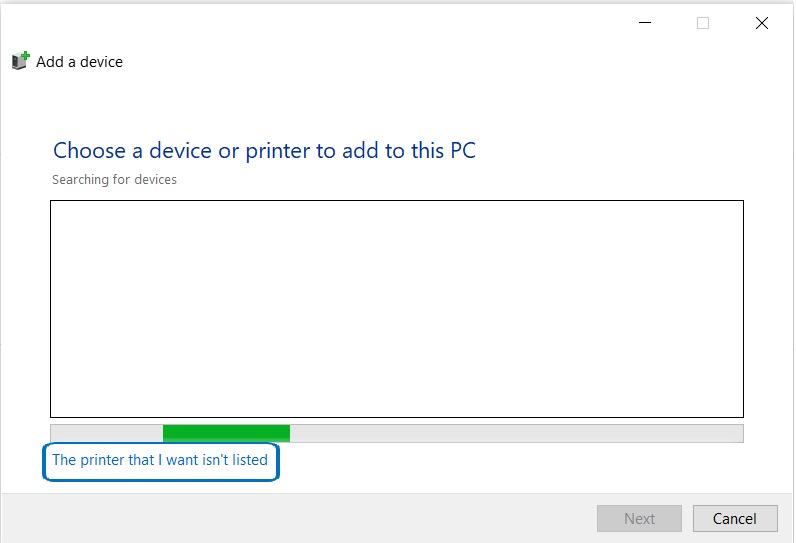
STEP 3 – Select “The printer that I want isn’t listed”.
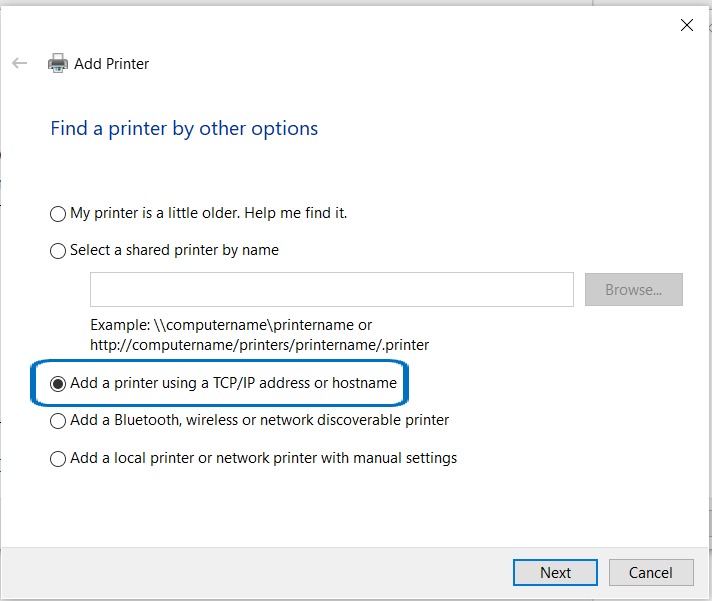
STEP 4 – Choose “Add a printer using TCP/IP address or Hostname” then click Next.
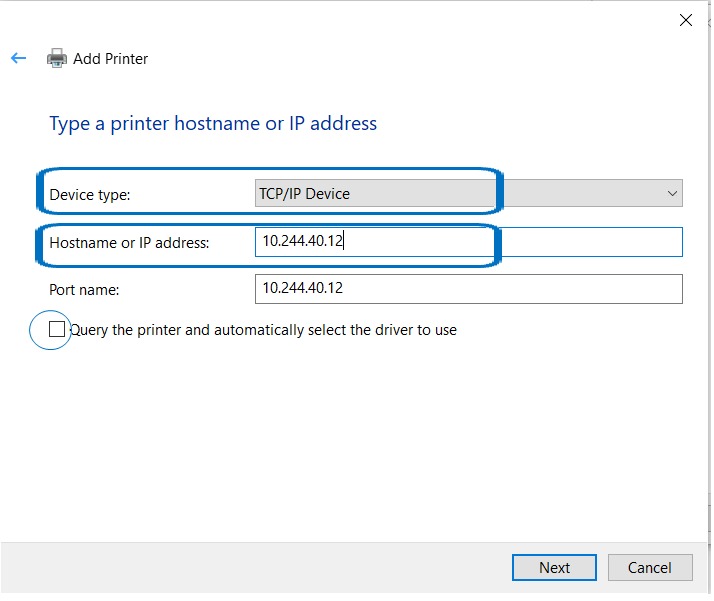
STEP 5 – Change the Device Type to TCP/IP Device and type in the machine IP Address and untick the option “Query the printer and automatically select the driver to use” then click Next.
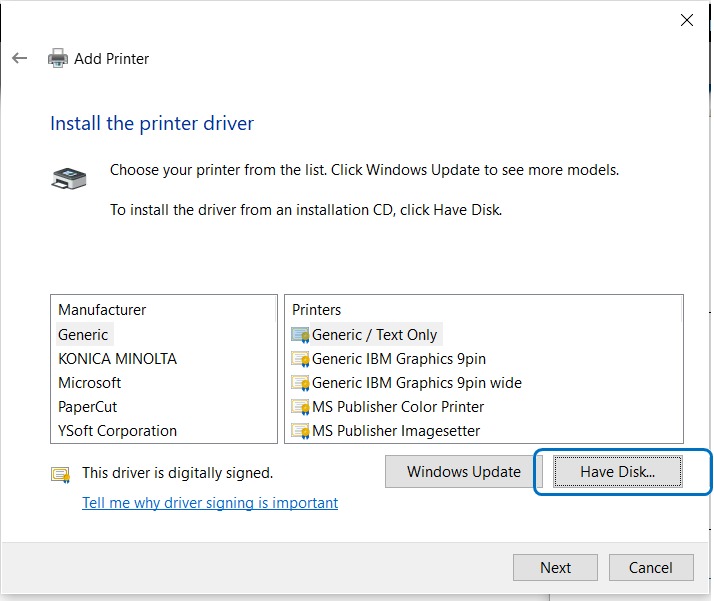
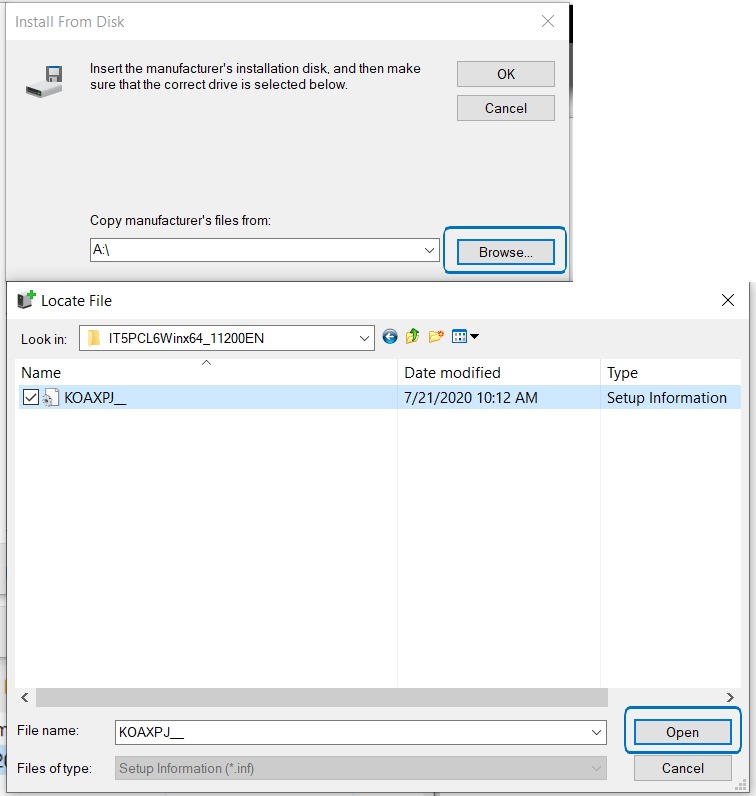
STEP 6 – Click on Have Disk, select Browse and look for the Printer Driver folder that you extracted previously.
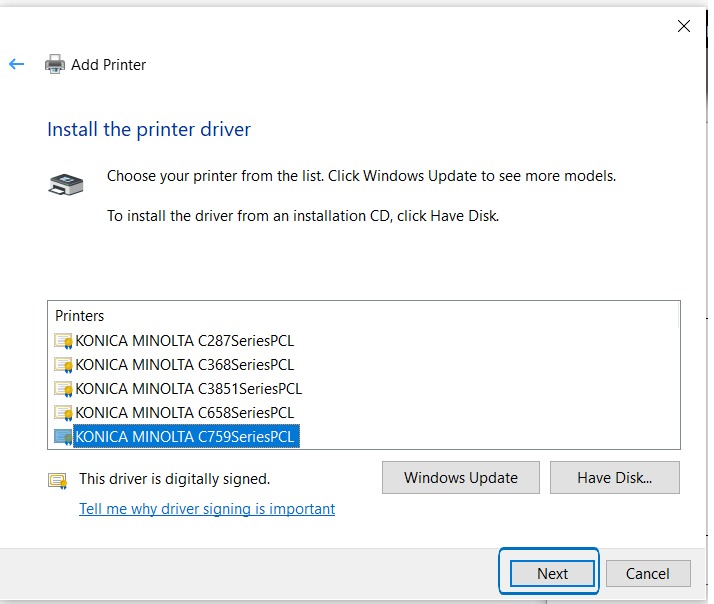
STEP 7 – Select the printer driver according to the model and click Next to install Driver.
Note: Not all models will be listed on this list, make sure to follow the series number (last number of the model), example is when installing a printer driver for BizHub C308, the model that needs to be selected is the printer driver C368SeriesPCL as both are using the same printer driver (larger model number with the same series number which is 8).
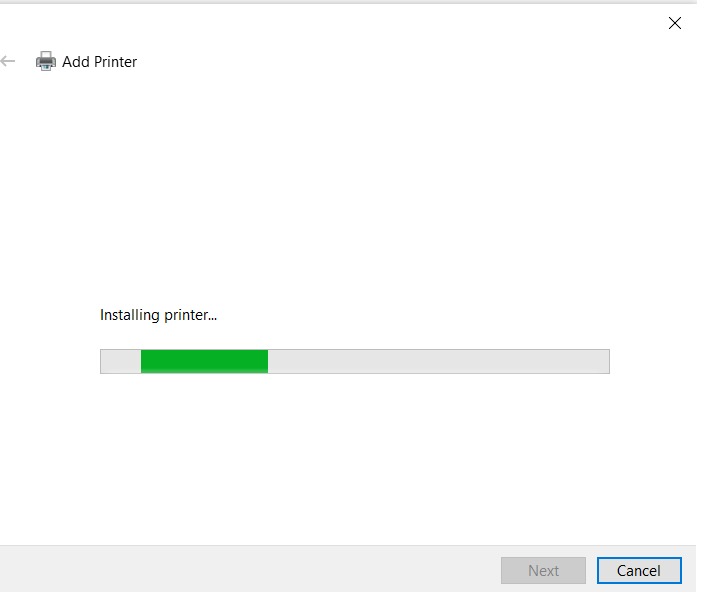
STEP 8 – After installation, try to print out a test page to verify if connection to the printer is working.
Additional Note: If getting an error or are unable to print, kindly make sure that the authentication details have been updated on the printer driver before printing. Click Here for the guide on how to update the authentication details on the printer driver.
For Window 11 installation (will using Universal Printer Driver instead of Windows 10 dedicated driver)
**For Universal Printer Driver, it has 2 ways of installation,
- Running the installation printer executable file (EXE) kindly follow this link.
- For Manual installation add printer driver via printers & scanner wizard kindly follow step below.
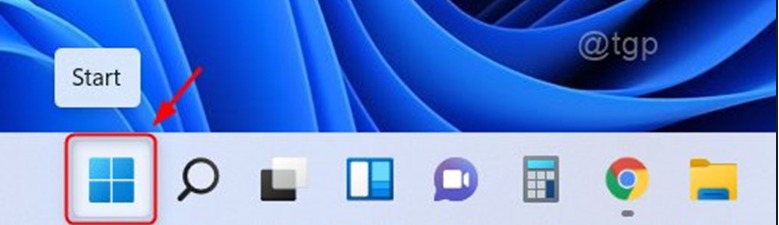
STEP 1 – Click on the Start button on the taskbar as shown below.
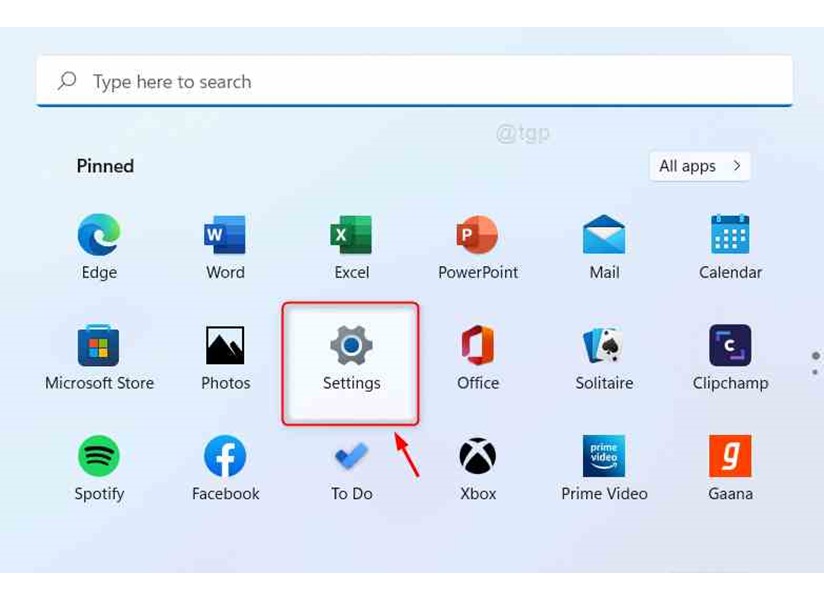
STEP 2 – Click on the Settings button under Pinned apps as shown below.
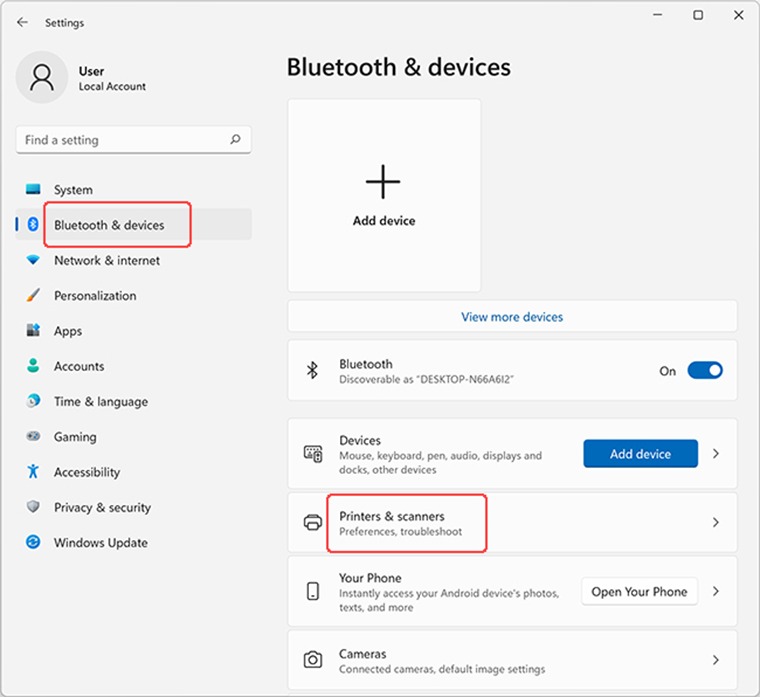
STEP 3 – Select Bluetooth & devices and choose Printers & scanners.
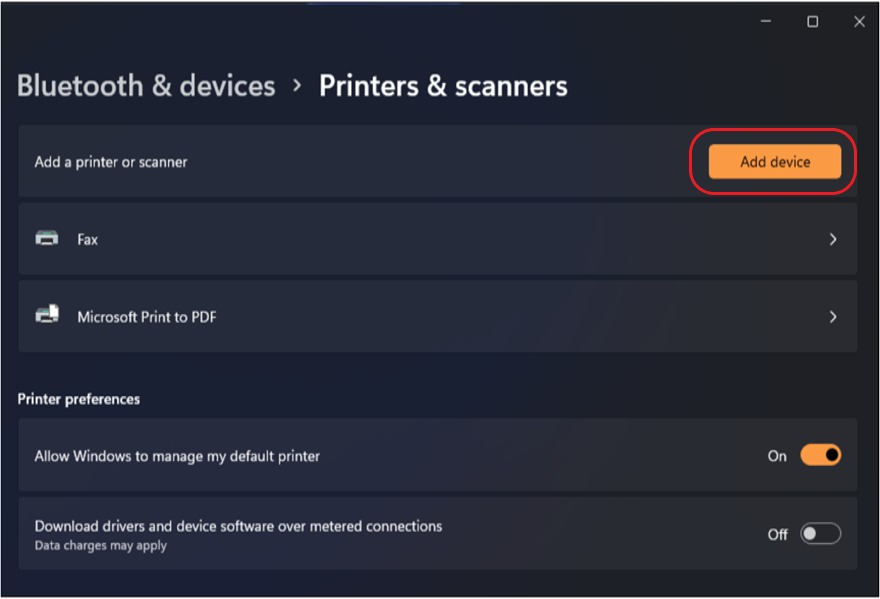
STEP 4 – Click the Add device button.
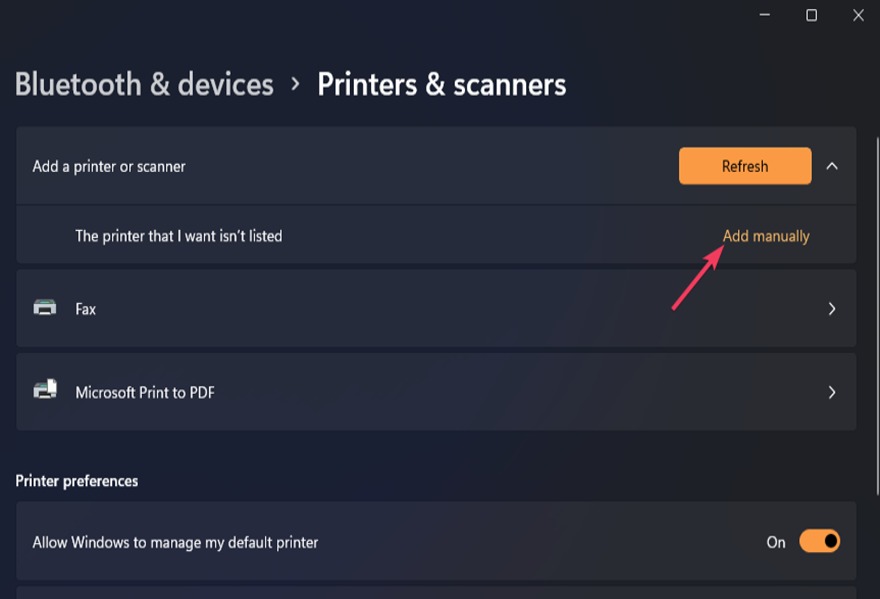
STEP 5 – Then click the Add manually link to bring up the wizard.
STEP 6 – Select “The printer that I want isn’t listed”.
STEP 7 – Choose “Add a printer using TCP/IP address or Hostname” then click Next.
STEP 8 – Change the Device Type to TCP/IP Device and type in the machine IP Address and untick the option “Query the printer and automatically select the driver to use” then click Next.
STEP 9 – Click on Have Disk, select Browse and locate for the Printer Driver folder path UPDPCL6Win_397370MU\driver\win_x64\.inf file that you extracted previously.
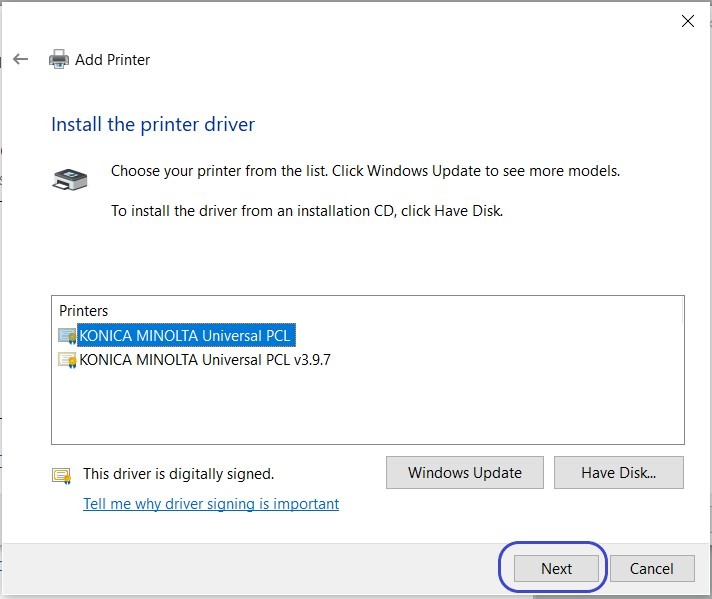
STEP 10 – Select the KONICA MINOLTA Universal PCL and click Next to install Driver.
STEP 11 – After installation, try to print out a test page to verify if connection to the printer is working.
Additional Note: If getting an error or are unable to print, kindly make sure that the authentication details have been updated on the printer driver before printing. Click Here for the guide on how to update the authentication details on the printer driver.