Guide on how to hide document name or username on job history
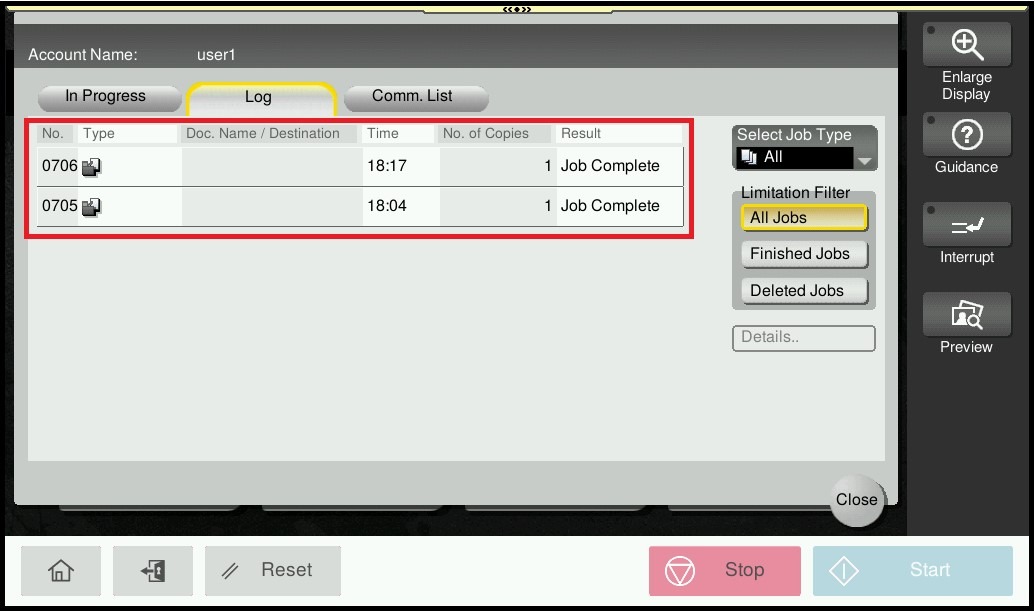
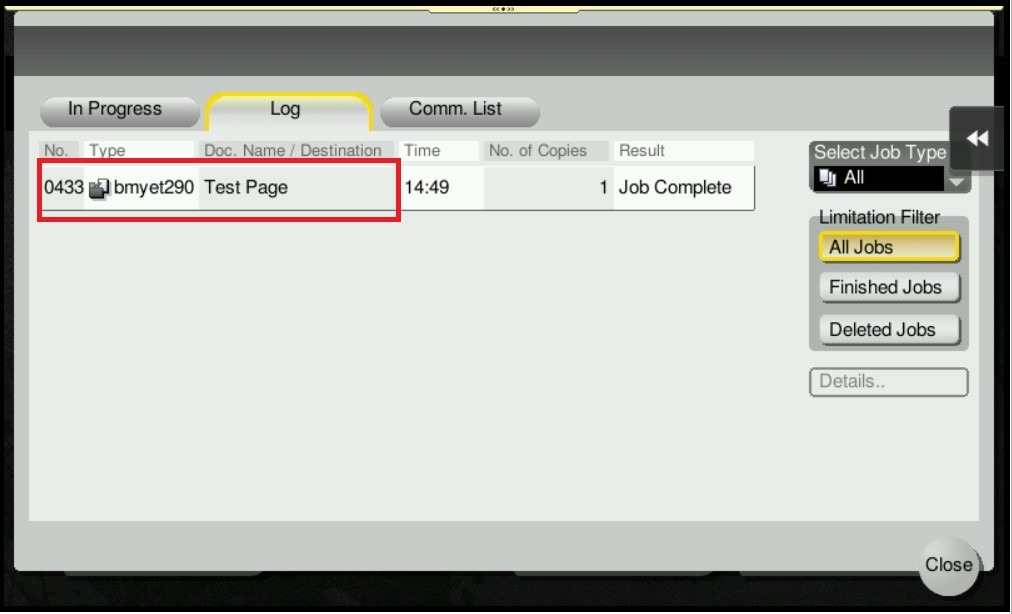
Sample of the Job History by default (will display document name and username)
For The Older Machine Series / Non I-Series Machine
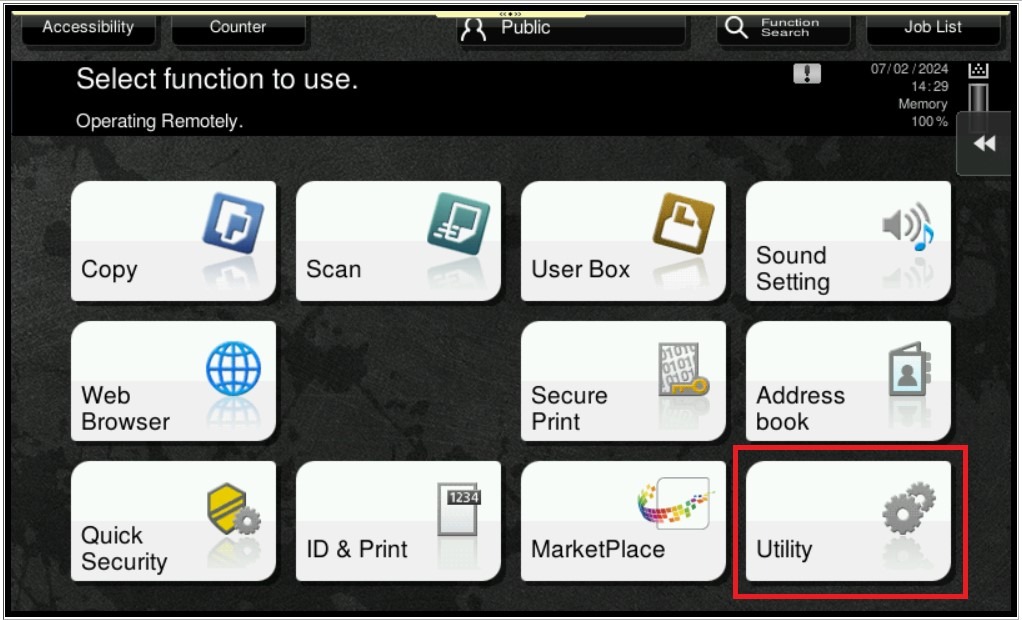
STEP 1 – Select [Utility].
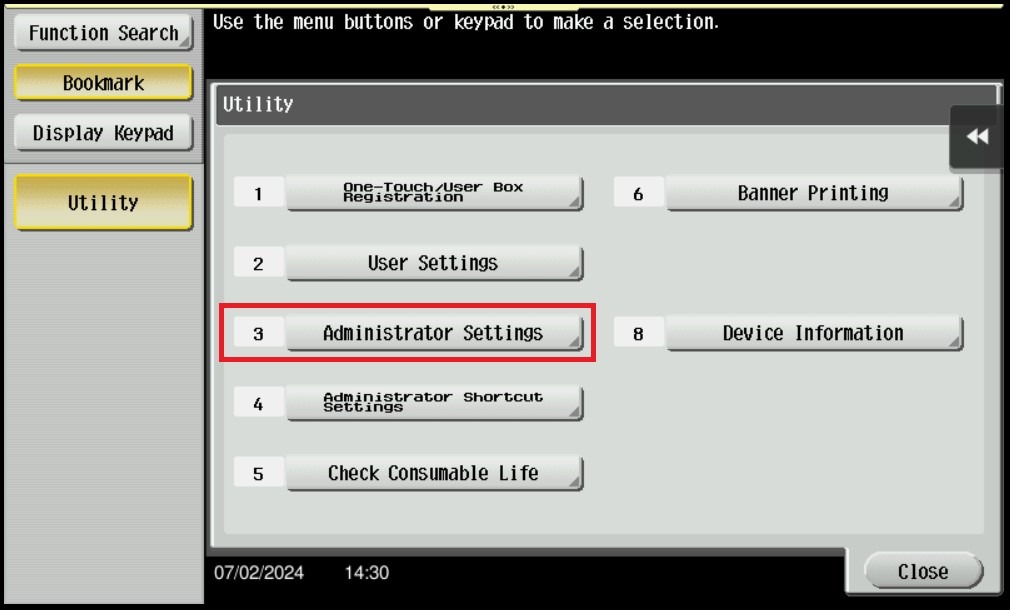
STEP 2 – Select [Administrator Settings].
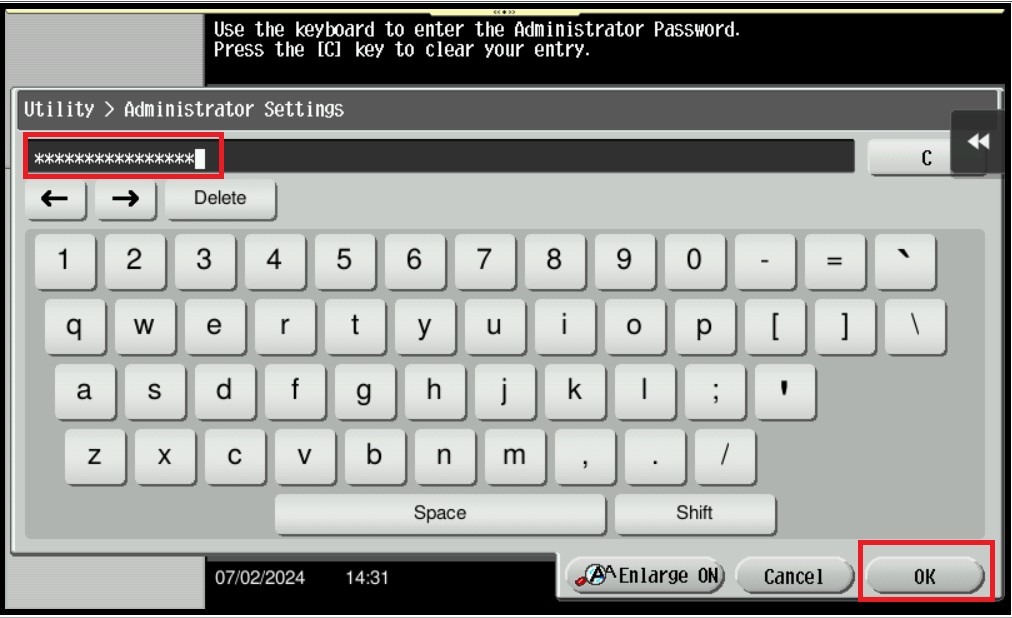
STEP 3 – Type administrator password and click on [OK].
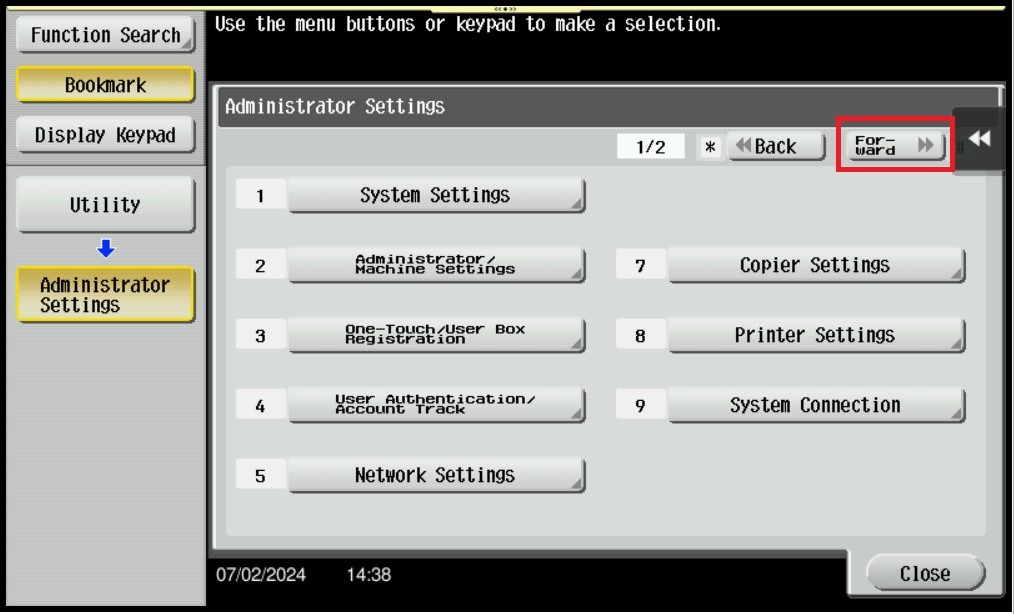
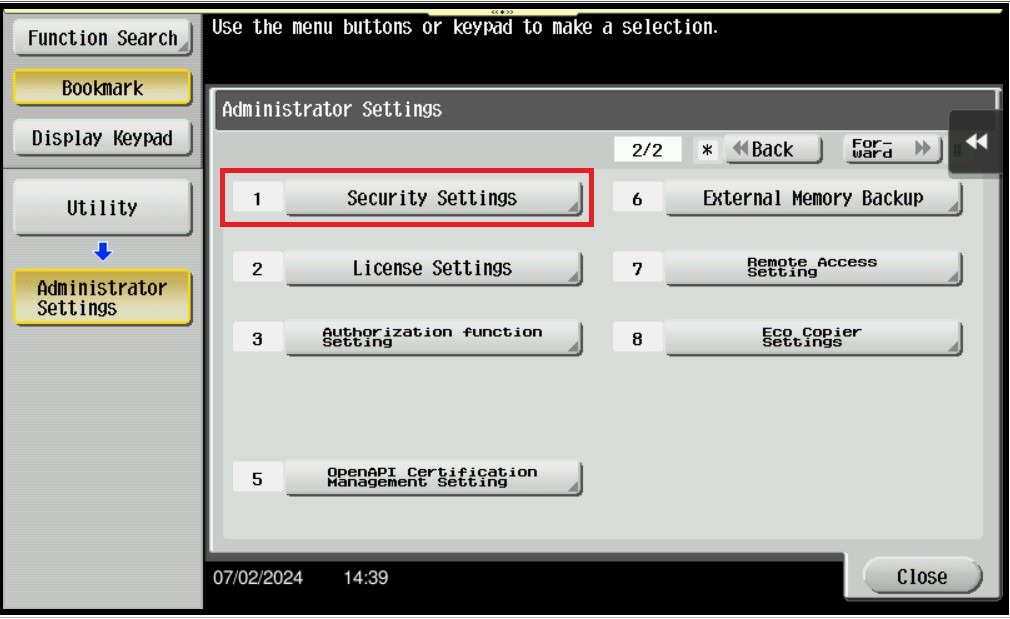
STEP 4 – Click on [Forward] – [Security Settings].
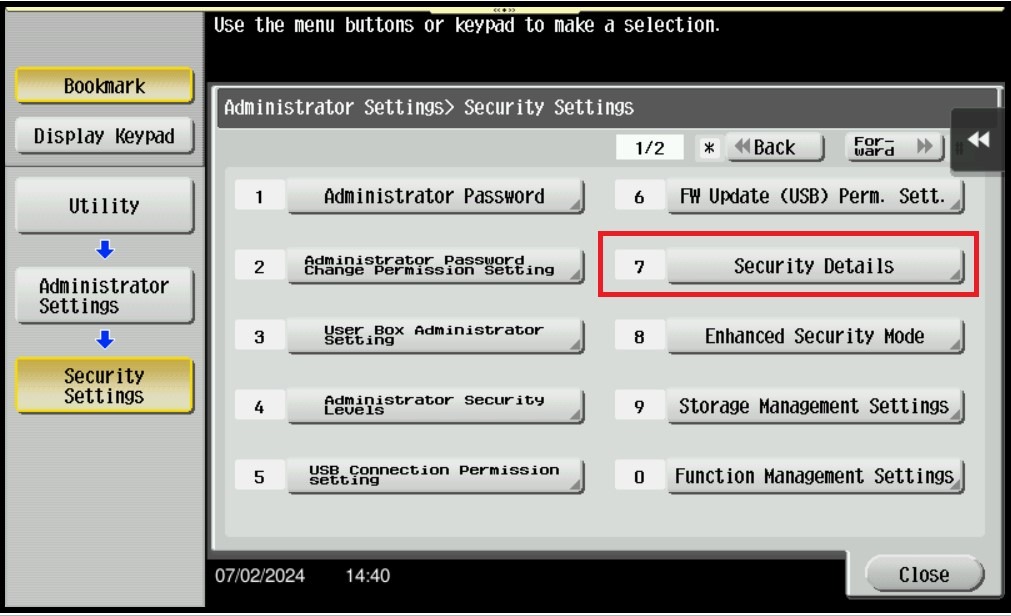
STEP 5 – Select [Security Details].
STEP 6 – Click icon [↓] – [Personal Data Security Settings].
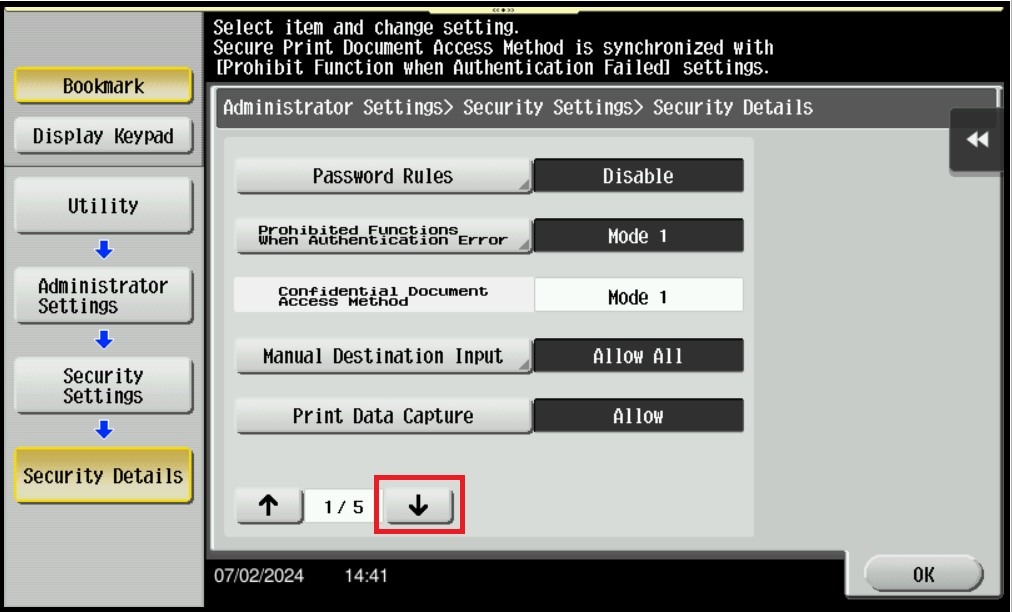
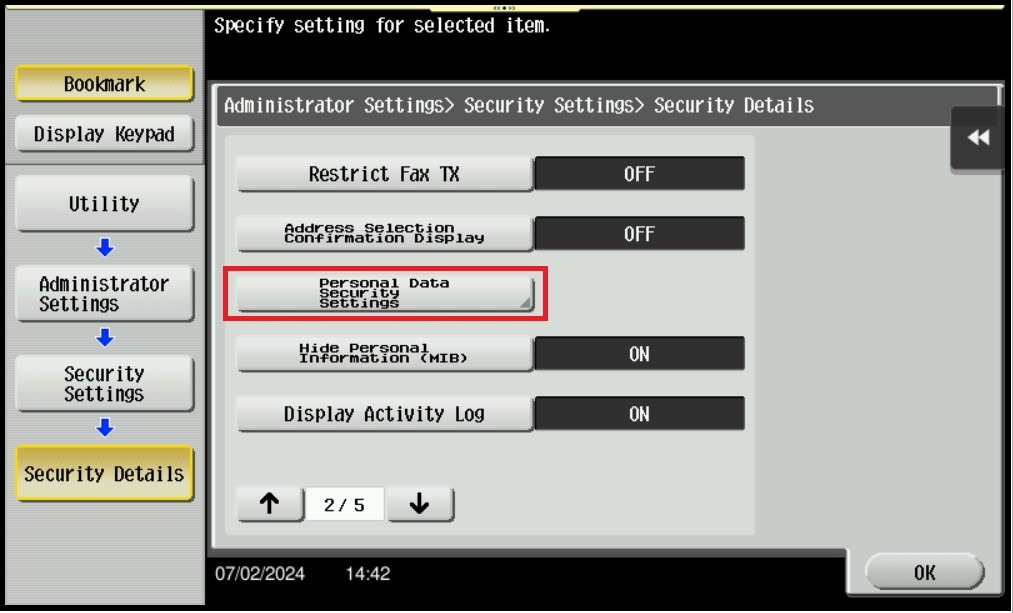
STEP 7 – Click on [Yes] to enabled the function.
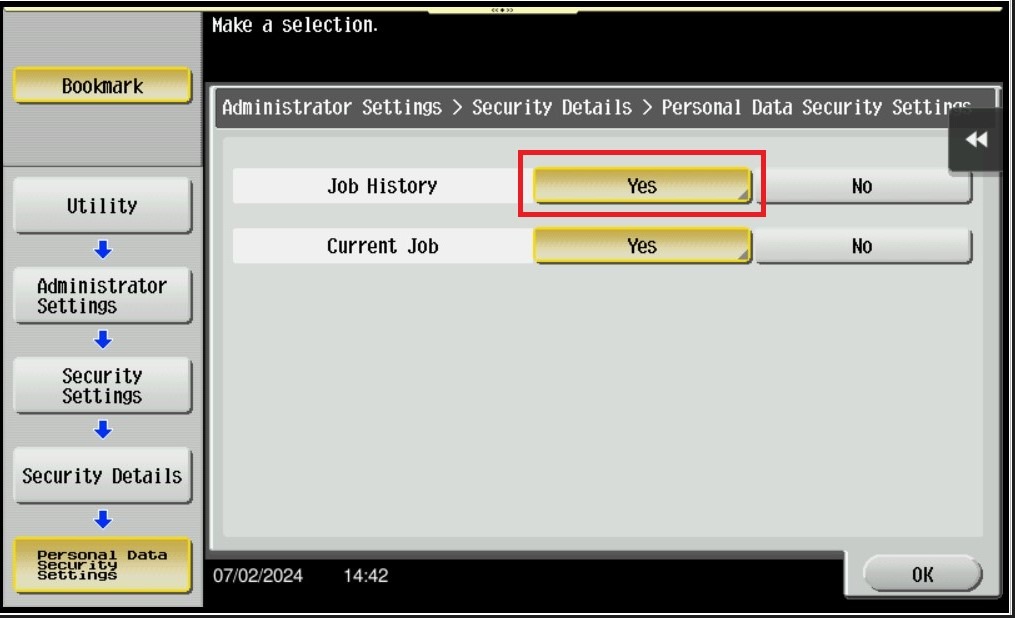
STEP 8 – Select Display Settings either Mode 1 or Mode 2 based on description below, once finish selecting proceed to [Forward Button] depending on the authentication and select Mode 1 then click OK to save the setting.

| Display Settings | Description |
|---|---|
| Mode 1 | Hide the destination, file name, and user box name. |
| Mode 2 | Hide the destination, file name, and user box name, and user name. |
Sample output if Select Mode 1 under display settings. (Hide the Document Name)
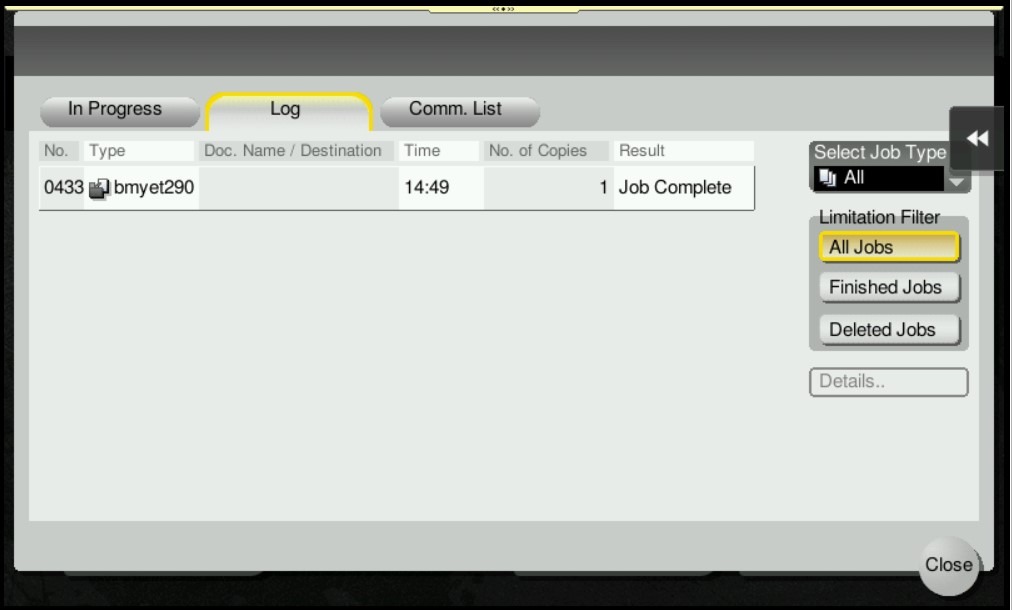
Sample output if Select Mode 2 under display settings. (Hide the Document Name and Username)
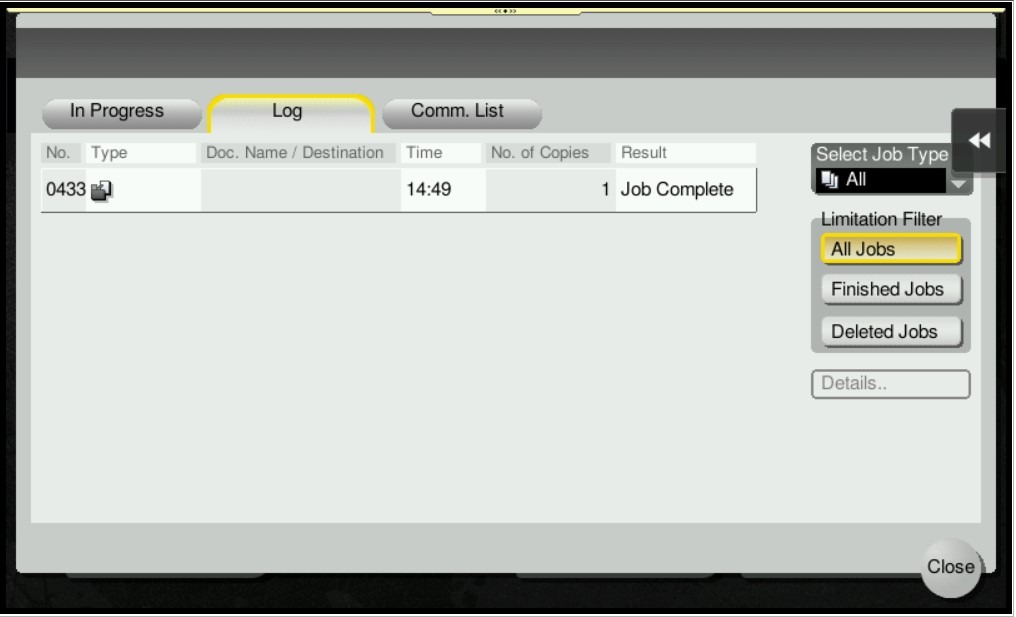
STEP 9 – Once finish selecting proceed to [Forward Button] depending on the authentication below and select Mode 1 then click OK to save the setting.
9a) Select Mode 1 under Public User only If the machine is no authentication apply.

9b) Select Mode 1 under Public User & User Authentication only if the machine is using User Authentication method.
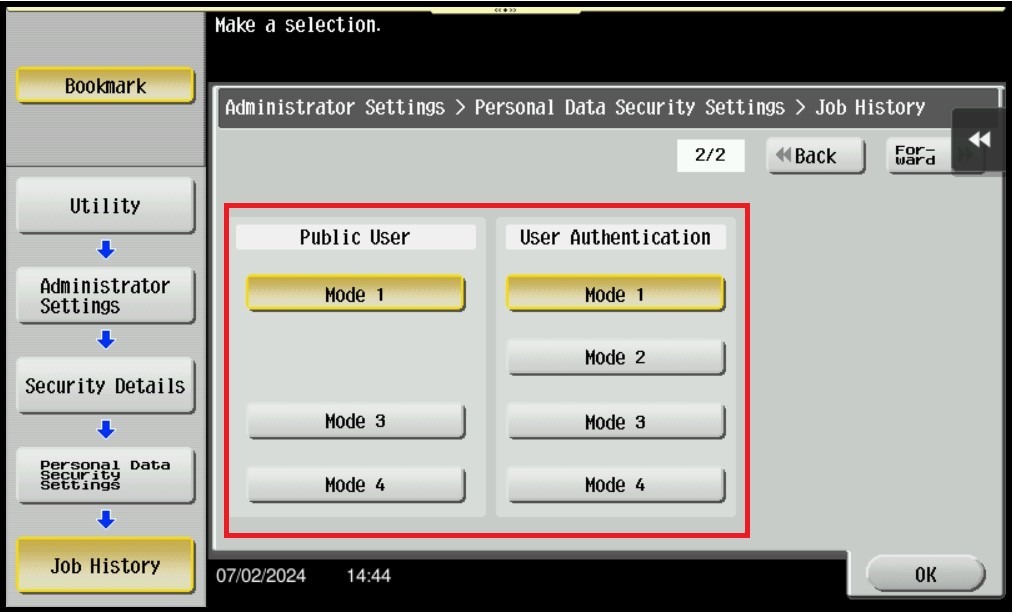
9c) Select Mode 1 under Public User & Department only if the machine is using Account Track method.
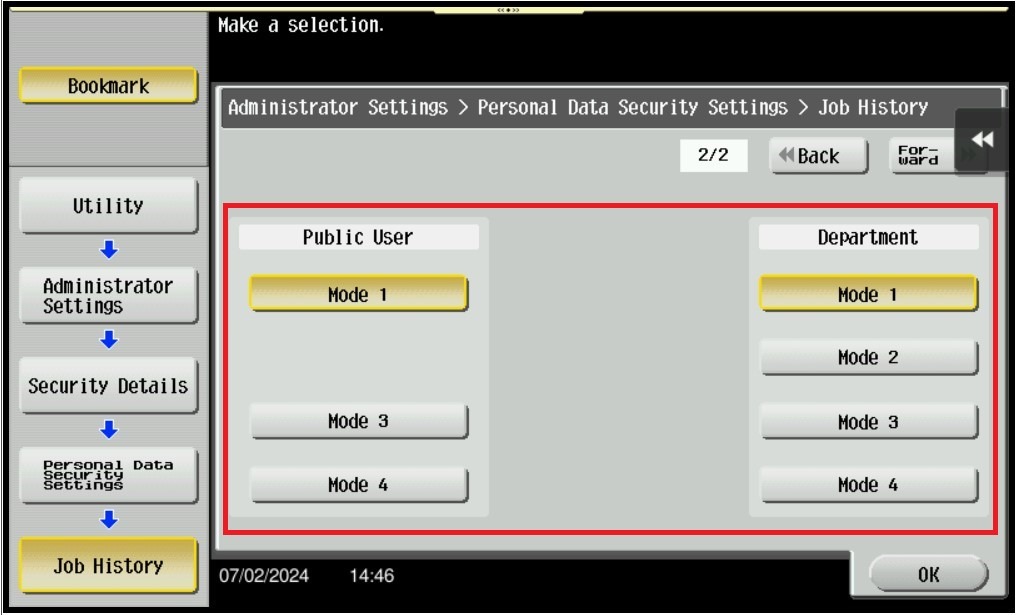
For The Newer Machine Series / I-Series Machine
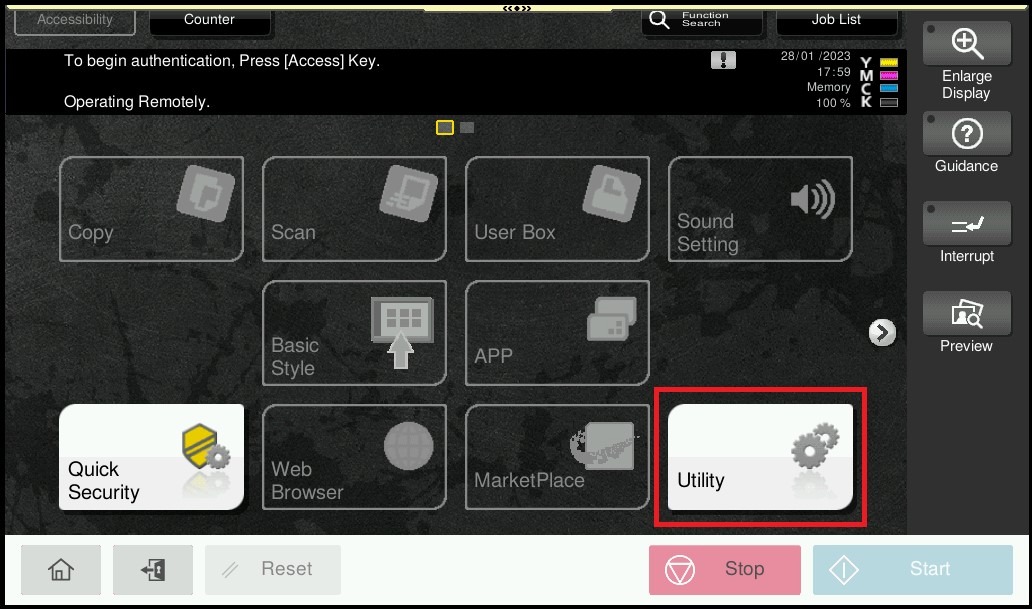
STEP 1 – On the Konica Minolta machine control panel, click on the [Home] button then select [Utility].
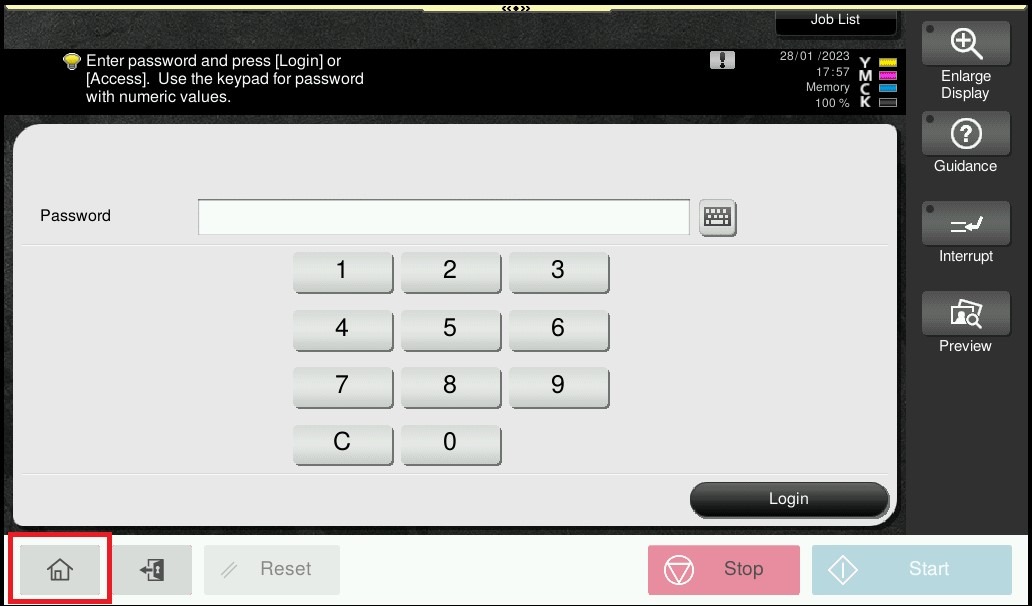
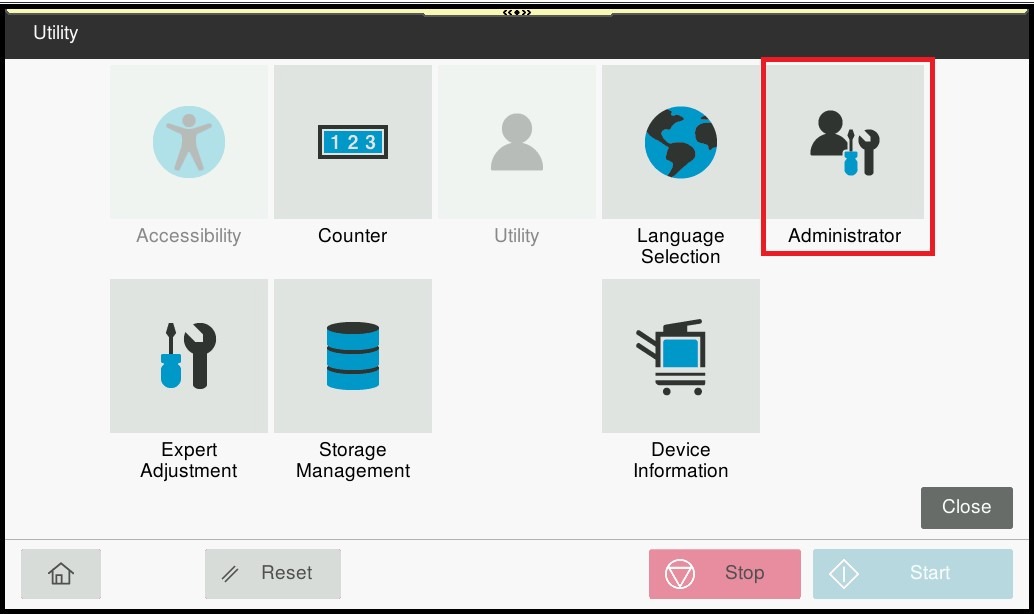
STEP 2 – Select [Administrator].
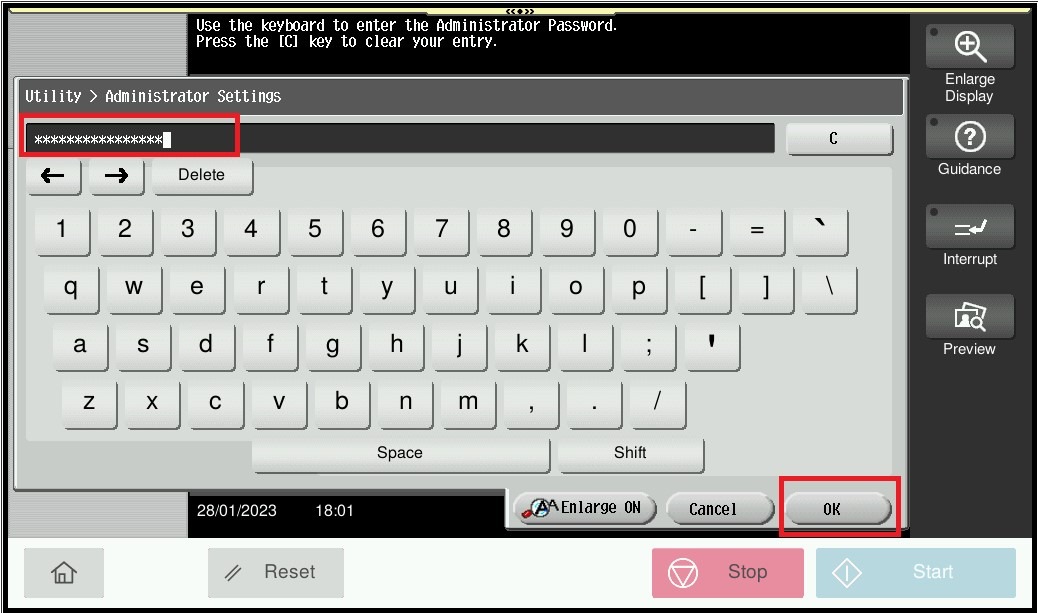
STEP 3 – Type administrator password and click on [OK].
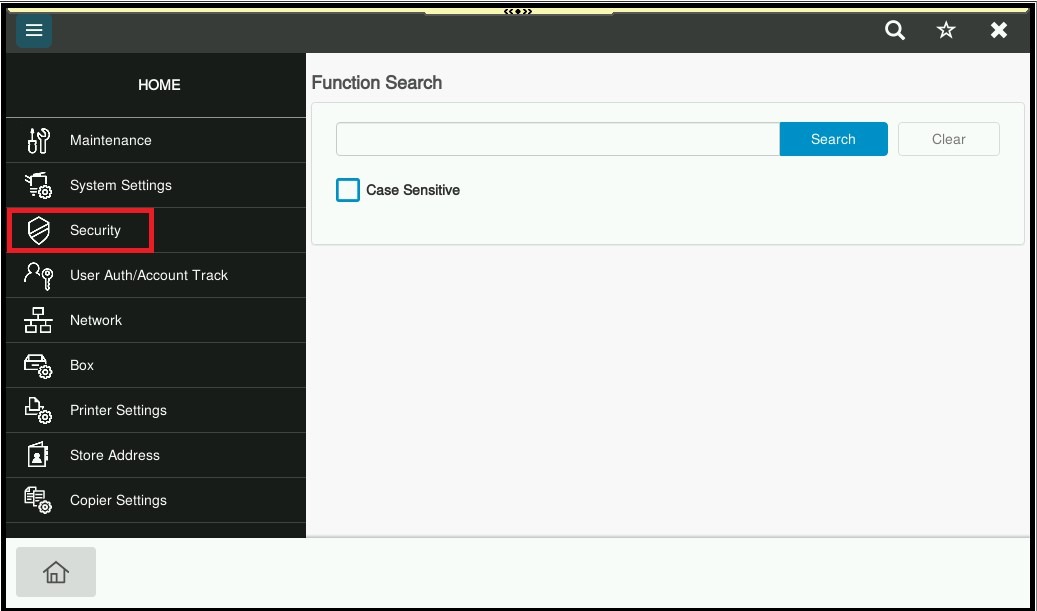
STEP 4 – Click on [Security].
STEP 5 – Select [Security Details].
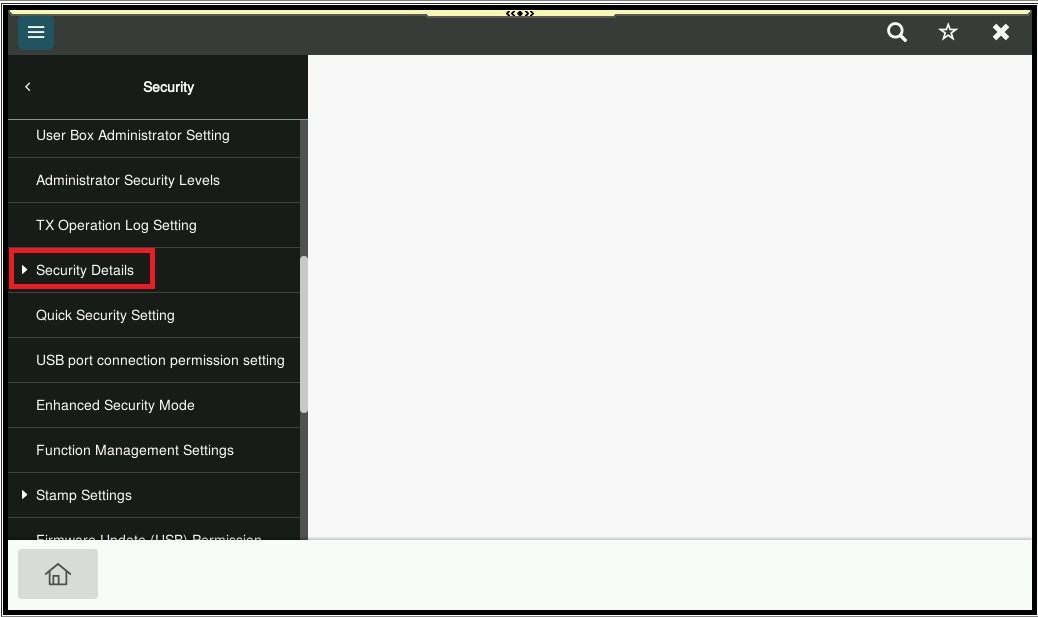
STEP 6 – Click on [Personal Data Security Settings].
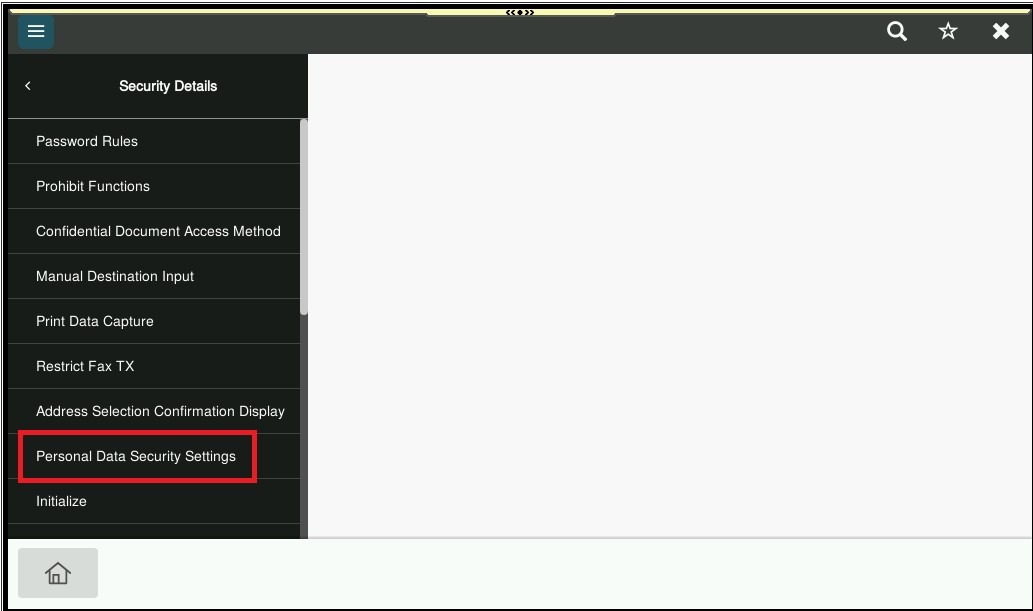
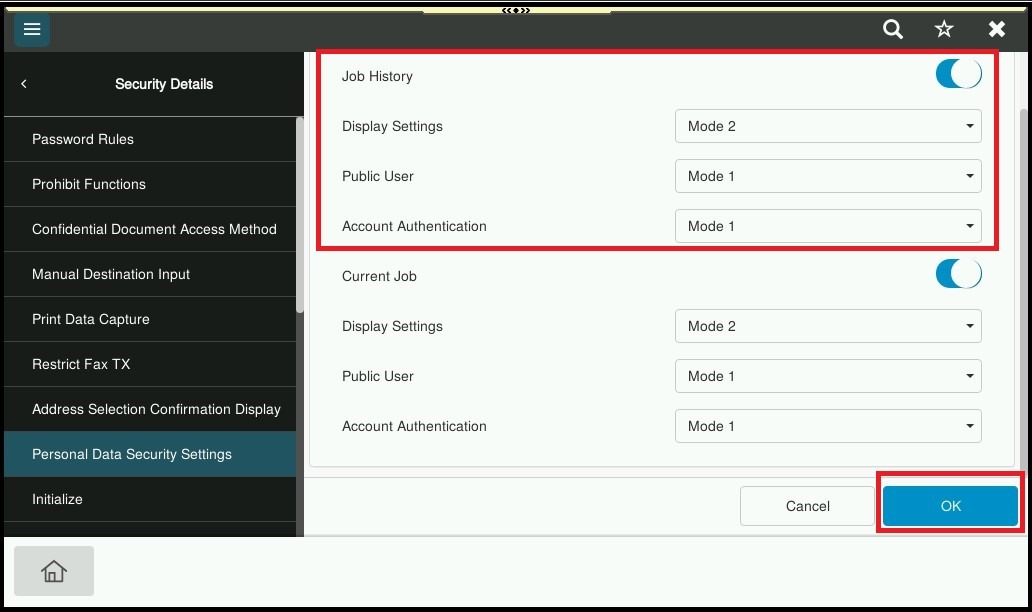
STEP 7 – Enable the Job History Function and select Display Settings either Mode 1 or Mode 2 based on description below, then choose Mode 1 under Public User and User Authentication or Account Authentication if available, click OK to save the setting.
| Settings | Description |
|---|---|
| Display Settings | Mode 1: Hide the destination, file name, and user box name. Mode 2: Hide the destination, file name, and user box name, and user name. |
| Public User / User Authentication / Account Authentication | Mode 1: Hide all display Items. |
Sample output if Select Mode 1 under display setting / Mode 1 under Public User / User Authentication / Account Authentication. (Hide the Document Name only)
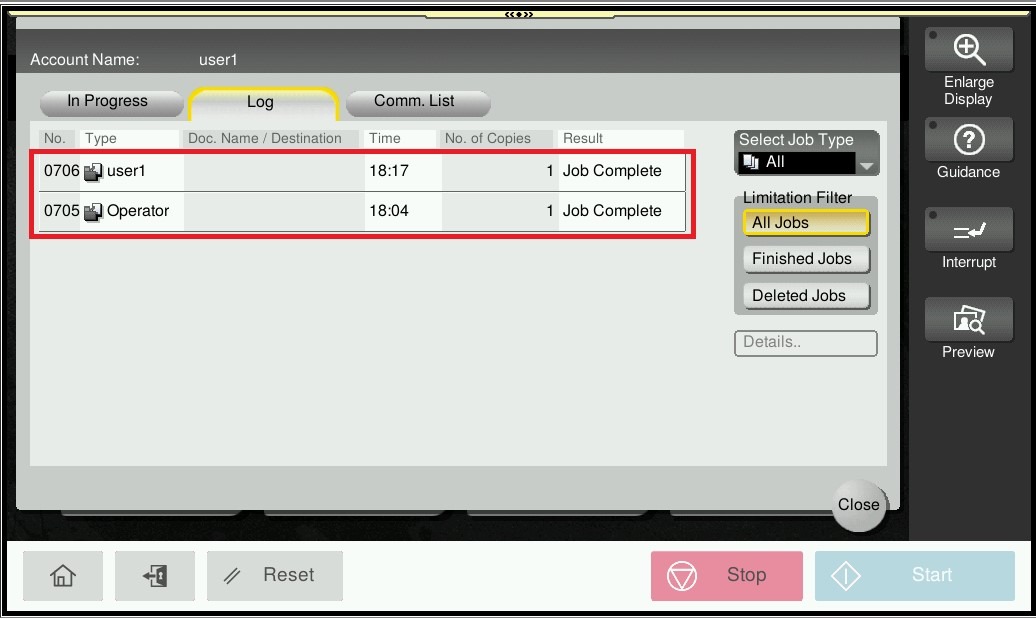
Sample output if Select Mode 2 under display setting / Mode 1 under Public User / User Authentication / Account Authentication. (Hide the Document Name and Username)