Guide on how to adjust authentication auto logout timer on machine.
For the Older Machine series / Non I-Series Machine
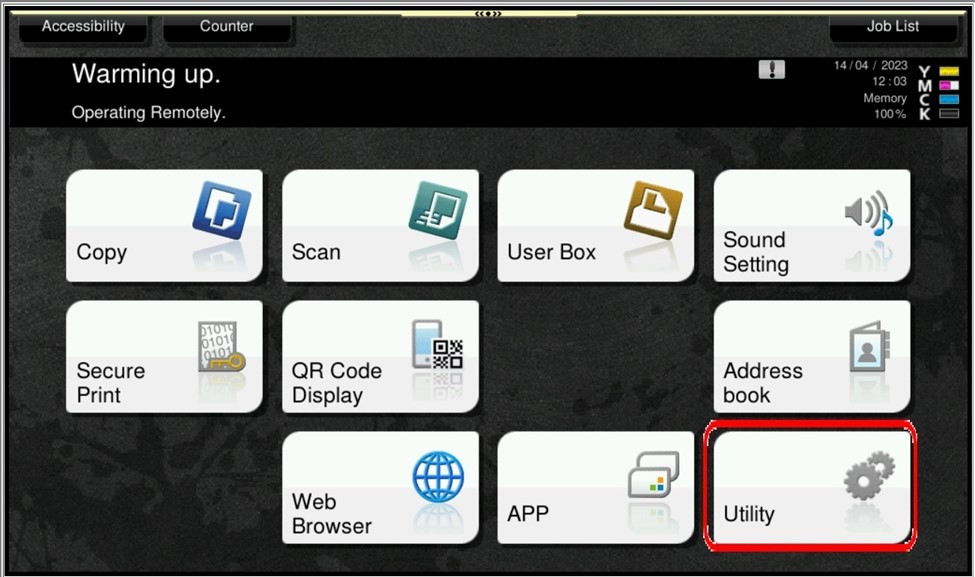
STEP 1 – On the Konica Minolta machine, we need to login to admin mode, Select [Utility].
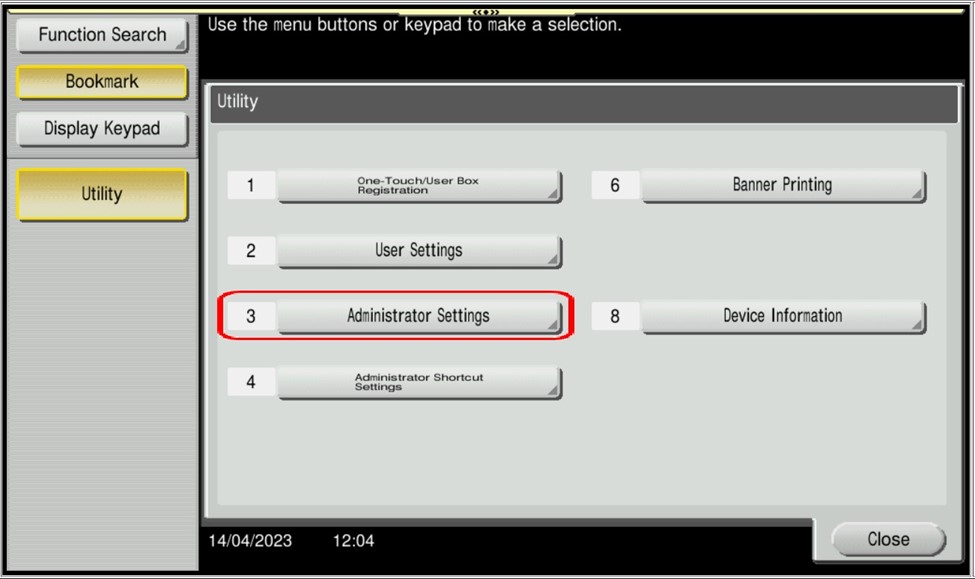
STEP 2 – Select [Administrator Settings].
STEP 3 – Key in admin password for the machine, then select [OK] to continue.
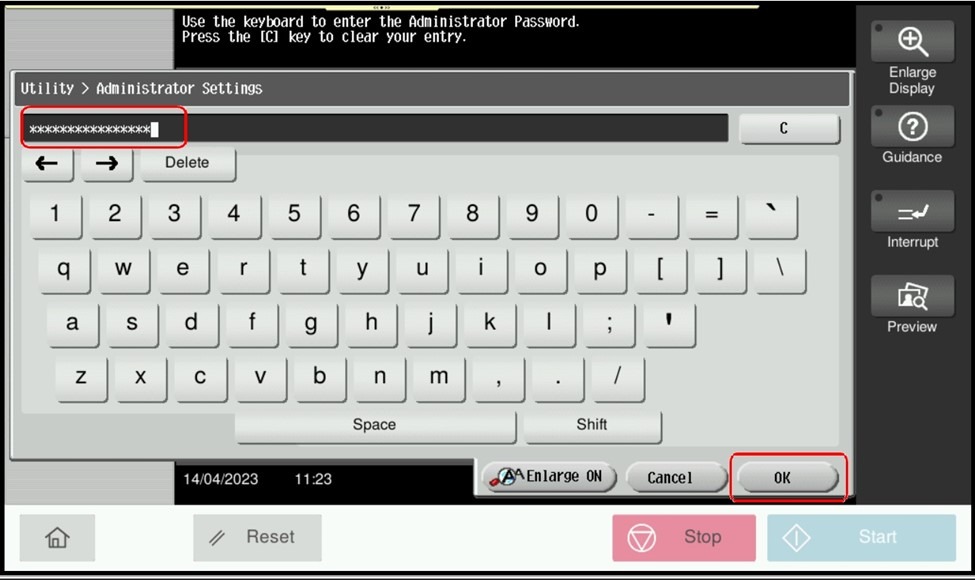
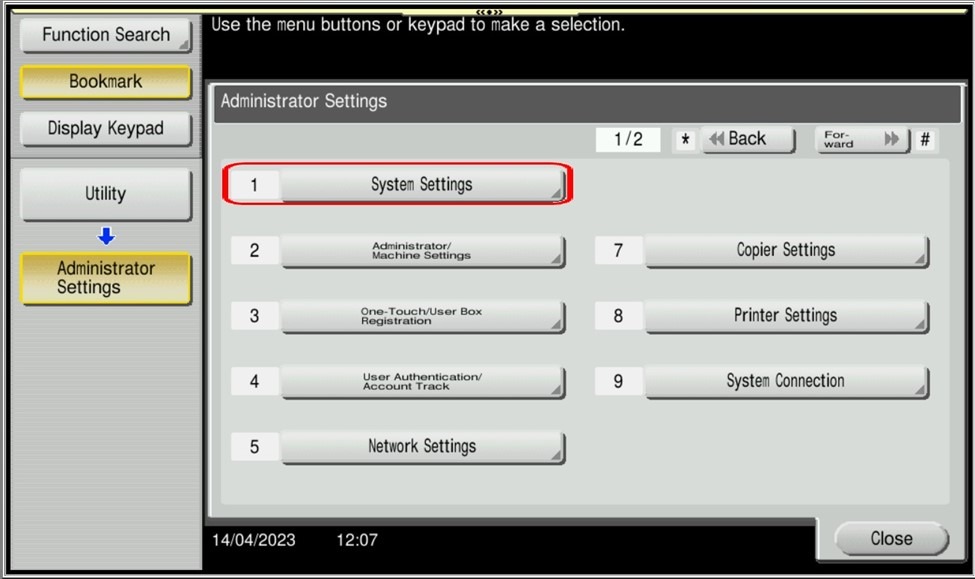
STEP 4 – Select [System Settings].
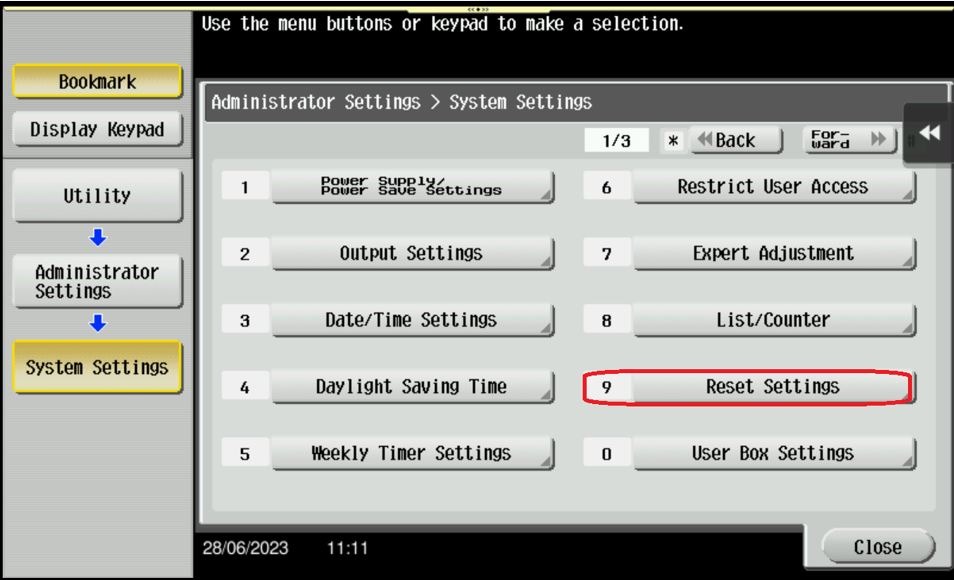
STEP 5 – Select [Reset Settings].
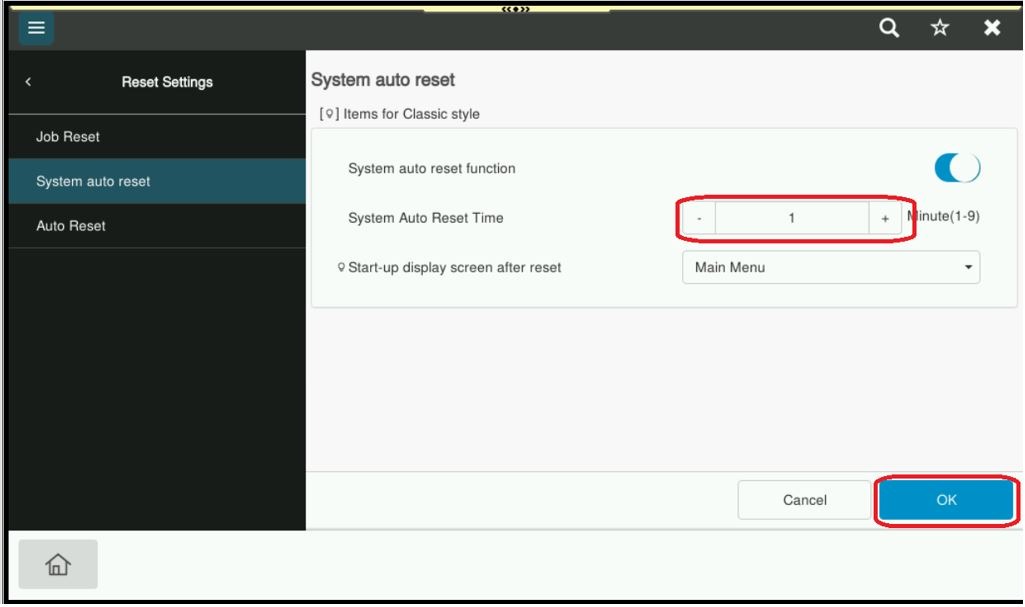
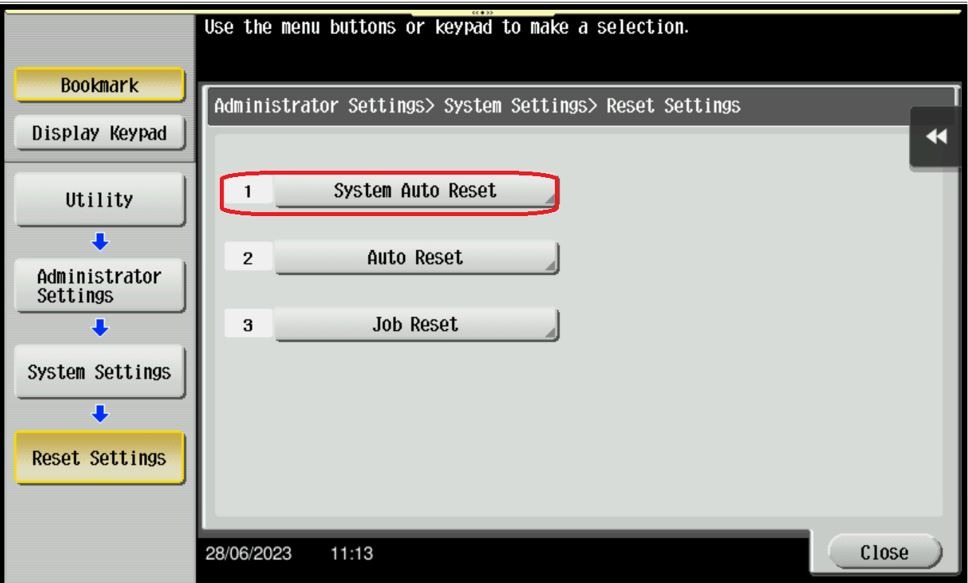
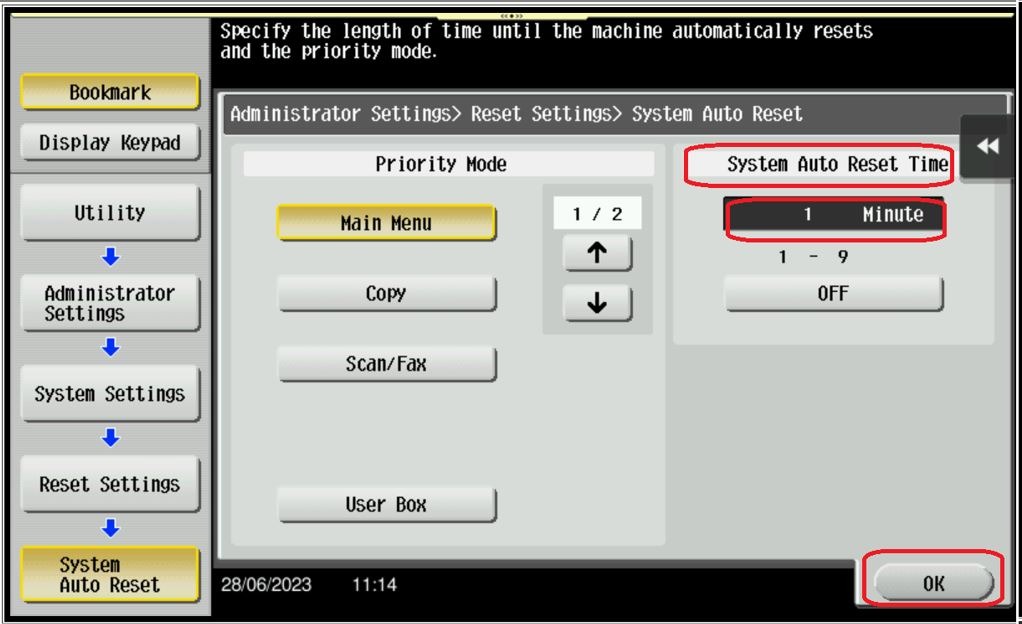
STEP 6 – Select [System Auto Reset], enter a value between 1 and 9 minutes (1 default), click on [OK] to save the settings.
Note: Even if the System Auto Reset Time is set to “OFF”, Authentication Auto Logout occurs after 1 minute by default.
For the Newer Machine series / I-Series Machine
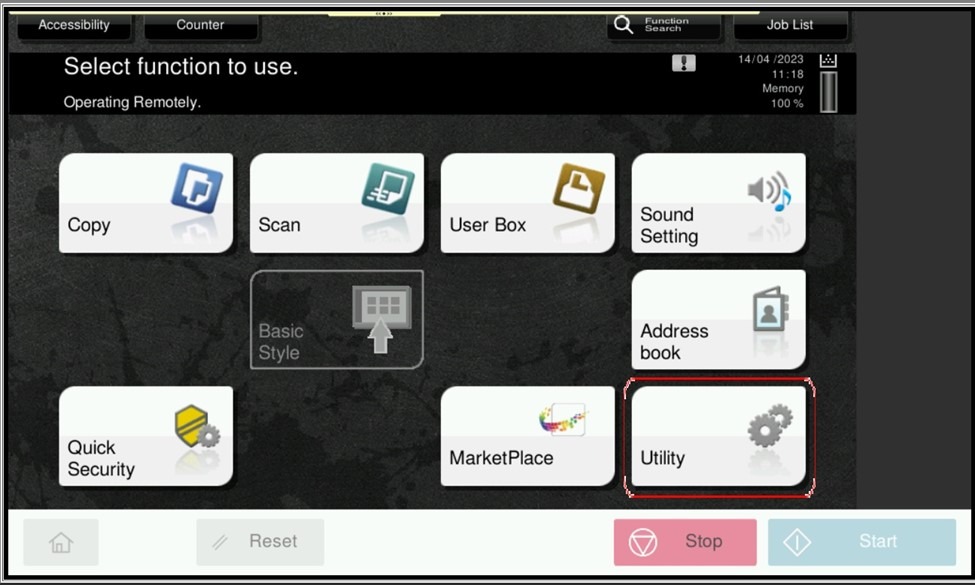
STEP 1 – On the Konica Minolta machine, we need to login to admin mode, Select [Utility].
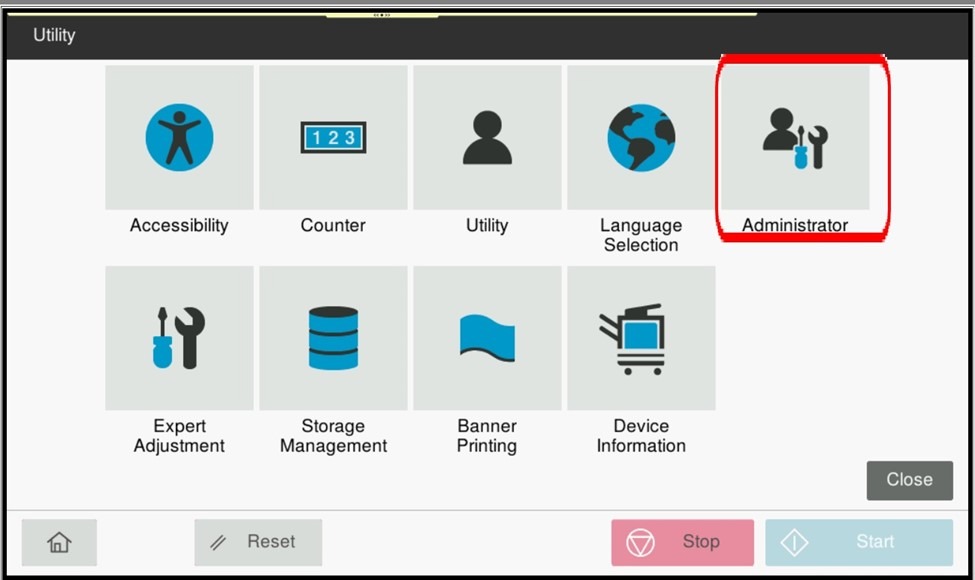
STEP 2 – Select [Administrator].
STEP 3 – Key in admin password for the machine, then select [OK] to continue.
STEP 4 – Select [System Settings].
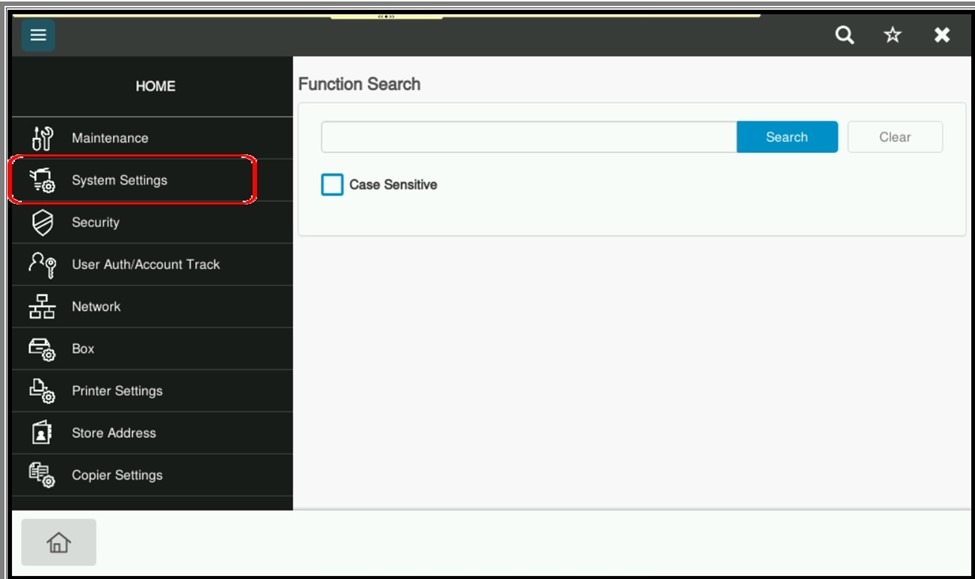
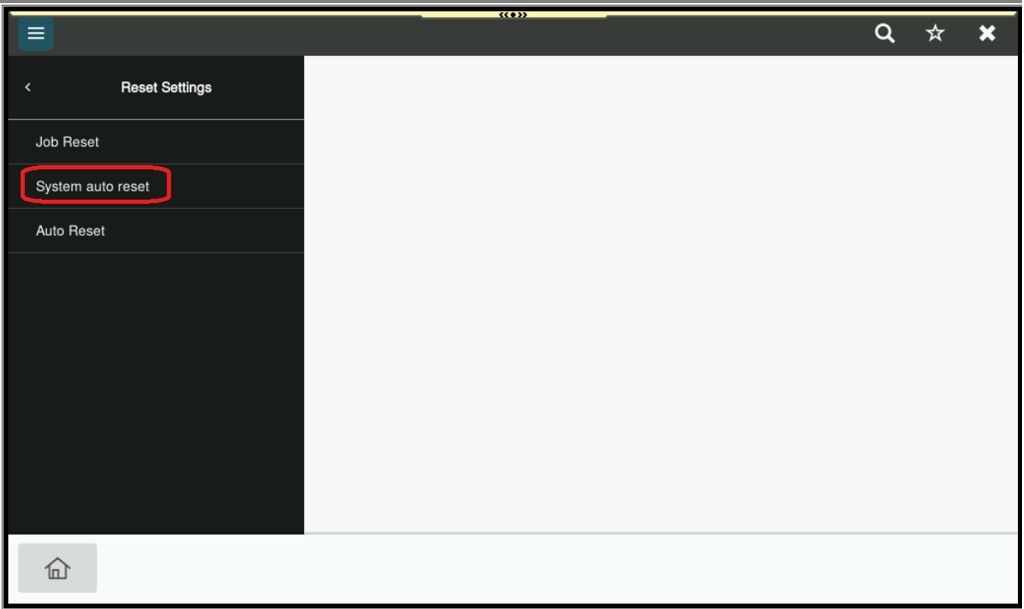
STEP 5 – Select [Reset Setting].
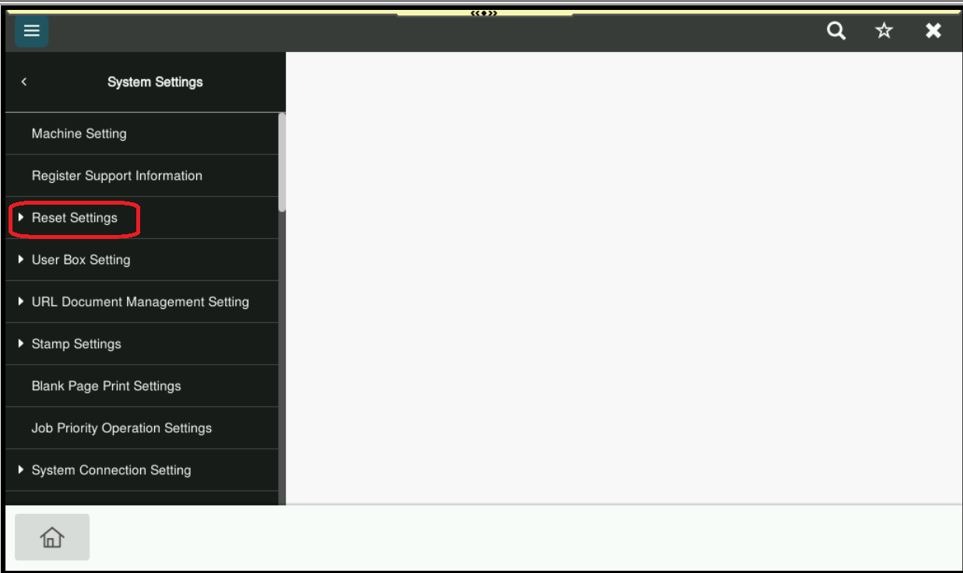
STEP 6 – Select [System Auto Reset], enter a value between 1 and 9 minutes (1 default), click on [OK] to save the settings.
Note: Even if the System Auto Reset Time is set to “OFF”, Authentication Auto Logout occurs after 1 minute by default.