Guide on how to create a Gmail Account and on 2-Step Verification & App Password on Gmail
STEP 1 – Create a new Gmail account on Gmail Website: https://mail.google.com/mail/
Guide on how to on 2-Step Verification
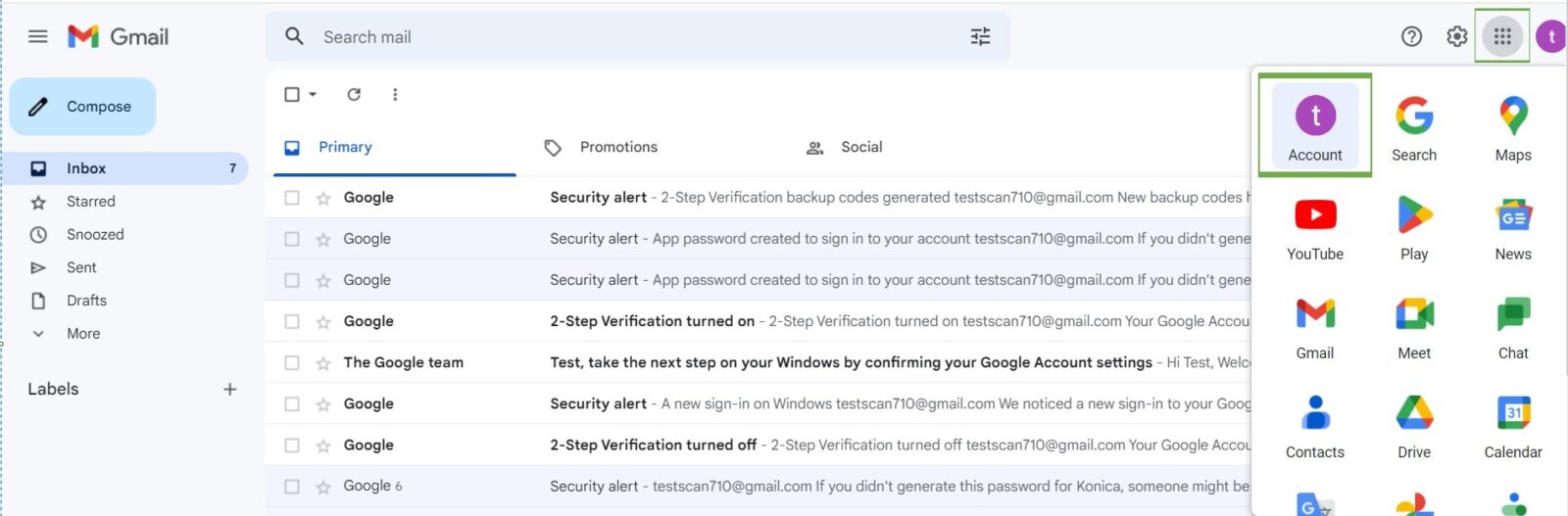
STEP 1 – Once create a new Gmail Account, Select 9 dot on above right hand side and select Account
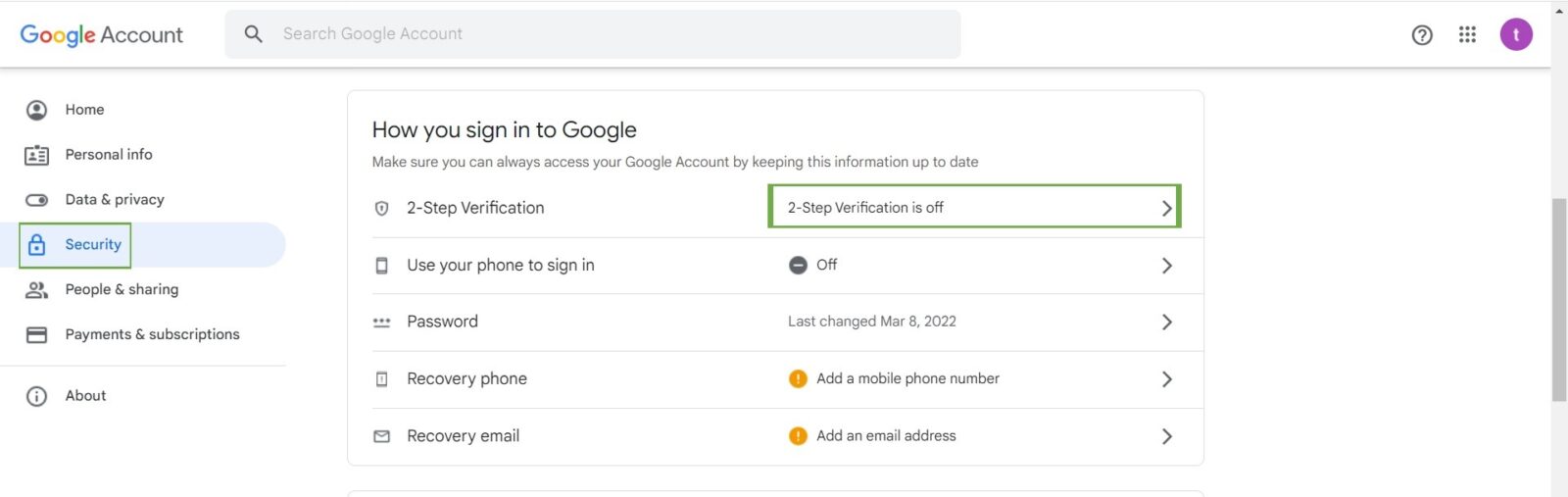
STEP 2 – Select Security and click on 2-Step Verification.
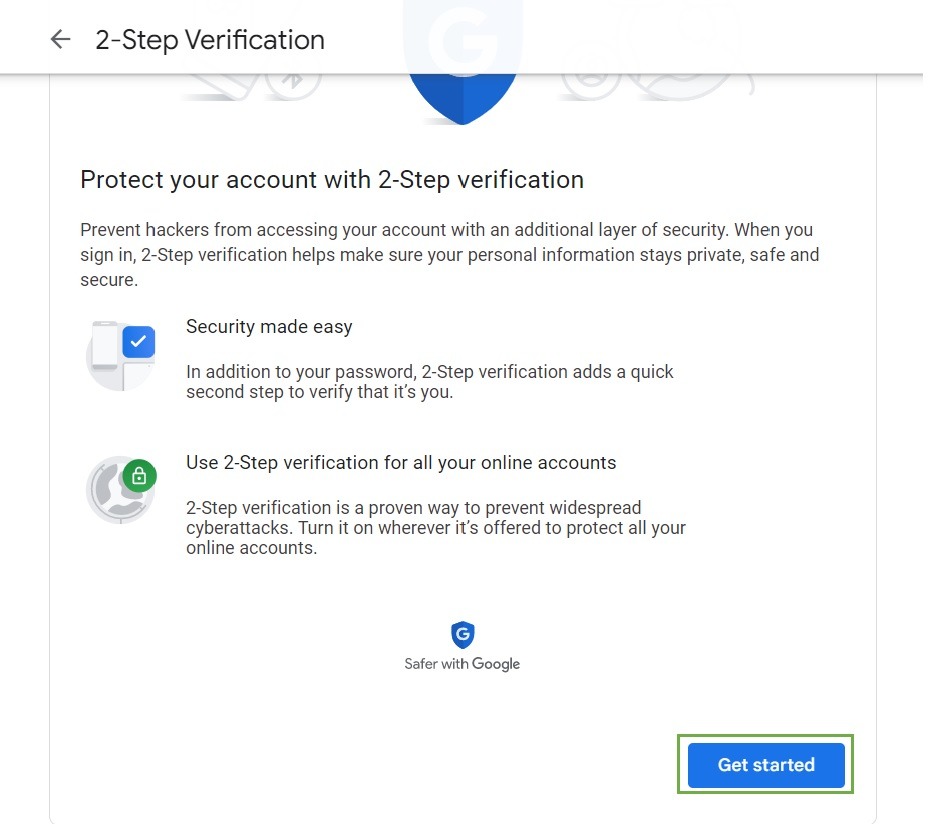
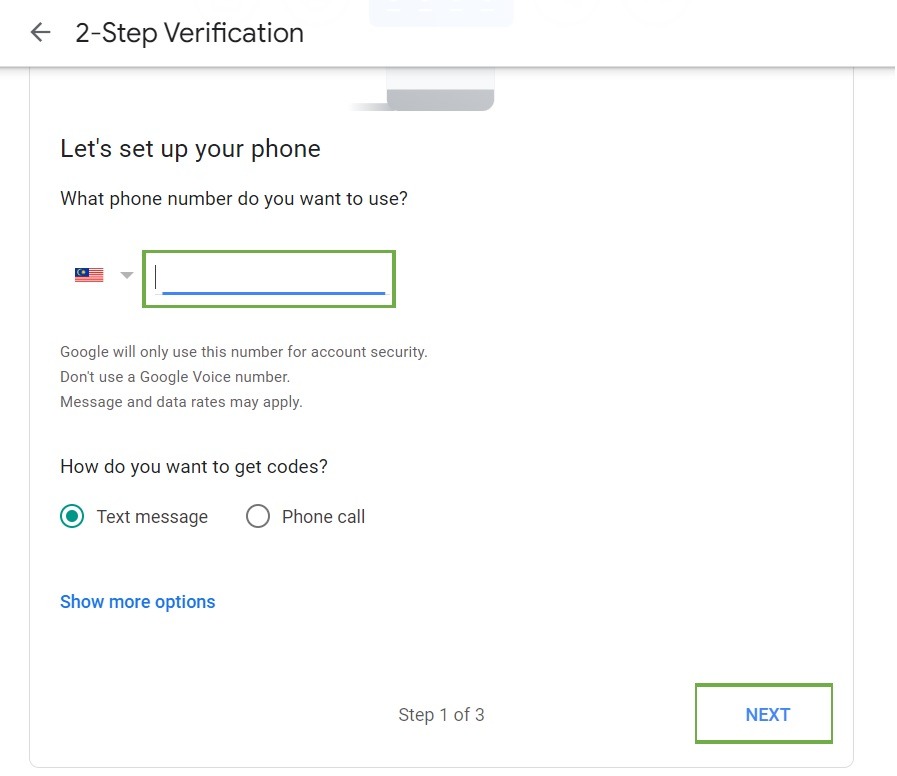
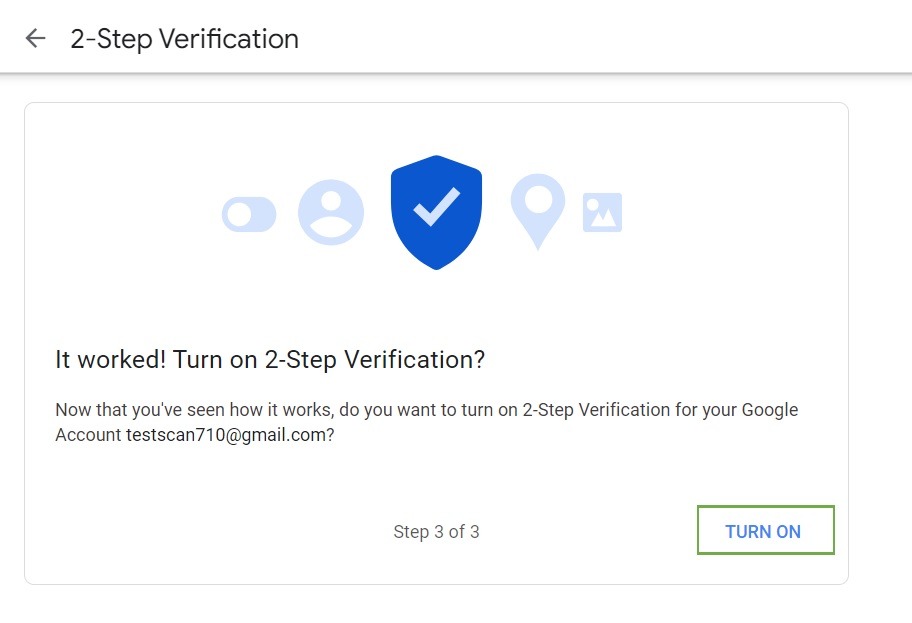
STEP 3 – Follow below step by key In the Handphone number and enter the Google verification code to switch ON the 2-Step Verification.

Guide on how to on App Password after Turn on 2-Step Verification
STEP 1 – Select 2-Step Verification again.

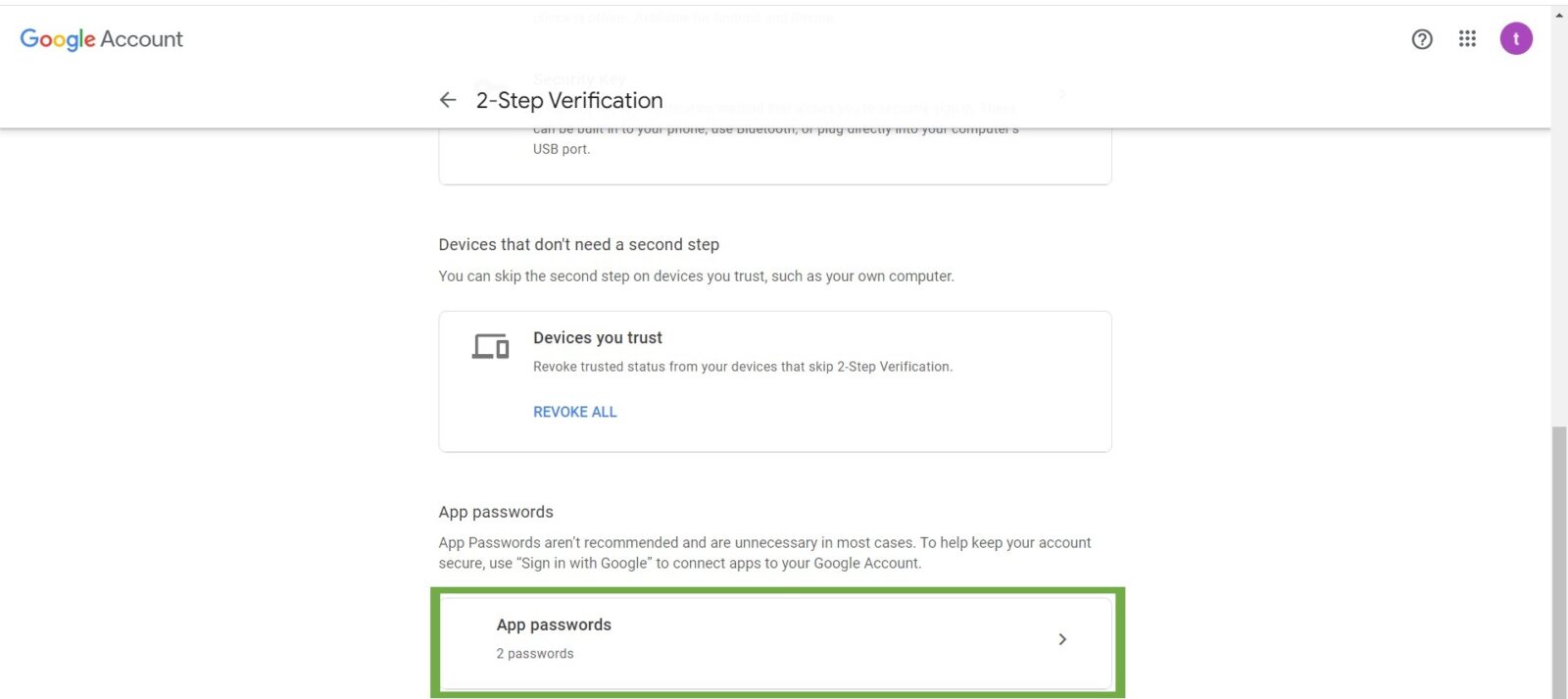
STEP 2 – Scroll down and select App Passwords.
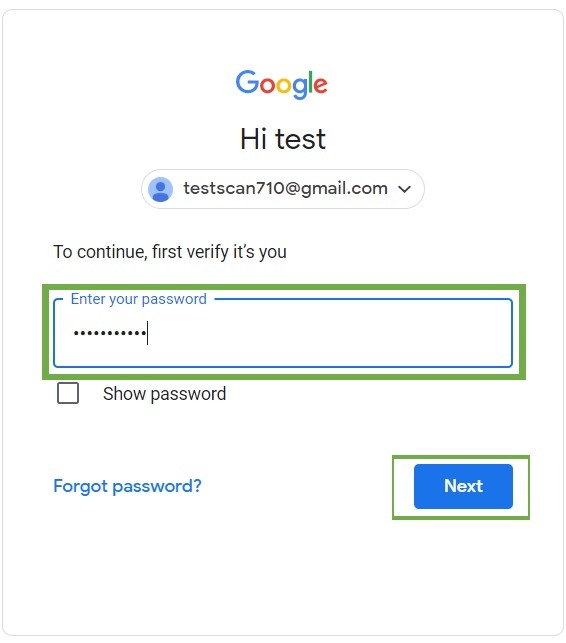
STEP 3 – Key in Email Password to continue.
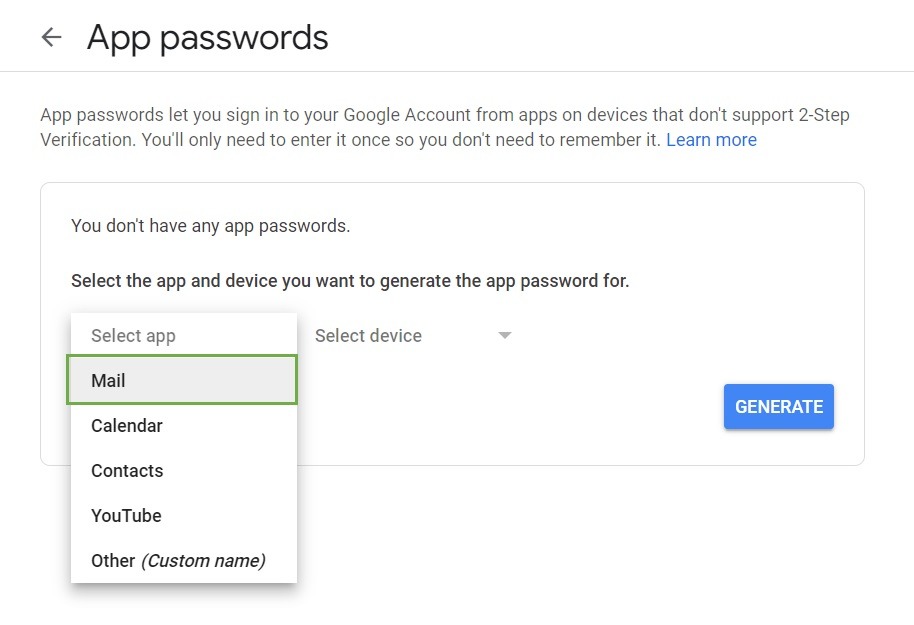
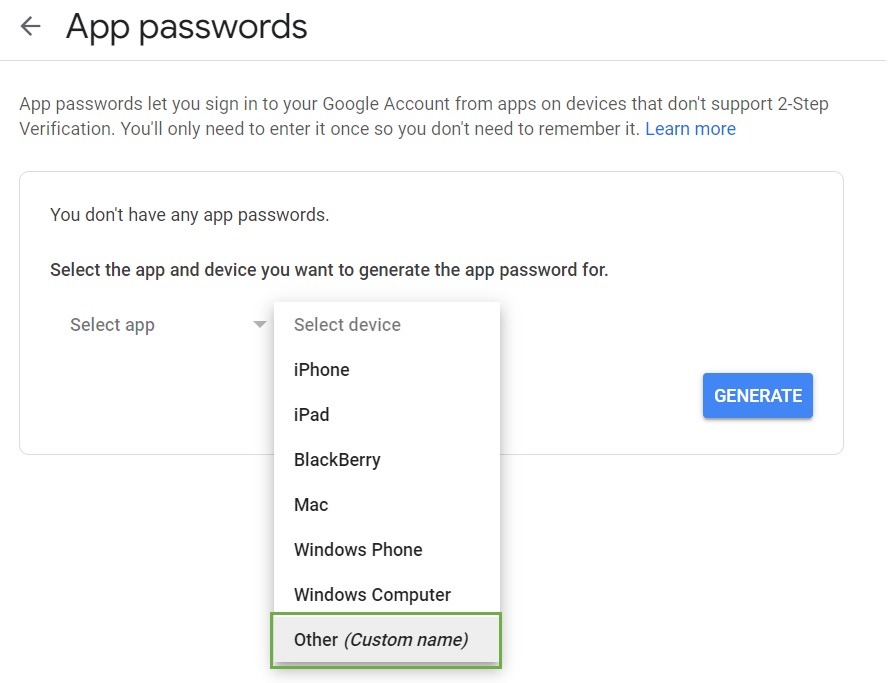
STEP 4 – Follow below step by select Mail on select app, Others (Custom Name) on select devices, name the device and Click on Generate,
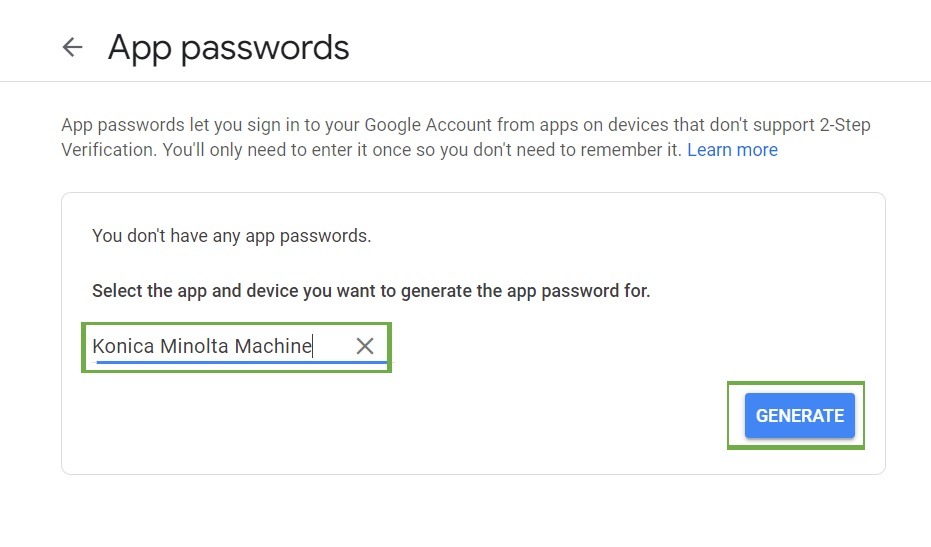
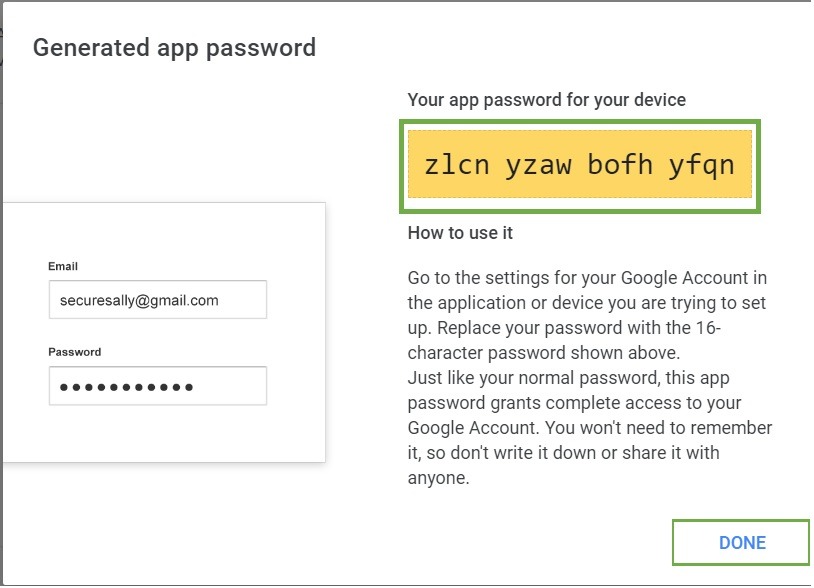
STEP 5 – 16 digit code will be provided, this will be used as Email Password that put on the Photostat Machine.