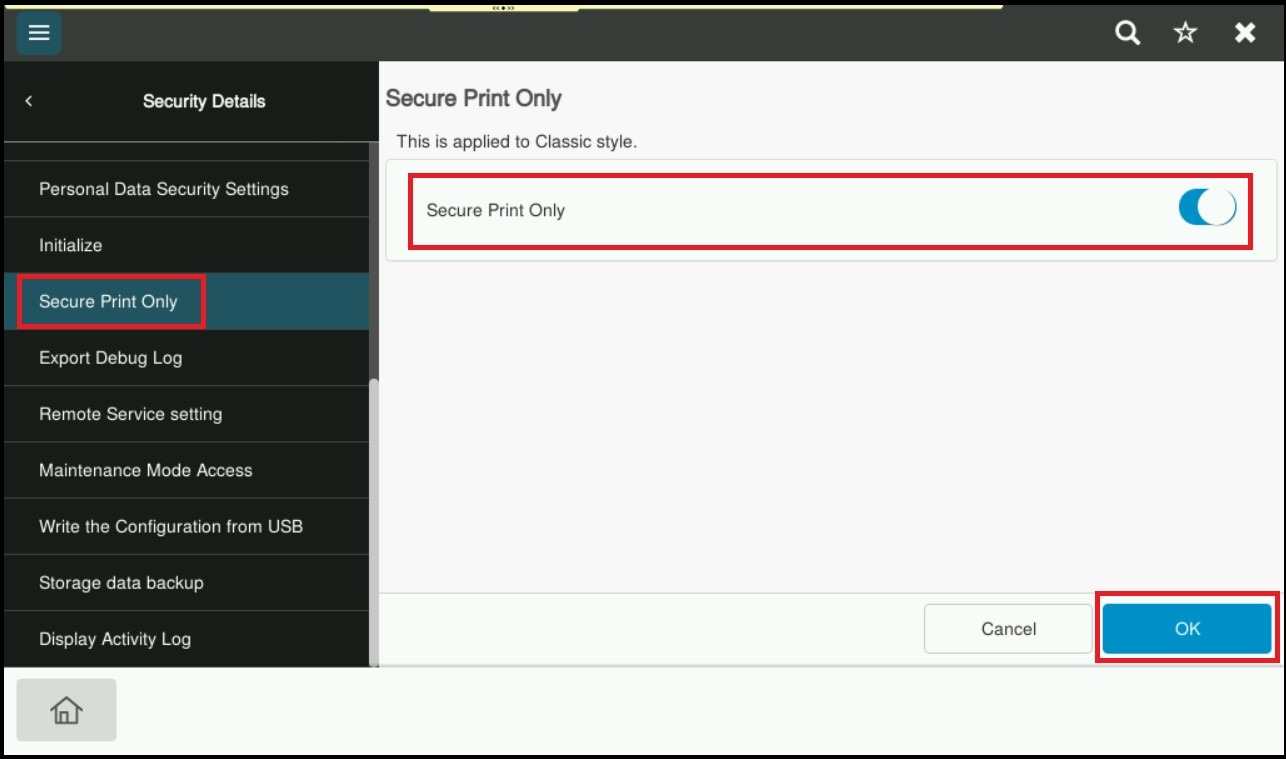
Guide on how to setup Secure Print only option on the machine.
For the Older Machine series / Non I-Series Machine
STEP 1 – Select [Utility].
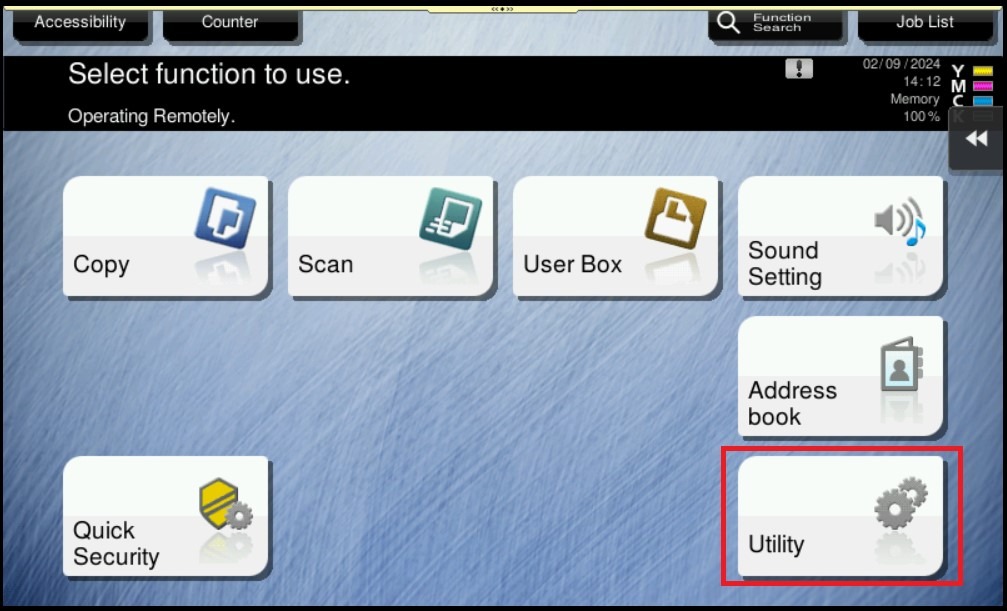
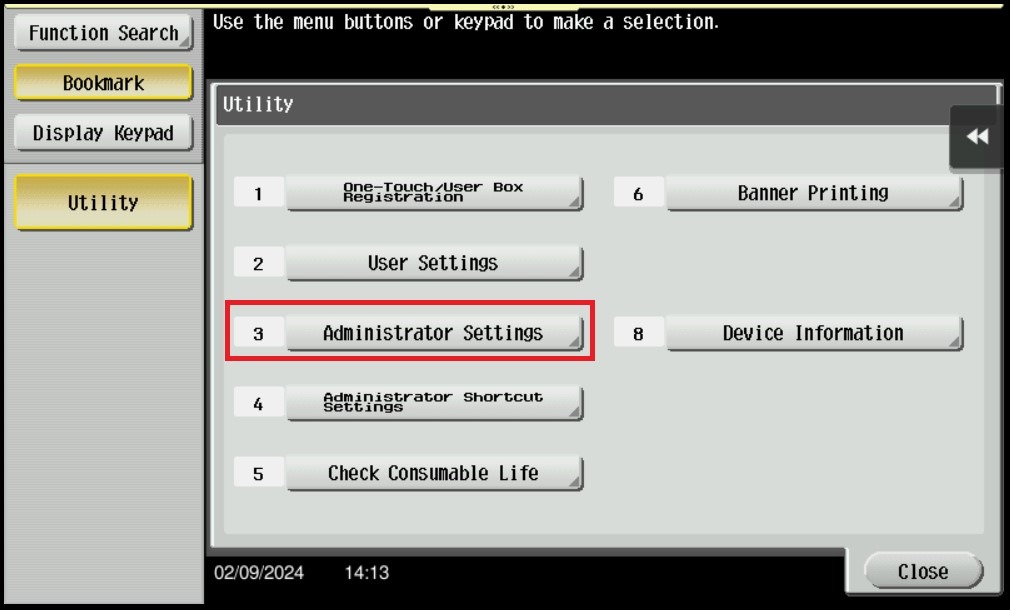
STEP 2 – Select [Administrator Settings].
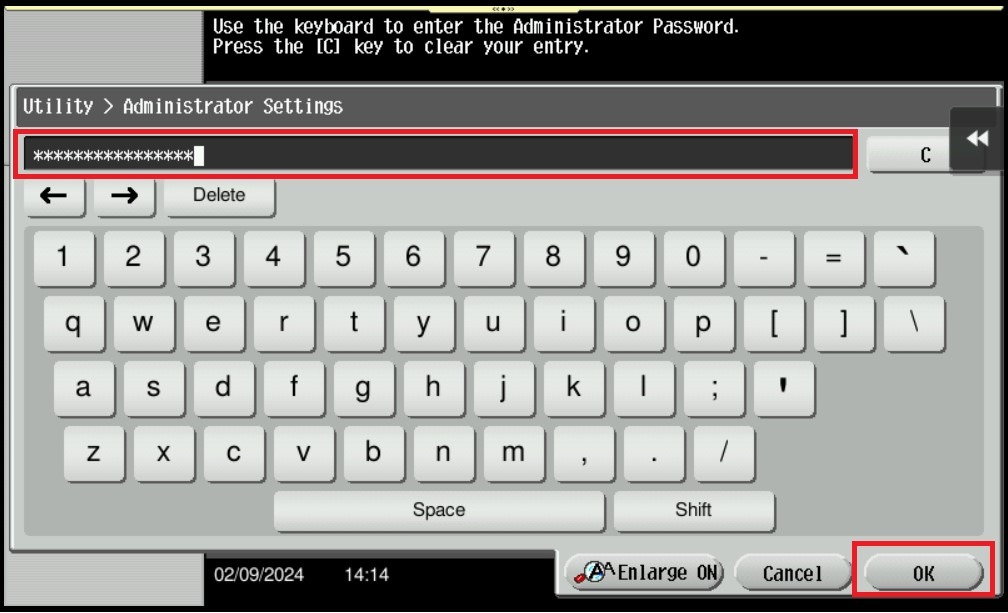
STEP 3 – Key in the default administrator password and click [OK] button.
Default administrator password:
[7801261178012611] or [1234567812345678] or [12345678] or [12341234].
STEP 3 – Click on Forward, select [Security Settings].
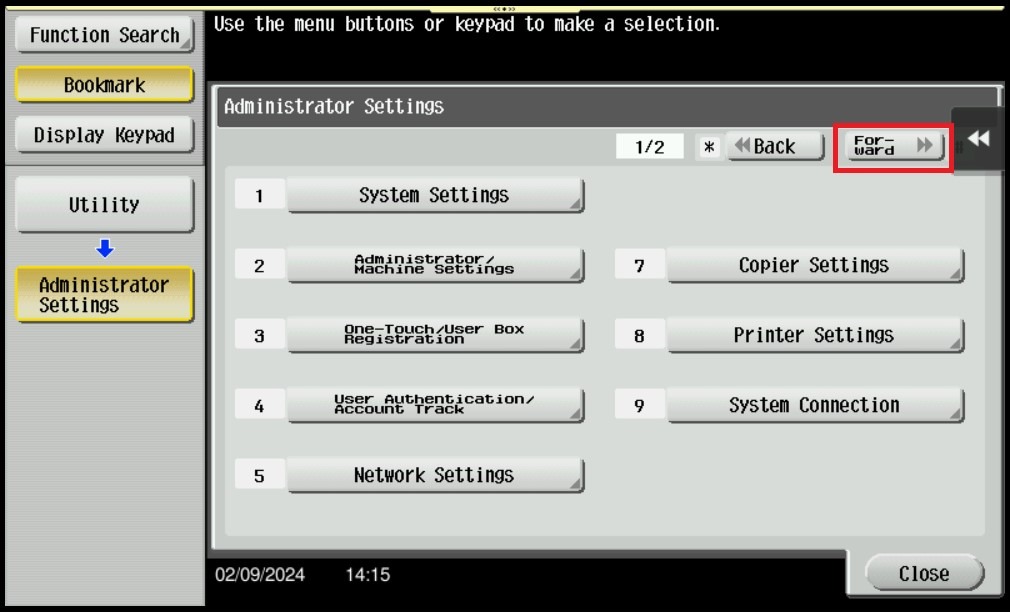
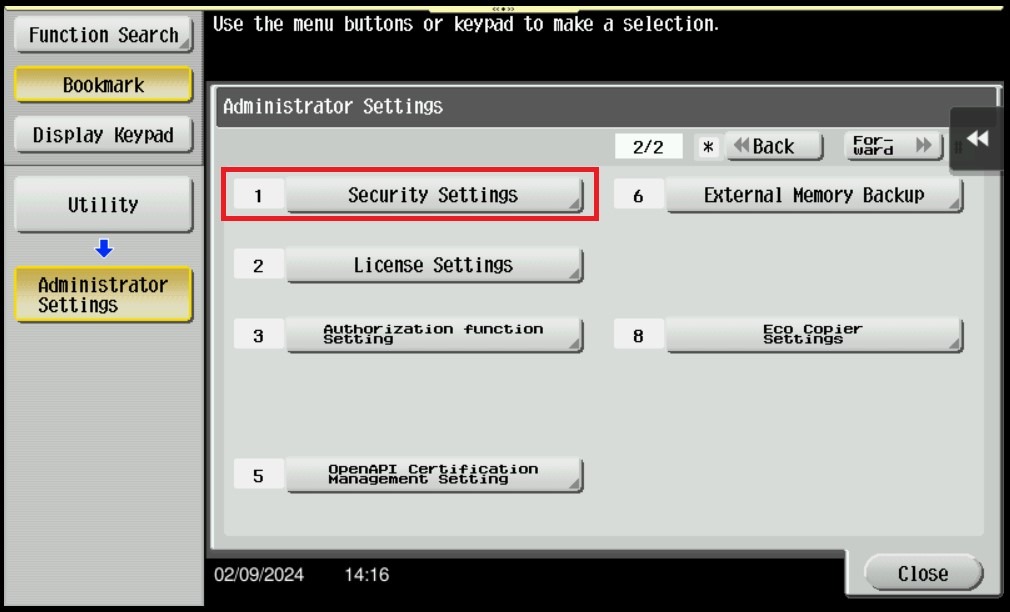
STEP 4 – Select [Security Details].
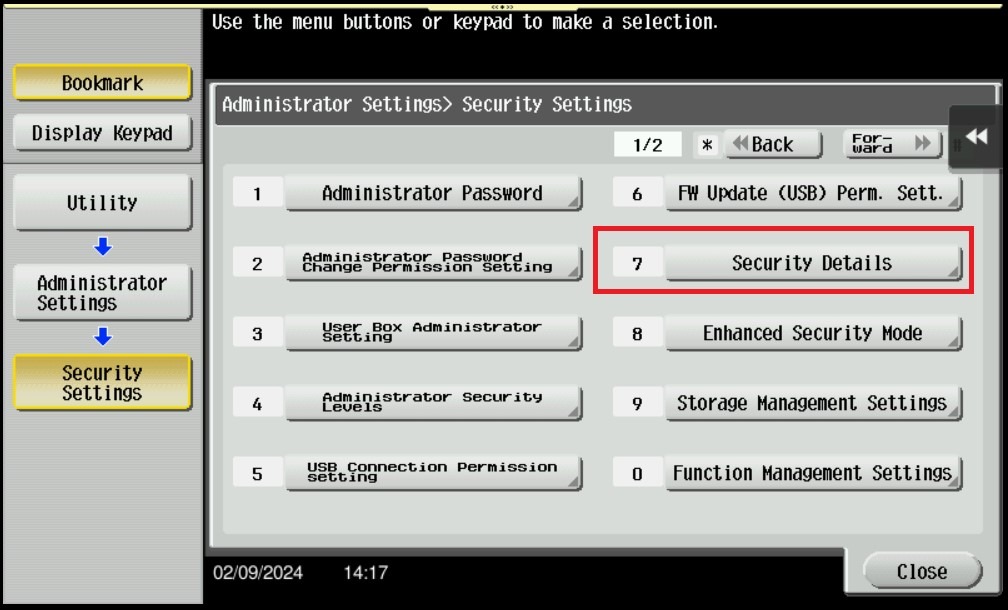
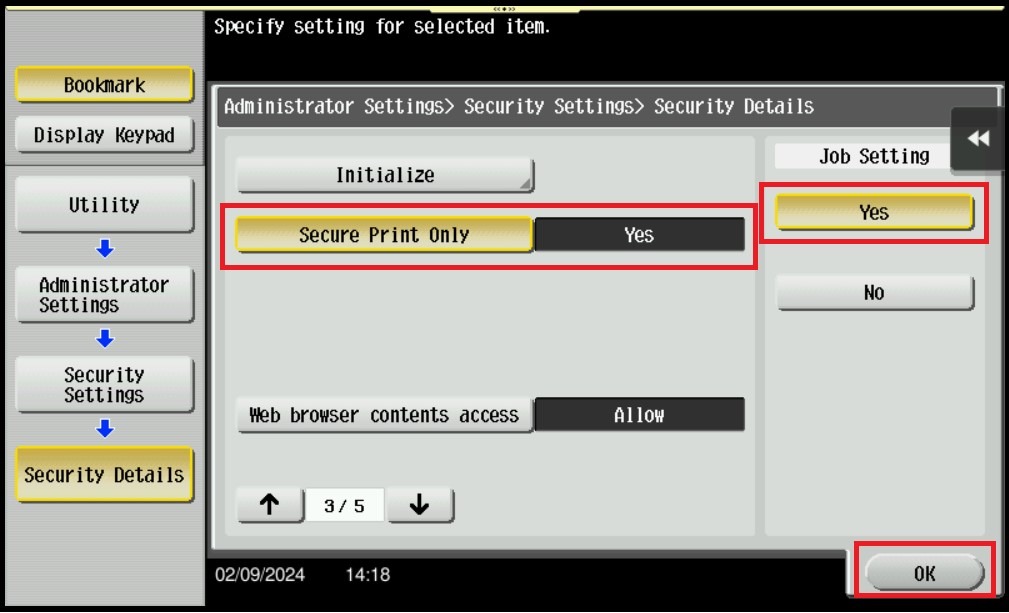
STEP 5 – Click on Arrow Down Key, select [Secure Print Only].
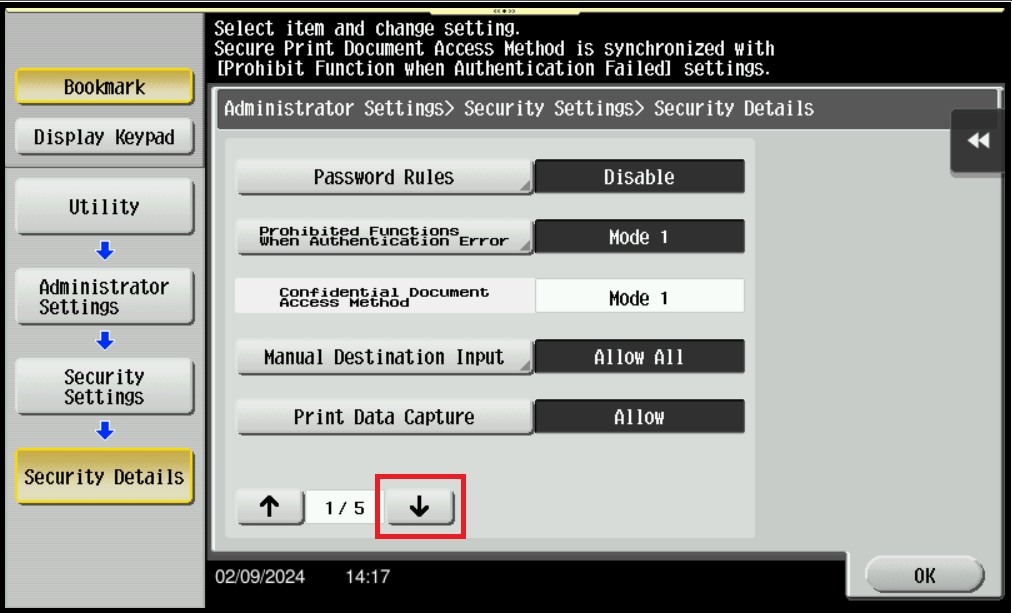
STEP 6 – Set as [Yes], and select OK to save the setting to use only Secure Print only as Output Method.
**Note: If want to disable this function, just select [No] to disable this secure print only function.
For the Newer Machine series / I-Series Machine
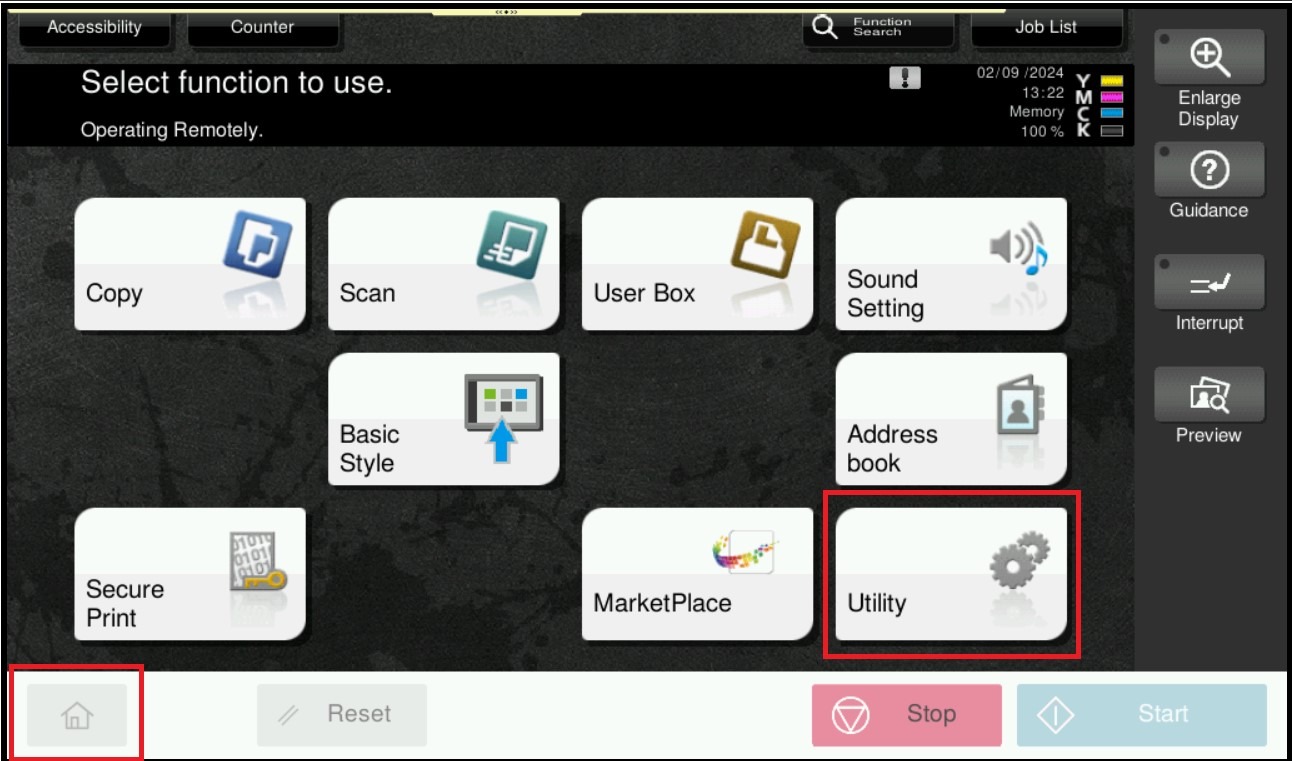
STEP 1 – Select [Home] – [Utility].
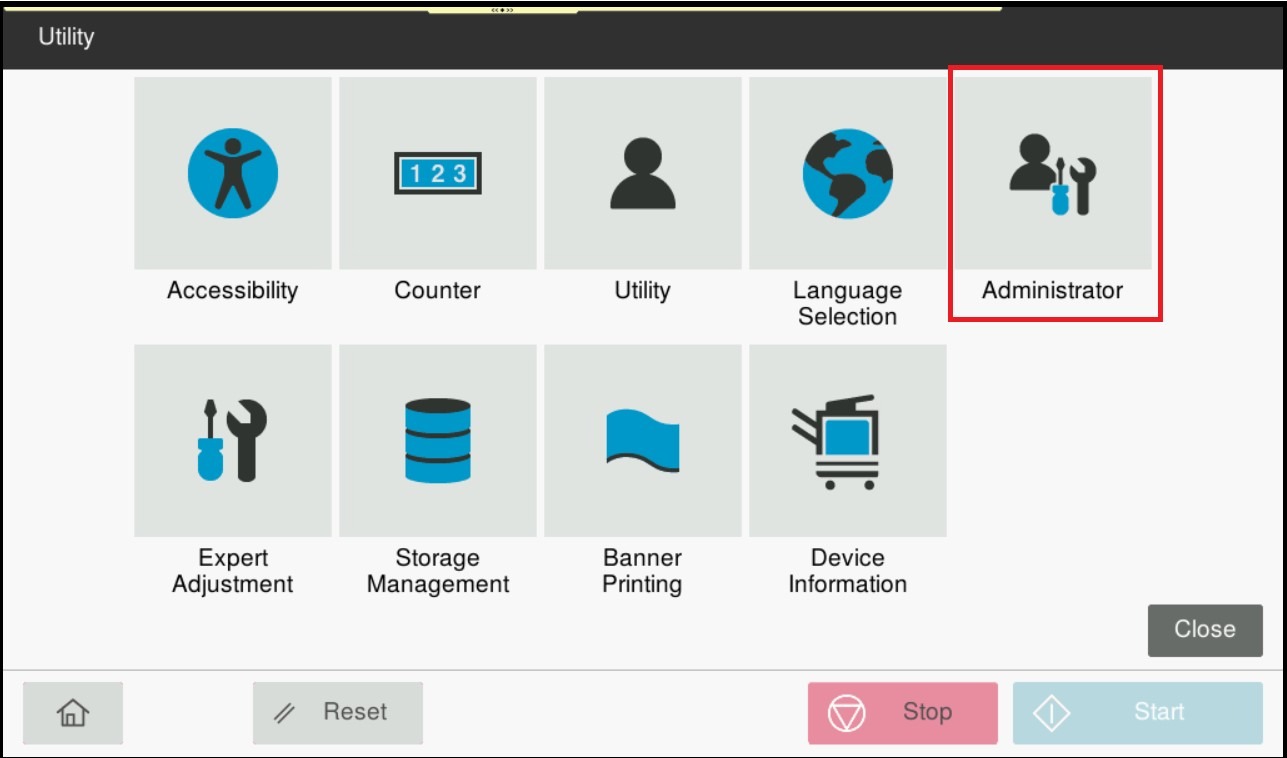
STEP 2 – Select [Administrator].
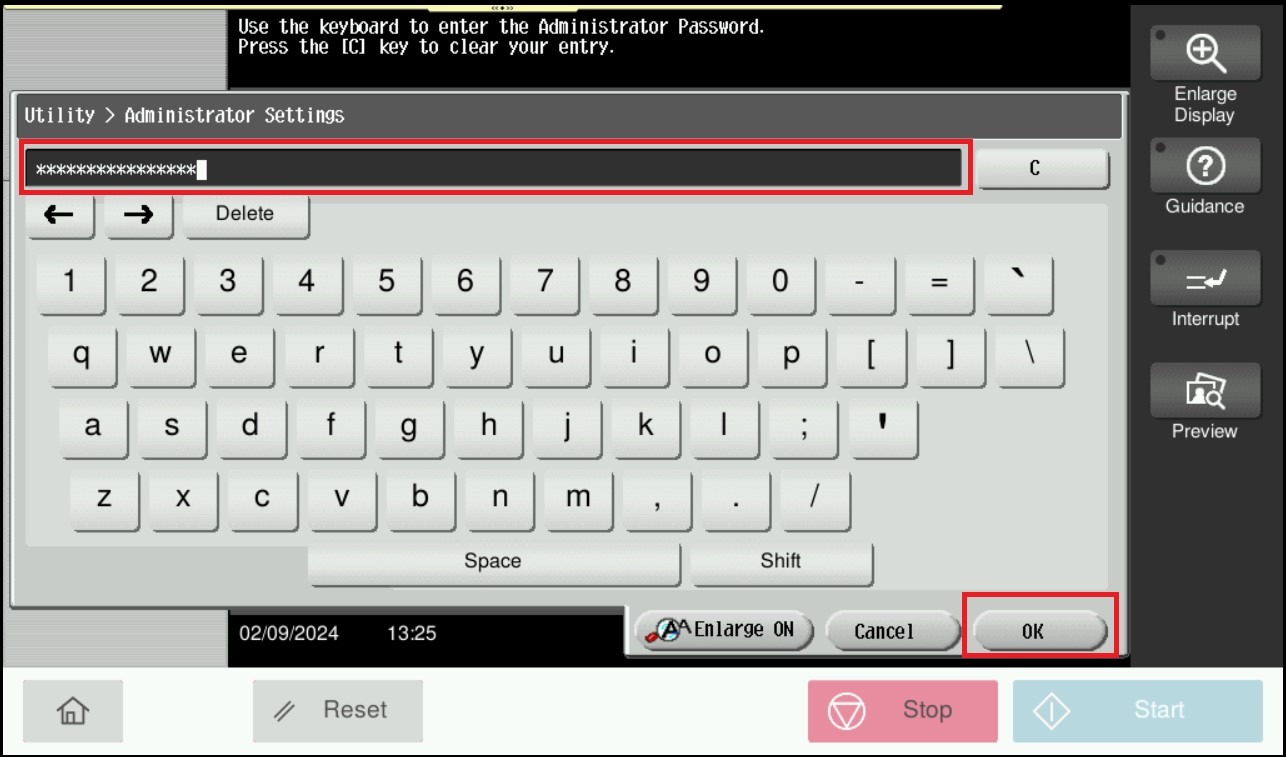
STEP 3 – Key in the default administrator password and click [OK] button.
Default administrator password:
[7801261178012611] or [1234567812345678] or [12345678] or [12341234].
STEP 4 – Select [Security].
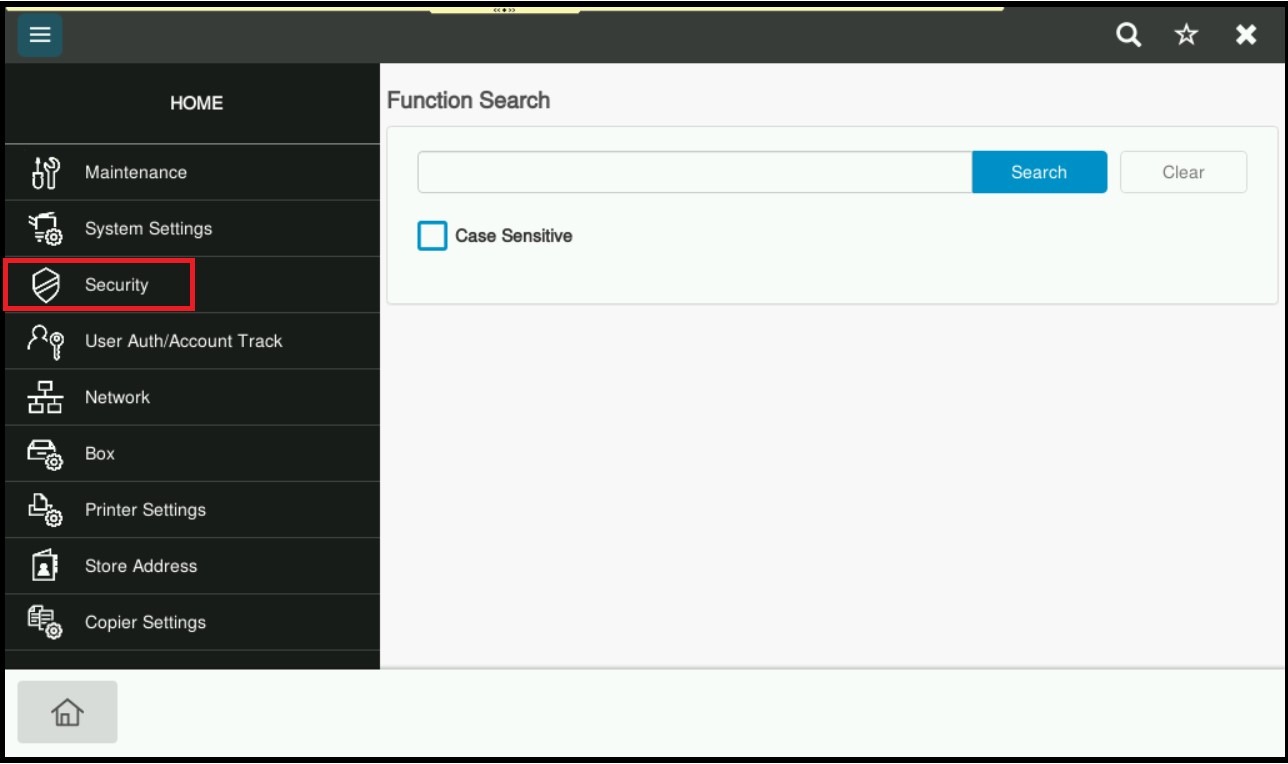
STEP 5 – Select [Security Details].
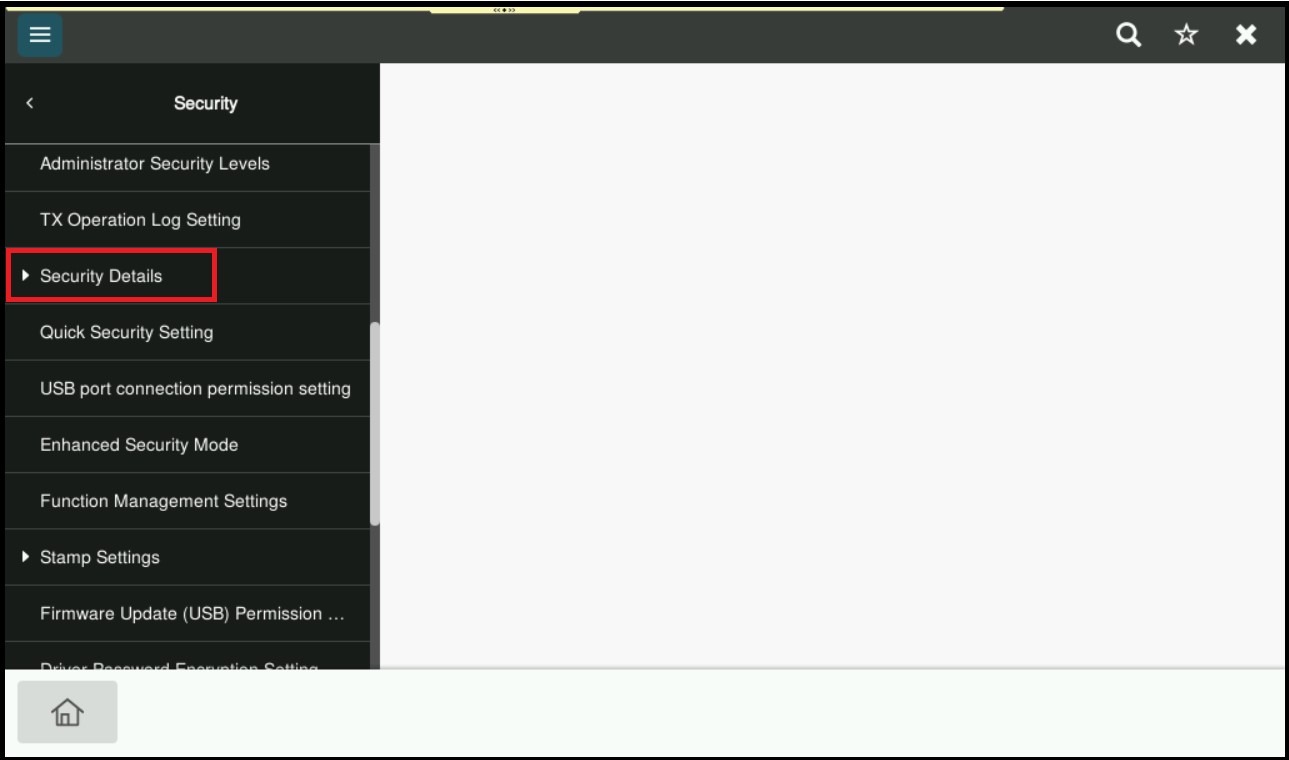
STEP 6 – Click on [Secure Print Only], then enable this function to use secure print function only then select [OK] to save the setting.
**Note: If want to disable this function, just swipe to left to disable this secure print only function.