Guide on how to print the Counter List Report on the machine.
Printing the report from the machine Control Panel
For The Older Machine Series / Non I-Series Machine
STEP 1 – Select [Utility].
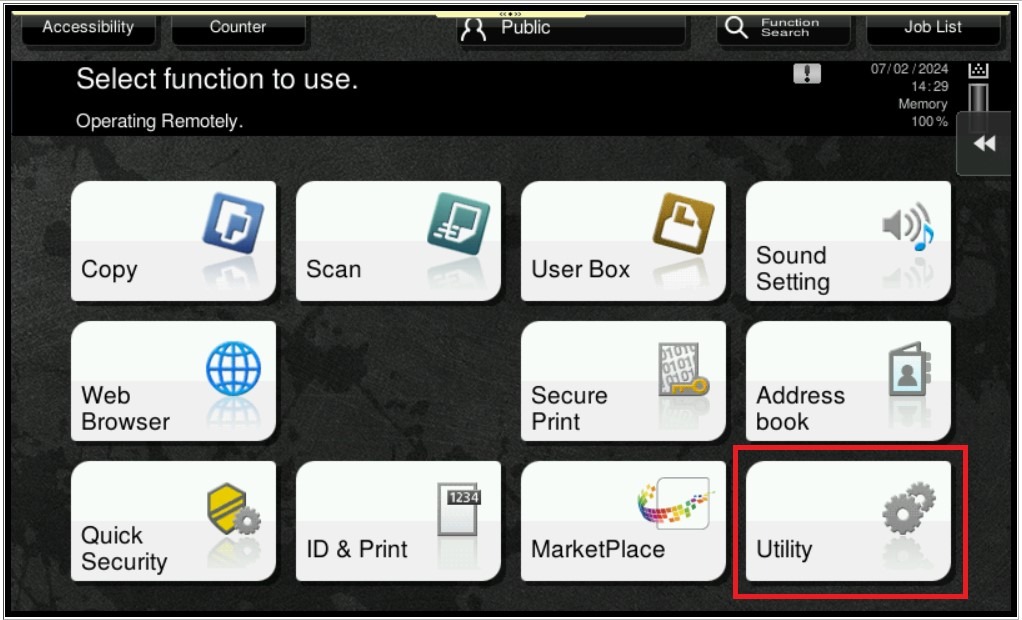
STEP 2 – Select [Administrator Settings].
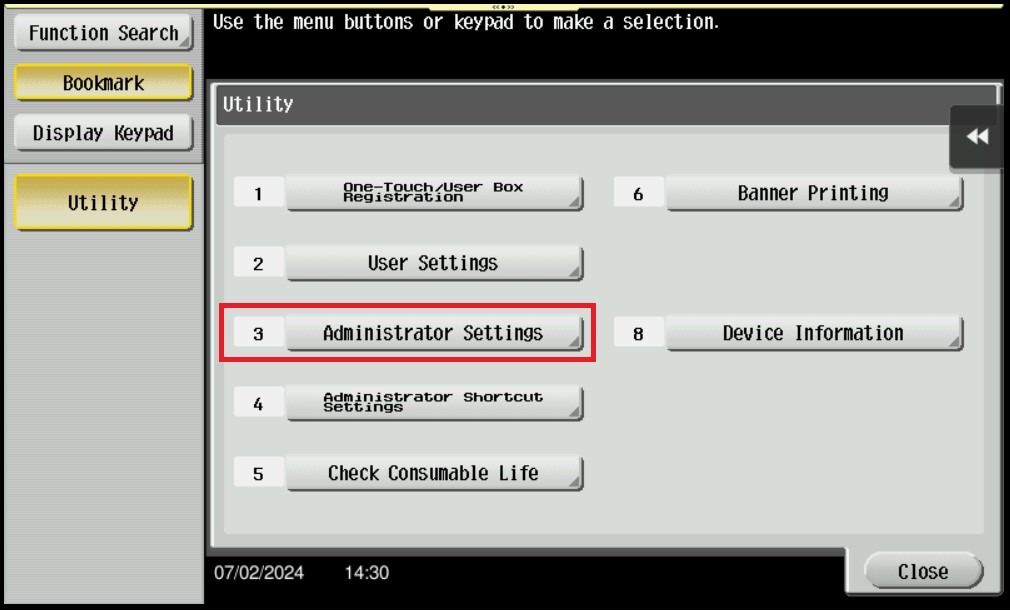
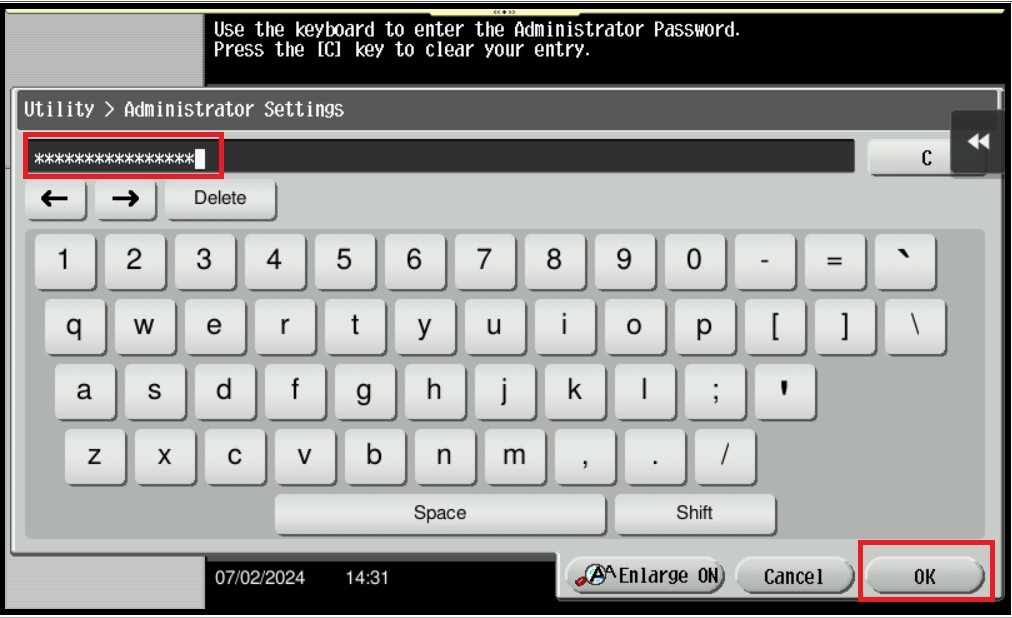
STEP 3 – Type administrator password and click on [OK].
STEP 4 – Select [User Authentication/Account Track].
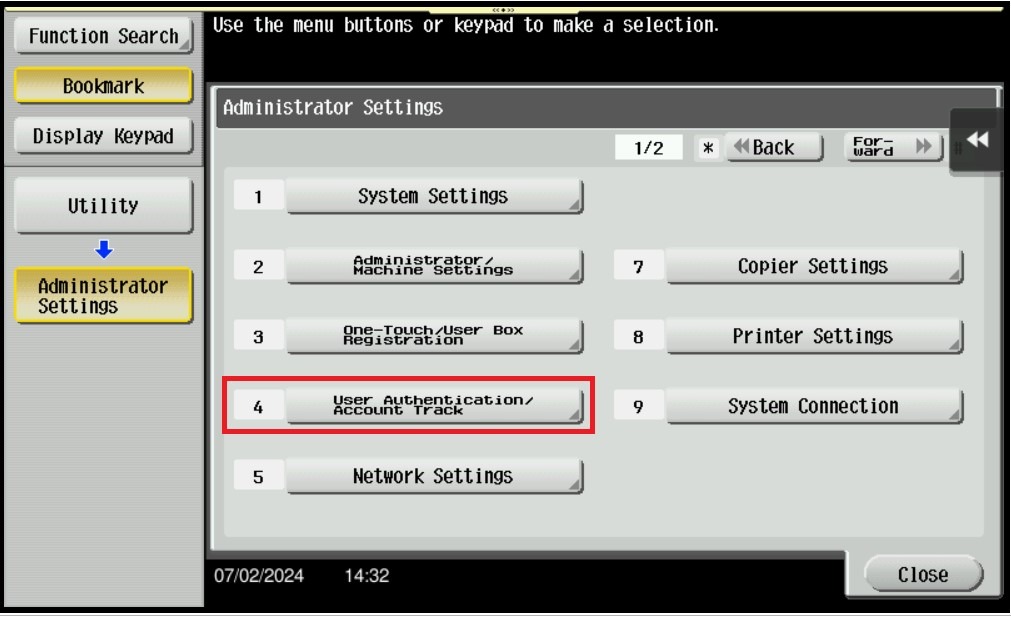
STEP 5 – Select [Print Counter List].
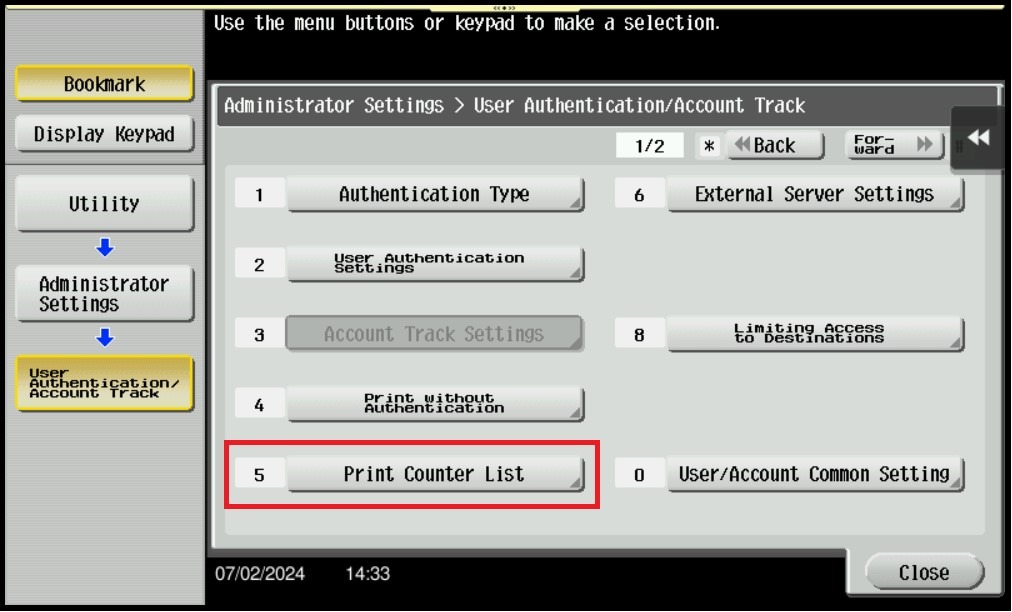
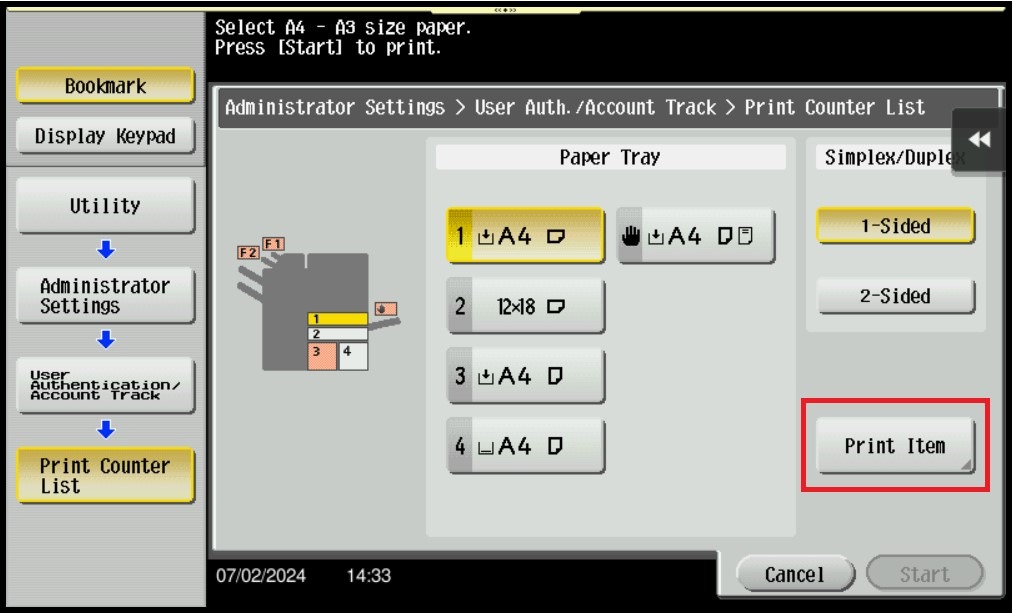
STEP 6 – Select [Print Item].
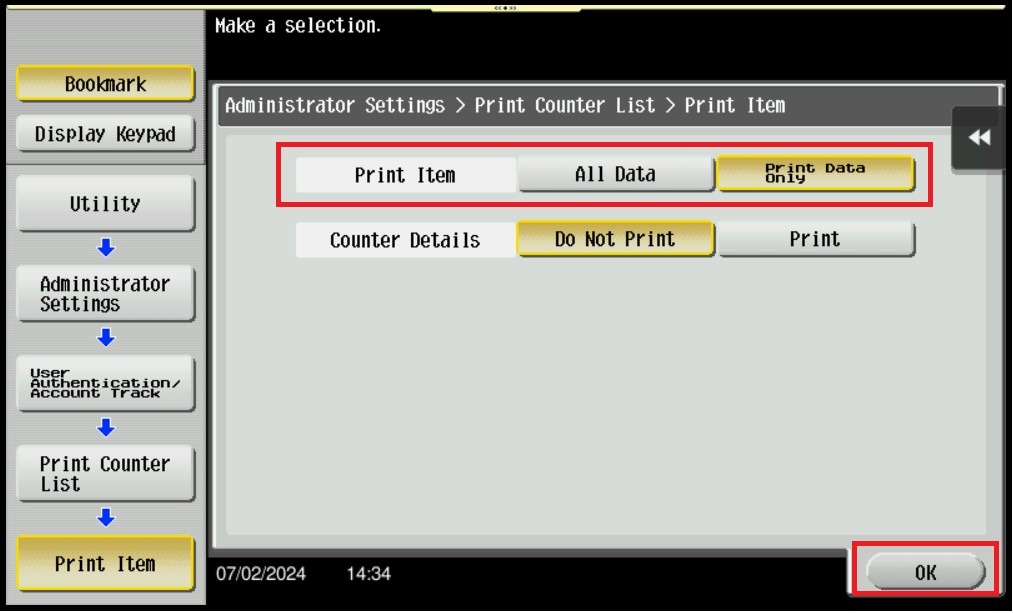
STEP 7 – Select [Print Data Only] under Print Item.
STEP 8 – Press [Start] to print Counter list from machine.

For The Newer Machine Series / I-Series Machine
STEP 1 – On the Konica Minolta machine control panel, click on the [Home] button then select [Utility].
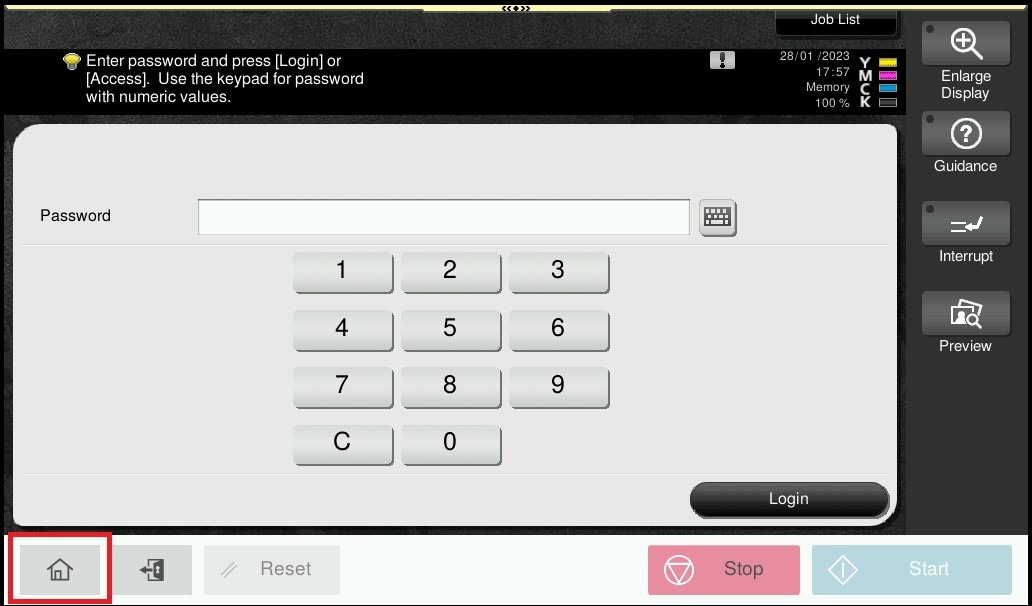
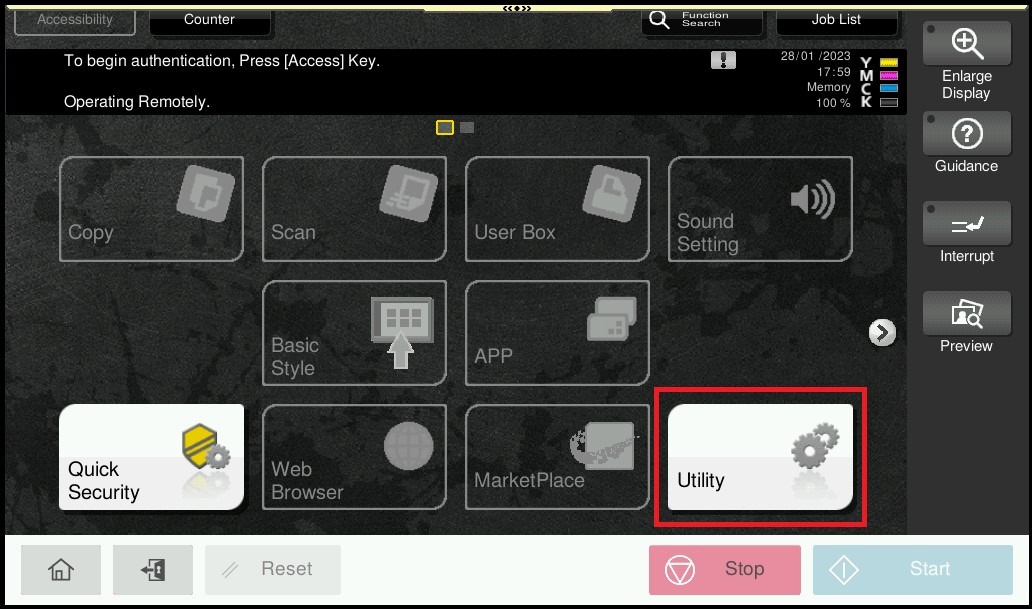
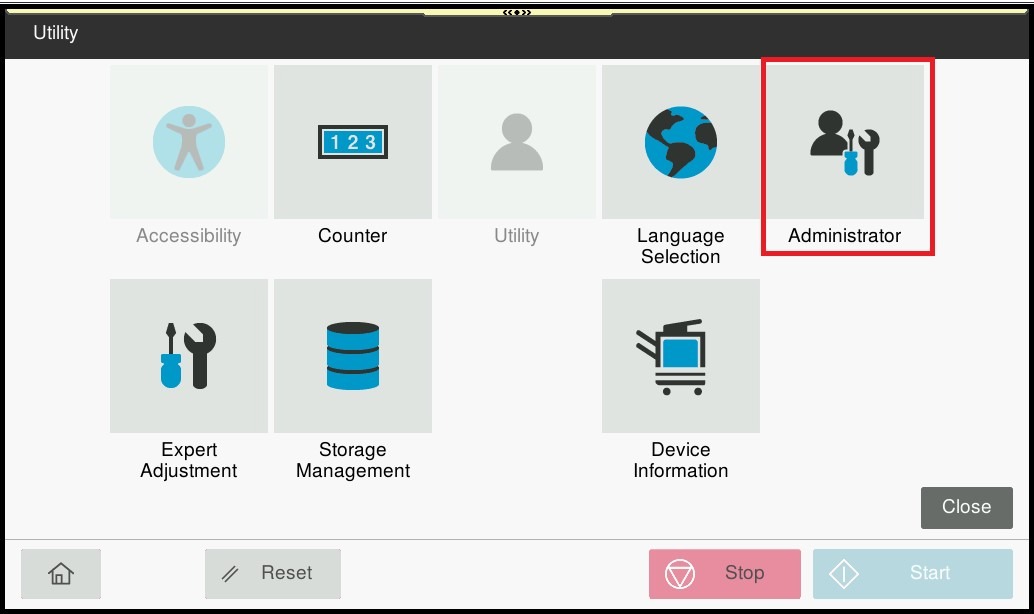
STEP 2 – Select [Administrator].
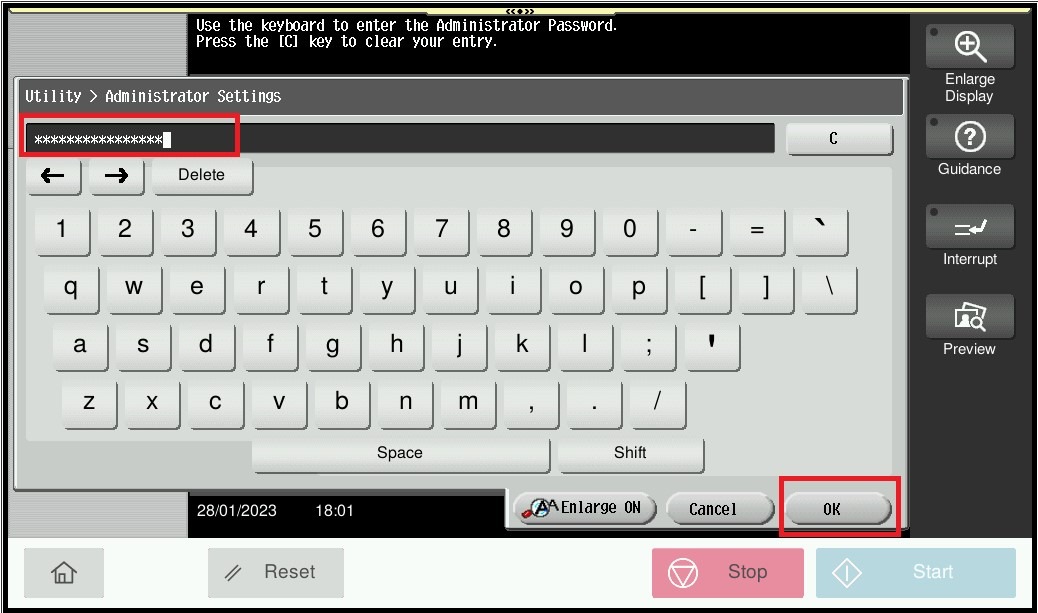
STEP 3 – Type administrator password and click on [OK].
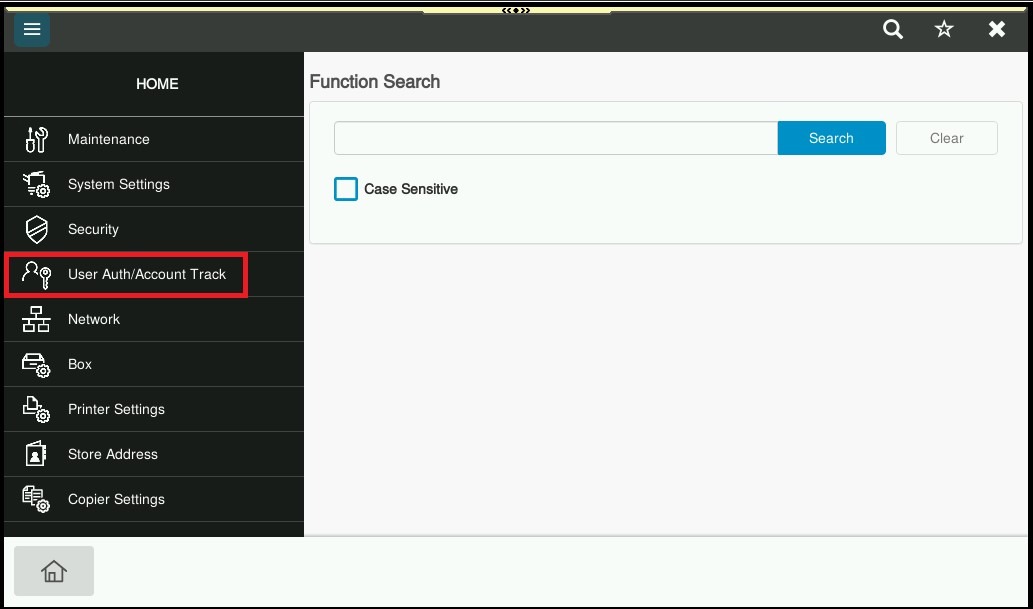
STEP 4 – Select [User Auth/Account Track].
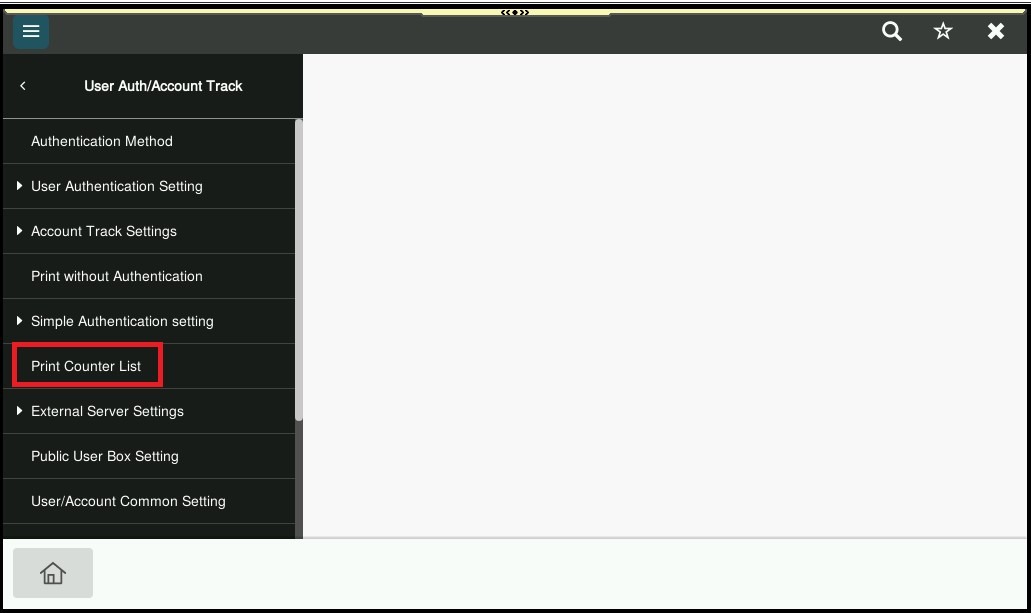
STEP 5 – Select [Print Counter List].
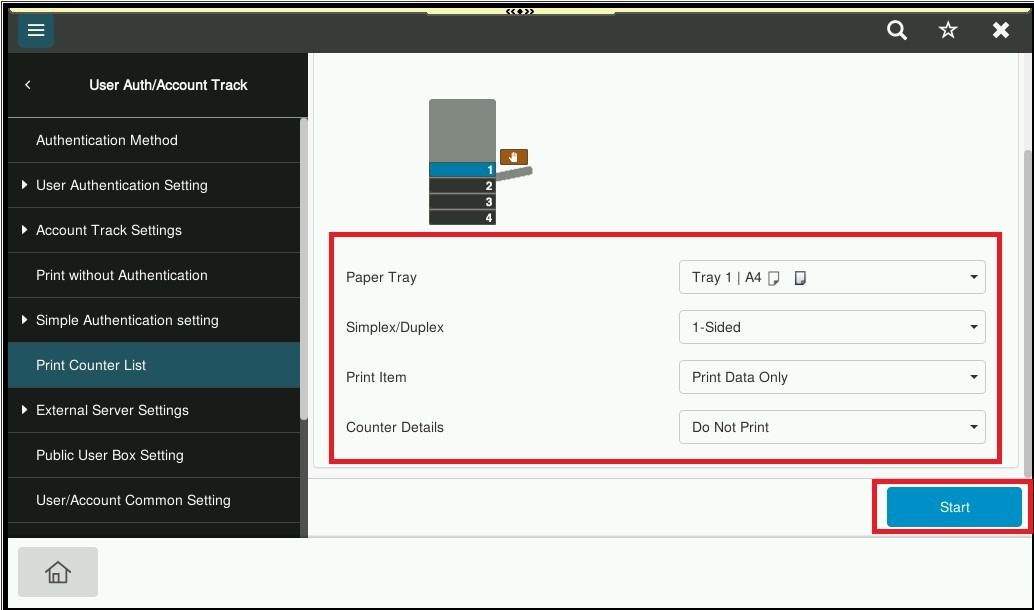
STEP 6 – Select [Print Item] and select [Print Data Only] under Print Item, then click [OK] to print Counter list from machine.
Generating the report from the machine Web Connection
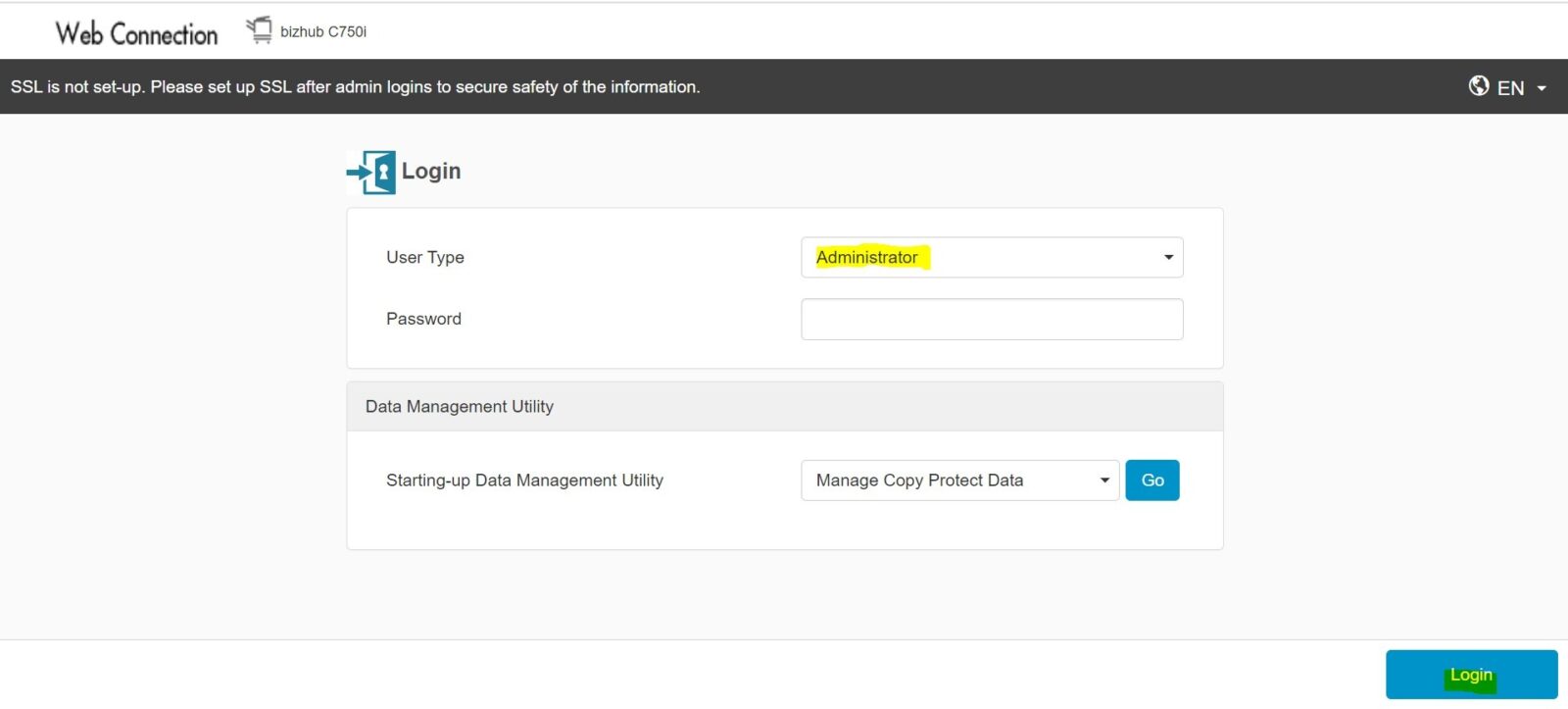
STEP 1 – Access the machine Web Connection and login as Administrator, click on this LINK on how to access the portal.
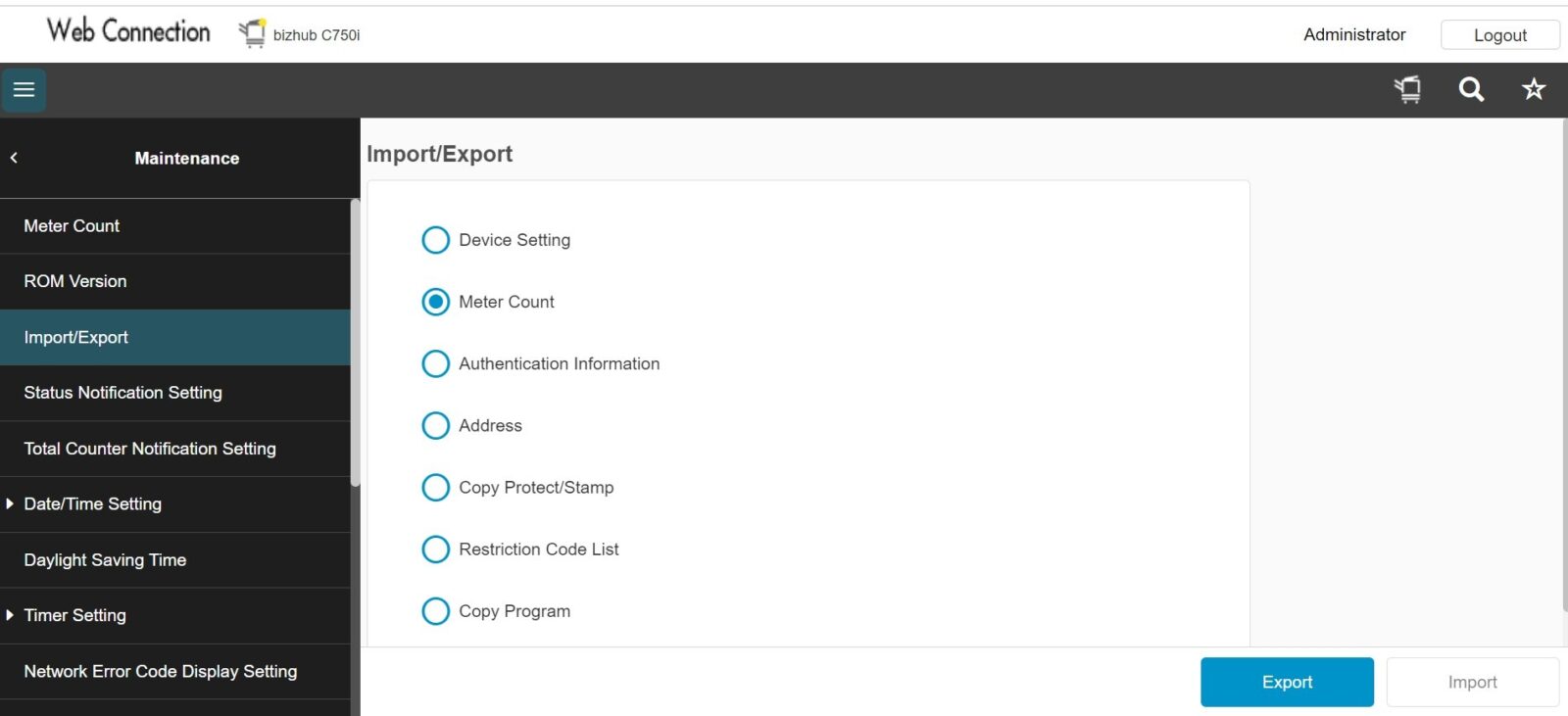
STEP 2 – Go to [Maintenance] – [Import/Export] – [Meter Count] – [Export].
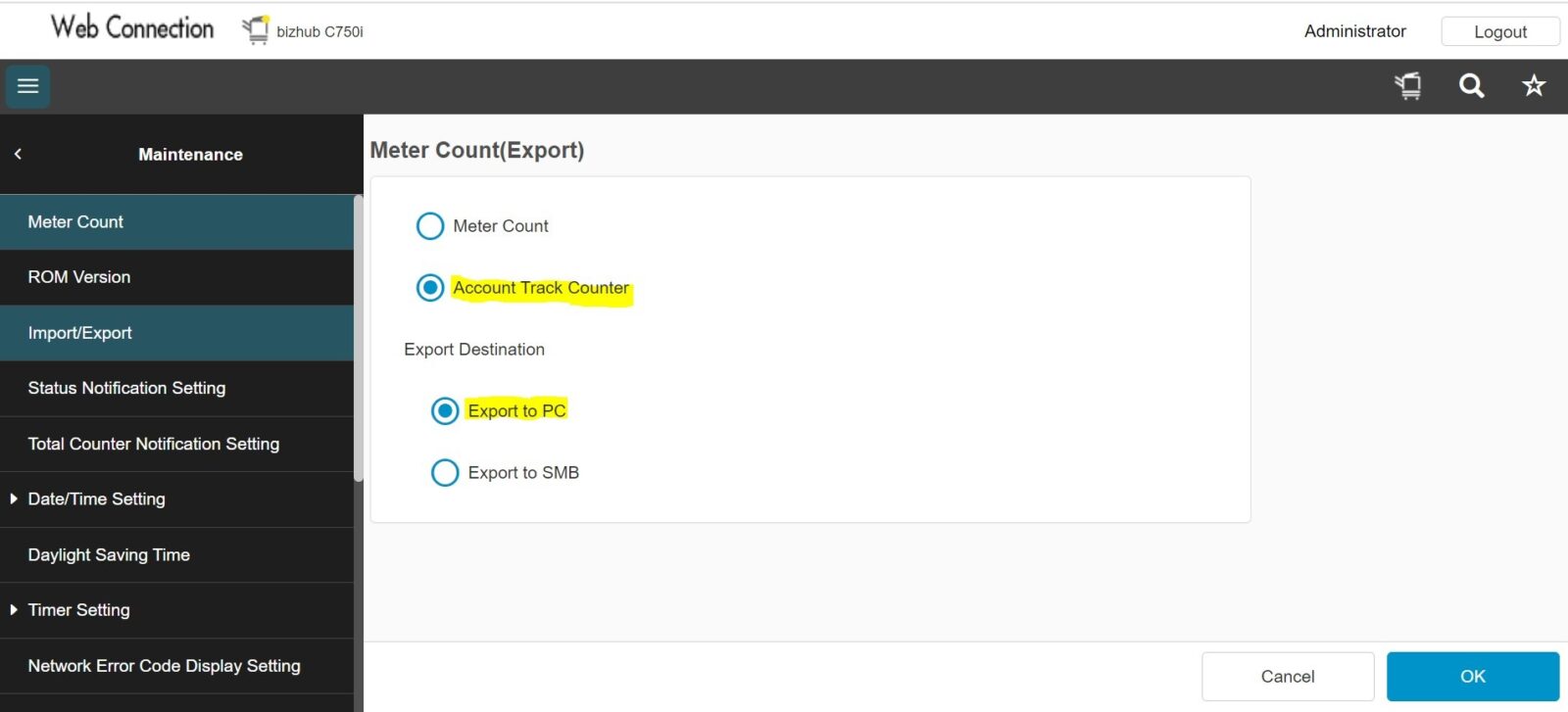
STEP 3 – Select [Account Track Counter] – [Export to PC] – then click [OK].
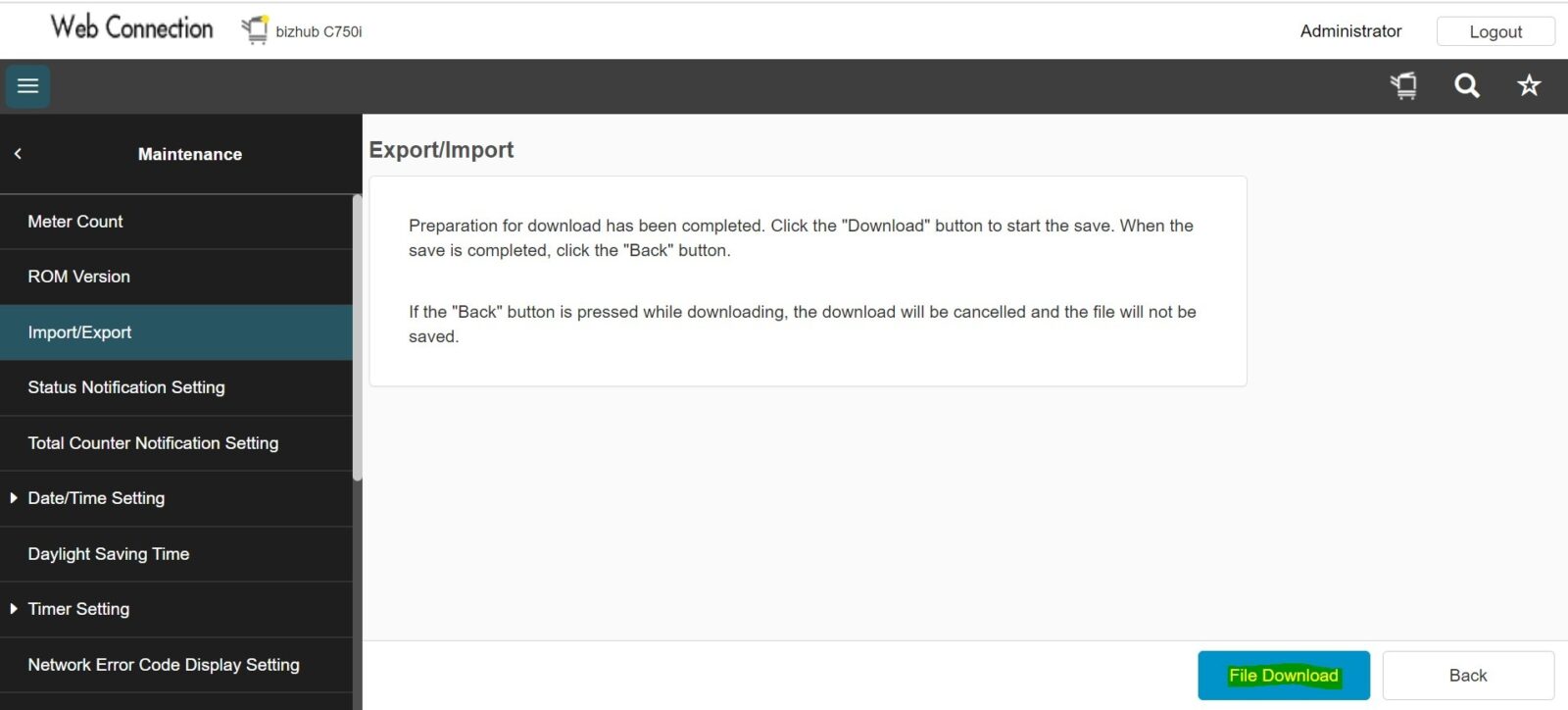
STEP 4 – Click on [File Download] to download the Counter List Report.