

Guide on how to set the Secure Print on Windows PC and how to retrieve the document on the machine control panel.
STEP 1 – Configure Secure Print ID and Password on the Printer Driver.
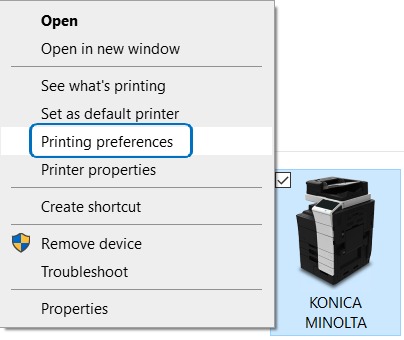
1. Go to Control Panel, Devices & Printers, right click of the Konica Minolta Printer, select Printing Preferences. Or if you are just using Secure Print on a single document, you can select Printer Properties on the application print option before printing the document.
2. Select Basic Tab, change the Output Method to Secure Print and click on User Settings.
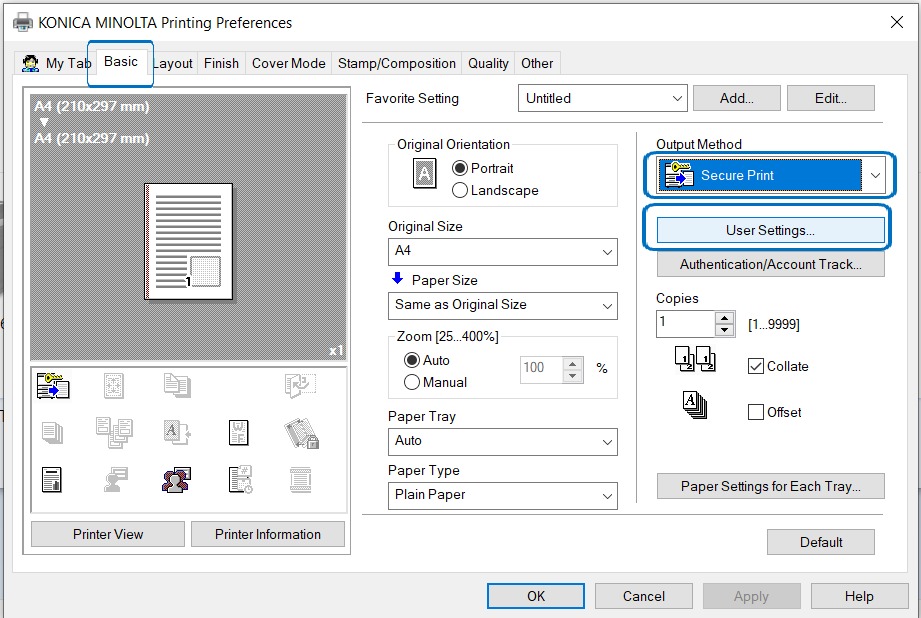
3. Set desired Document ID and Password for secure print, click OK to save the setting.
STEP 2 – Retrieve the document on the machine Secure Print folder.
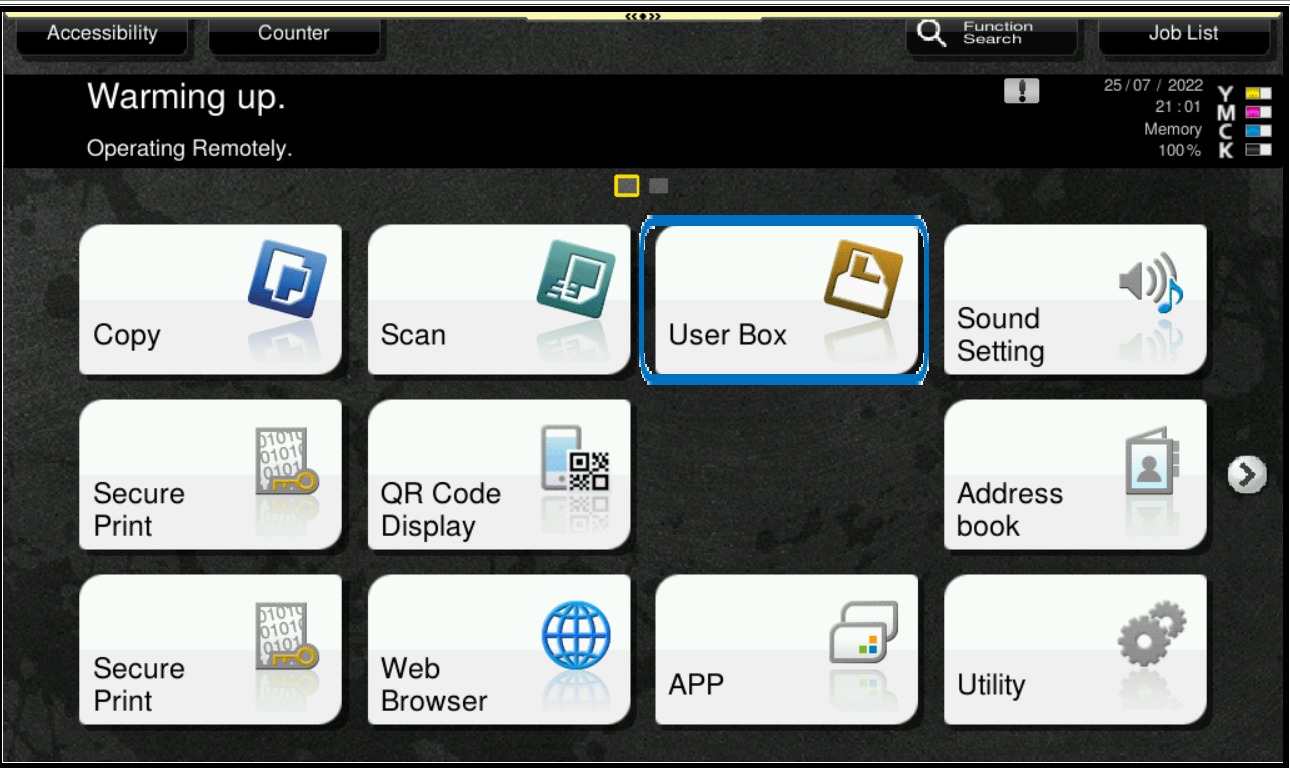
1. On the Printer control panel, click on Menu/Home and select User Box.
2. Choose System, select Secure Print.
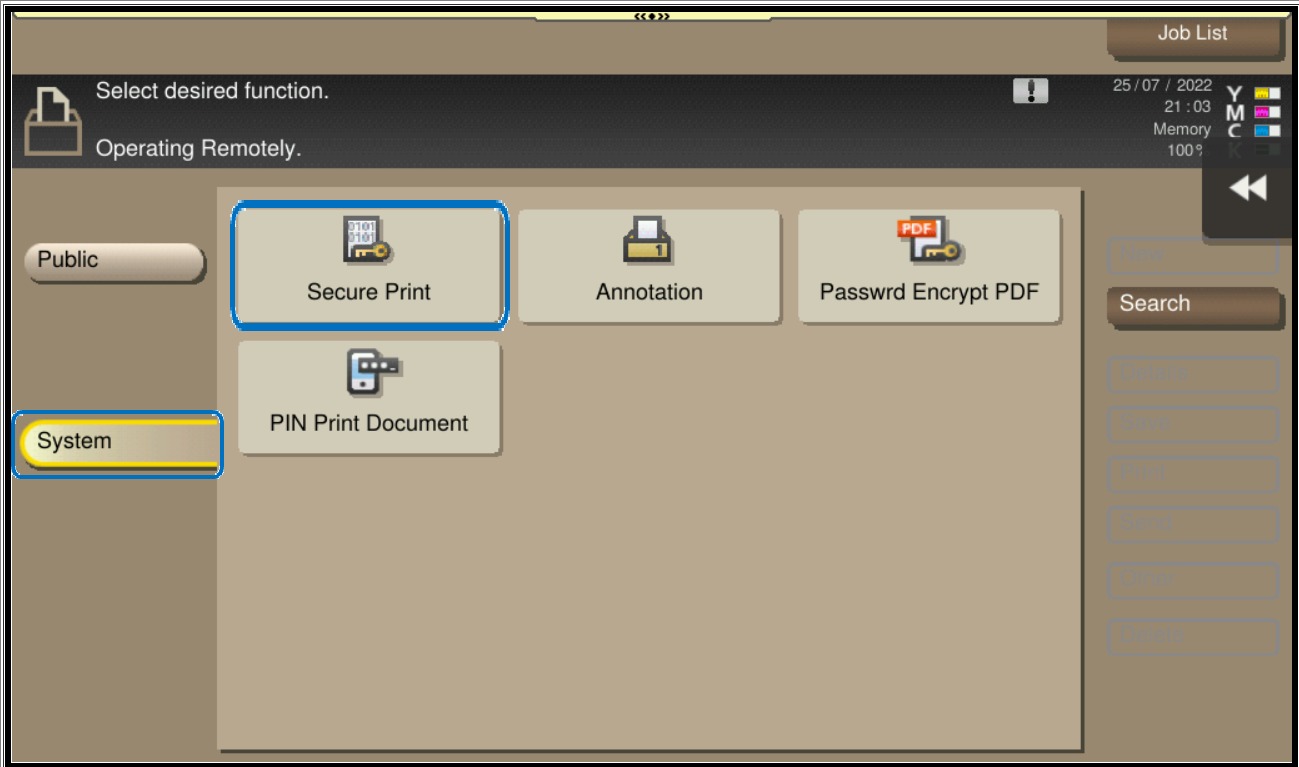
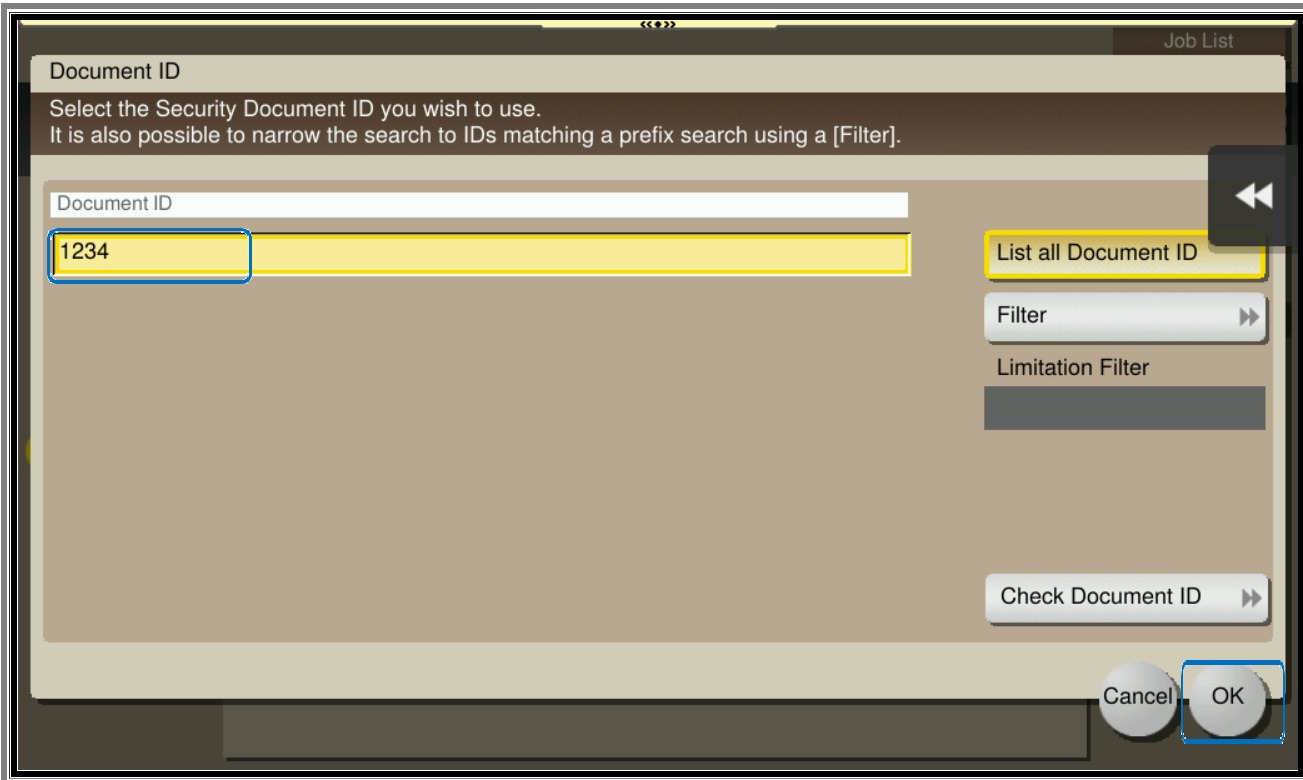
3. Select the Document ID to print and click OK.
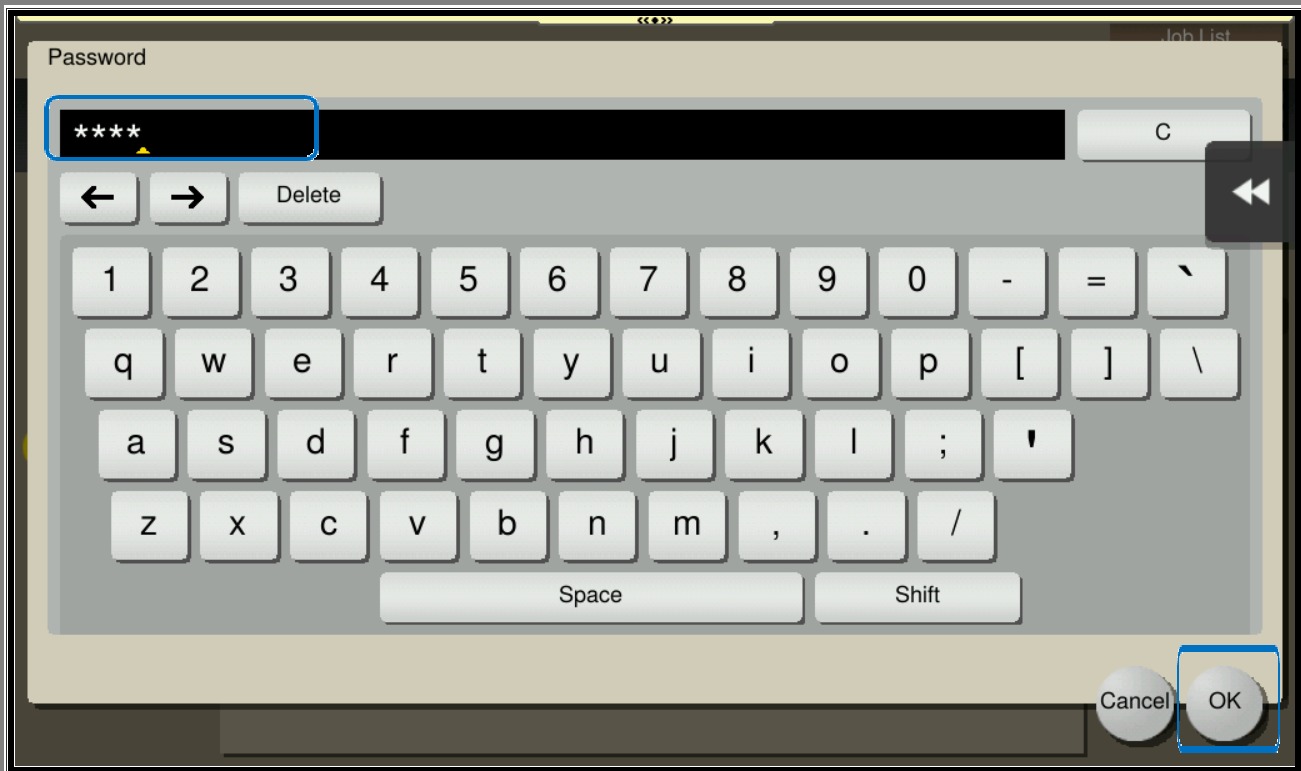
4. Key-in the Document Password that previously save on Printer Driver, and click OK to open it..
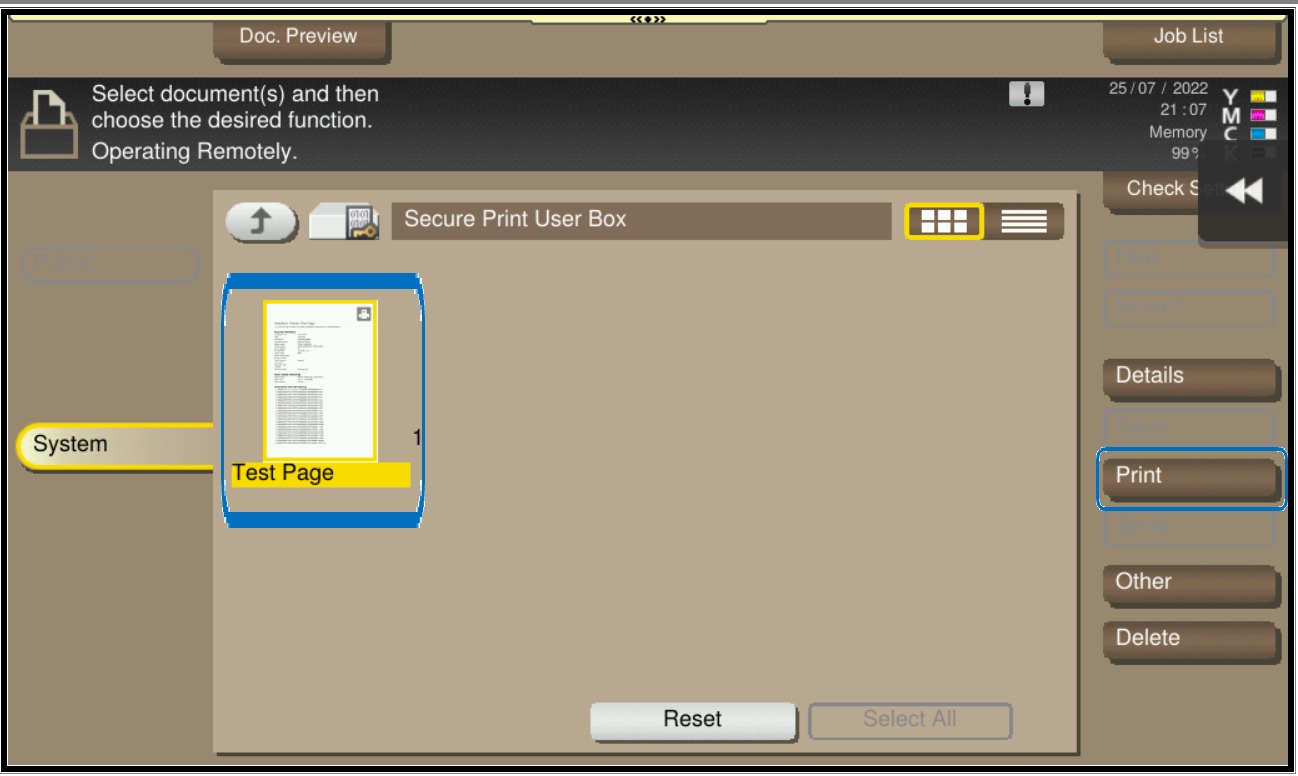
5. Highlight the document to print and click on Print.
Important Note: If you are using Authentication on the machine (either User Authentication or Account Track), you need to login first using your printer ID and password before going to the Secure Print folder to retrieve the document.