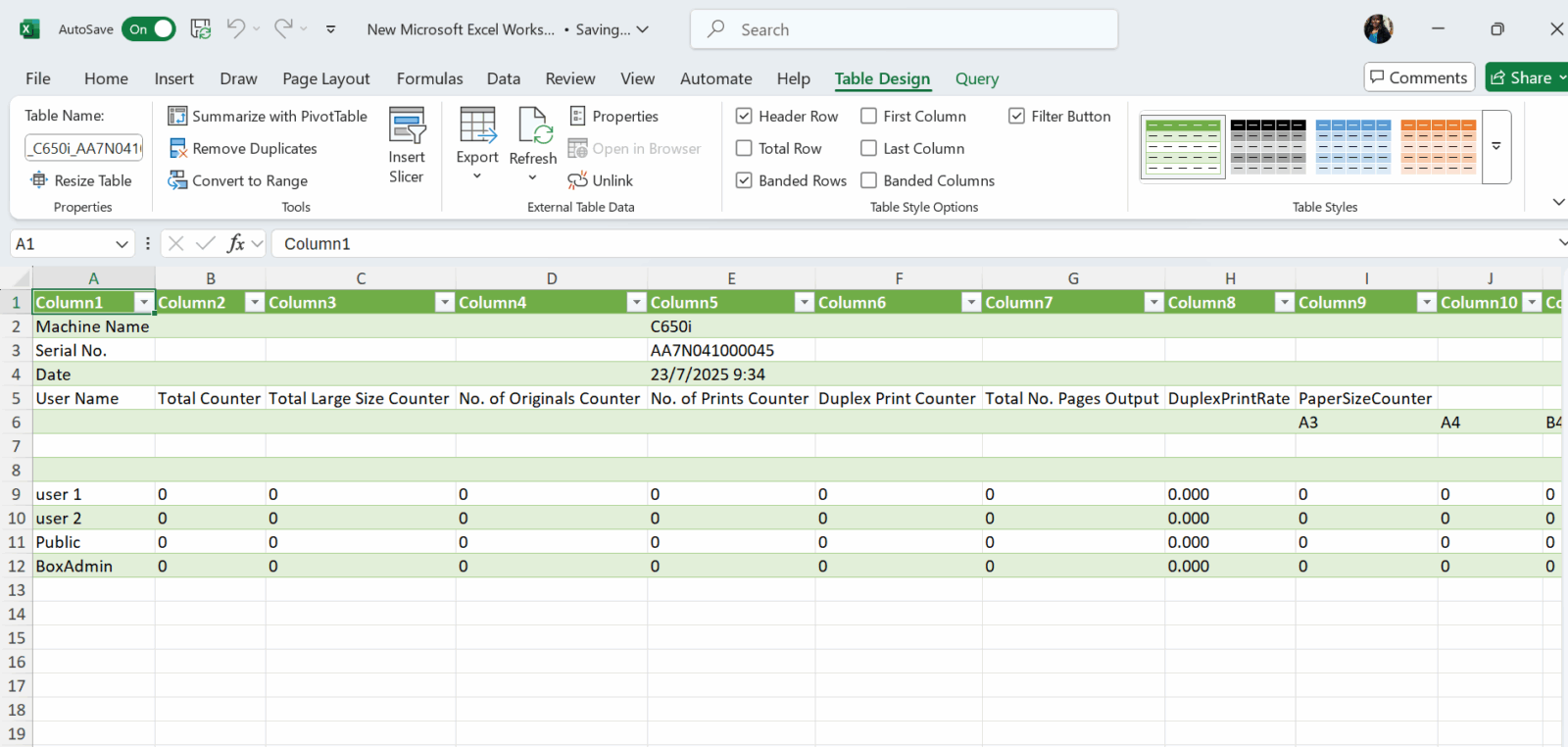
Guide On How To Export Counter List And Generated To Excel Files For Account Track Or User Authentication Counter.
REQUIREMENT: To export the Counter List to Excel files, you must enable either User Authentication or Account Track on the machine.
STEP 1: Access the machine Web Connection. Click this LINK to check on how to get the IP Address from the Konica Minolta machine.
STEP 2: Access the machine Web Connection from the PC browser. Click this LINK on how to access Web Connection from the browser.
For The Older Machine Series / Non I-Series Machine
**Via Web Connection
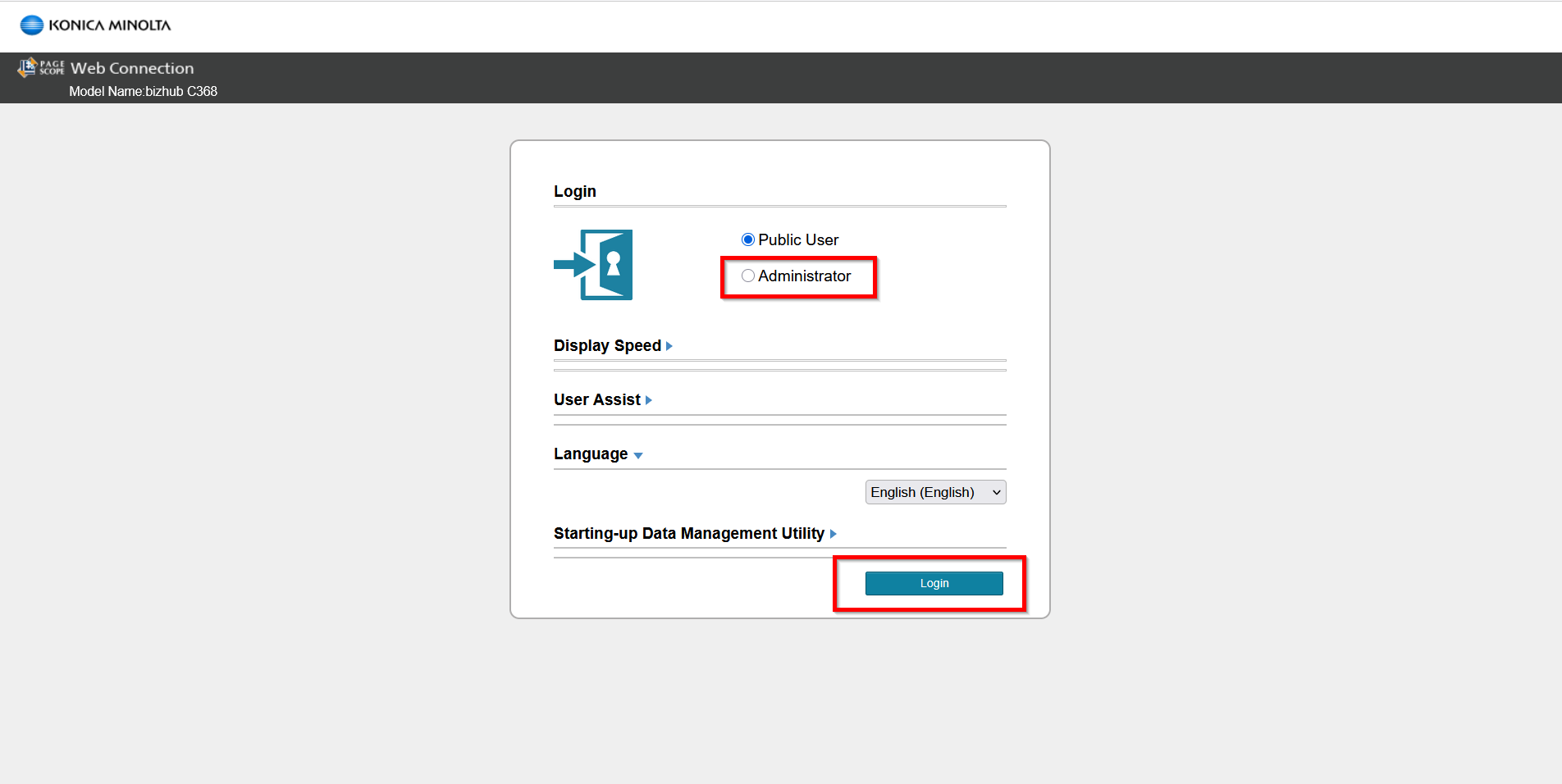
STEP 1 – Select [Administrator] and select [Login].
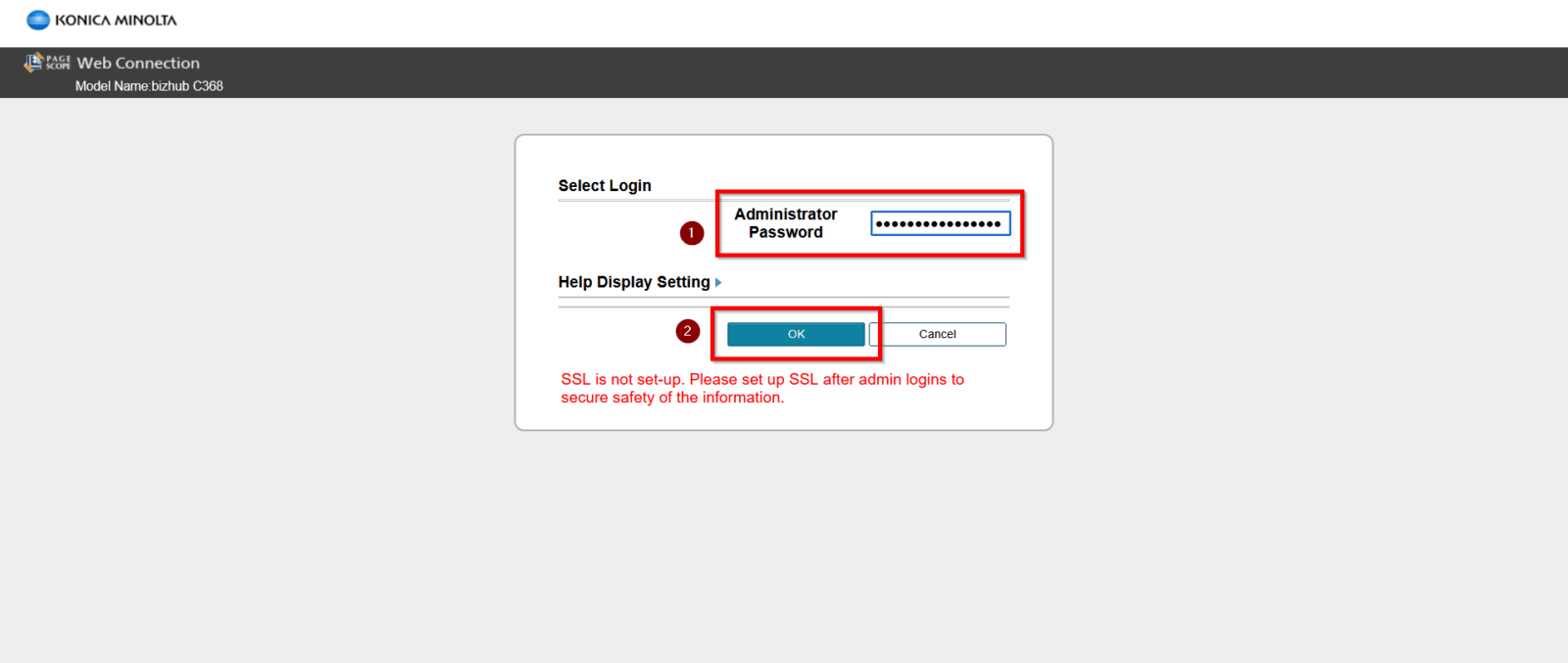
STEP 2 – Key in the default administrator password and click [OK] button.
Default administrator password: [7801261178012611] or [1234567812345678] or [12345678] or [12341234].
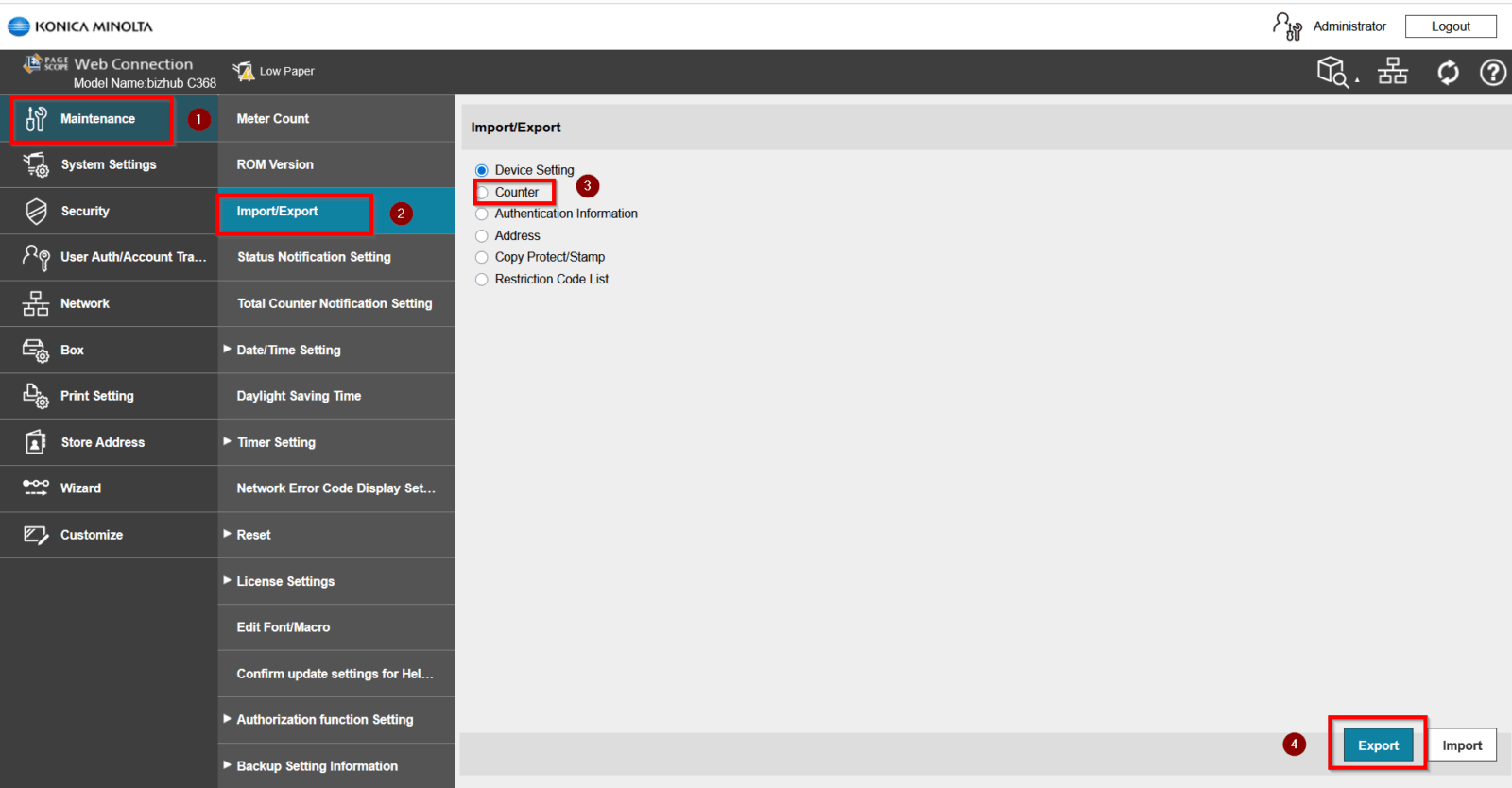
STEP 3 – Select [Maintenance] – [Import/Export] – [Counter] then selec [Export]
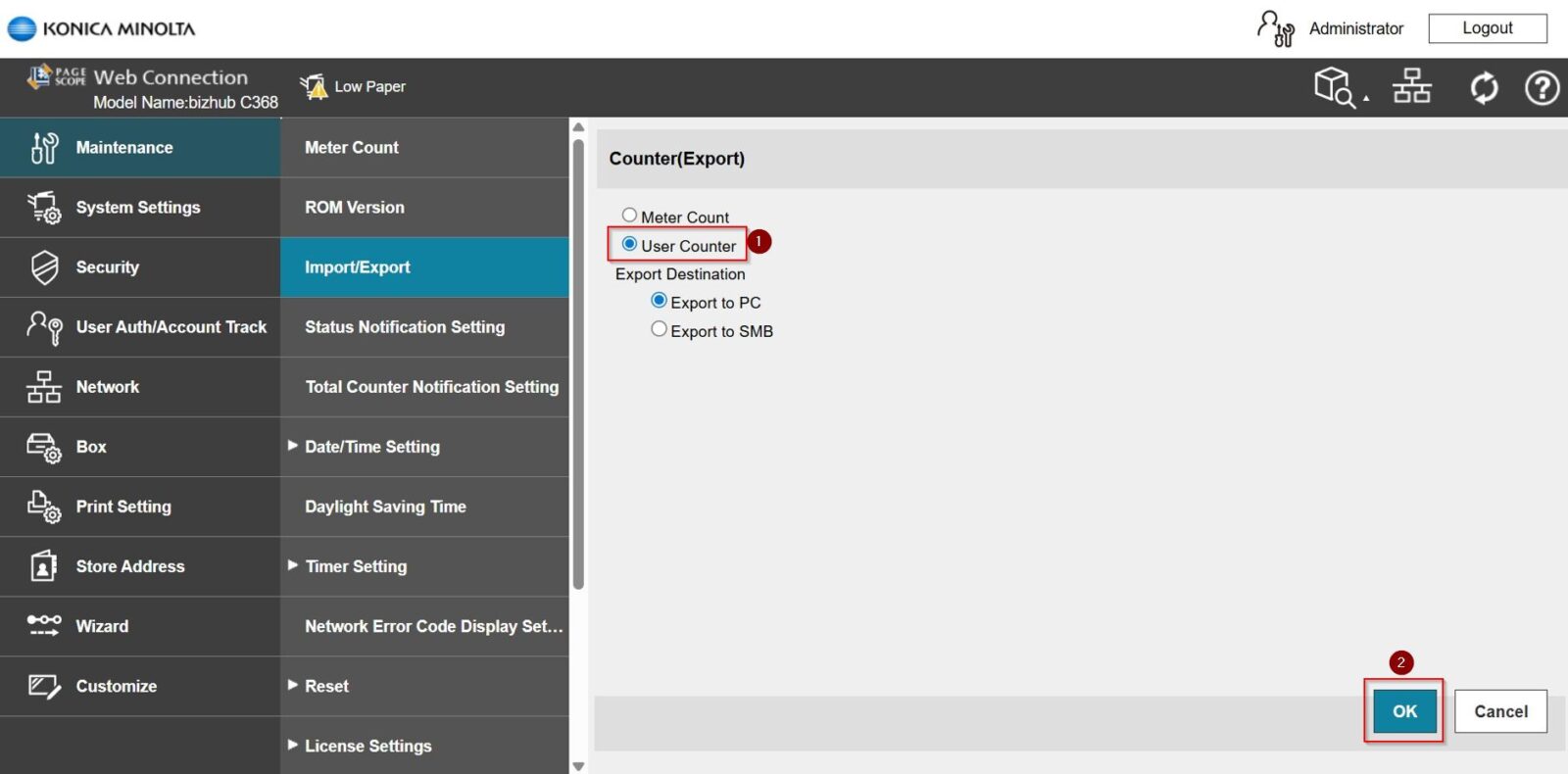
STEP 4 – Select [User Counter] or [Account Track Counter] – [Export To PC] and click [OK].
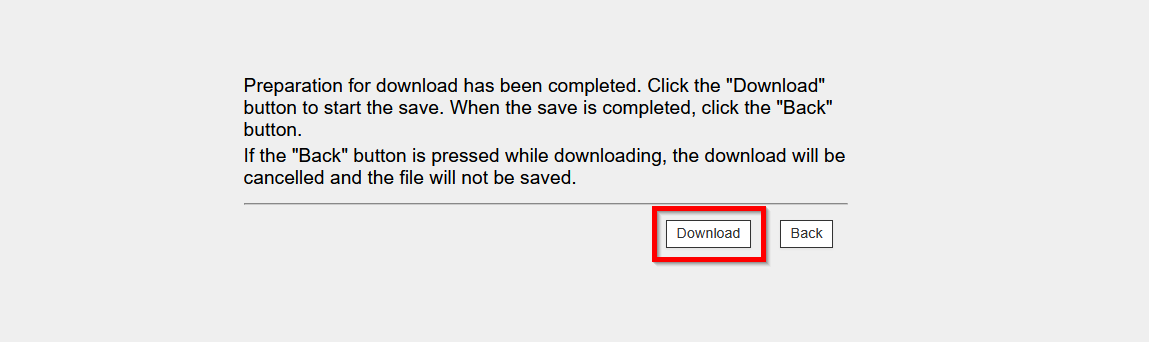
STEP 5 – Click [Download] button to download the counter list.
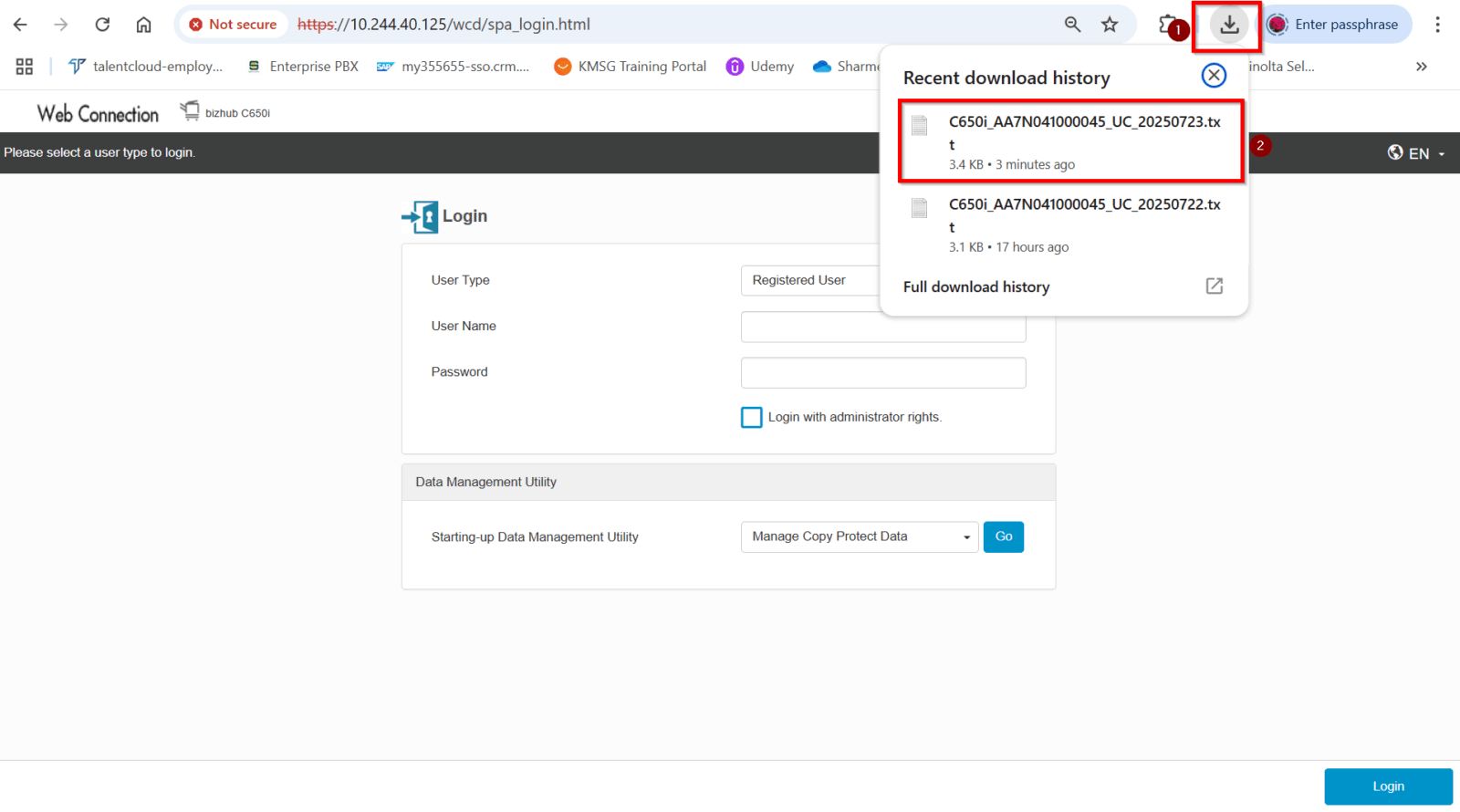
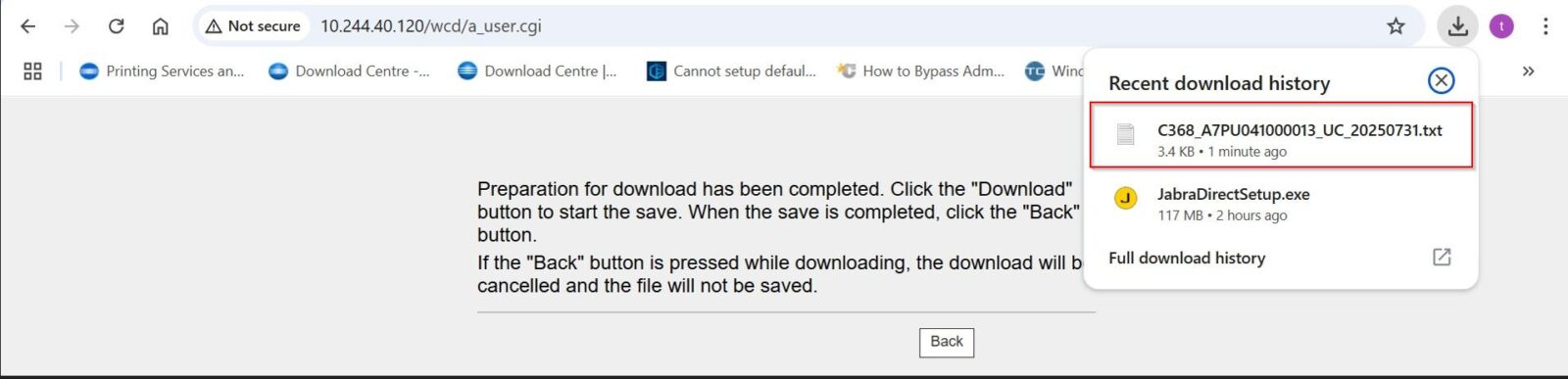
STEP 6 – A .txt file will be downloaded automatically.
STEP 7 – Open Microsoft Excel application, go to [Data] tab – [Get Data] – [From File] – [From Test/CSV].
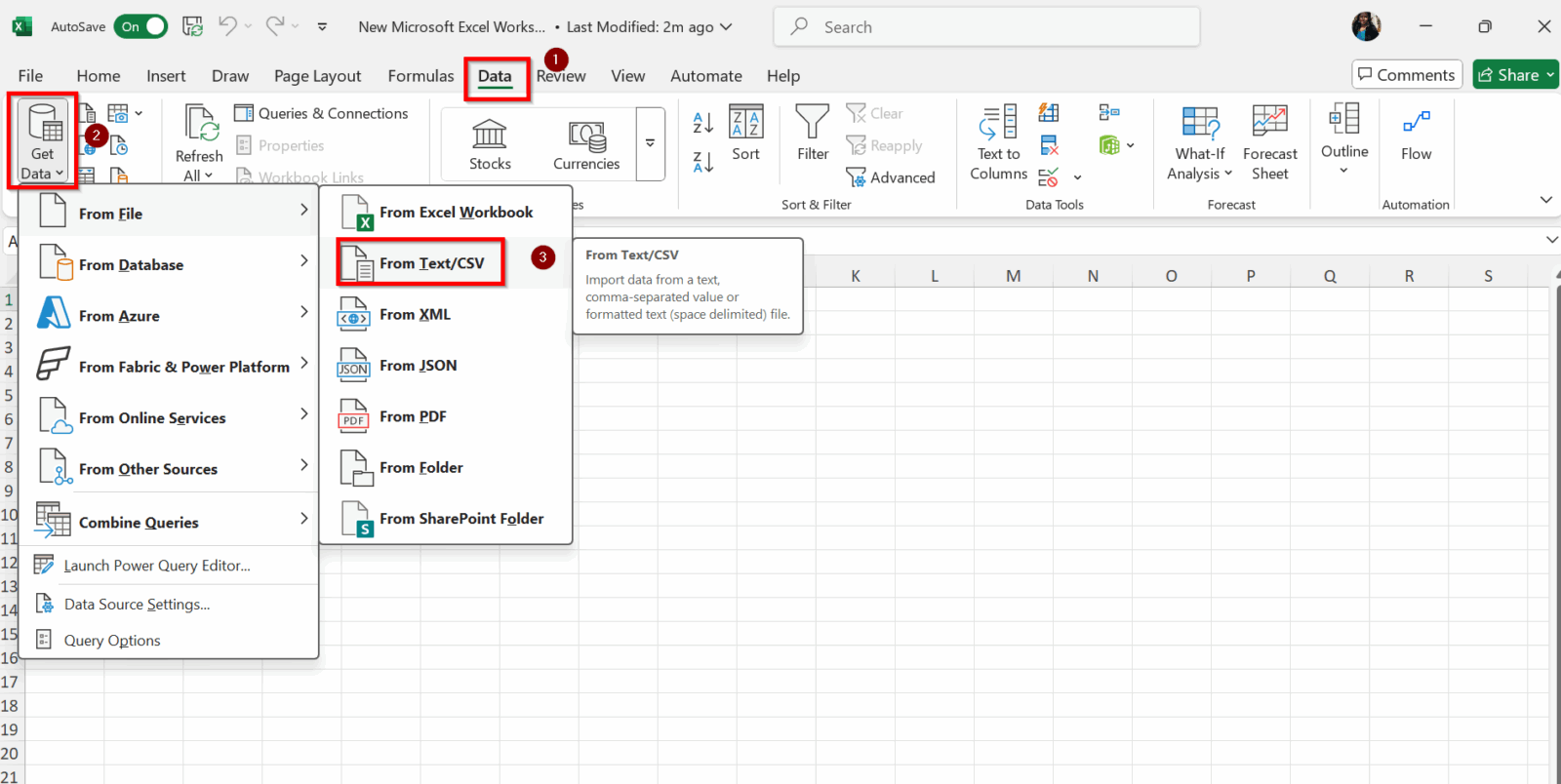
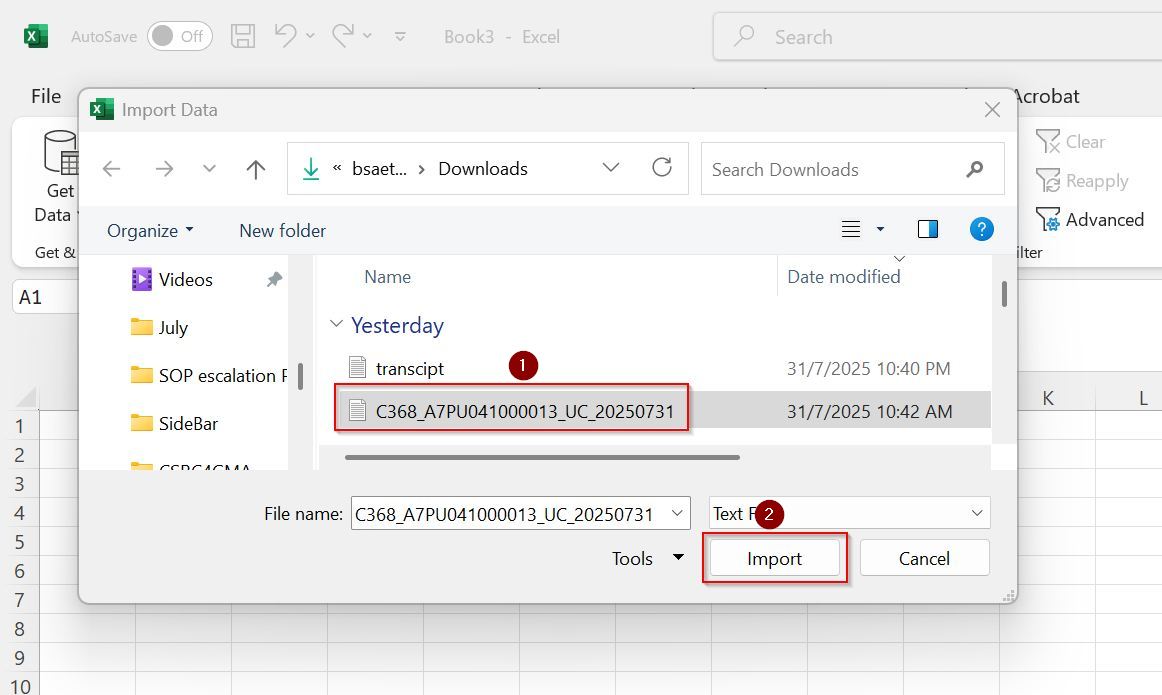
STEP 8 – Find the .txt file that was recently downloaded (usually located in your Downloads folder). Once located, click [Import].
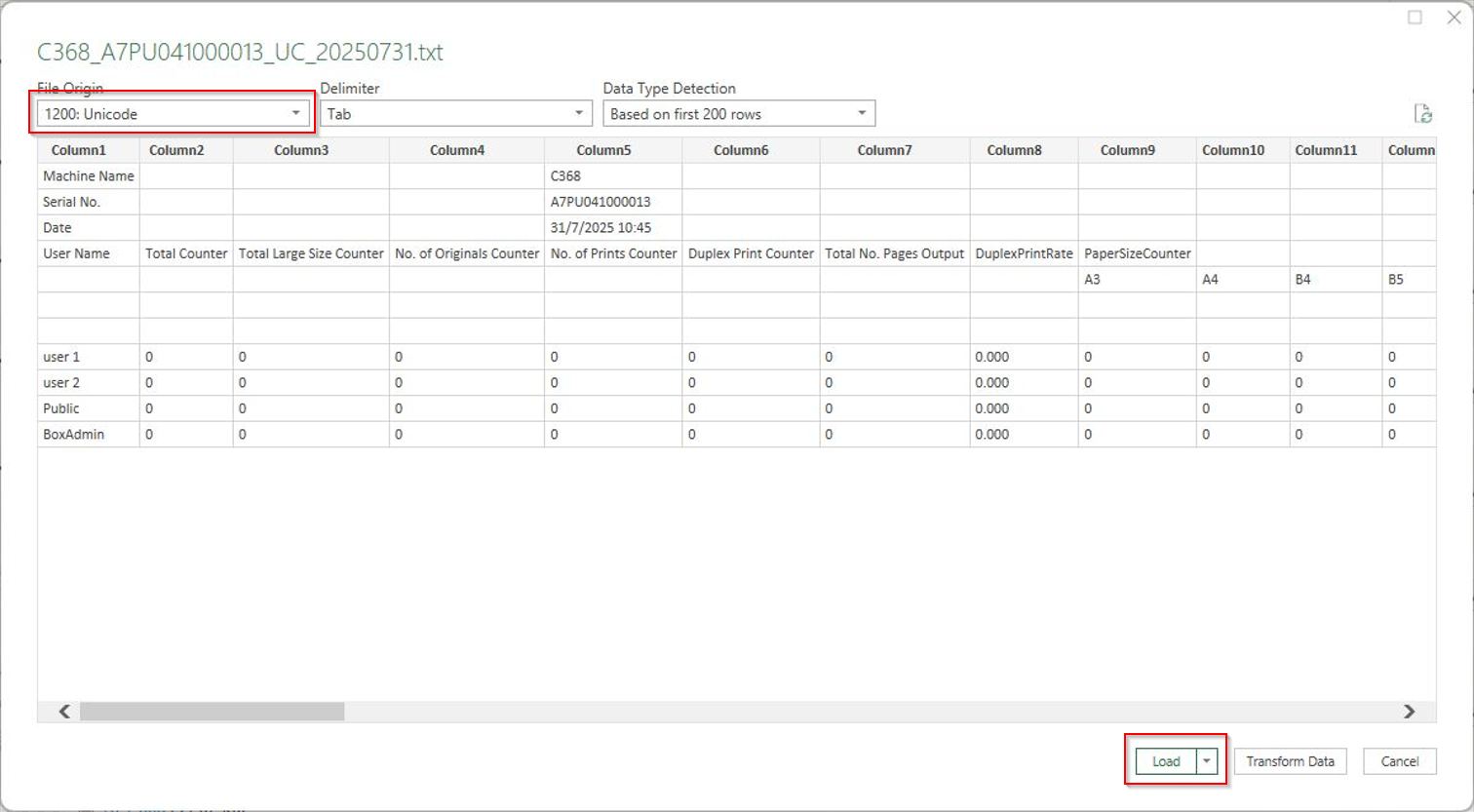
STEP 9 – Under File Origin, select [1200: Unicode] and click on [Load].
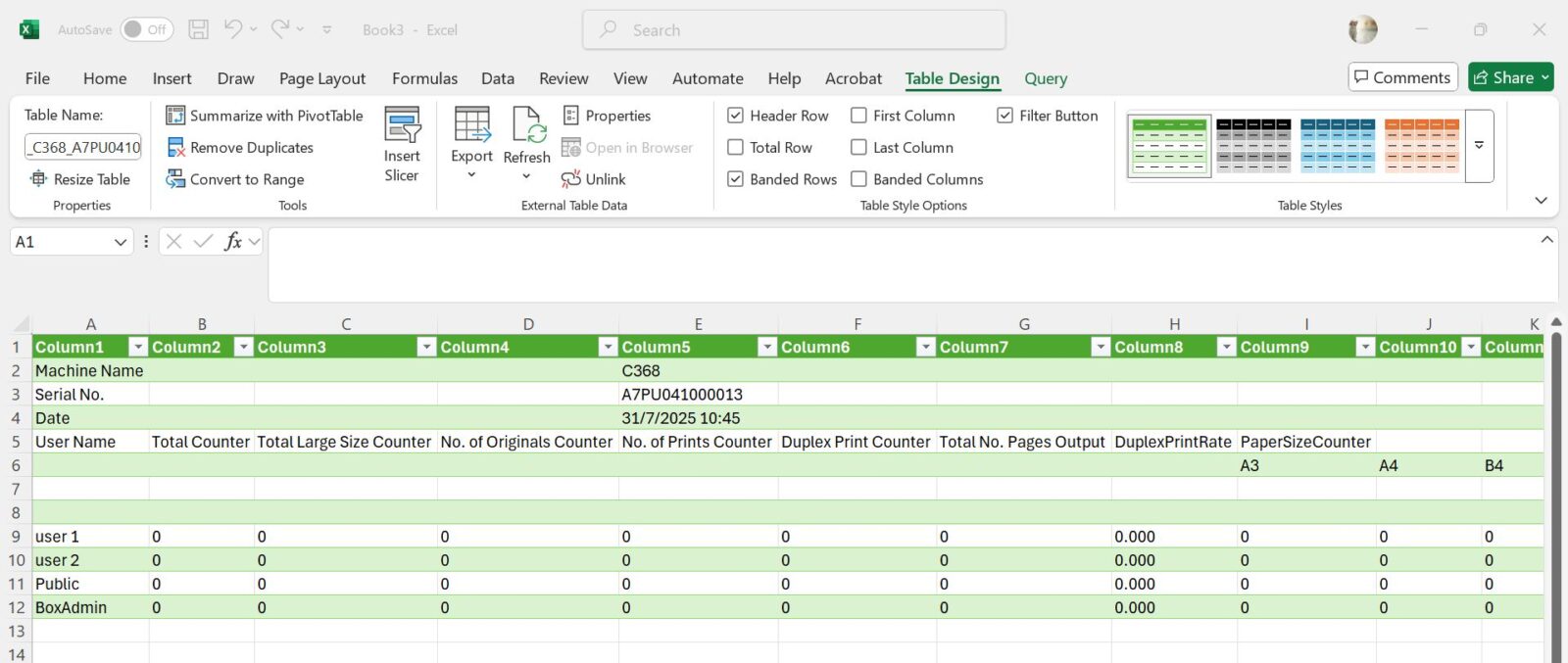
STEP 10 – Once the import is complete, the Counter List Report will be displayed and ready for review.
For The Newer Machine Series / I-Series Machine
**Via Web Connection
STEP 1 – Select [Administrator] and key in the default administrator password and click [OK] button.
Default administrator password: [7801261178012611] or [1234567812345678] or [12345678] or [12341234].
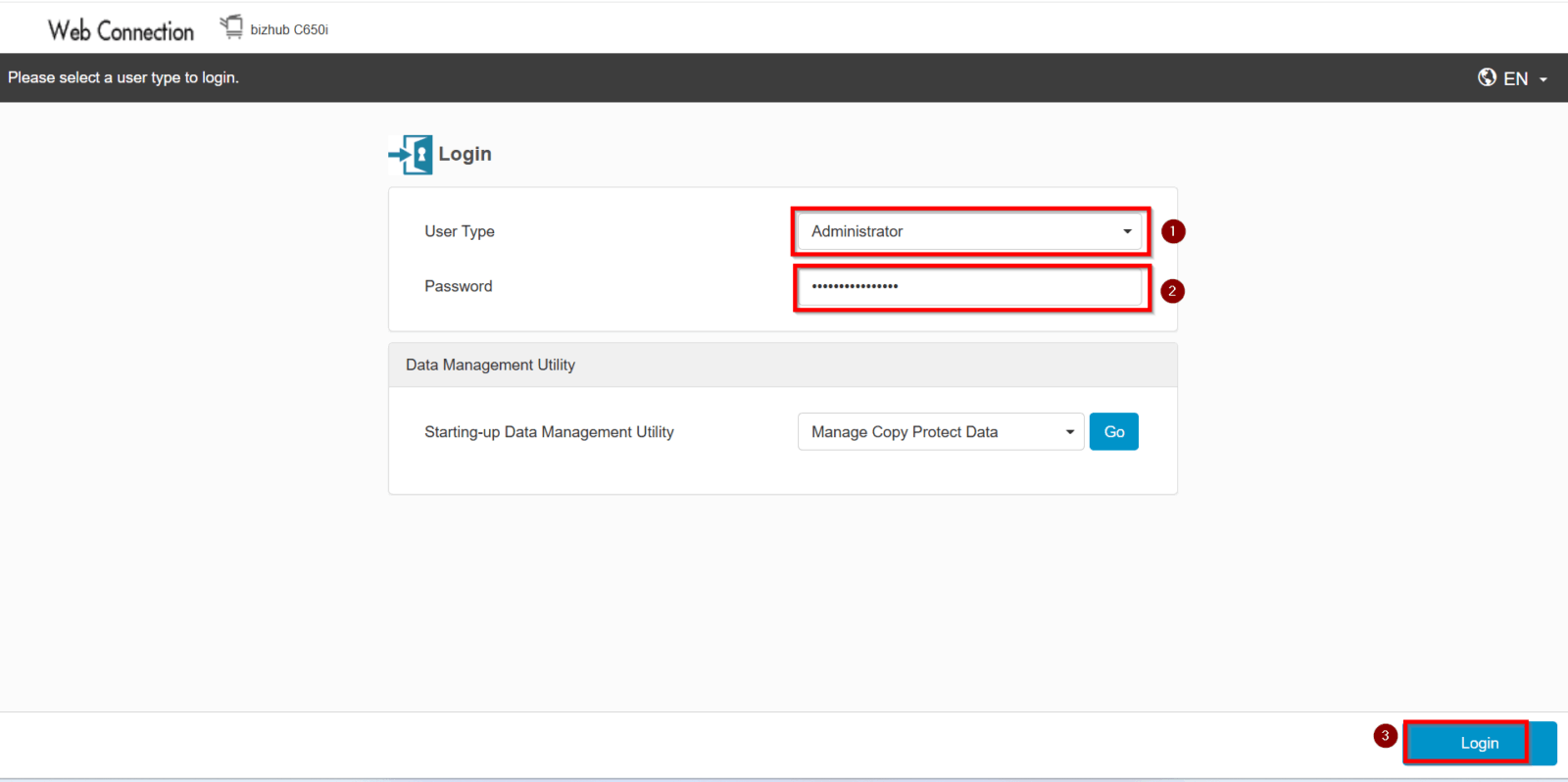
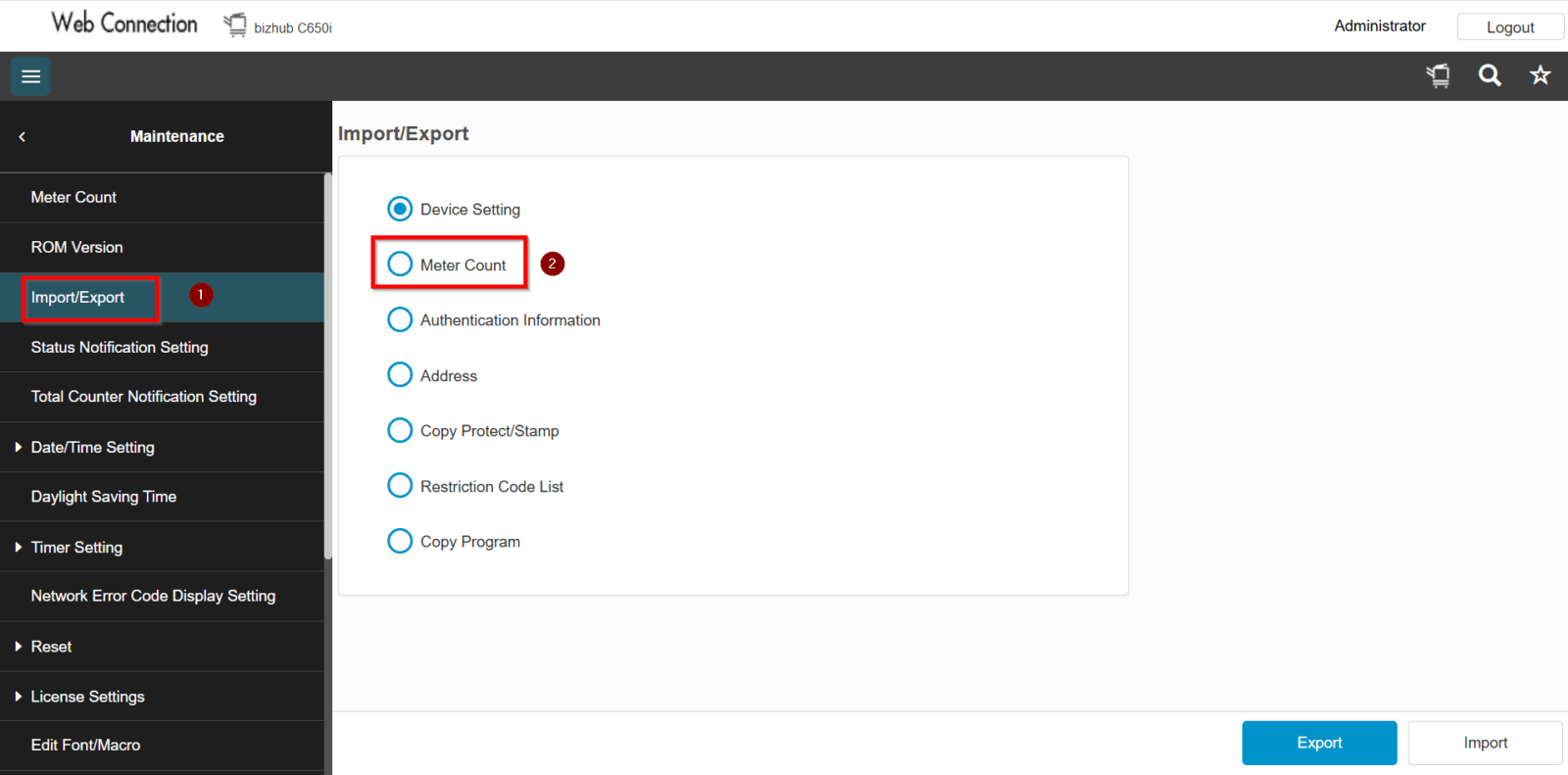
STEP 2 – Select [Maintenance].
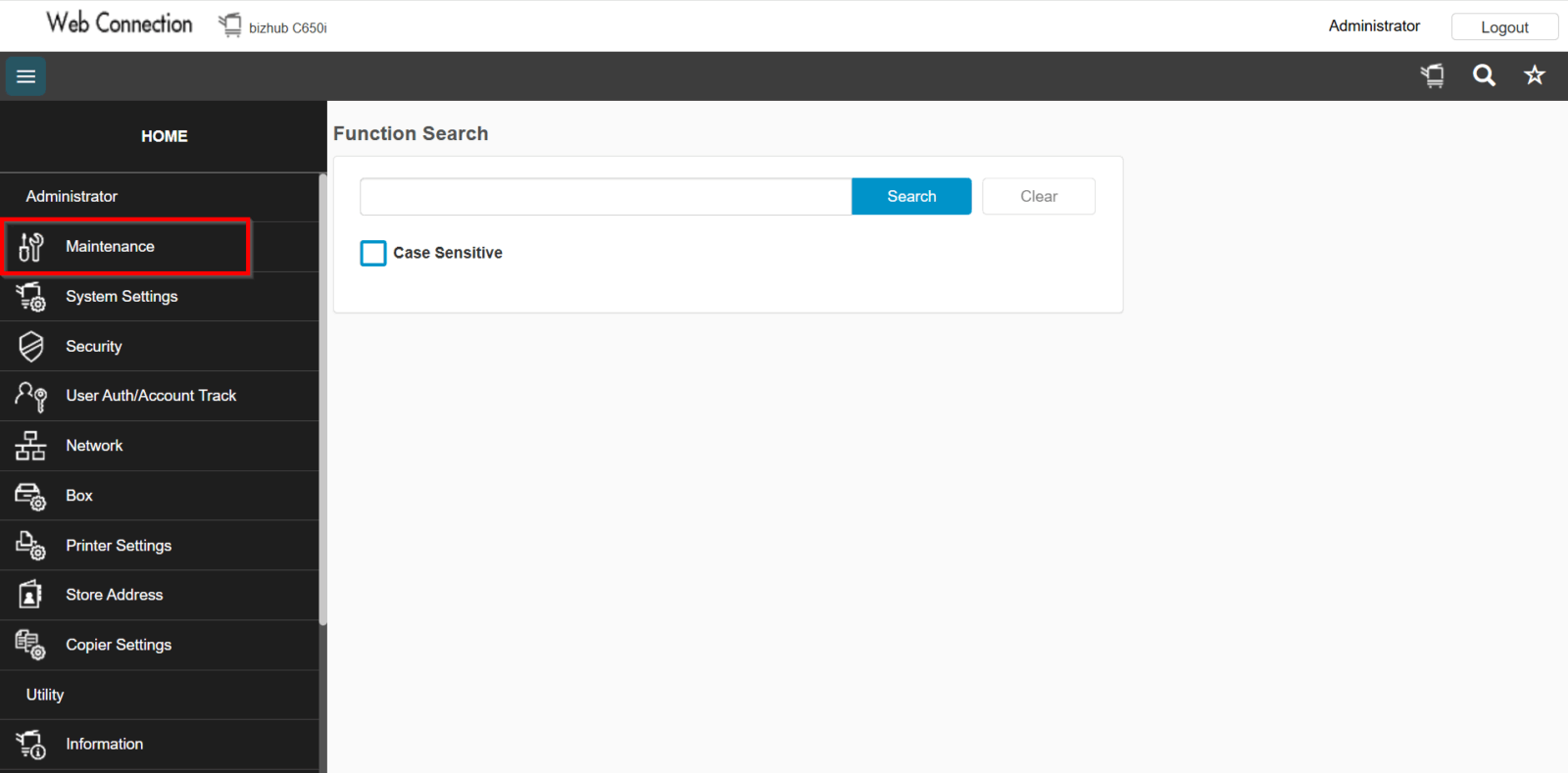
STEP 3 – Select [Meter Count].
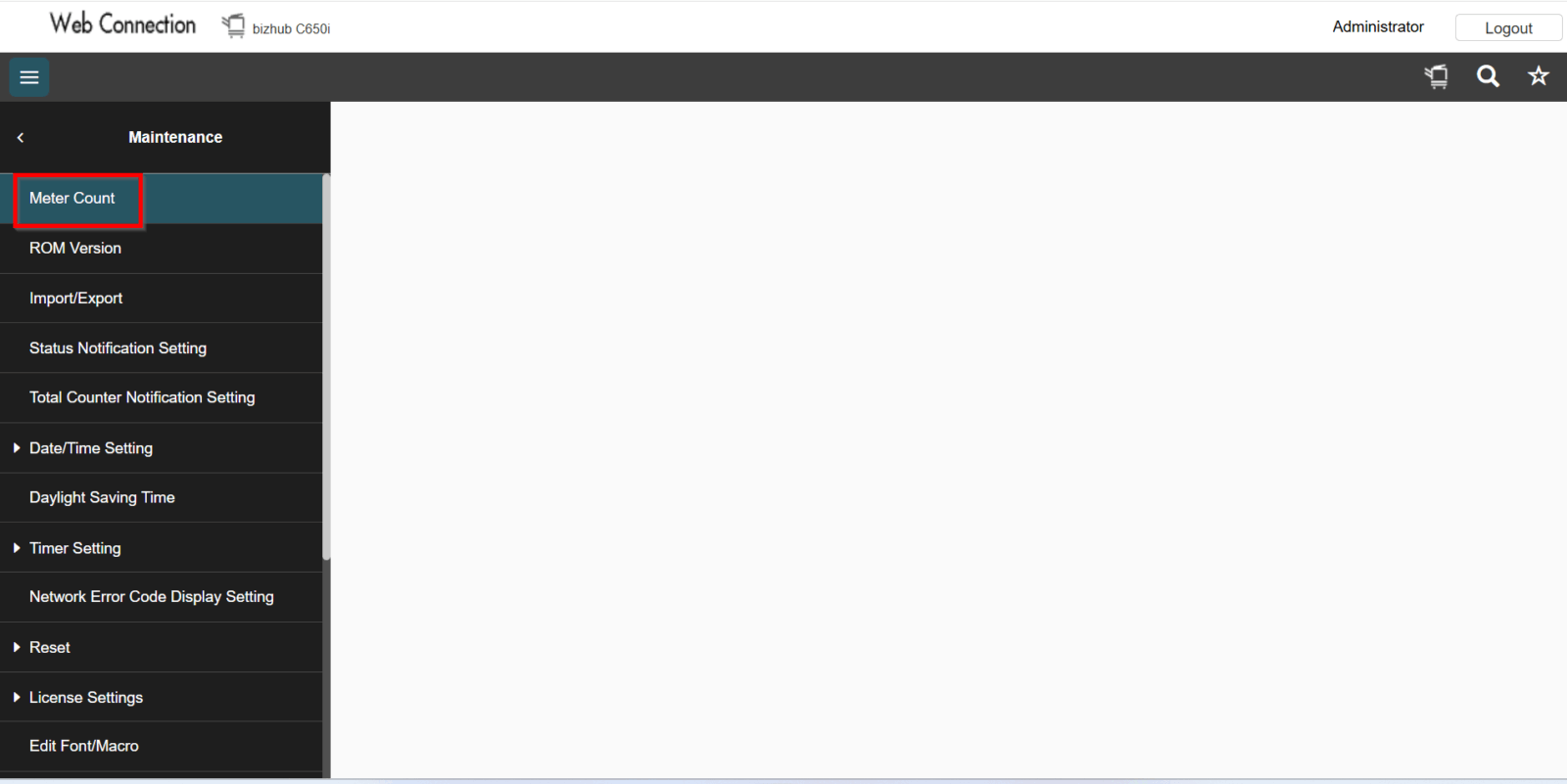
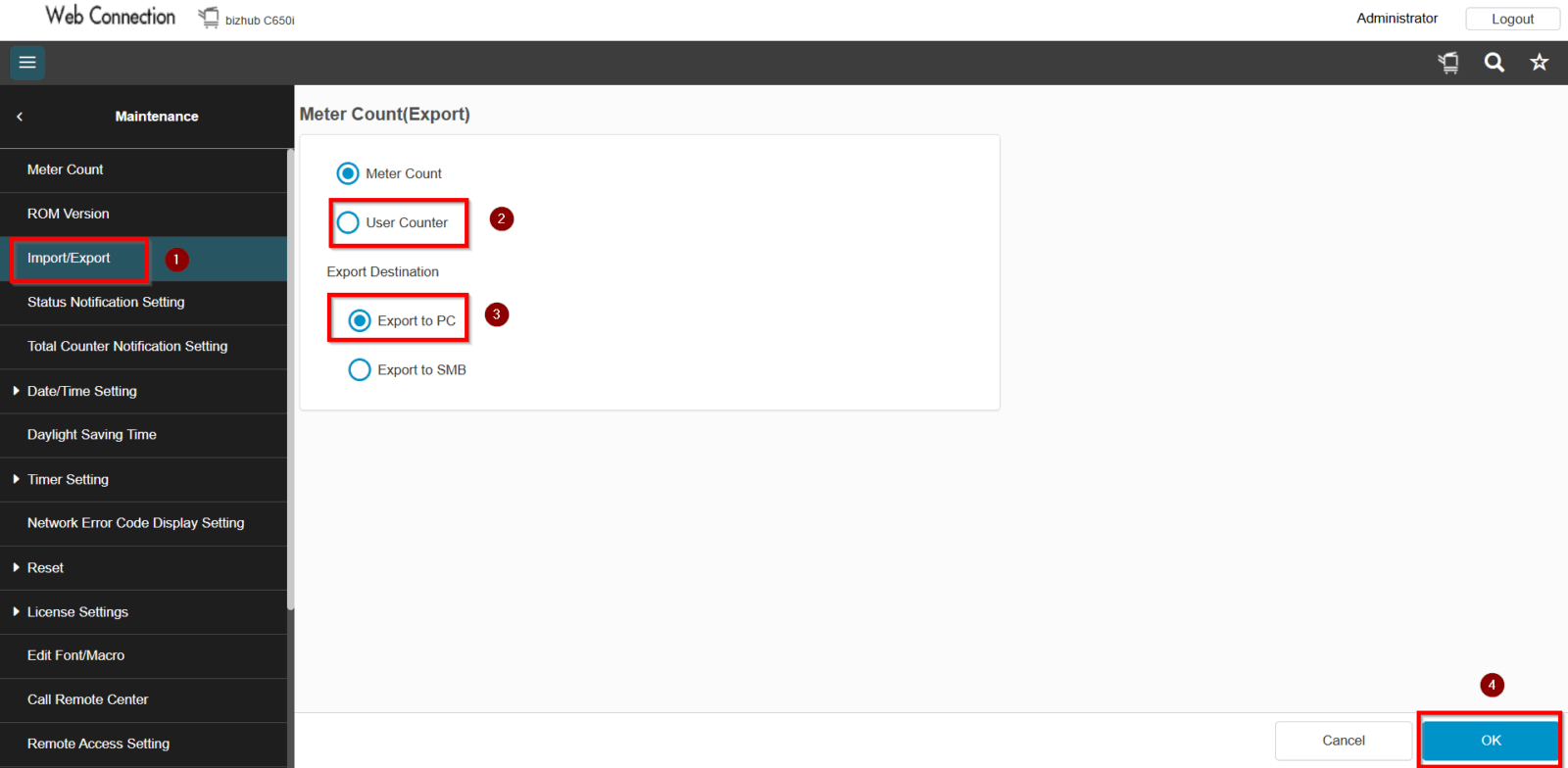
STEP 4 – Select [Import/Export] – [Meter Count] – [Export].
STEP 5 – Select [User Counter] – [Export To PC] and click [OK].
STEP 6 – Click on [File Download] to download the Counter List Report.
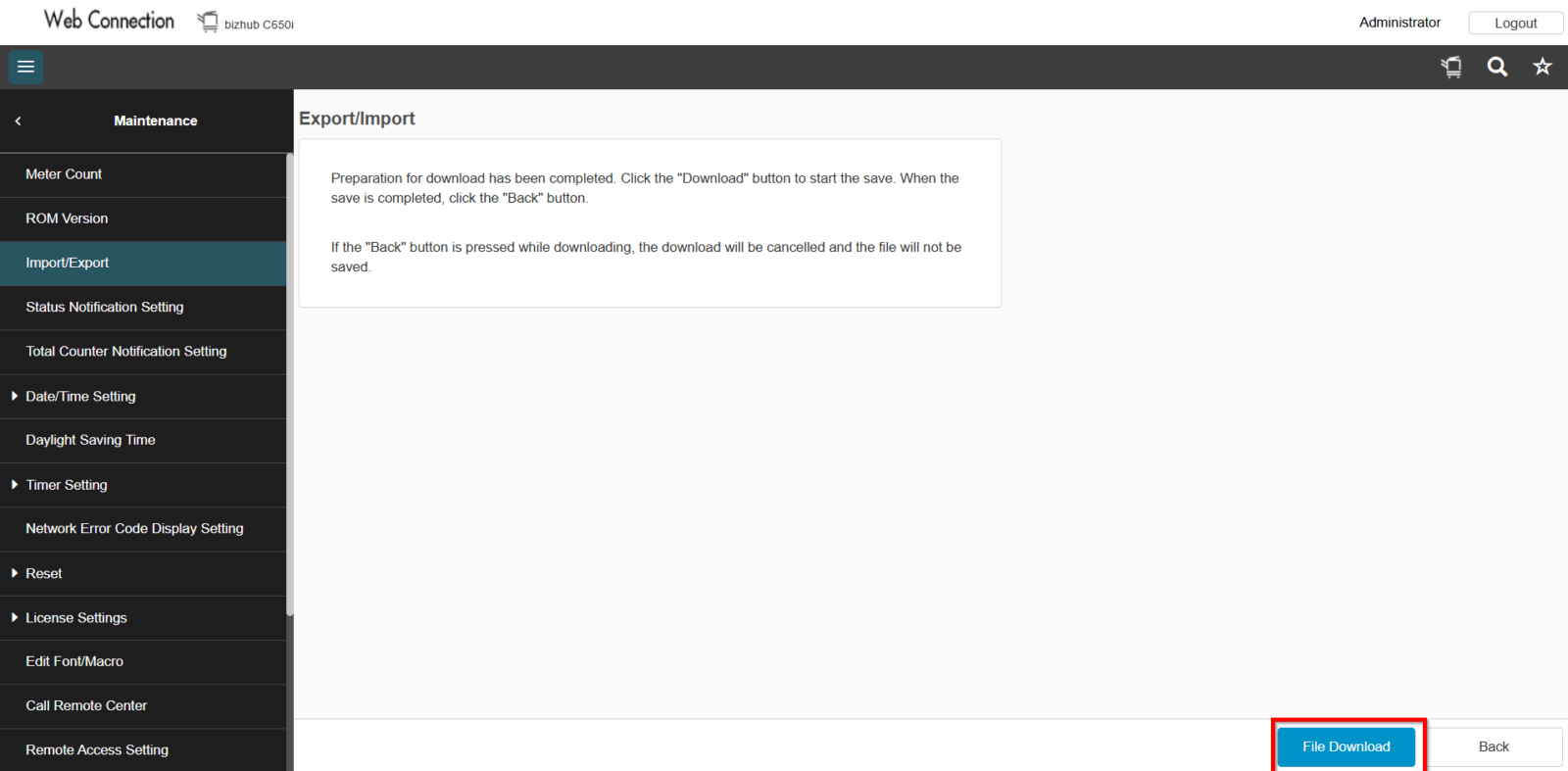
STEP 7 – A .txt file will be downloaded automatically.
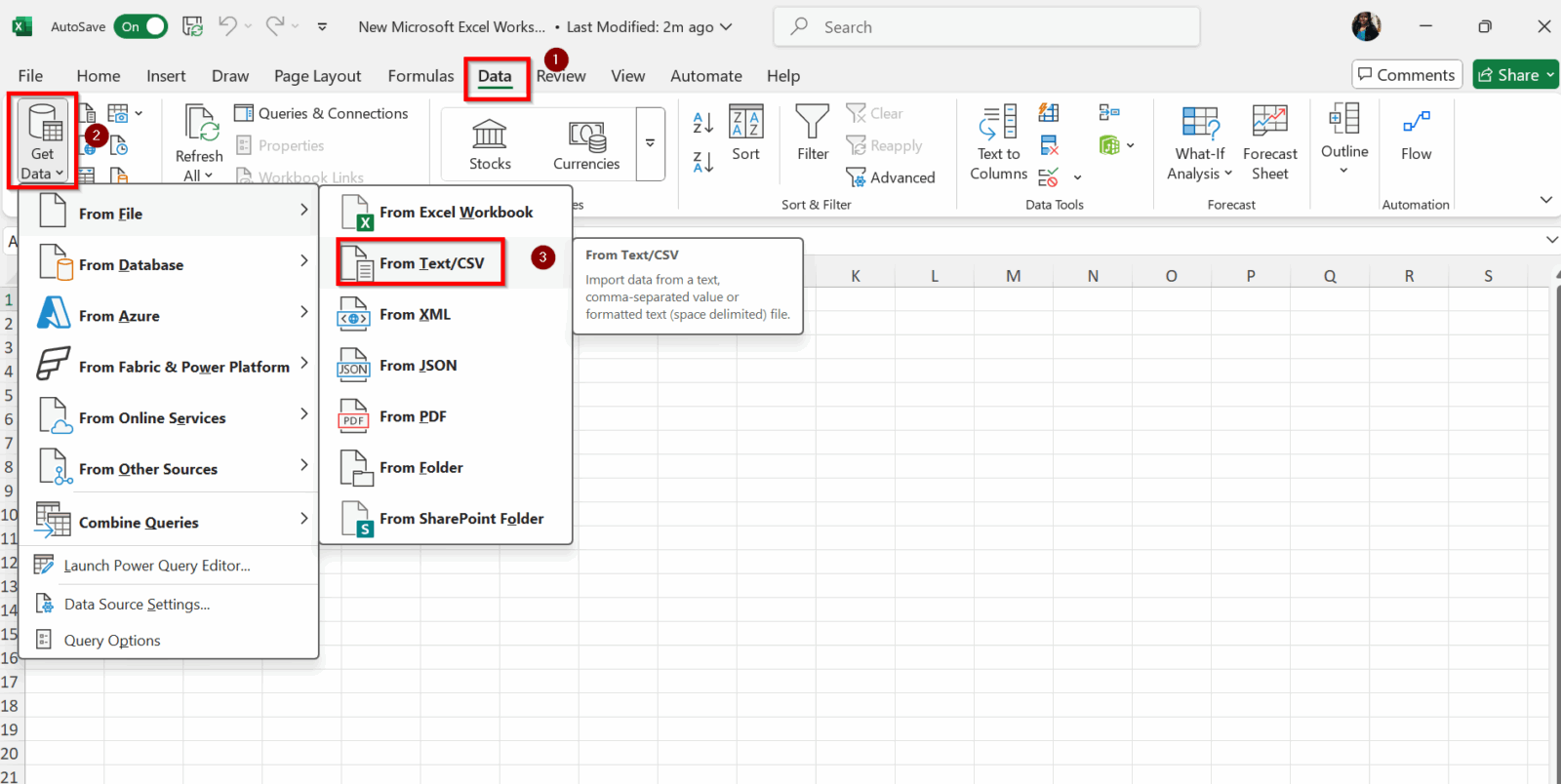
STEP 8 – Open Microsoft Excel application, go to [Data] tab – [Get Data] – [From File] – [From Test/CSV].
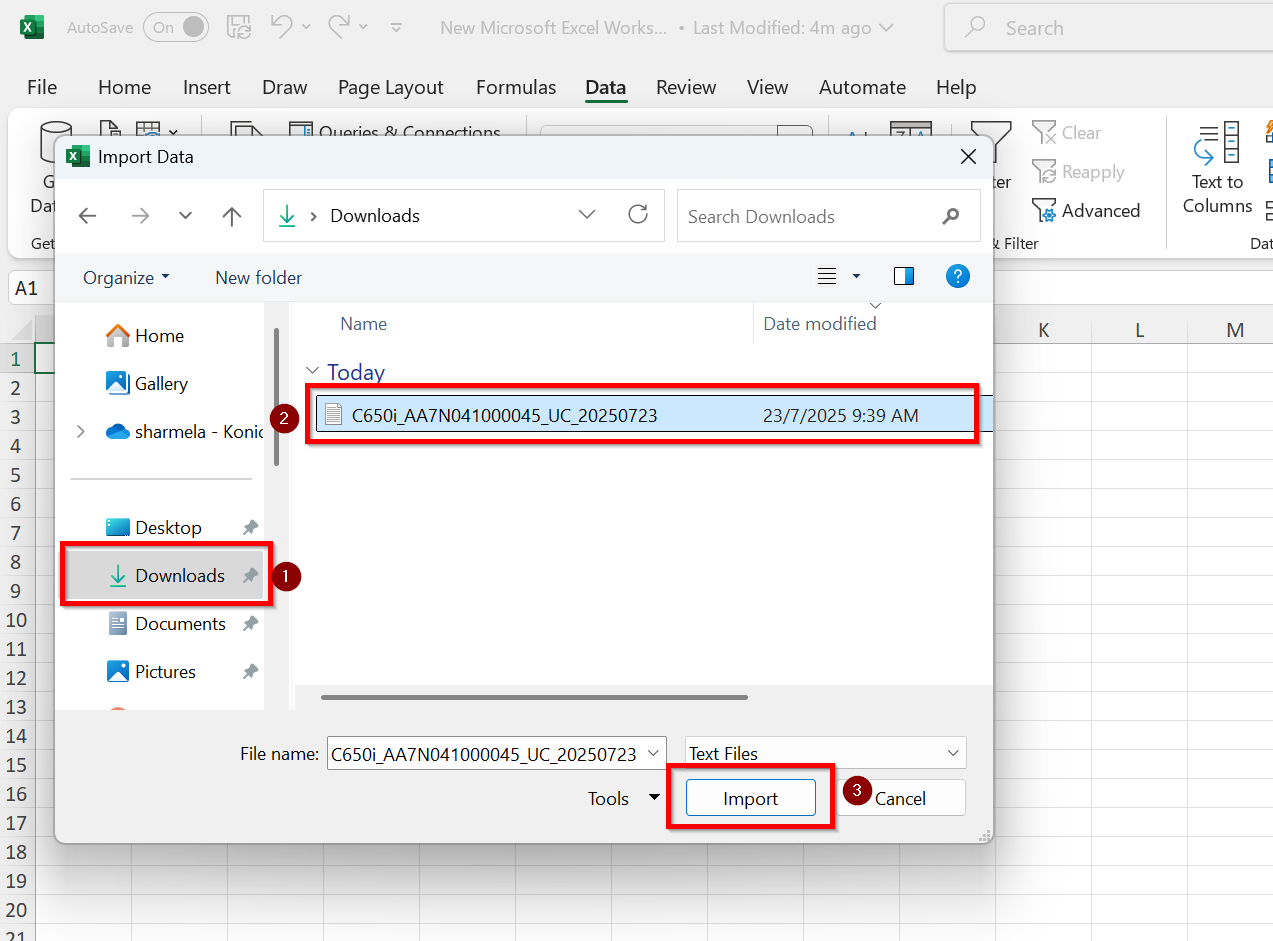
STEP 9 – Find the .txt file that was recently downloaded (usually located in your Downloads folder). Once located, click [Import].
STEP 10 – Under File Origin, select [1200: Unicode] and click on [Load].
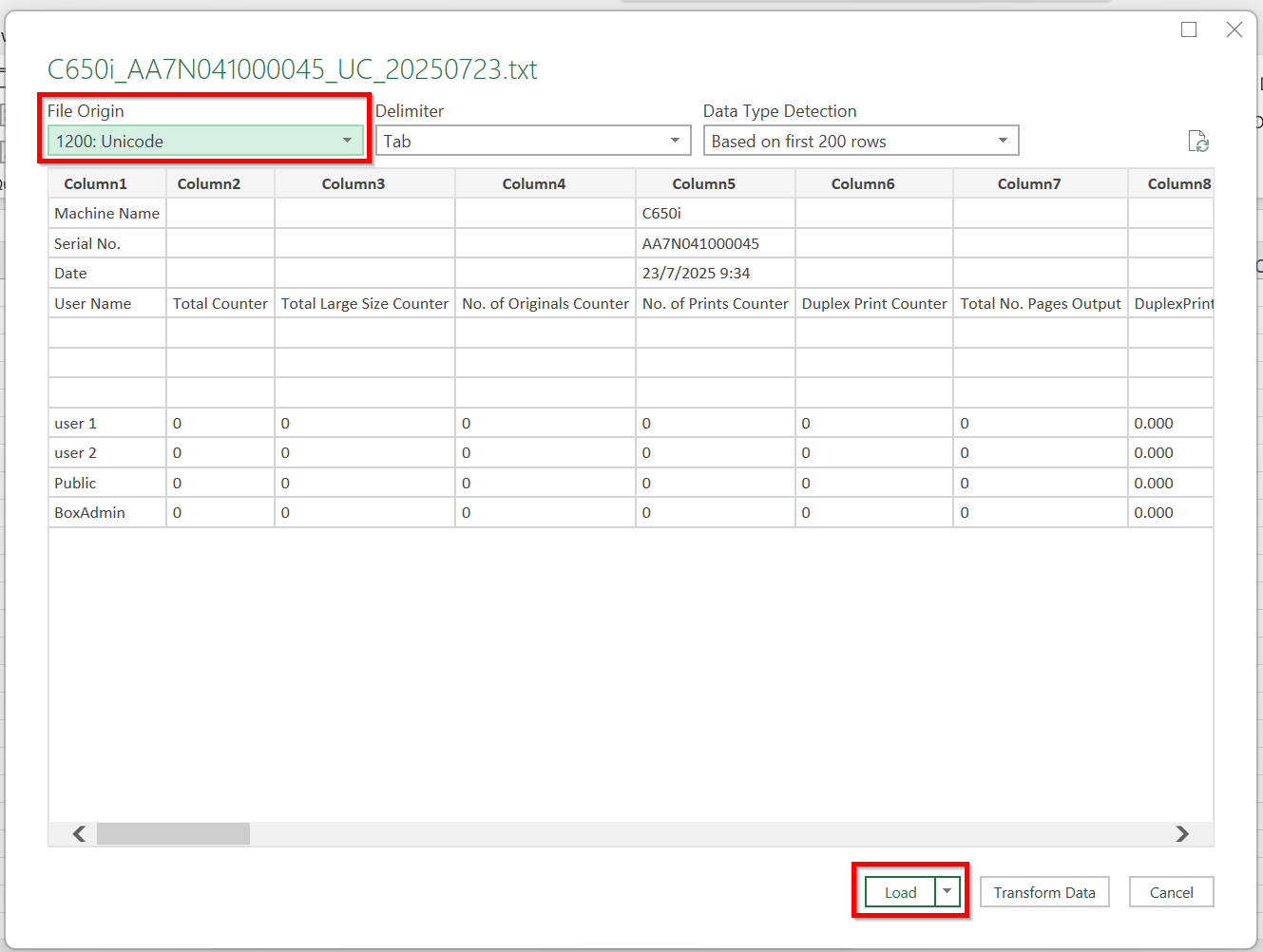
STEP 11 – Once the import is complete, the Counter List Report will be displayed and ready for review.