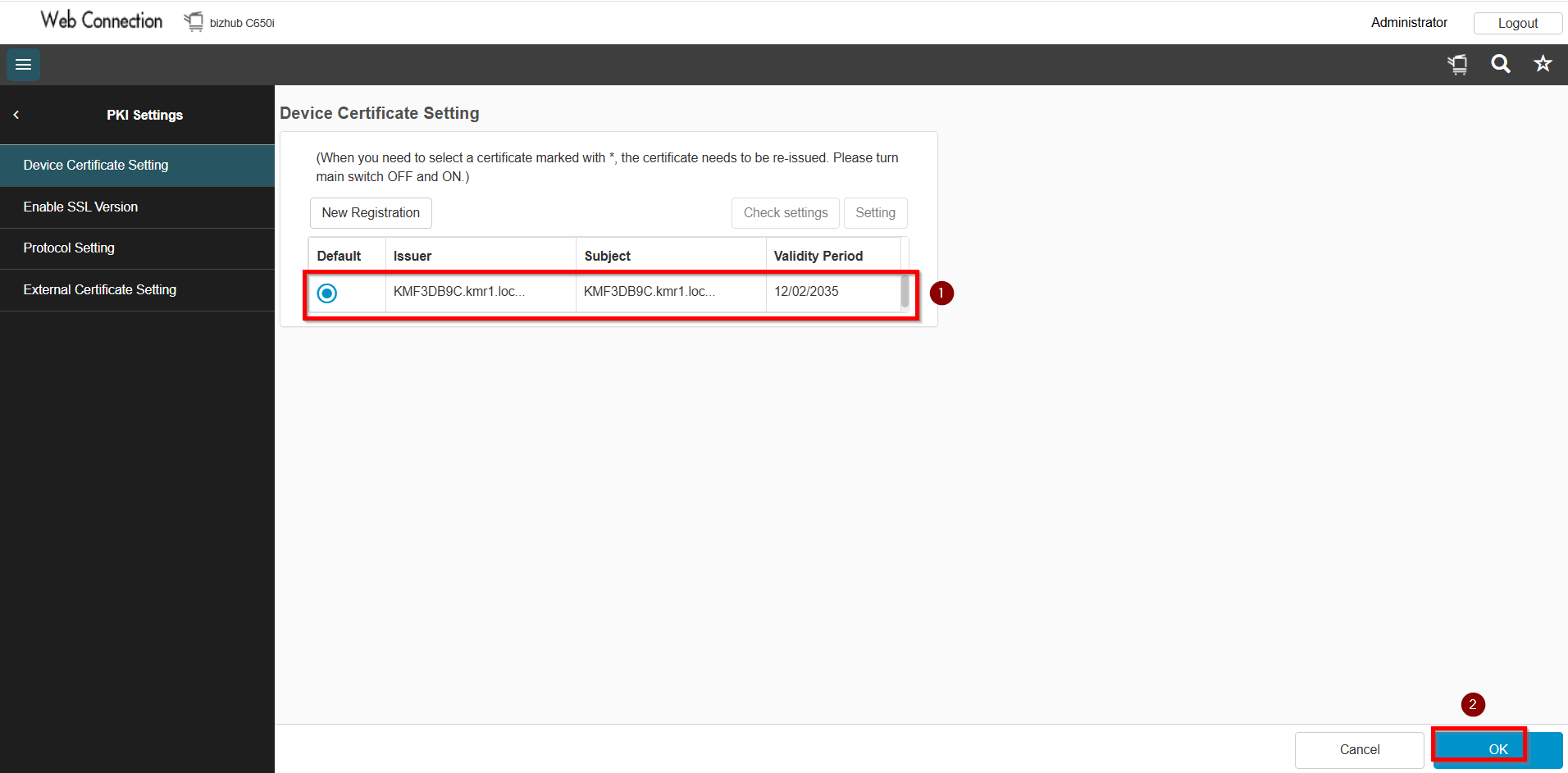
Guide On How To Create Certificate In Photocopier Machine For Email Scan.
For The Older Machine Series / Non I-Series Machine
STEP 1 – Access the machine Web Connection from the PC browser. Click this LINK on how to access Web Connection from the browser.
STEP 2 – Select [Administrator] and key in the default administrator password and click [OK] button.
Default administrator password: [7801261178012611] or [1234567812345678] or [12345678] or [12341234].
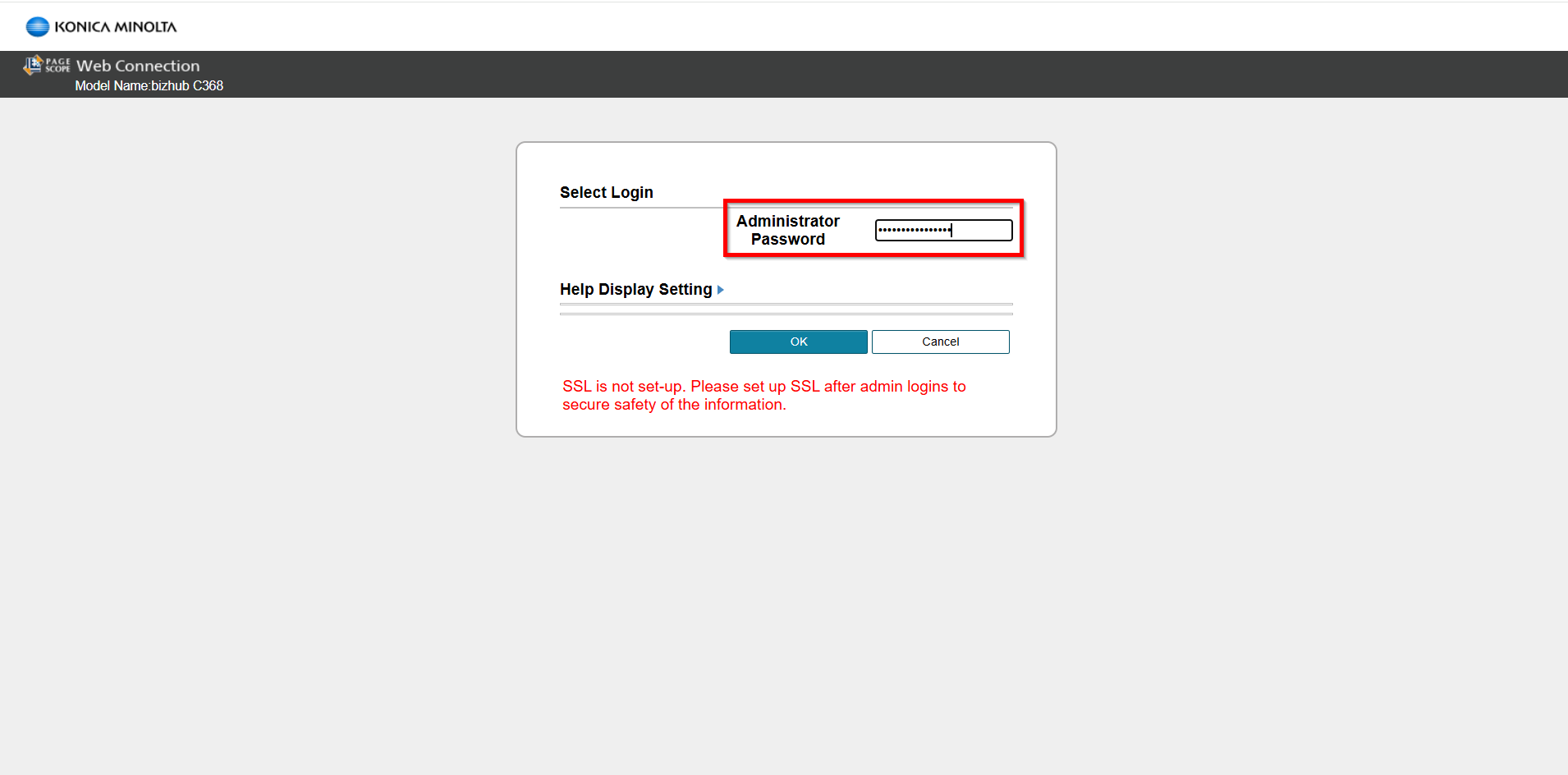
**You may access to web connection via machine IP Address. Click on this to check how to get the IP Address from machine, then key in Konica Minolta Machine IP Address at web browser and log in as admin the Web Connection.
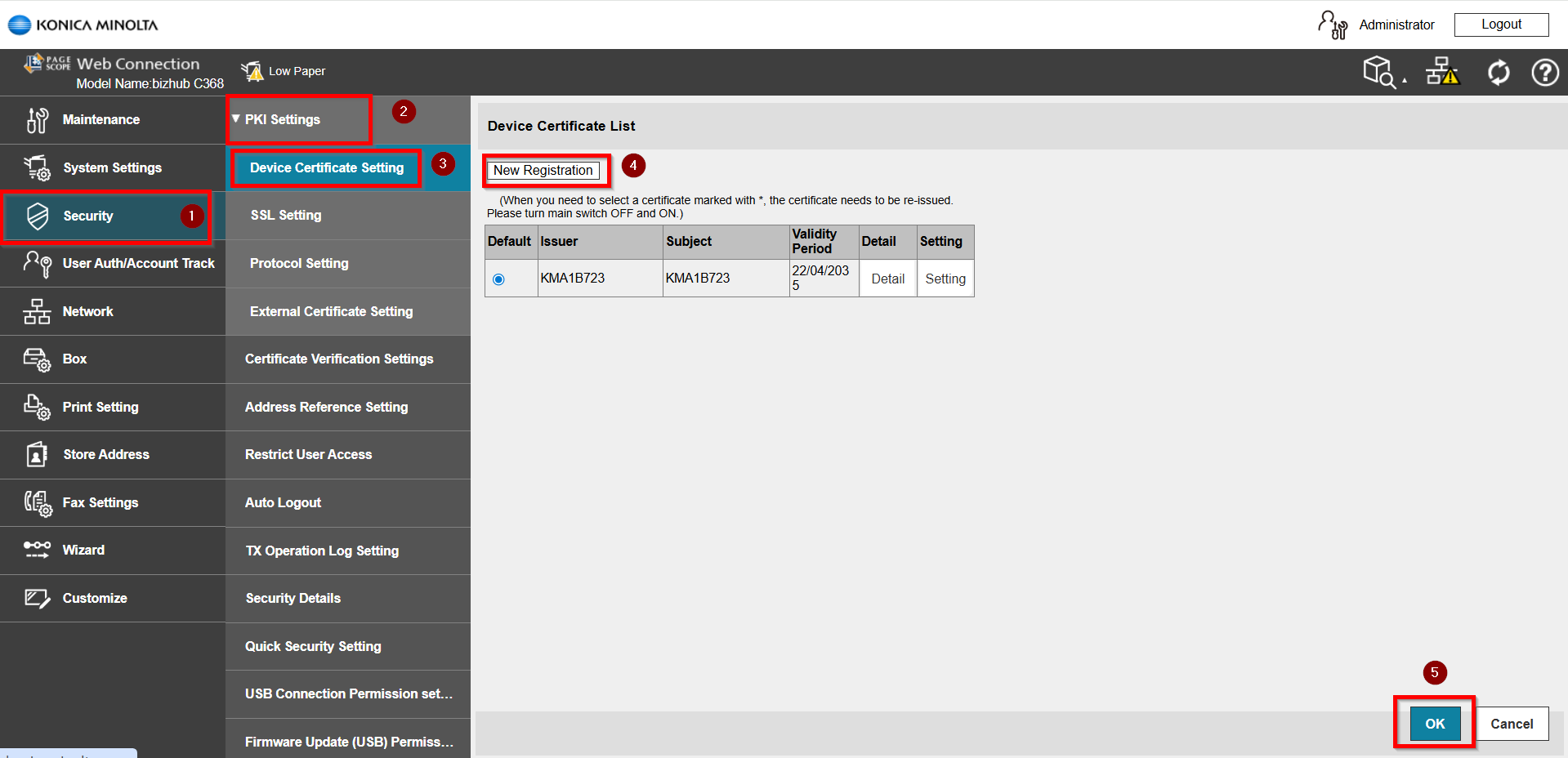
STEP 3 – Select [Security] – [PKI Settings] – [Device Certificate Setting] – [New Registration] and click on [OK].
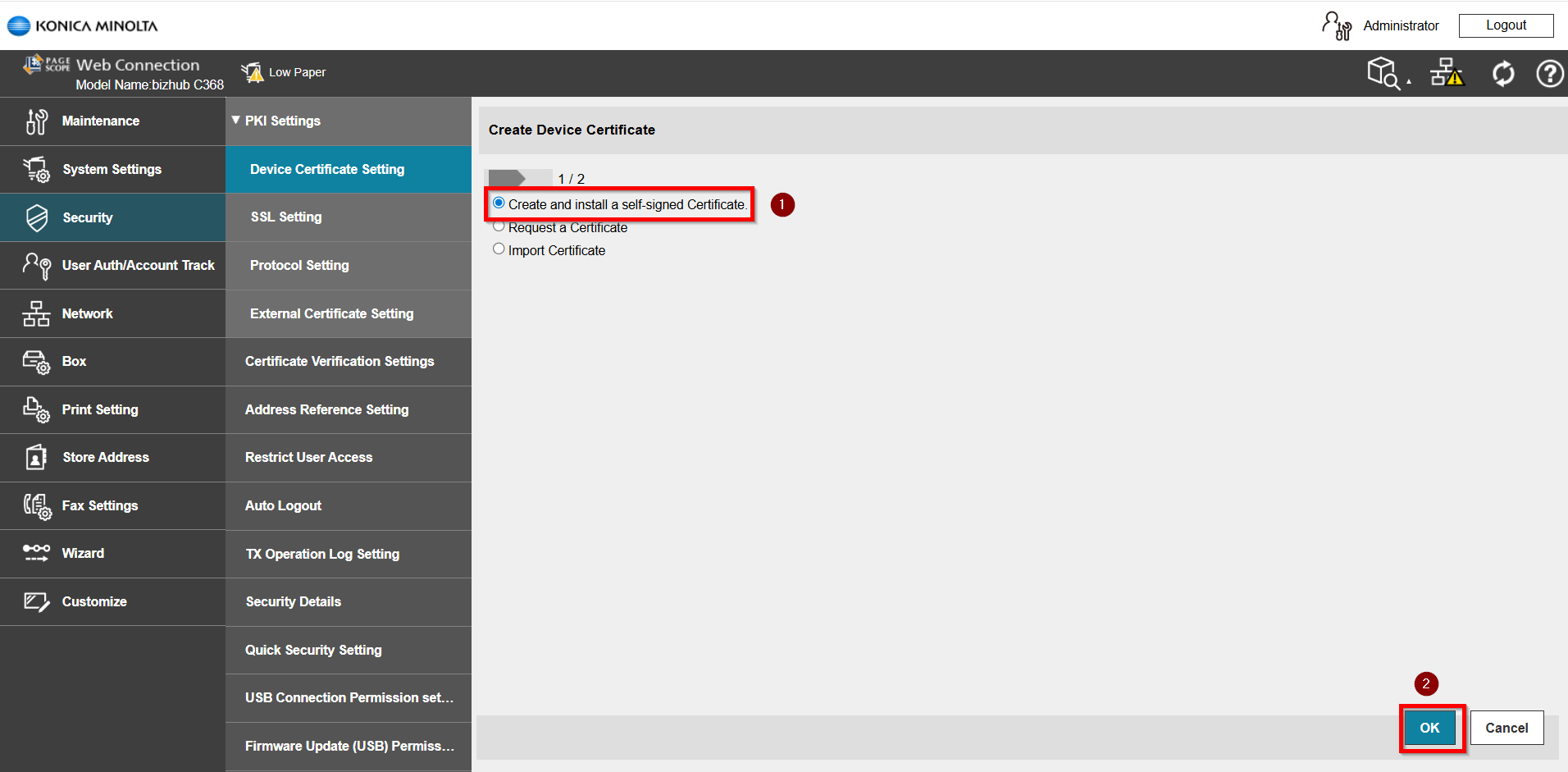
STEP 4 – Select [Create and install a set signed certificate] and click on [OK].
STEP 5 – Fill in all the information in the column. You may refer to the example and chart below for guidance or adjust based on your preference
Example:
Organization: KM
Organization Unit: KM
Locality: MY/SG
State/Province: MY/SG
Country: MY/SG
Validity Period: 3650
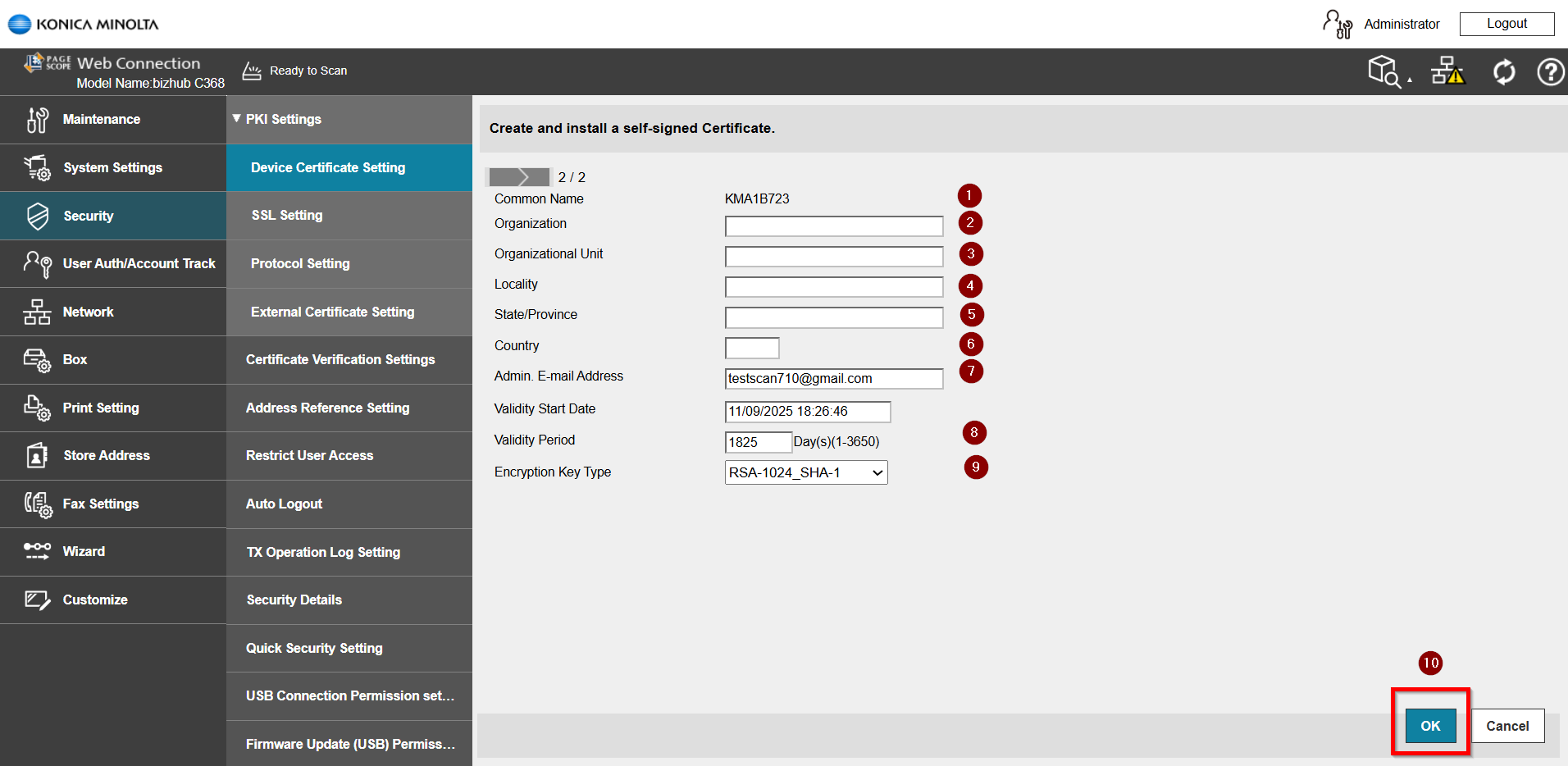
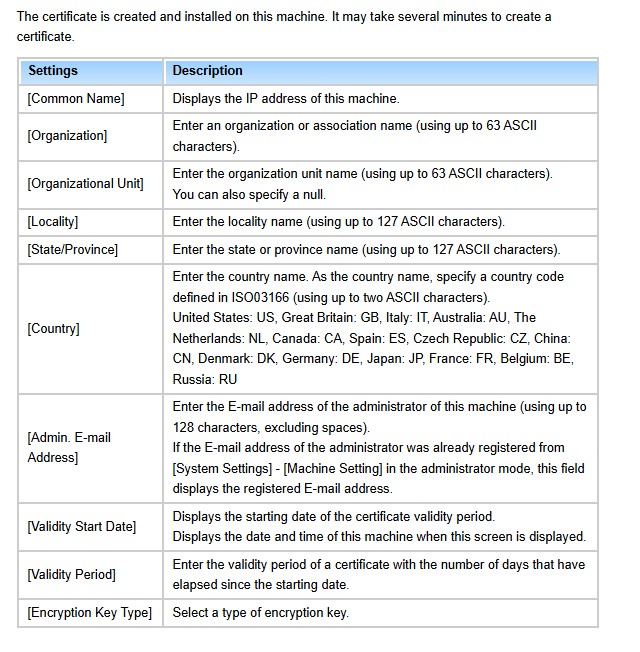
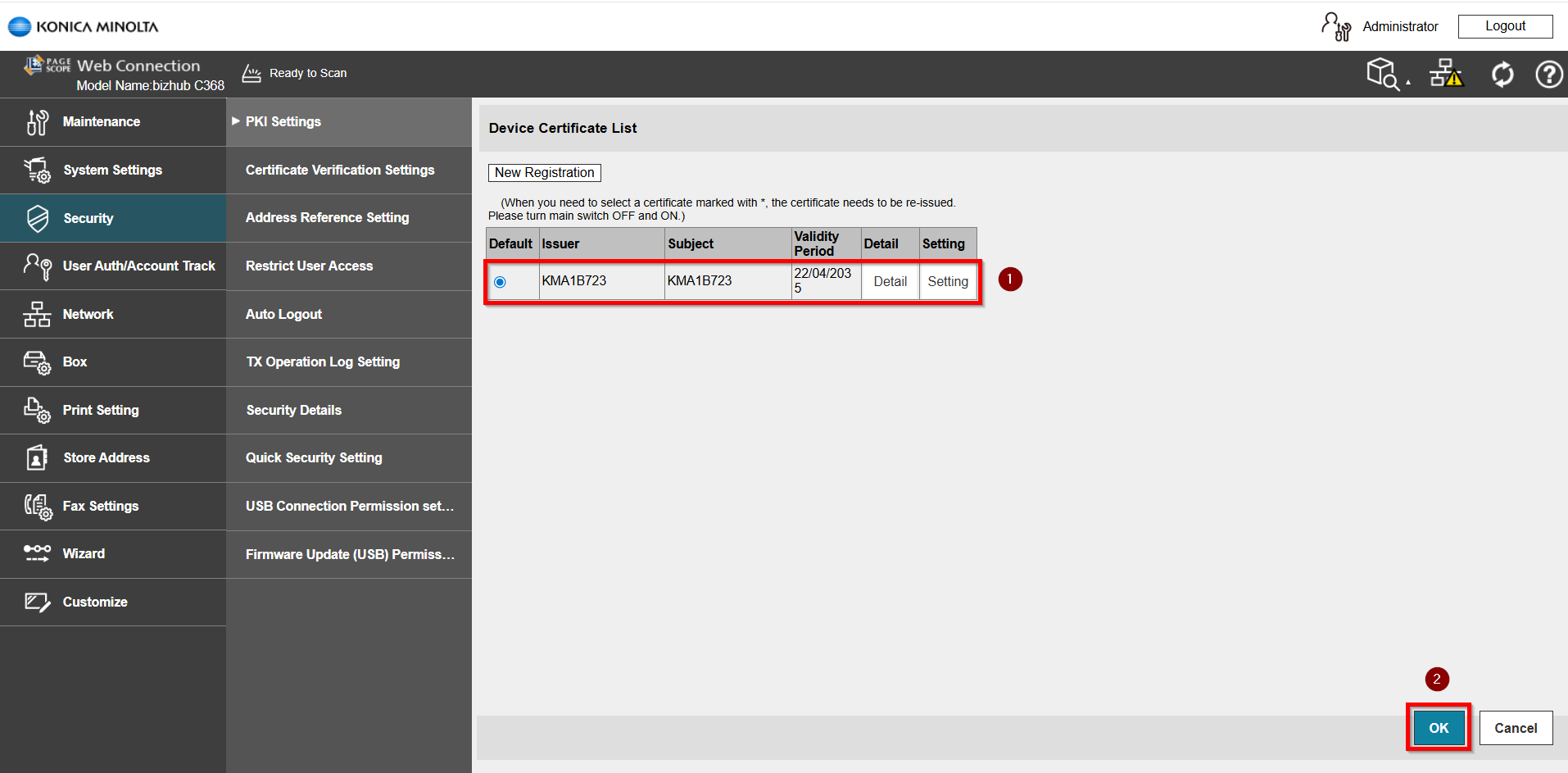
After completed the following step, the certificate will be created and click [OK] to save.
For The Newer Machine Series / I-Series Machine
STEP 1 – Access the machine Web Connection from the PC browser. Click this LINK on how to access Web Connection from the browser.
STEP 2 – Select [Administrator] and key in the default administrator password and click [OK] button.
Default administrator password: [7801261178012611] or [1234567812345678] or [12345678] or [12341234].
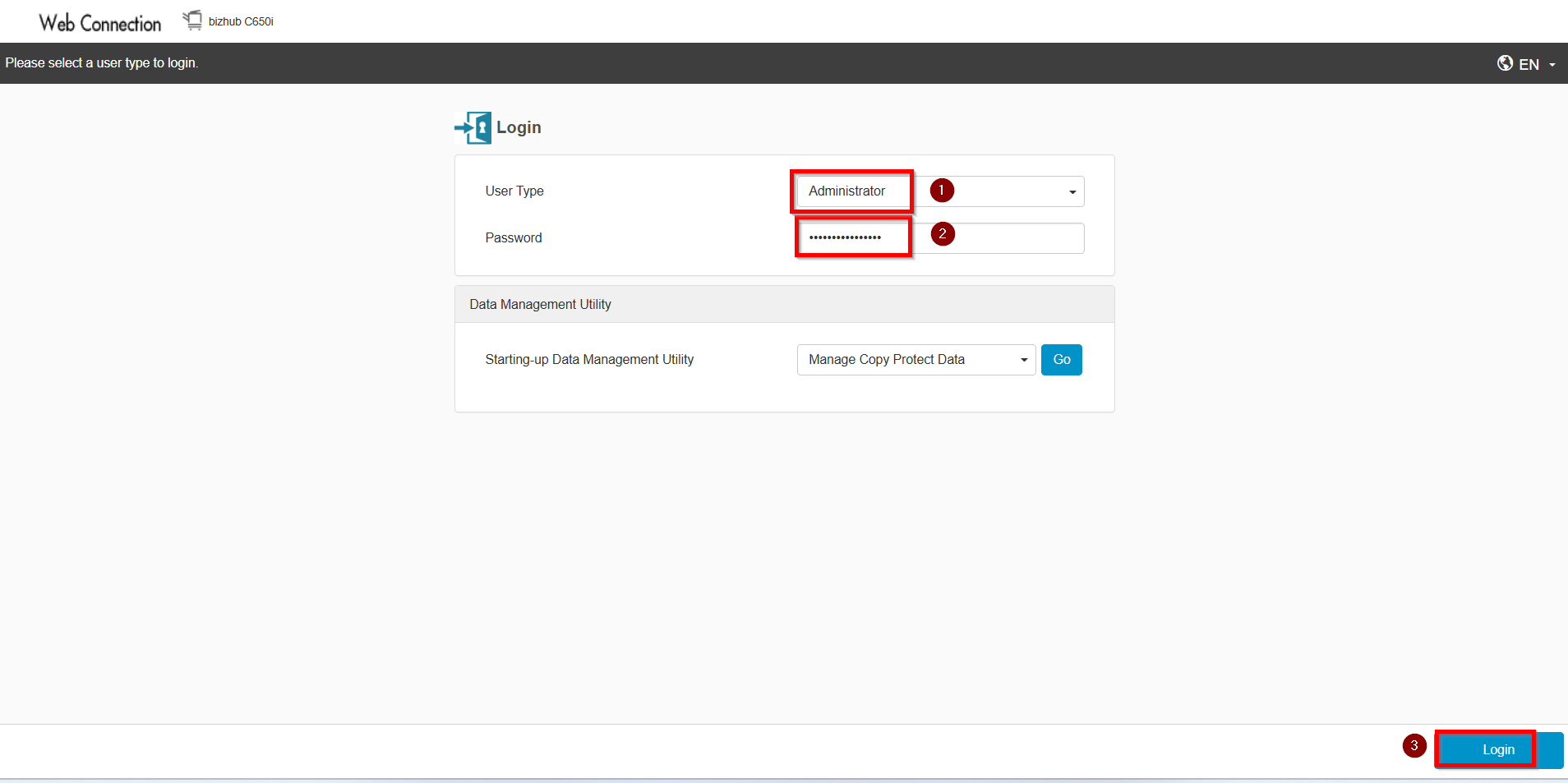
**You may access to web connection via machine IP Address. Click on this to check how to get the IP Address from machine, then key in Konica Minolta Machine IP Address at web browser and log in as admin the Web Connection.
STEP 3 – Select [Security] – [PKI Settings] – [Device Certificate Setting] – [New Registration] and click on [OK].
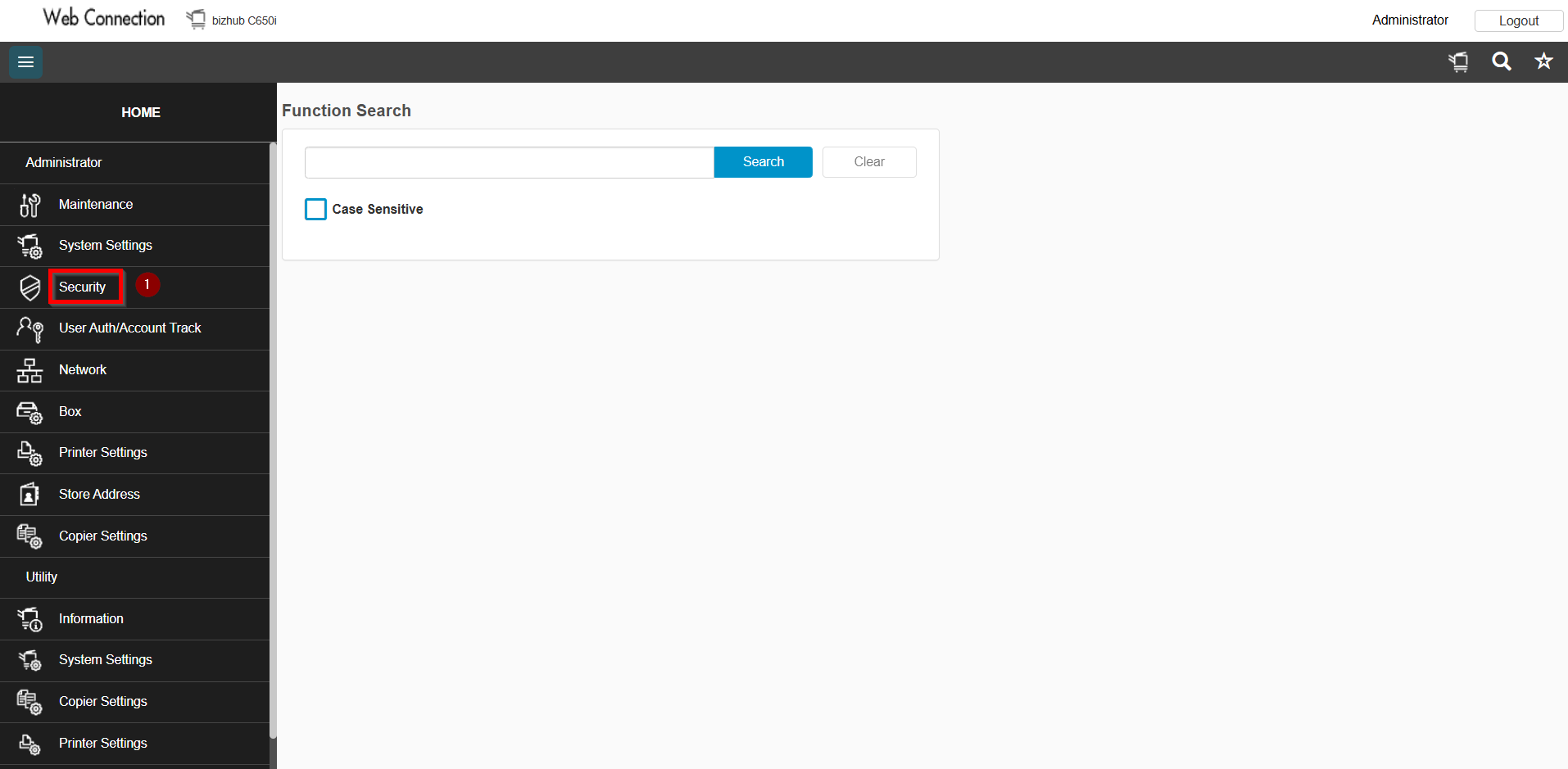
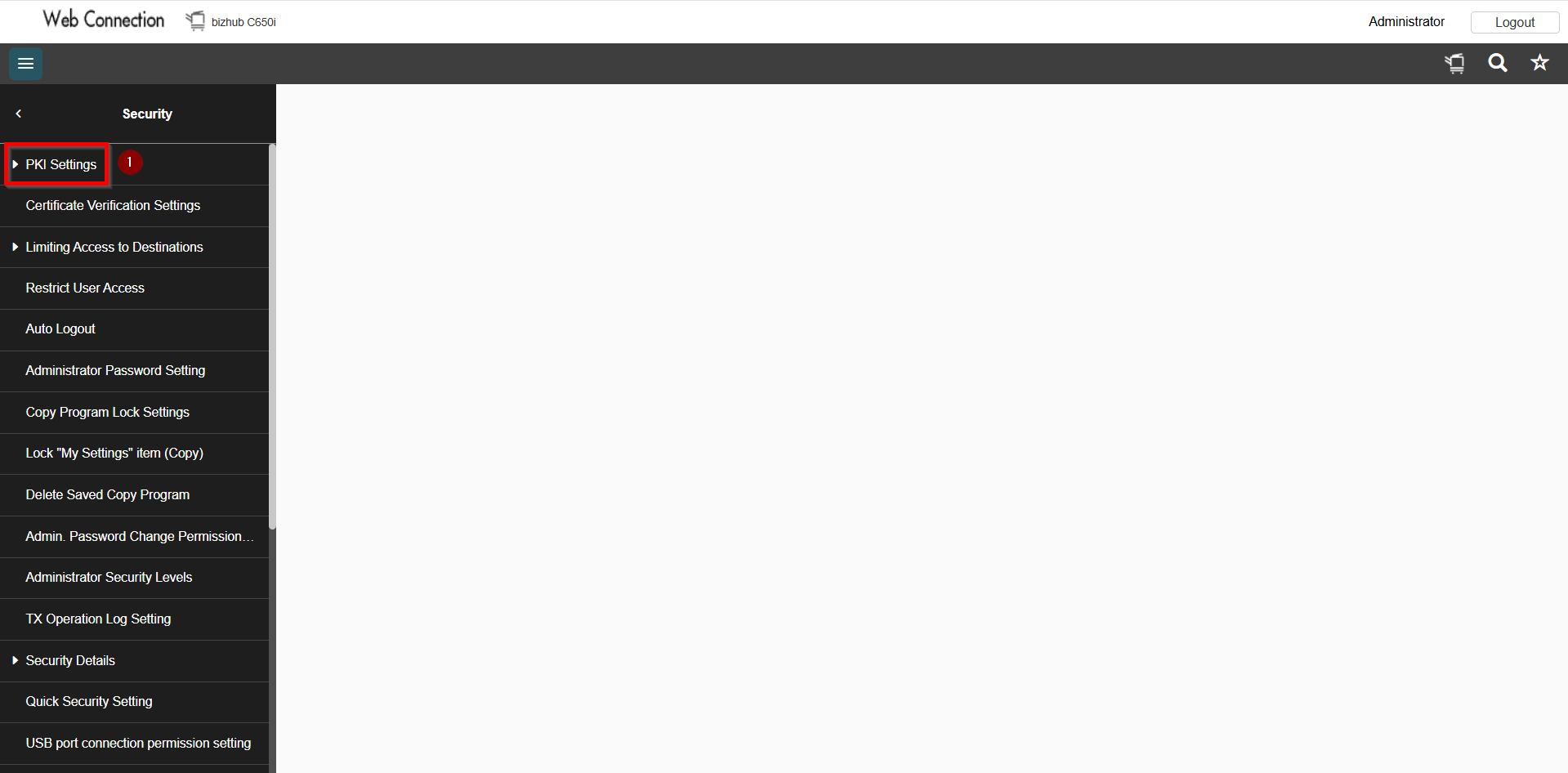
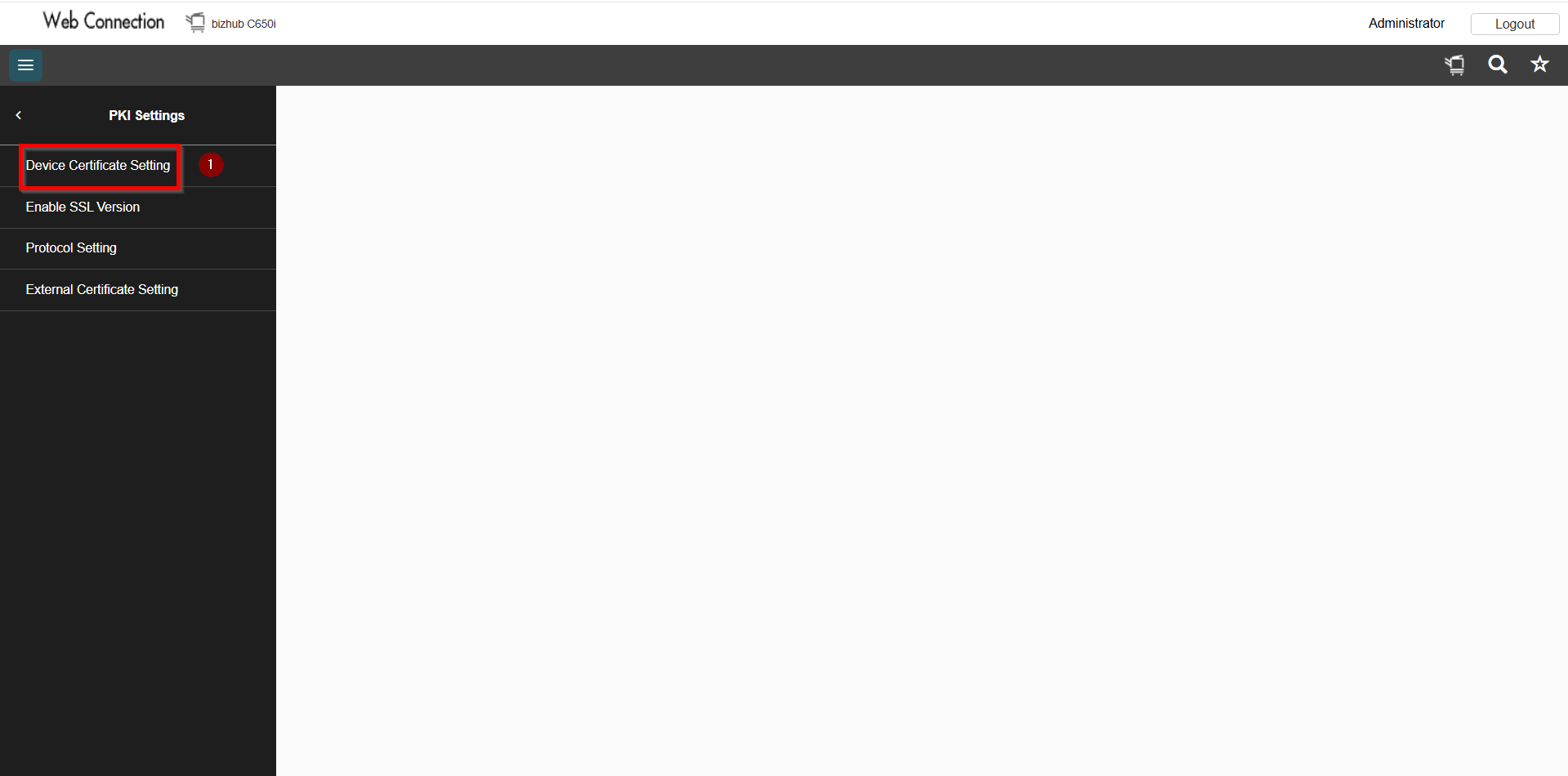
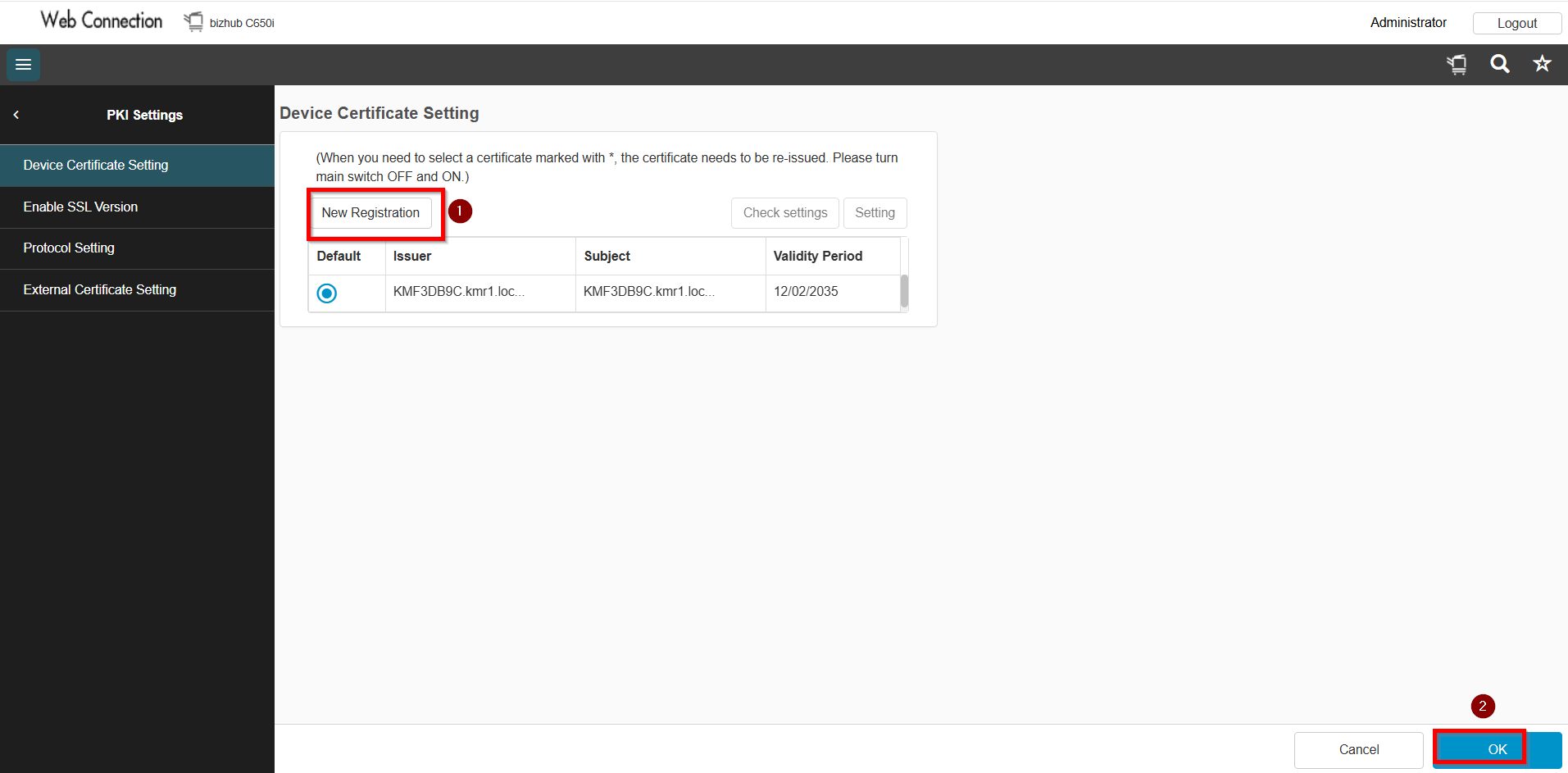
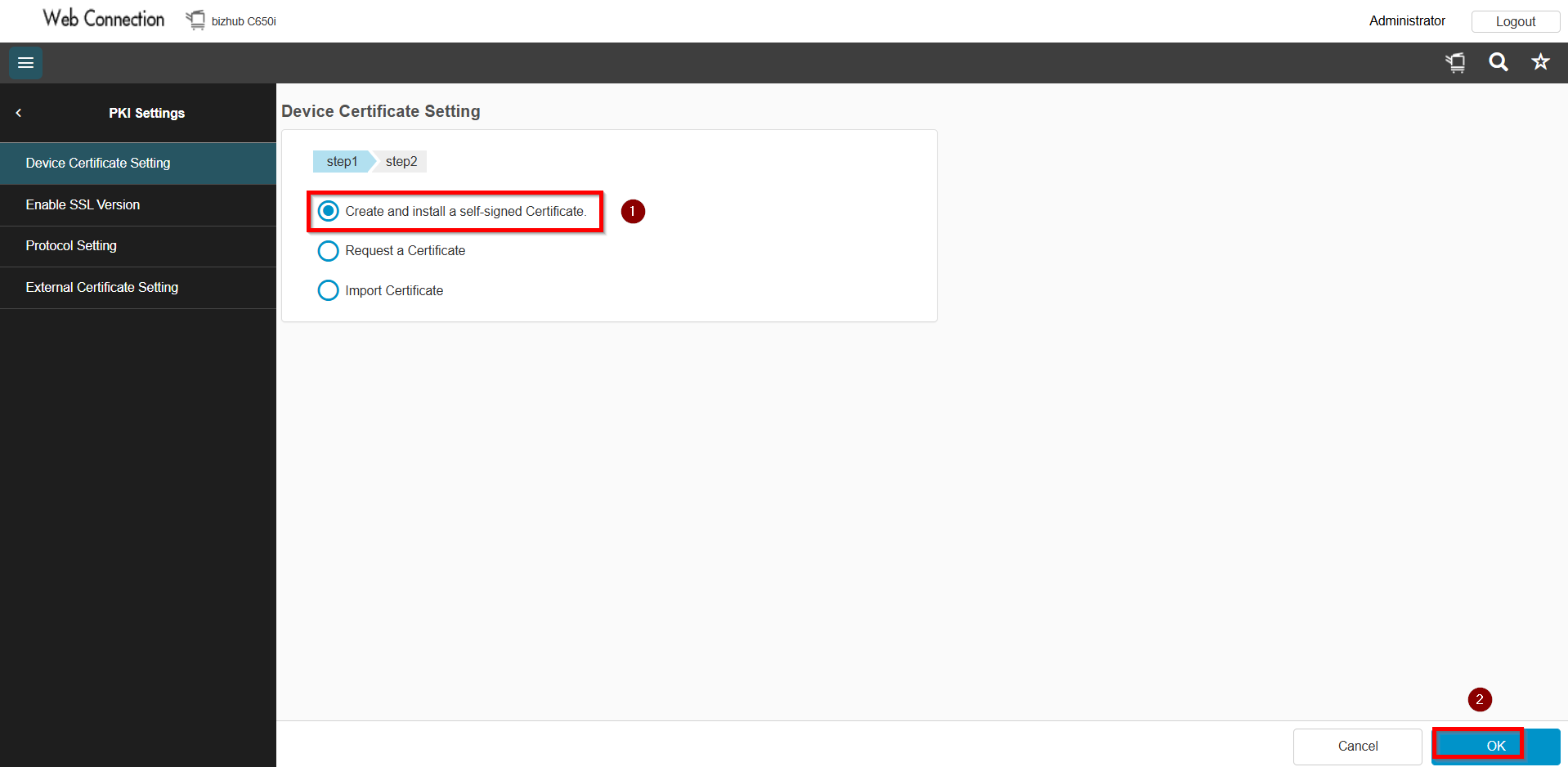
STEP 4 – Select [Create and install a set signed certificate] and click on [OK].
STEP 5 – Fill in all the information in the column. You may refer to the example and chart below for guidance or adjust based on your preference
Example:
Organization: KM
Organization Unit: KM
Locality: MY/SG
State/Province: MY/SG
Country: MY/SG
Validity Period: 3650
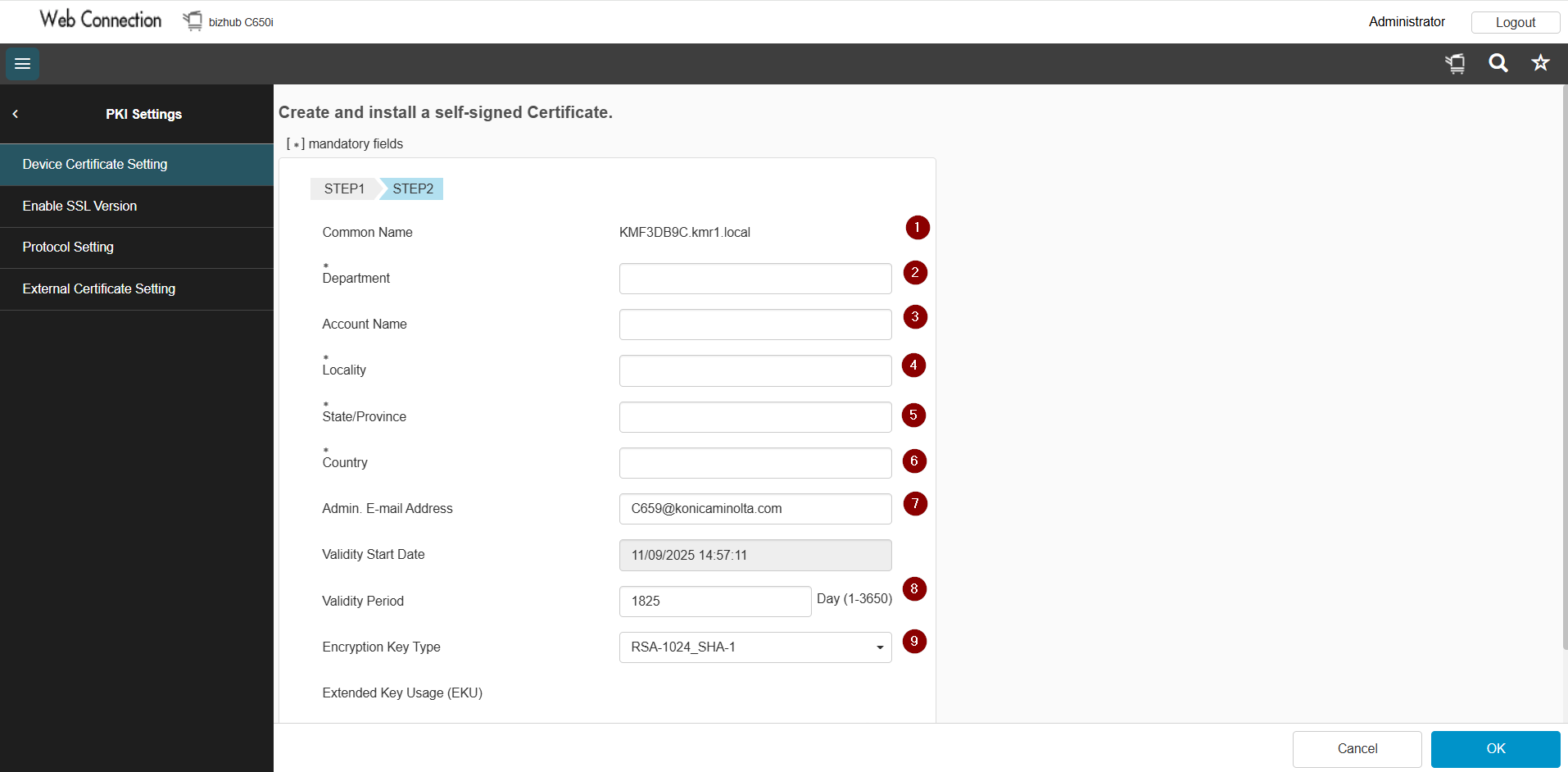
After completing the following steps, the certificate will be created and click [OK] to save.