

When attempting to install the Universal Printer Driver (UPD) on a new PC for printing, the installation cannot proceed to the next step after selecting the printer driver. This issue occurs because the Windows processor version is different and the Universal Printer Driver V4 must be used instead of the standard Universal Printer Driver PCL.
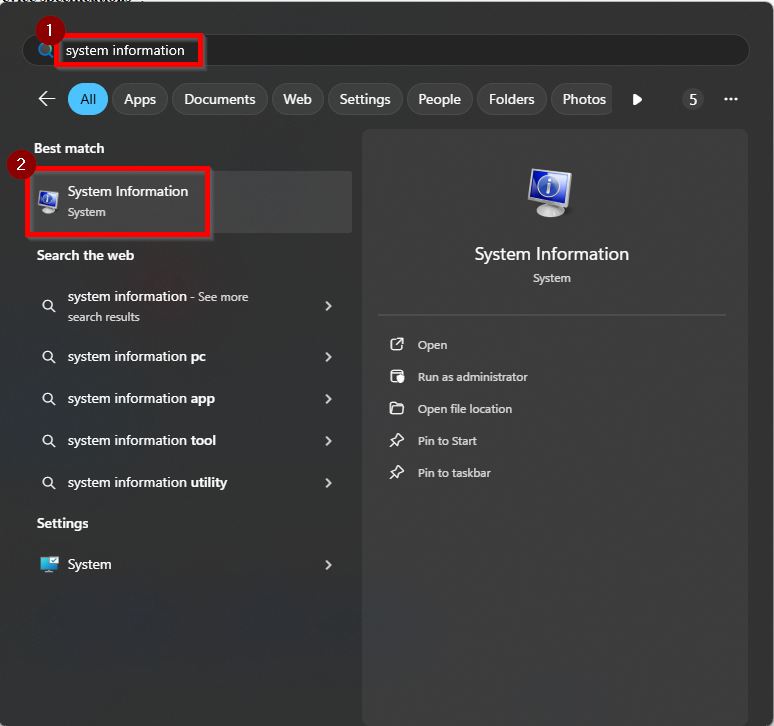
You can check whether your Windows PC is using an [ARM processor] or an [x64-based processor] by searching for [System Information] in the pc, then looking for the [System Type].
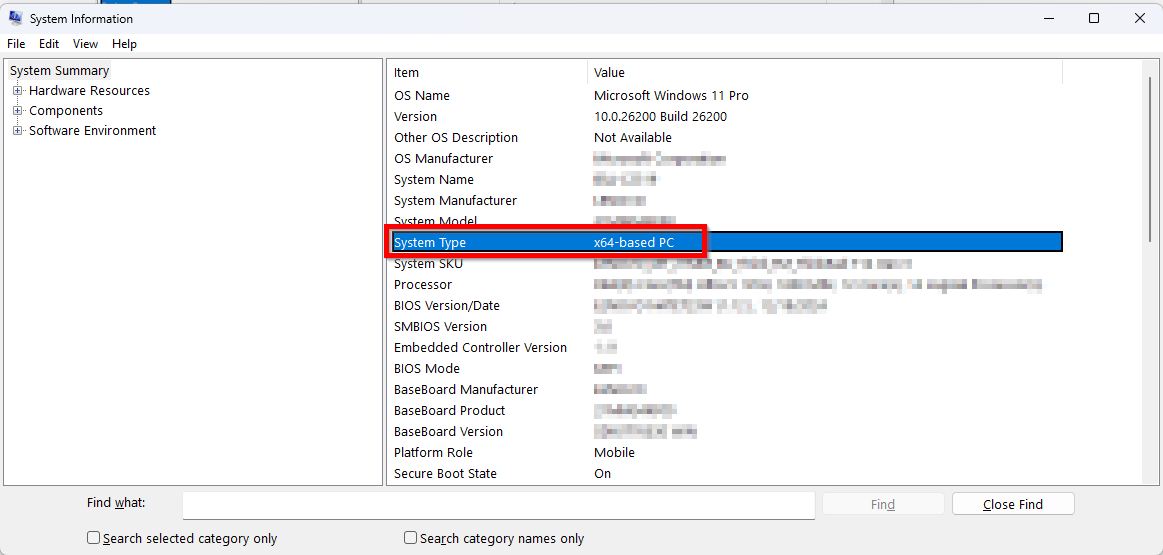
*Window via x64-based processor
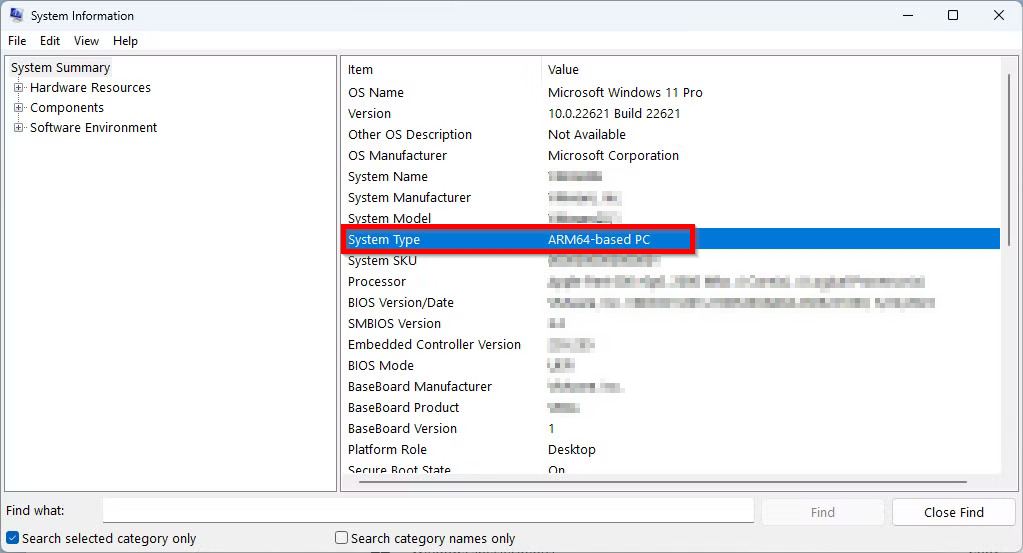
*Window via ARM64-based processor
STEP 1 – To resolve this issue, please download the Universal Printer Driver V4 from the website and install it. The V4 driver is compatible with ARM processor and allows the printer machine to properly print documents from the PC.
- Universal Printer Driver V4 – click Here for the guide on how to download the V4 driver.
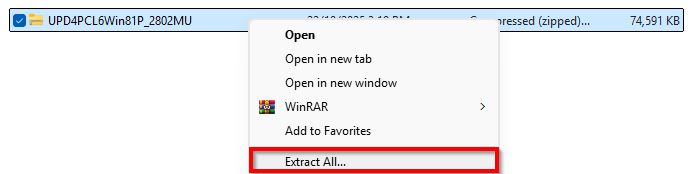
STEP 2 – Once the file has been downloaded, kindly [Extract] the file and run the installer either [SetupARM64_Win10] for Win 10 or [SetupARM64_Win11] for Win 11.

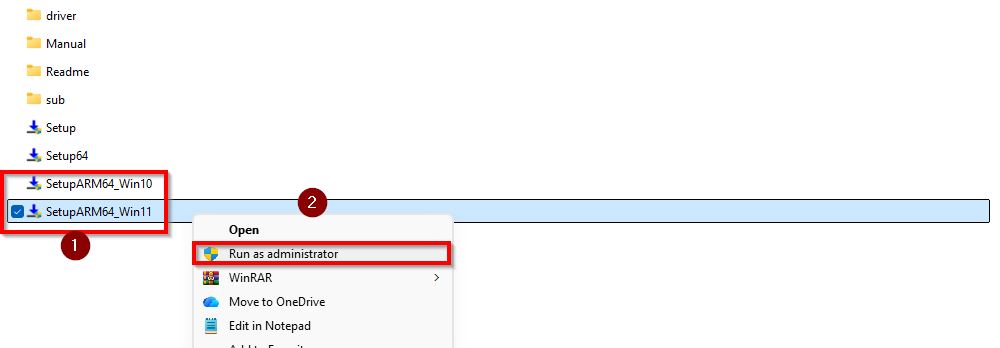
STEP 3 – After that, proceed with the standard installation process, then try printing a test page to verify that the printer driver is working properly.