Suggestion on how to scan originals of varying sized in a batch using mixed original function on photostat machine.
For an original document with pages of different sizes, by using document feeder, it is possible to scan original document in different sizes. Kindly follow below step on how to enable and use the mixed originals on photostat machine.
For the Older Machine series / Non I-Series Machine
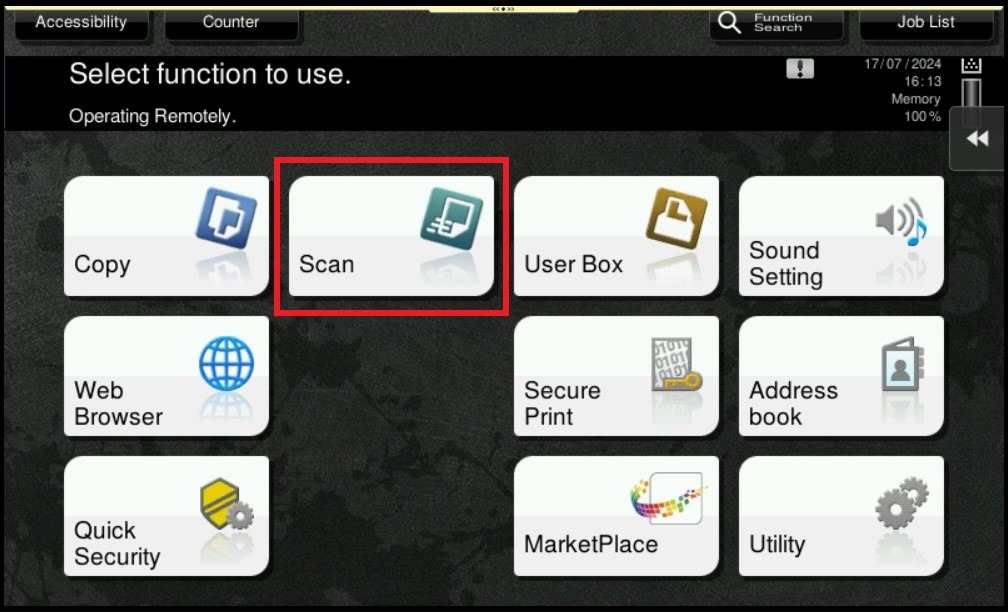
STEP 1 – On the Main Menu Screen, select [Scan].
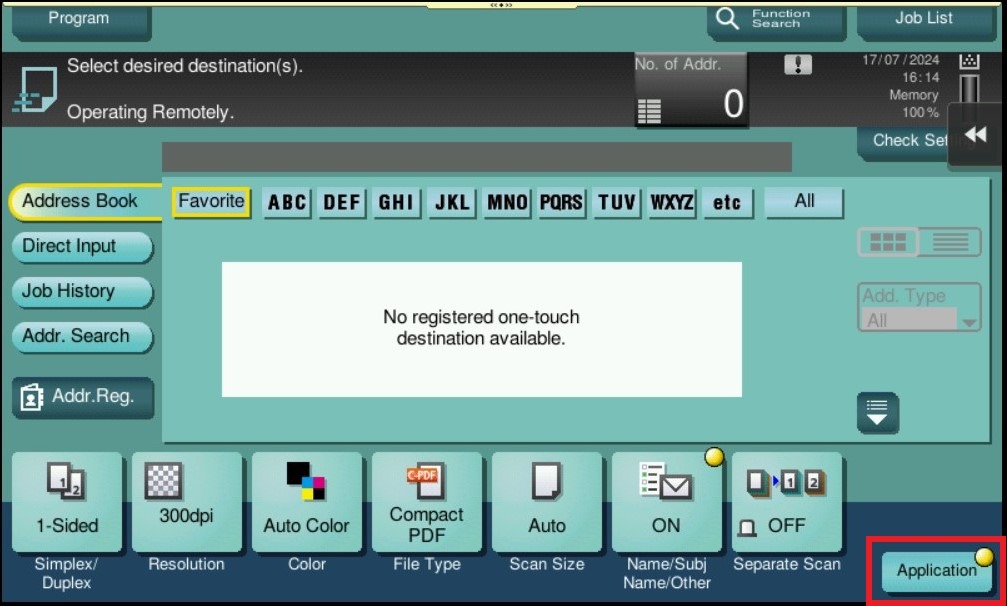
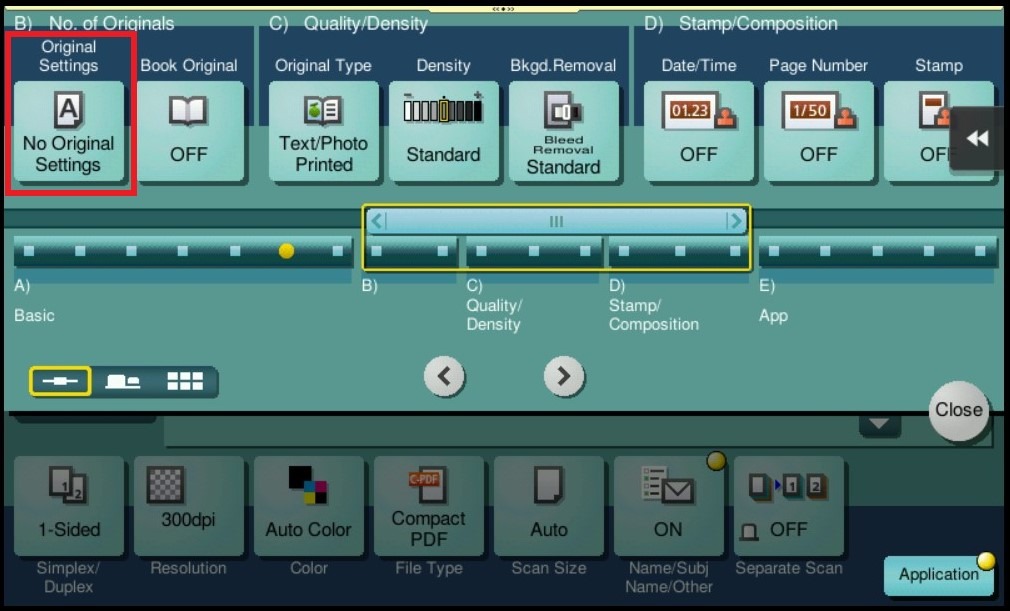
STEP 2 – Select [Application] – [Original Settings] under No. of Originals Tab.
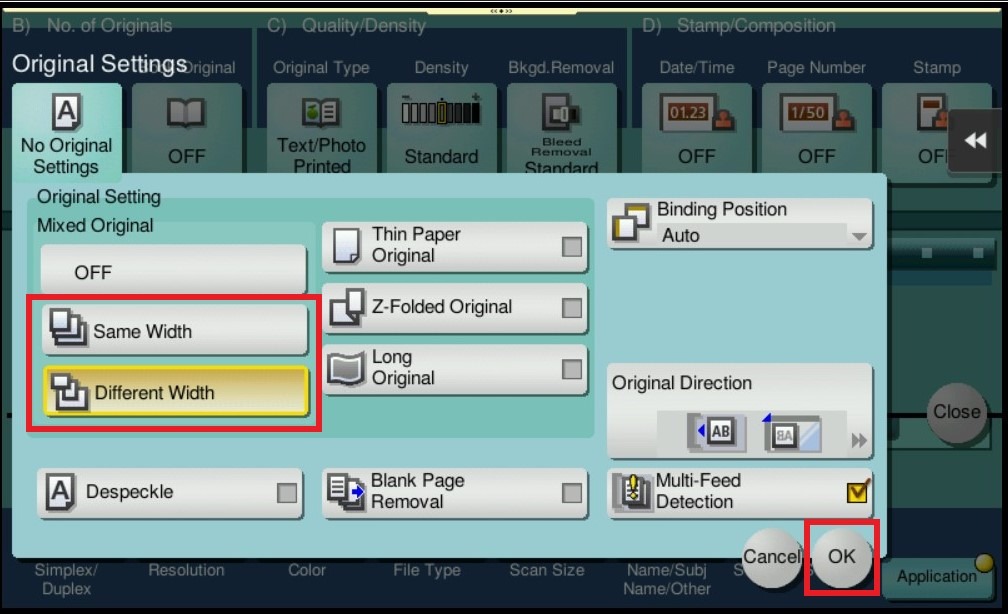
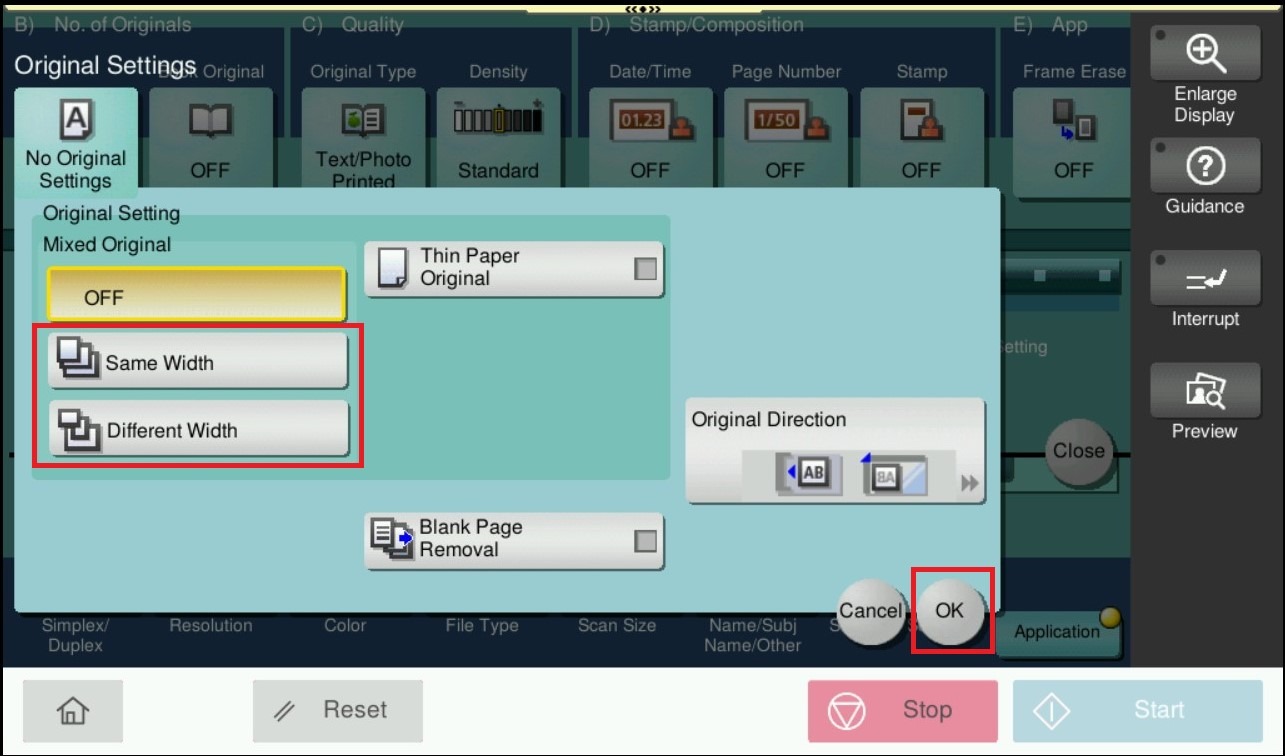
STEP 3 – Select either [Same Width] if the widths of the originals are the same or [Different Width] if the widths of the originals are different for Mixed Originals. Click [OK] to save the settings.
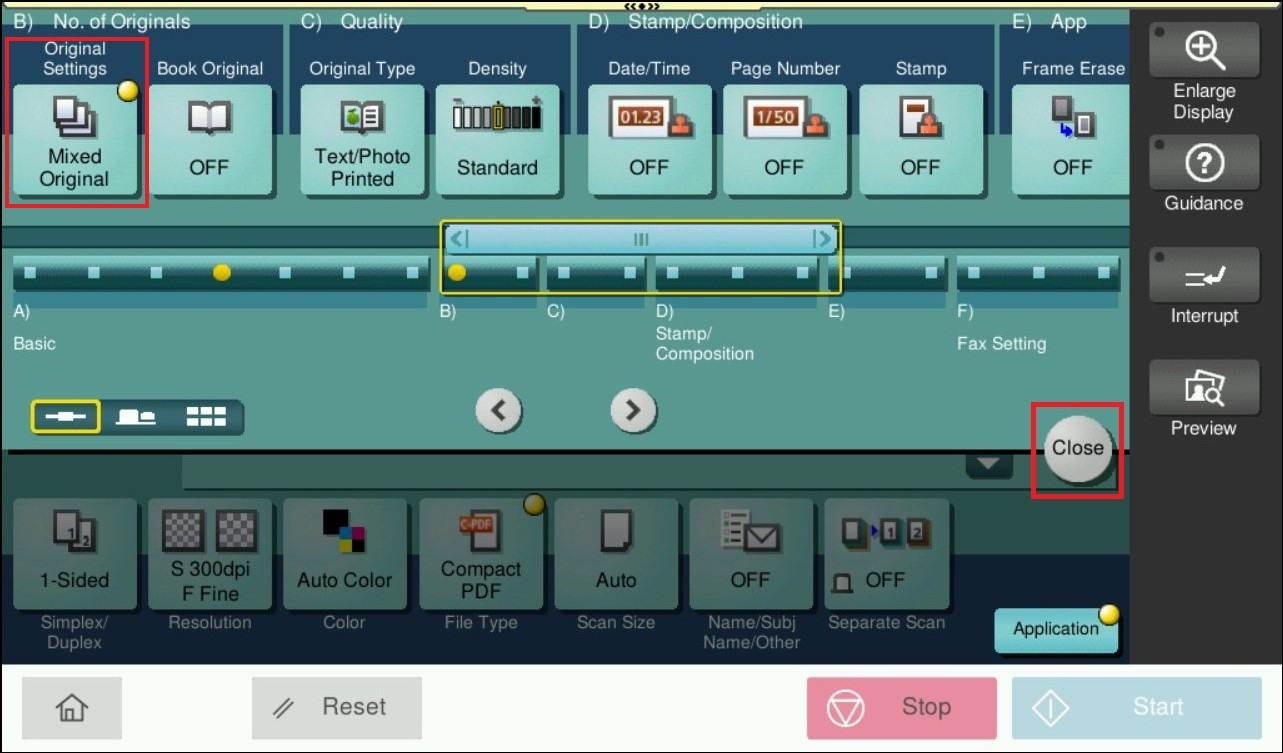
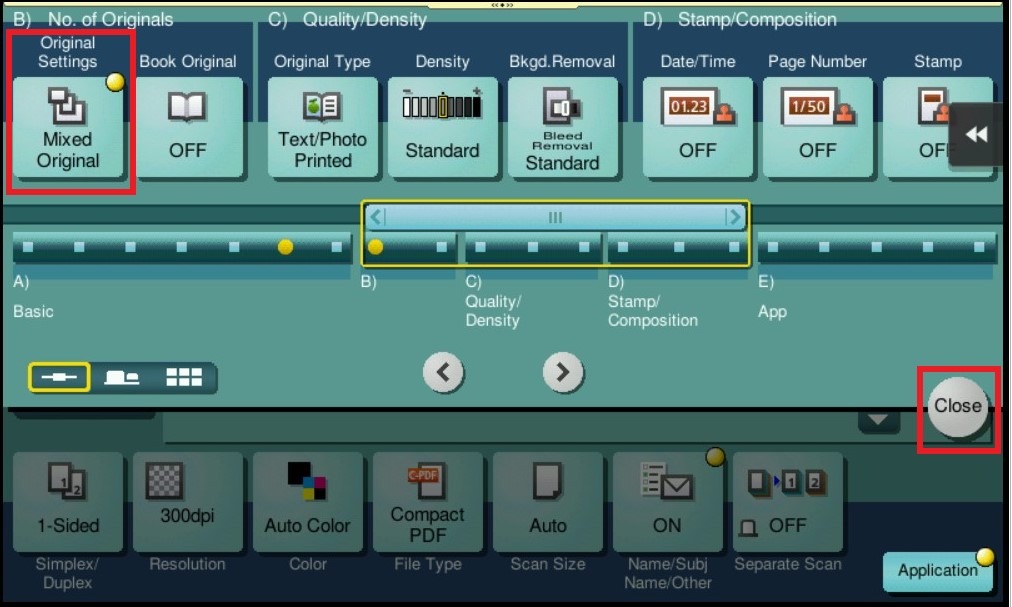
STEP 4 – After Adjust, click on [Close] to close the setting and start scanning original document in different sizes.
For the Newer Machine series / I-Series Machine
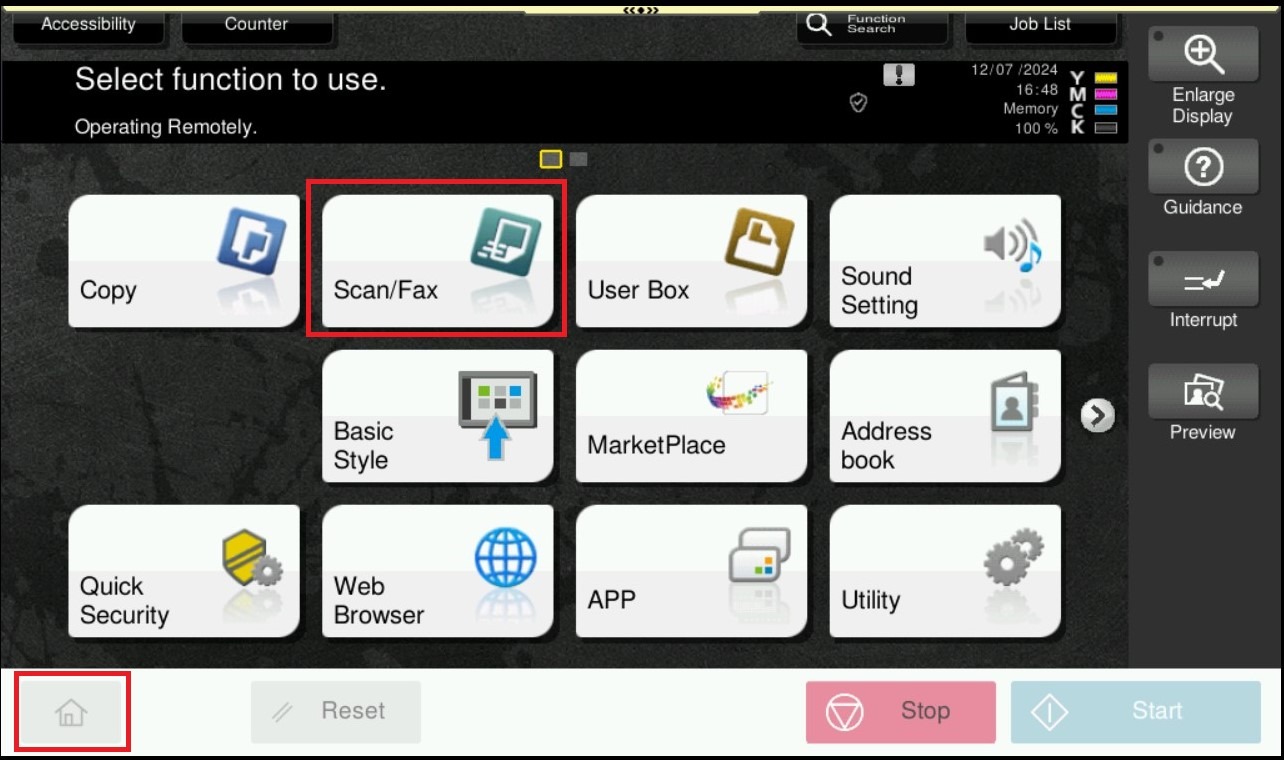
STEP 1 – On the Main Menu Screen, select [Home] – [Scan].
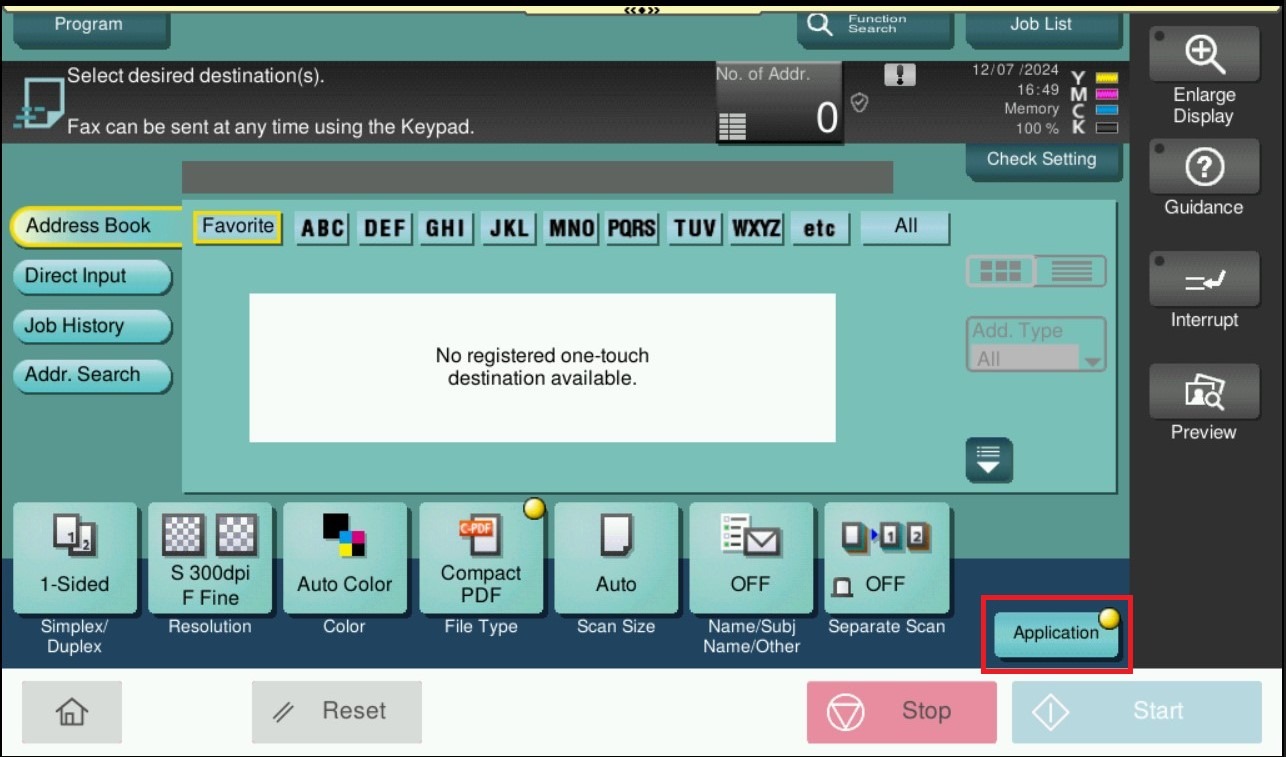
STEP 2 – Select [Application] – [Original Settings] under No. of Originals Tab.
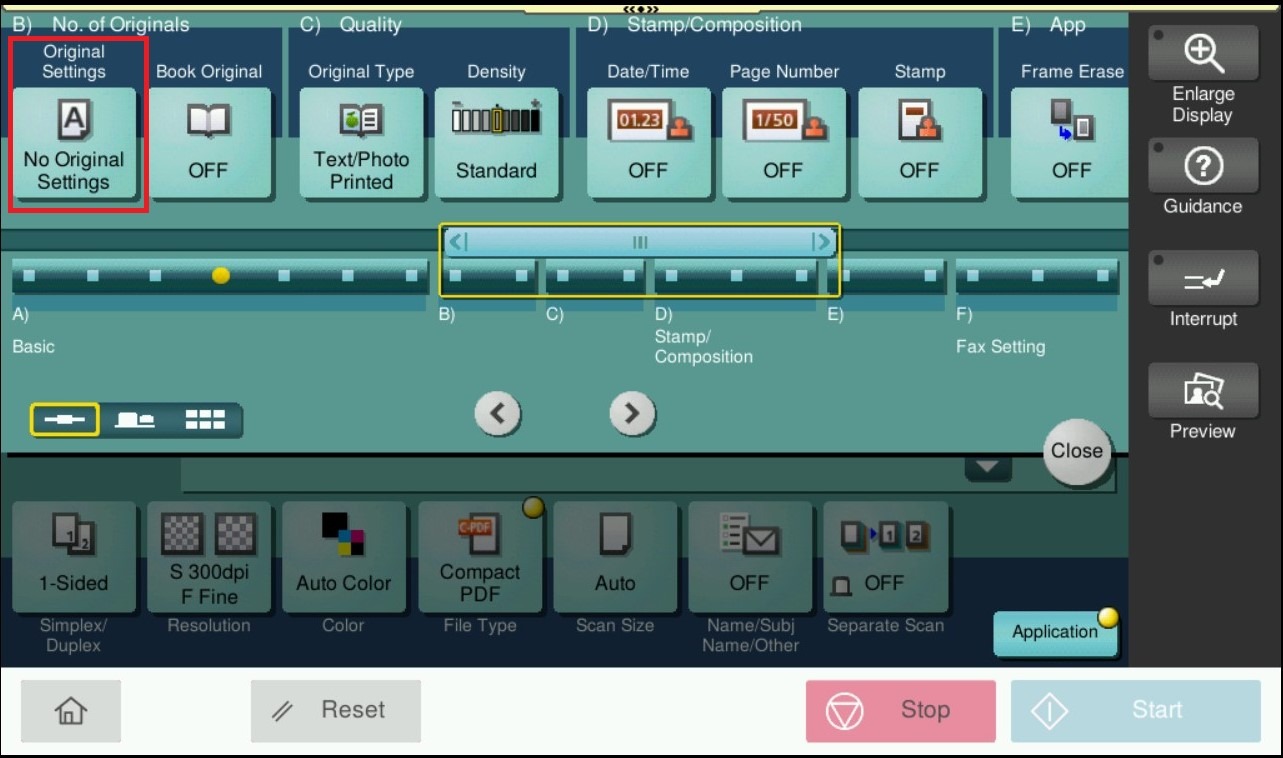
STEP 3 – Select either [Same Width] if the widths of the originals are the same or [Different Width] if the widths of the originals are different for Mixed Originals. Click [OK] to save the settings.
STEP 4 – After Adjust, click on [Close] to close the setting and start scanning original document in different sizes.