Guide on how to add a new and delete email address address book on Photostat Machine
For the Older Machine series / Non I-Series Machine
For Adding the Email Address on machine address book
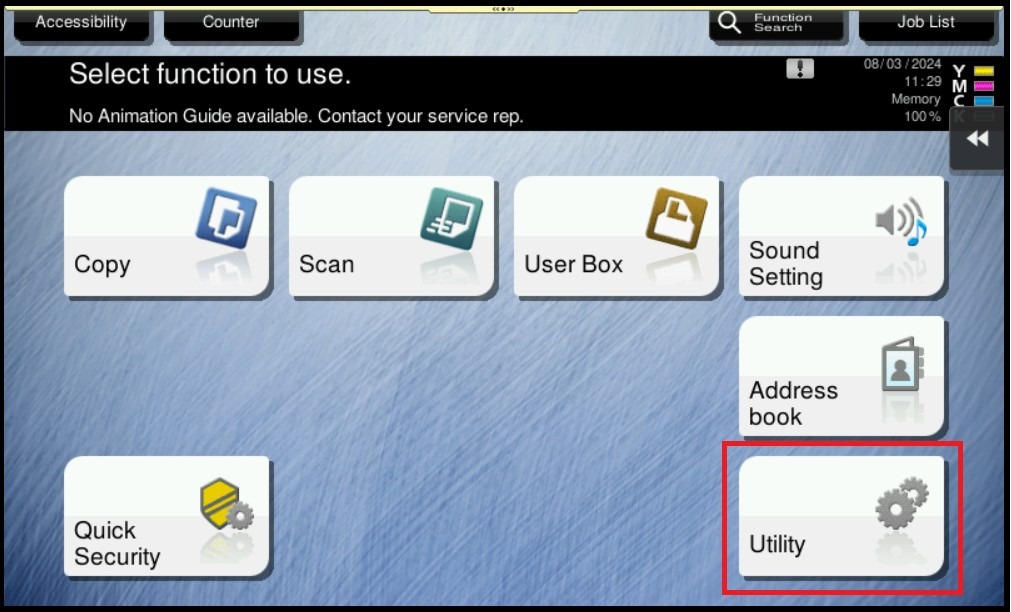
STEP 1 – On the Main Menu Screen, select [Utility].
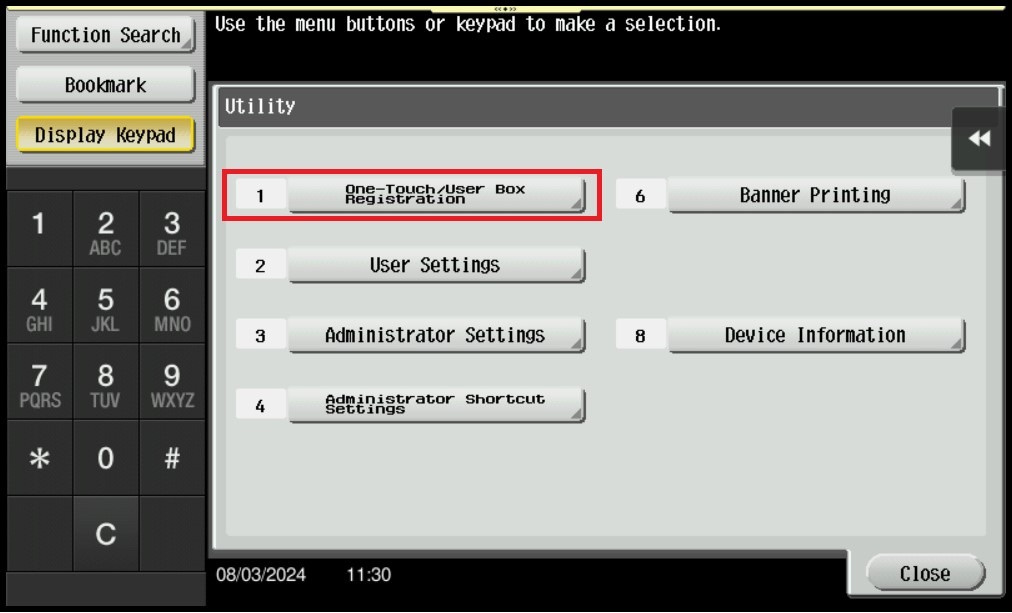
STEP 2 – Select [One-Touch/User Box Registration].
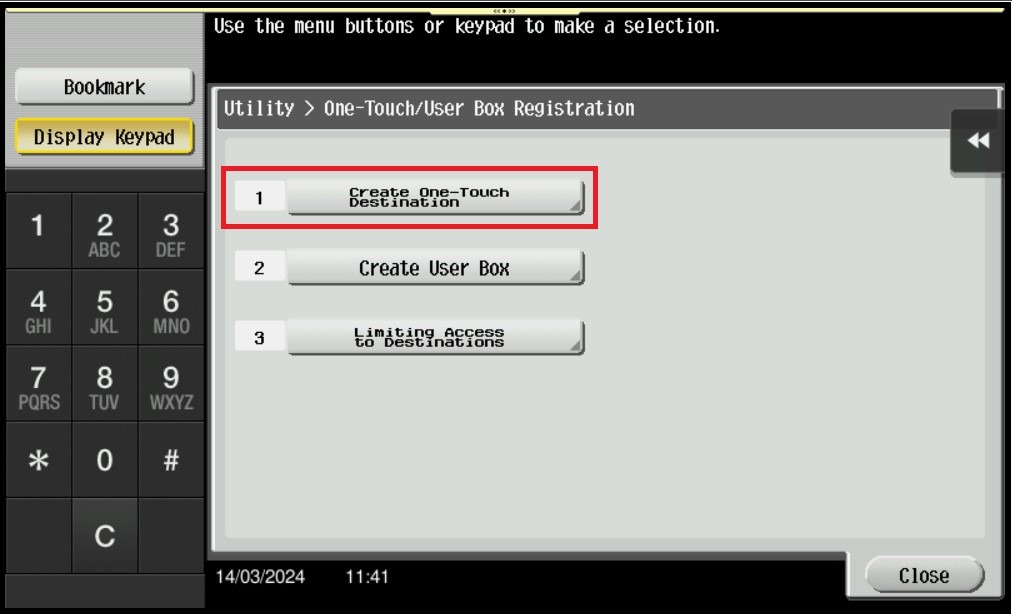
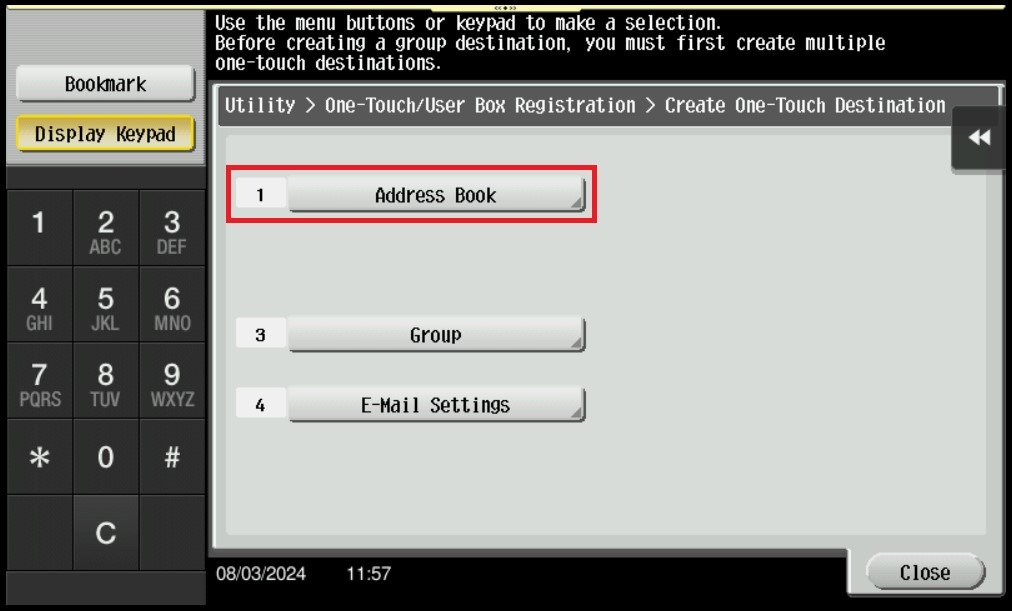
STEP 3 – Select [Create One Touch Destination].
STEP 4 – Select [Address Book].
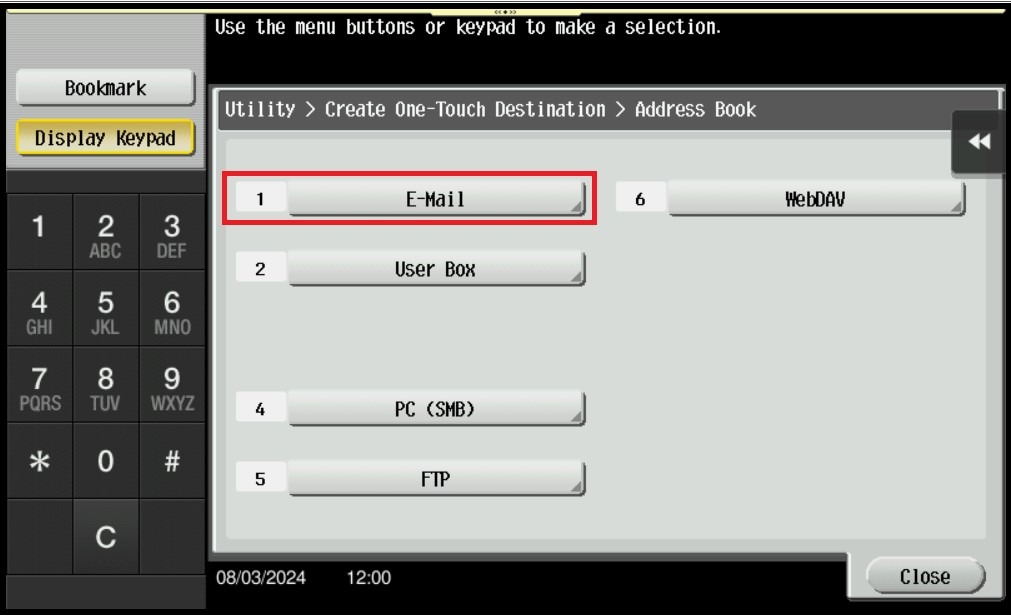
STEP 5 – Select [E-Mail]. Next step will be separate by a) and b) which
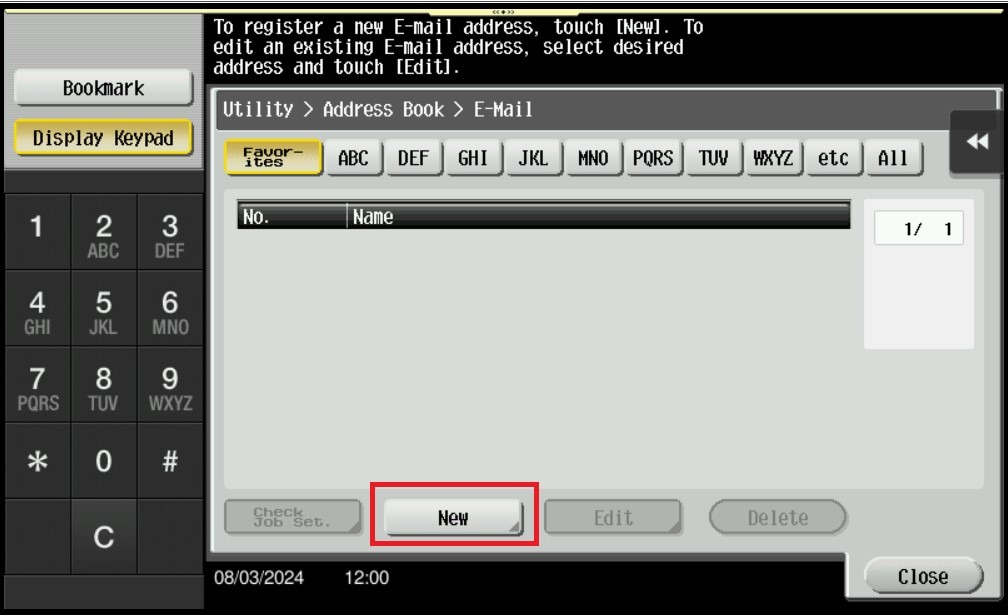
STEP 6 – Select [New] for creating a new email address.
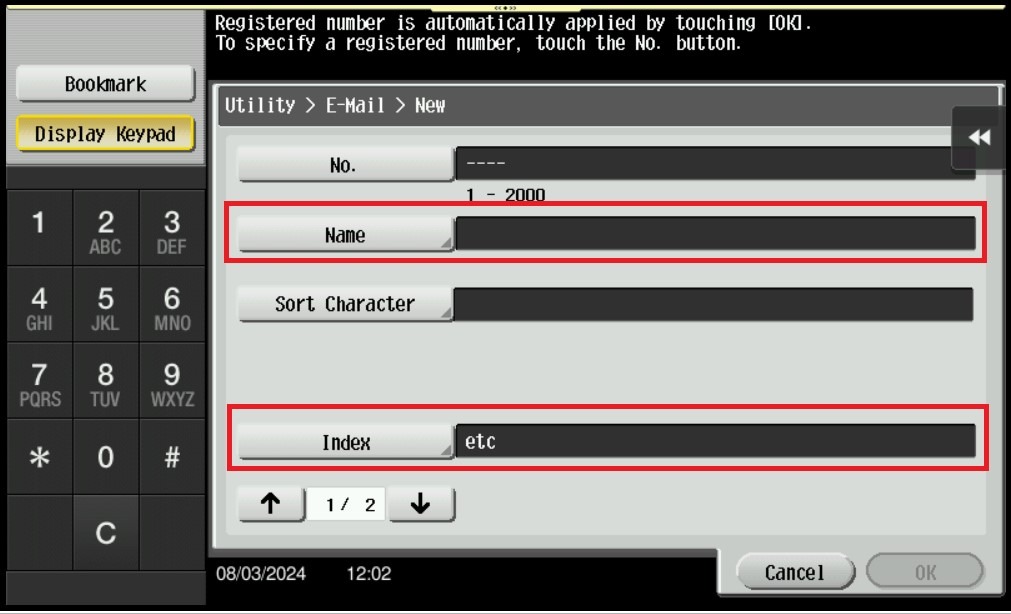
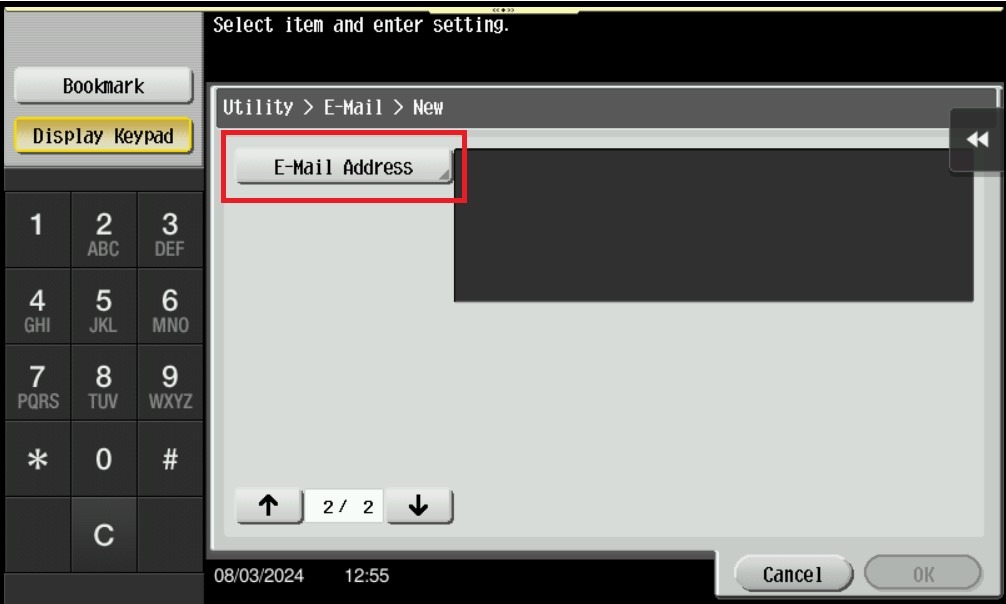
STEP 7 – Key in info according below. Once finish key in select [OK] twice to save the setting.
- Name: Name that show on Machine when Scan.
- Index: First character that on the Name above, example name Nurul, the index will be MNO.
- E-Mail Address: Email Address that want to receive.
For Delete the Email Address on machine address book
STEP 1 – On the Main Menu Screen, select [Utility].
STEP 2 – Select [One-Touch/User Box Registration].
STEP 3 – Select [Create One Touch Destination].
STEP 4 – Select [Address Book].
STEP 5 – Select [E-Mail].
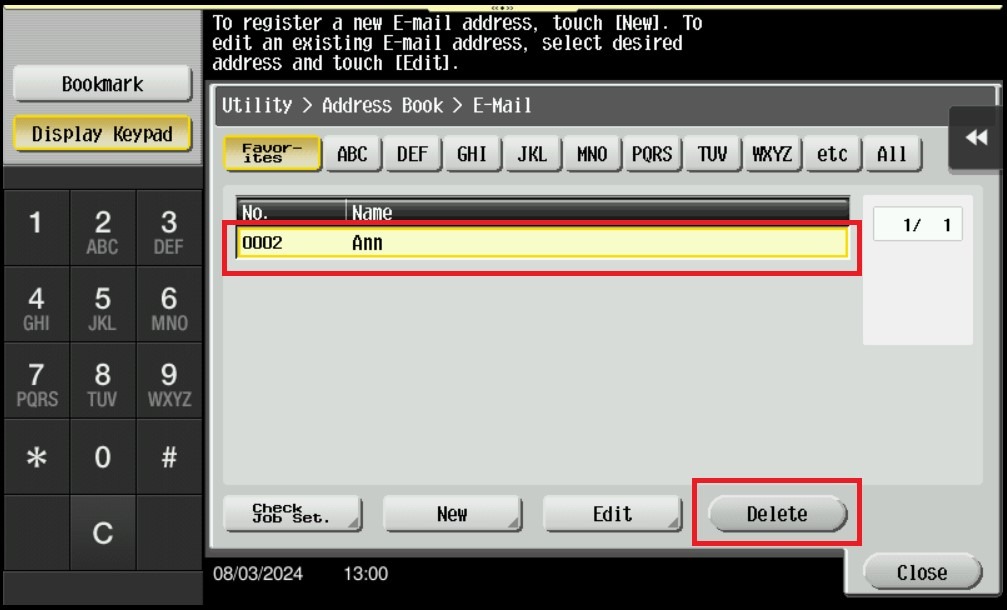
STEP 6 – Highlight the email address name that want to be delete, then click on [Delete].
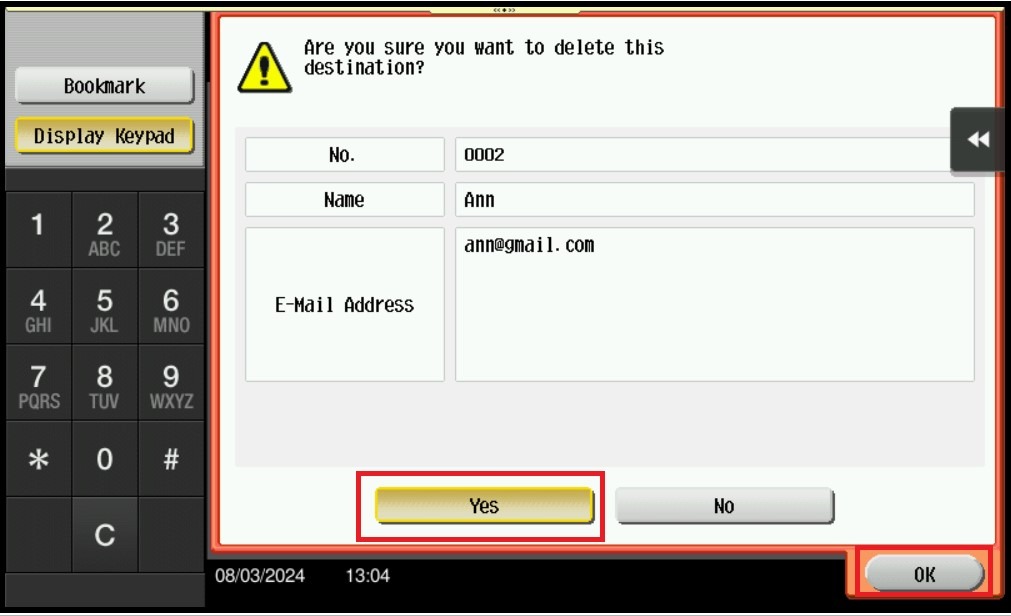
STEP 7 – Select [Yes] – [OK] to delete this email address on address book machine.
For the Newer Machine series / I-Series Machine
For Adding the Email Address on machine address book
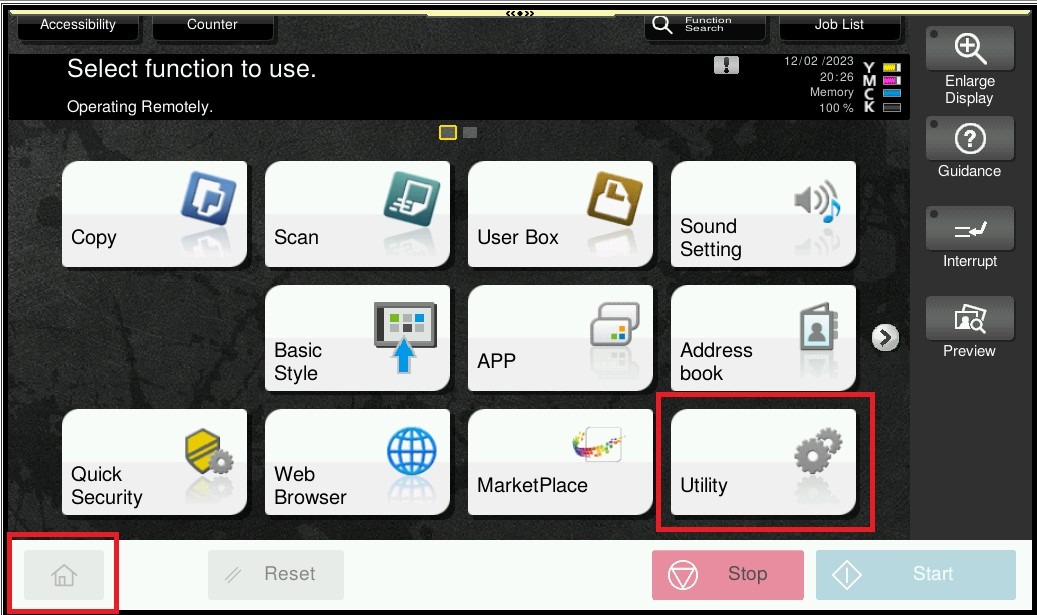
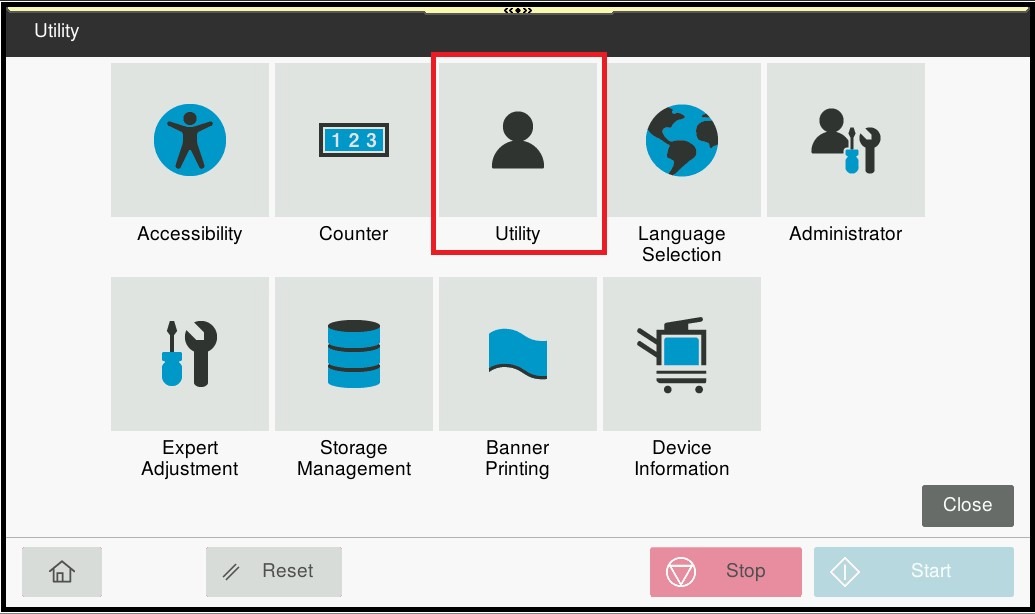
STEP 1 – On the Main Menu Screen, select [Home] – [Utility] – [Utility].
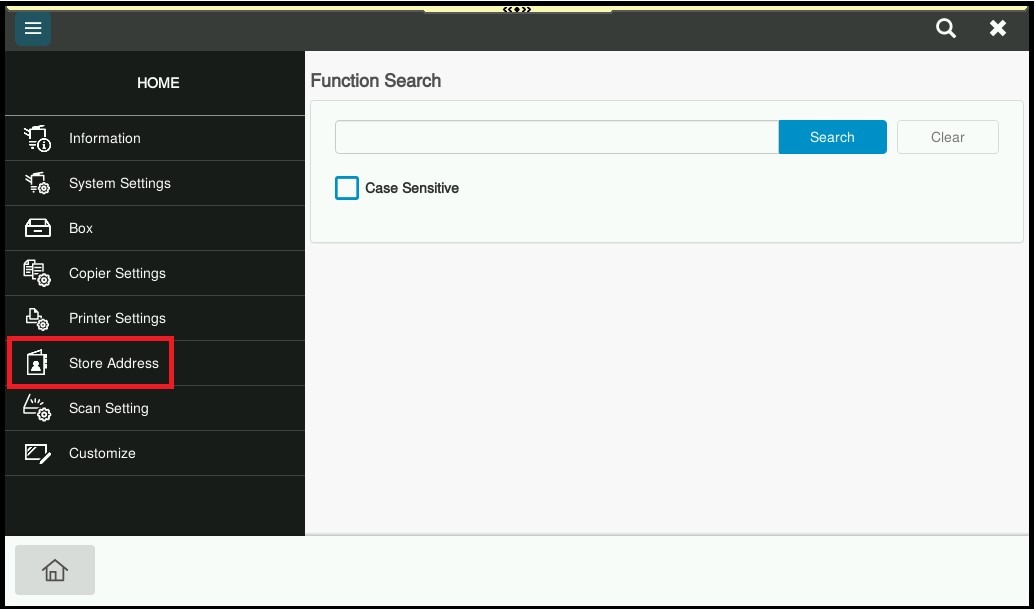
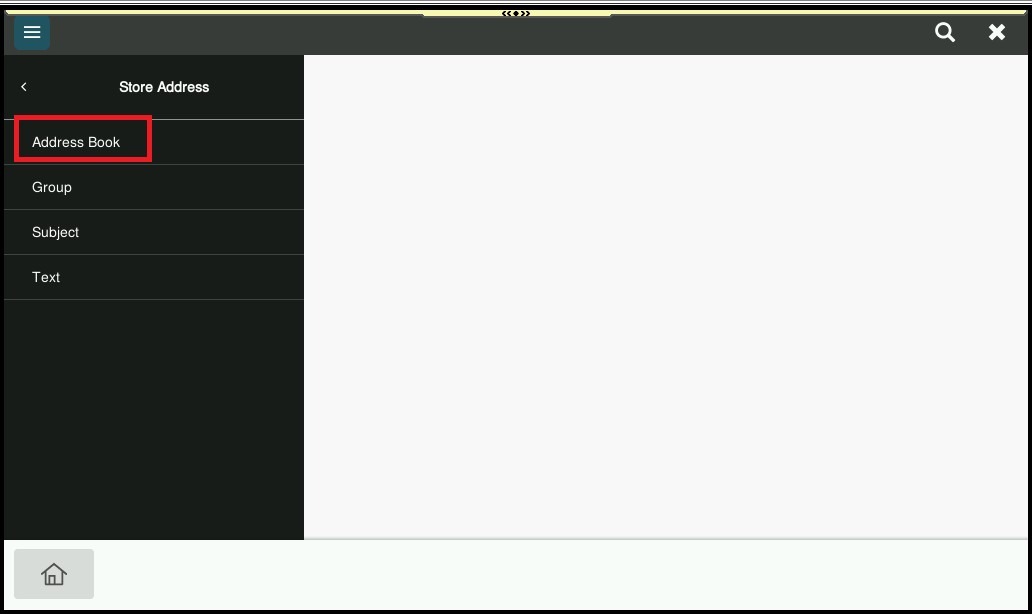
STEP 2 – Select [Store Address] – [Address Book].
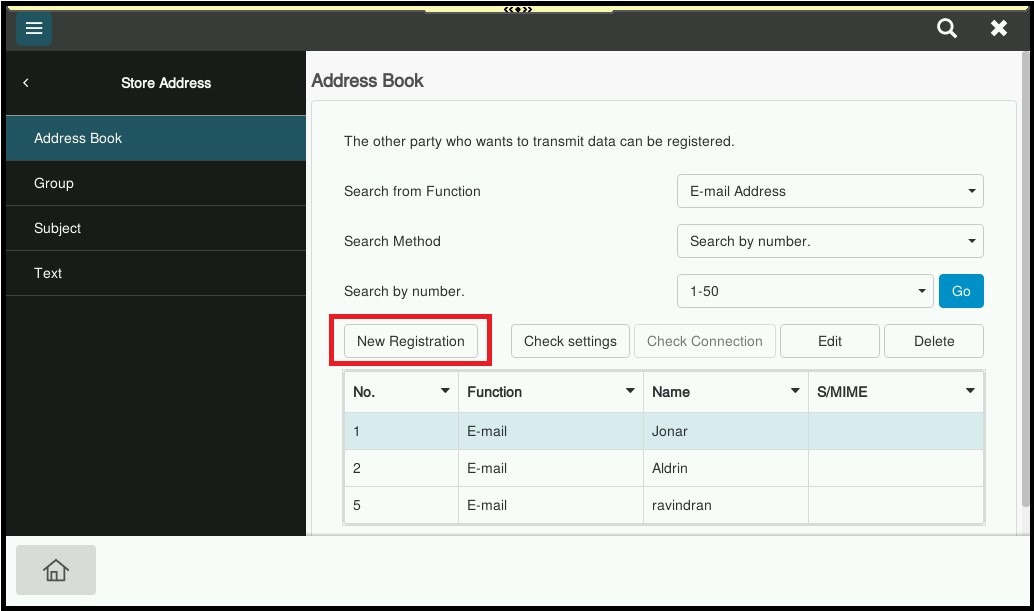
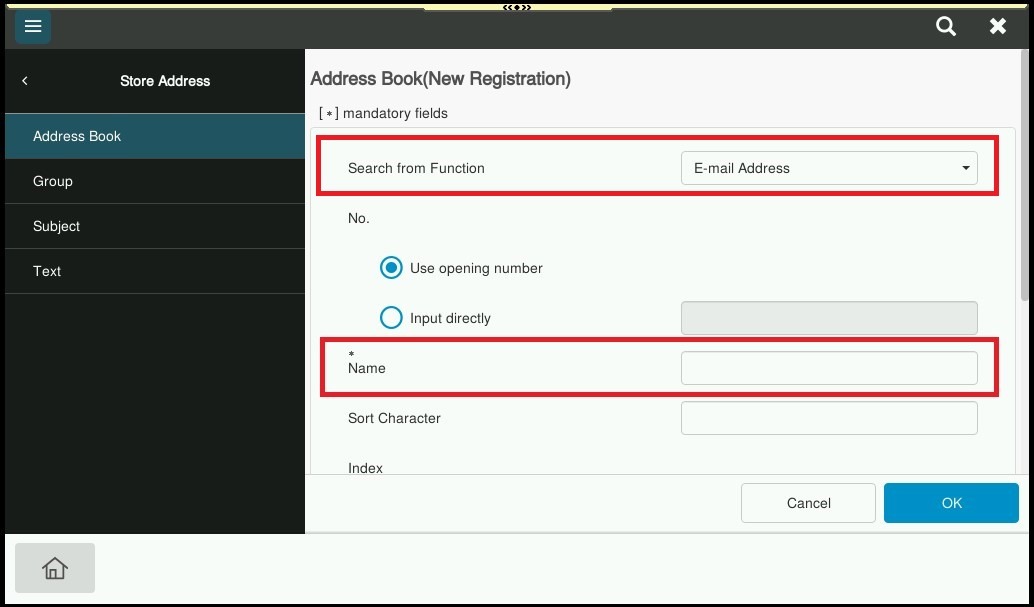
STEP 3 – Select [New Registration].
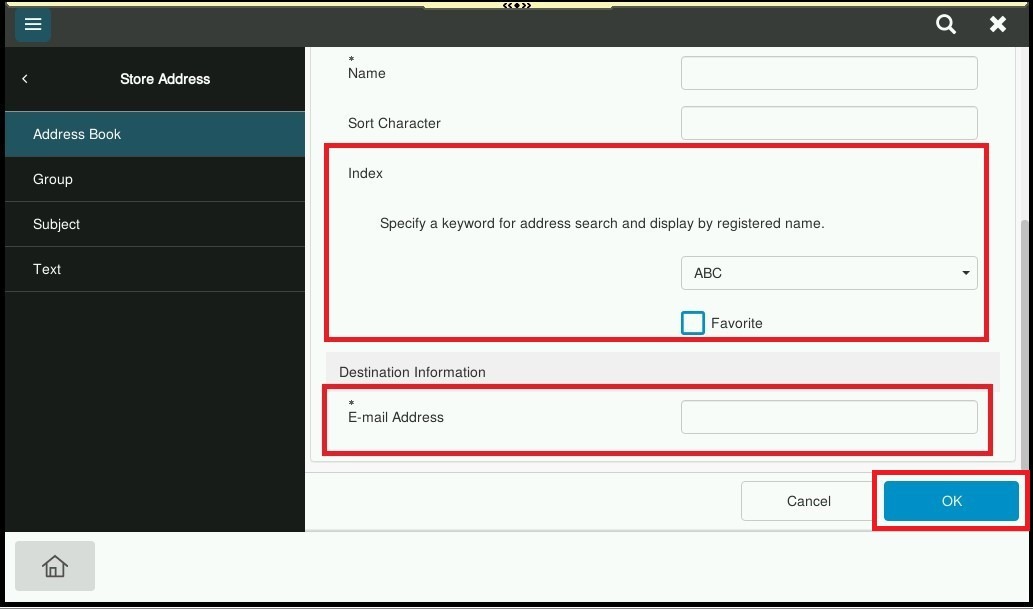
STEP 4 – Key in info according below under email address registration. Once finish key in select [OK] twice to save the setting.
- Name: Name that show on Machine when Scan.
- Index: First character that on the Name above, example name Nurul, the index will be MNO. Tick the Favorite.
- E-Mail Address: Email Address that want to receive.
For Delete the Email Address on machine address book
STEP 1 – On the Main Menu Screen, select [Home] – [Utility] – [Utility].
STEP 2 – Select [Store Address] – [Address Book].
STEP 3 – Highlight the email address name that want to be delete, then click on [Delete].
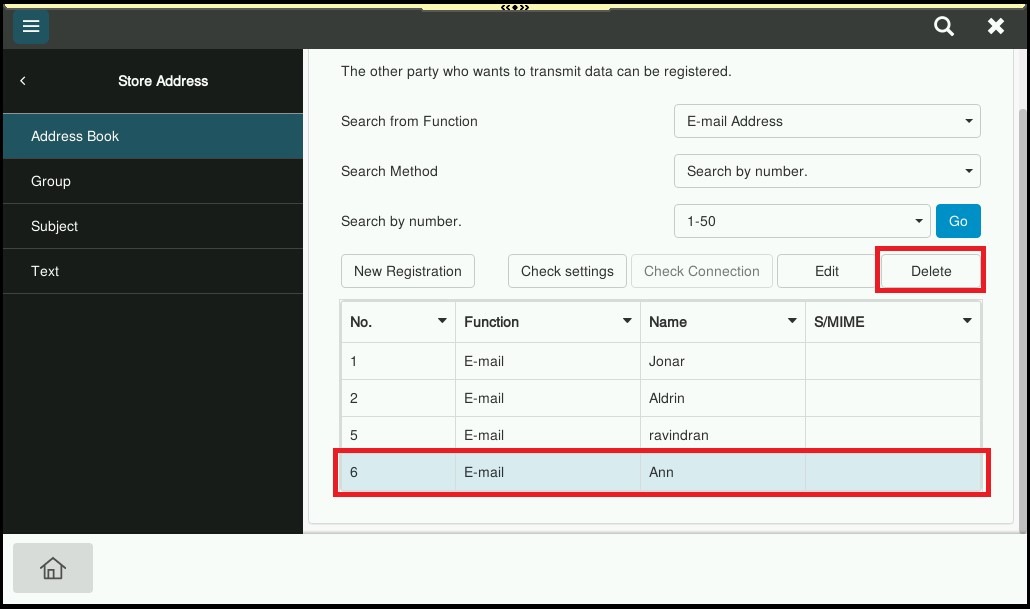
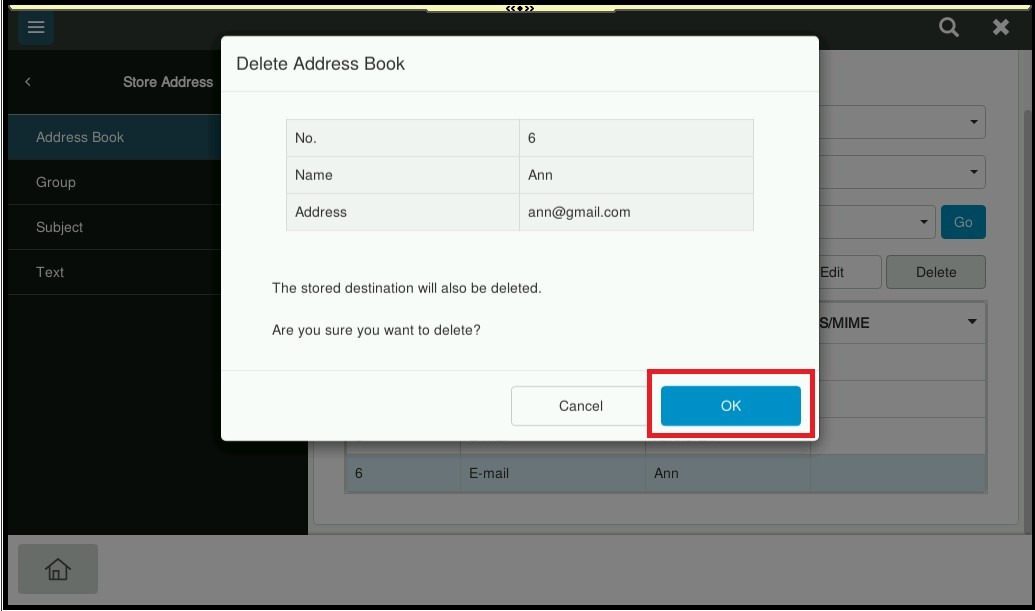
STEP 4 – Select [OK] to delete this email address on address book machine.