

Guide on how to restart Print Spooler on PC
The print spooler serves as a temporary storage space for printing jobs on the computer. Once a print job is created, the contents are moved into the spooler until the printer is ready to process it. If the PC are receiving any spooler-related errors, you can often resolve the problem by just restarting the spooler service. There have 2 way of restart the Print Spooler, via Windows Services Manager & Command Prompt.
Note: This will only work if the user has an administrator right for the computer.
Via Windows Services Manager
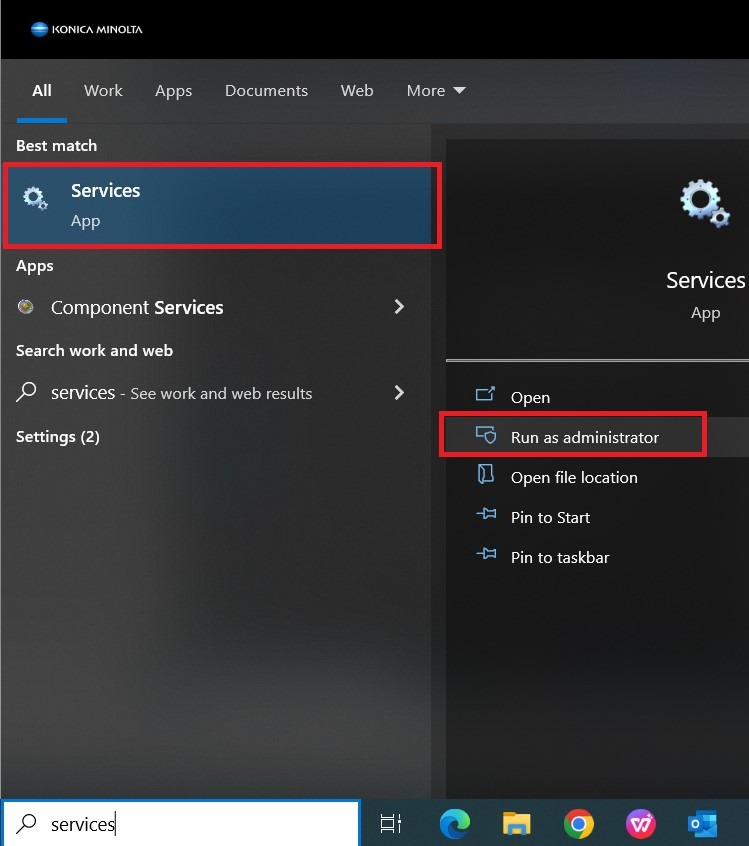
STEP 1 – Go to search, type Services, select Run as administrator.
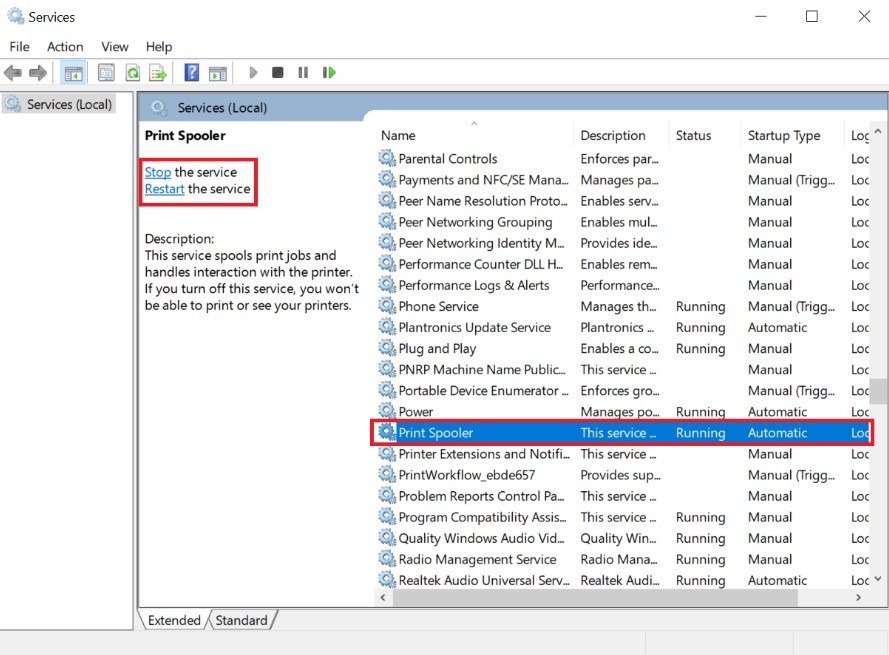
STEP 2 – Navigate through the services and look for Print Spooler.
STEP 3 – Select Print Spooler. Click on Restart once to restart the services.
STEP 4 – Close the Services window and check if the printers are accessible in the Devices and Printers.
Via Command Prompt
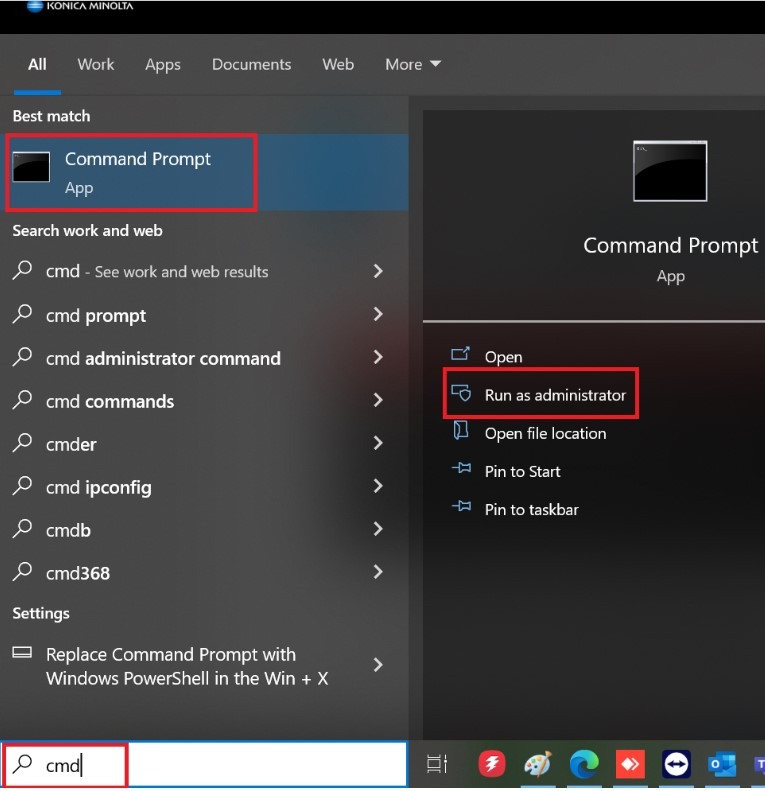
STEP 1 – Go to search, type cmd, select Run as administrator.
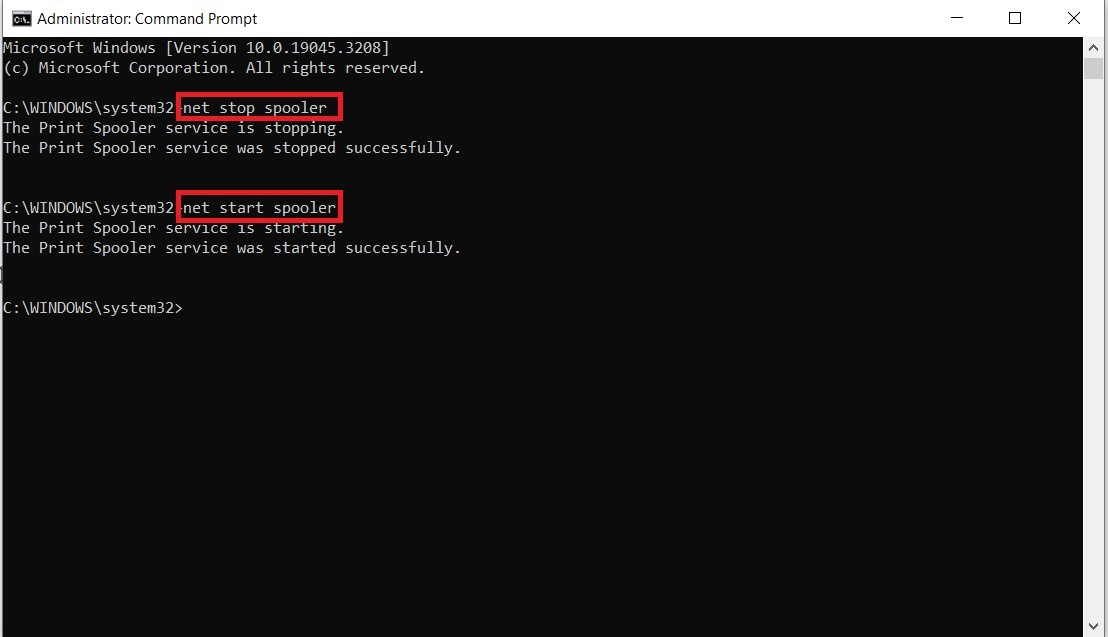
STEP 2 – Type command net stop spooler, press enter. Once the print spooler was stopped, type again command net start spooler then press enter to start the print spooler.
STEP 3 – Type command exit to exit from Command Prompt and check if the printers are accessible in the Devices and Printers.