Guide On How To Change Administrator Password On Photostat Machine Or Web Connection
IMPORTANT NOTE: If you forget the password changed by your own, it will be chargeable to reset the password to default. We are not recommending customers to reset the administrator password.
For the Older Machine series / Non I-Series Machine
How To Change Administrator Password on Photostat Machine
STEP 1 – Select [Utility].
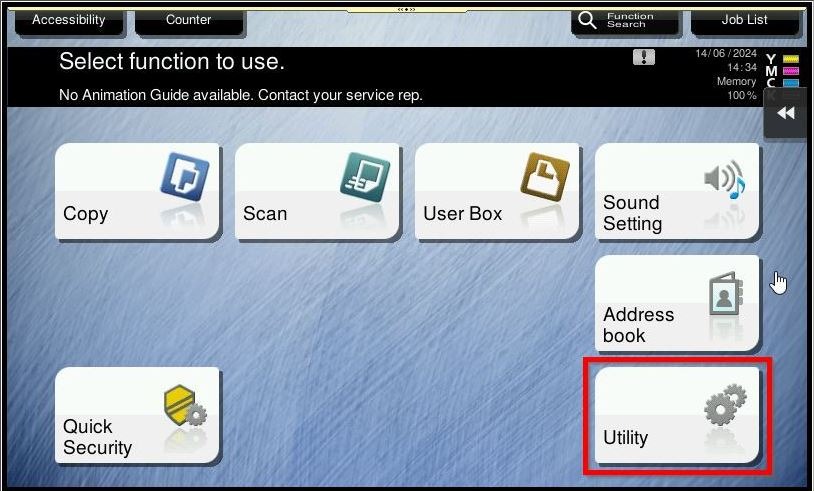
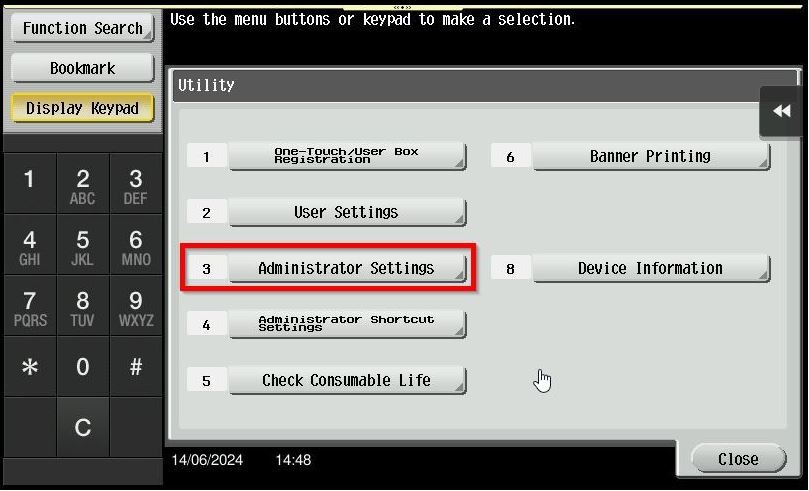
STEP 2 – Select [Administrator Settings].
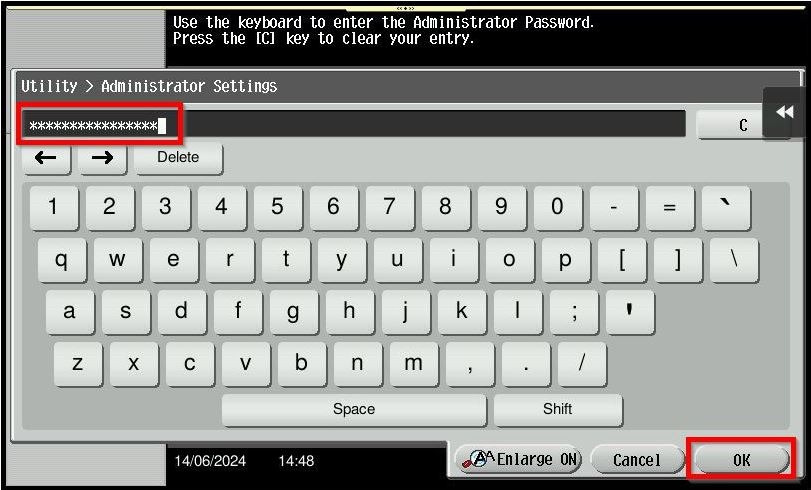
STEP 3 – Key in the default administrator password and click [OK] button.
Default administrator password: [7801261178012611] or [1234567812345678] or [12345678] or [12341234].
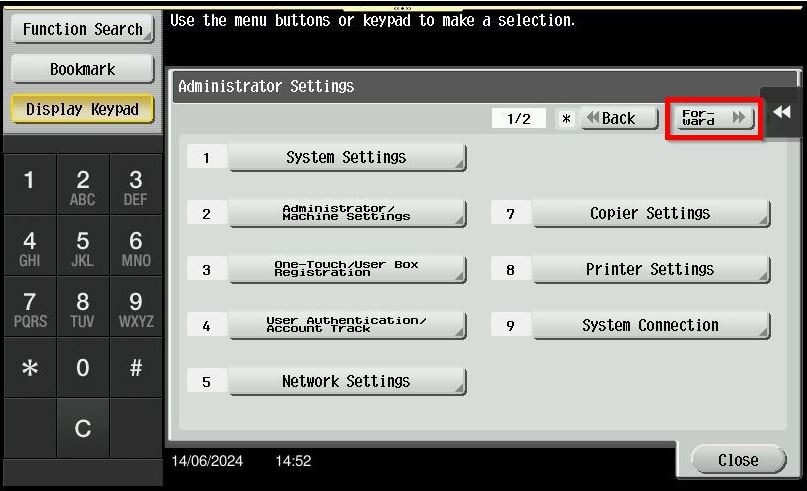
STEP 4 – Click [Forward] button.
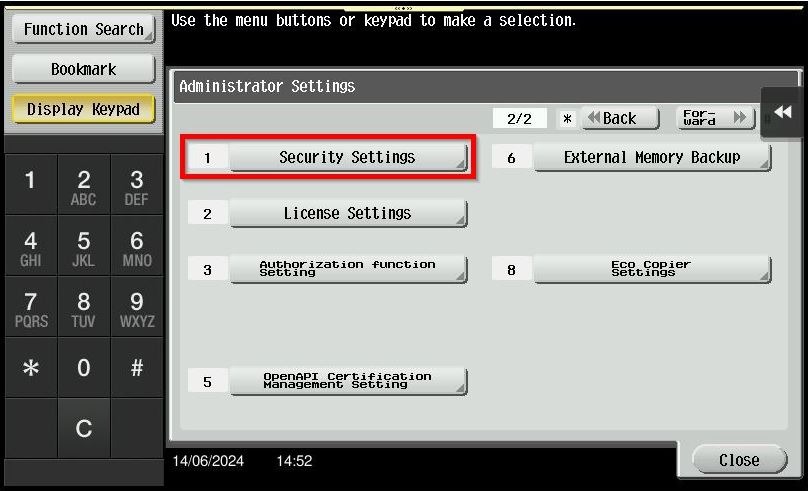
STEP 5 – Select [Security Settings].
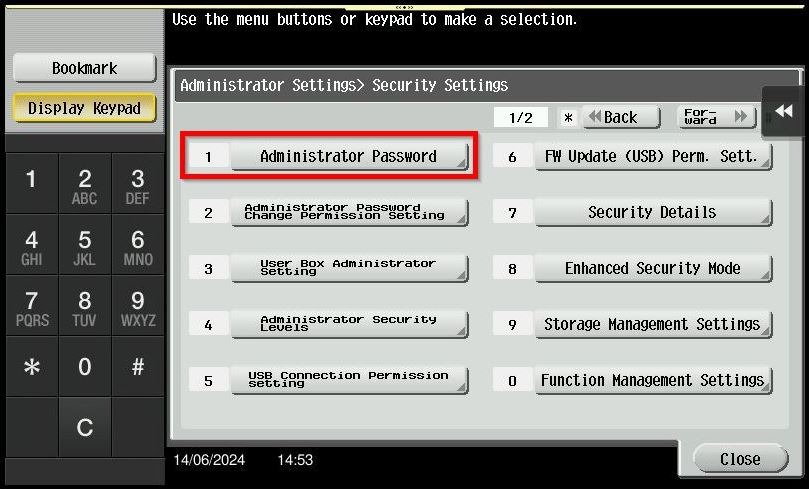
STEP 6 – Select [Administrator Password].
STEP 7 – Key in the default administrator password and click [OK] button.
Default administrator password: [7801261178012611] or [1234567812345678] or [12345678] or [12341234].
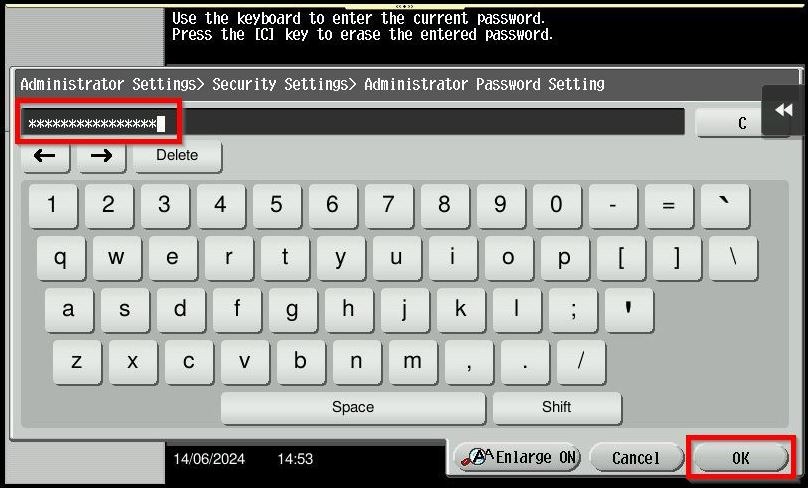
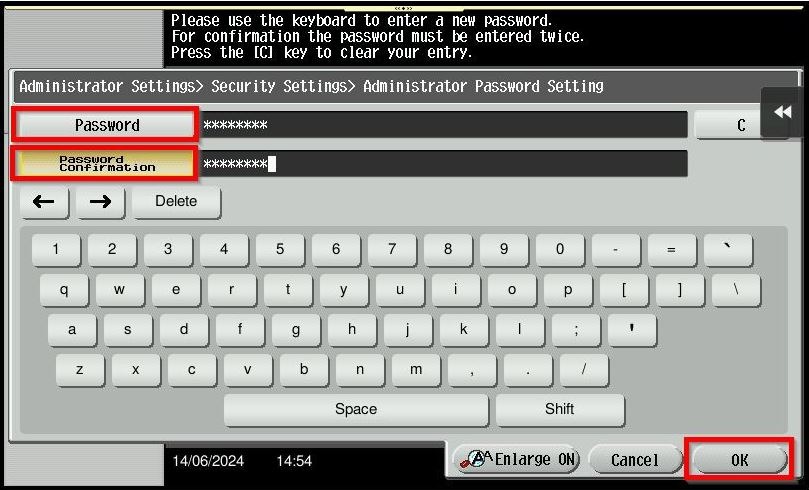
STEP 8 – Click [Password], [Password Confirmation] and key in the new administrator password. After that click [OK] button to save.
For the Newer Machine series / I-Series Machine
How To Change Administrator Password on Photostat Machine or Web Connection
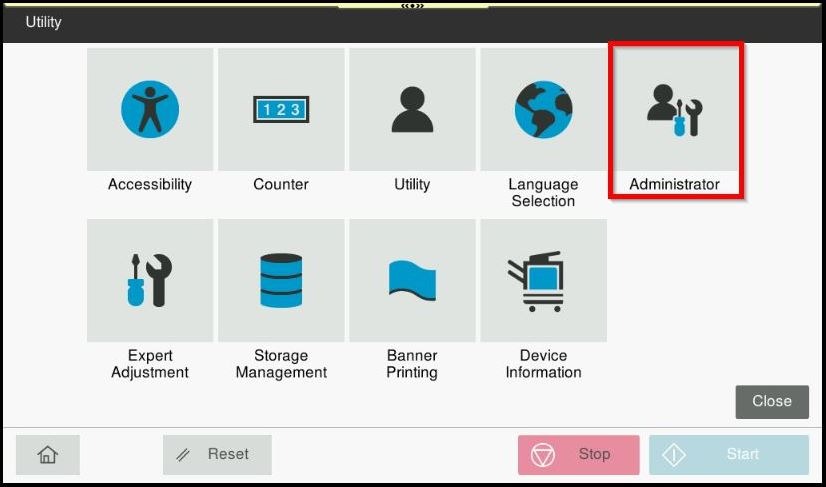
STEP 1 – Select [Utility].
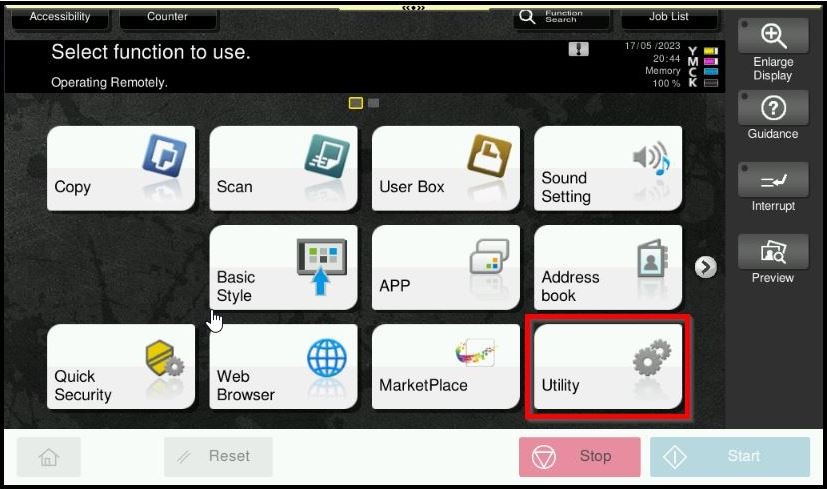
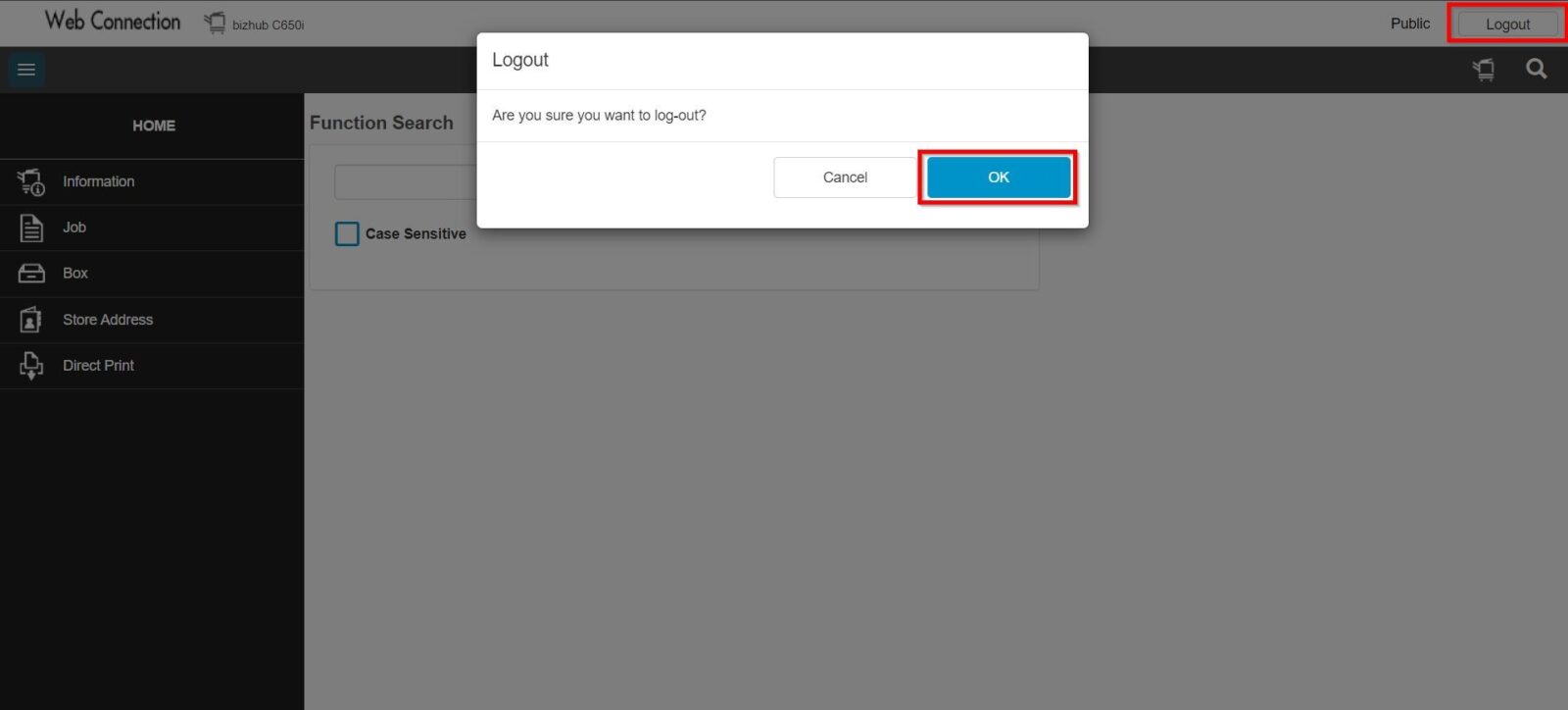
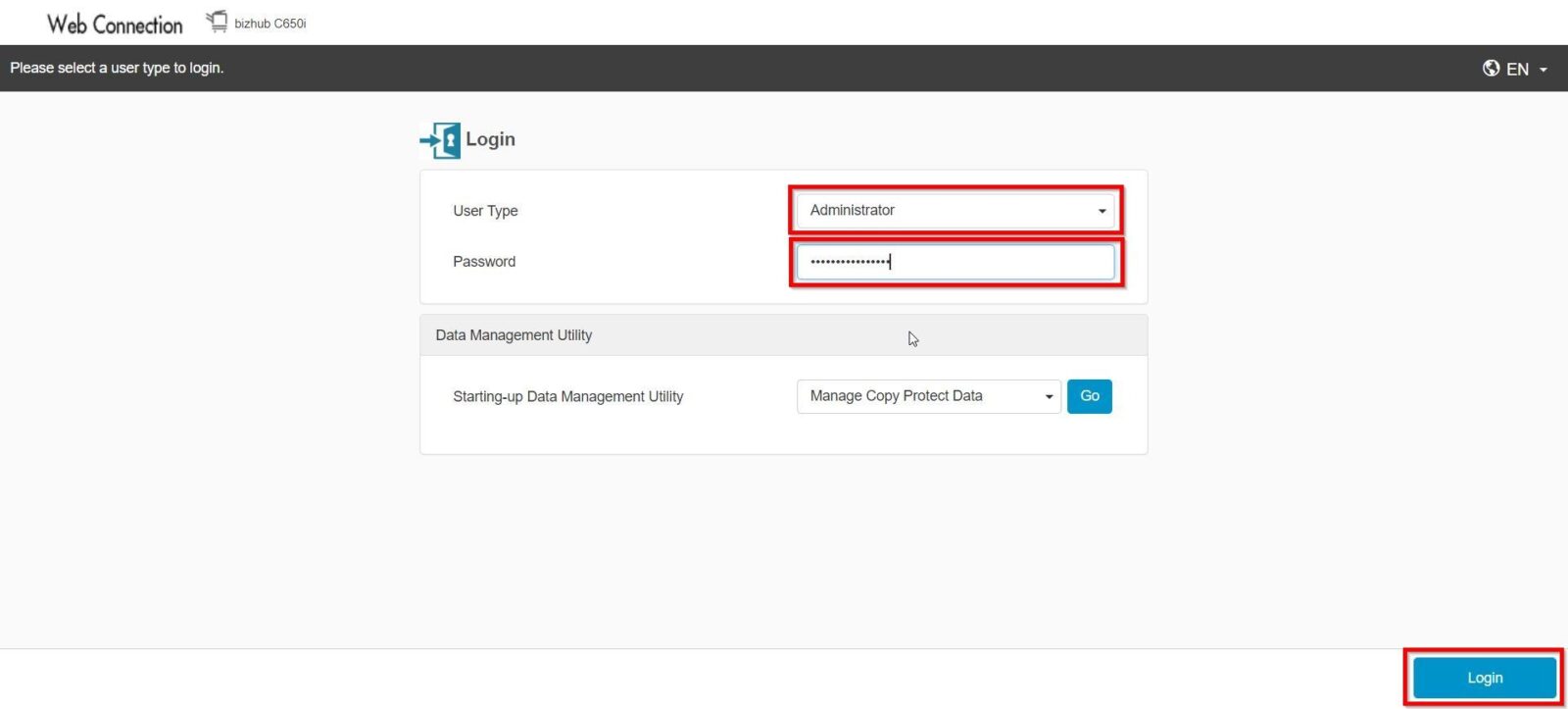
**You may access to web connection via machine IP Address. Click on this to check how to get the IP Address from machine, then key in Konica Minolta Machine IP Address at web browser and log in as admin the Web Connection.
STEP 2 – Select [Administrator].
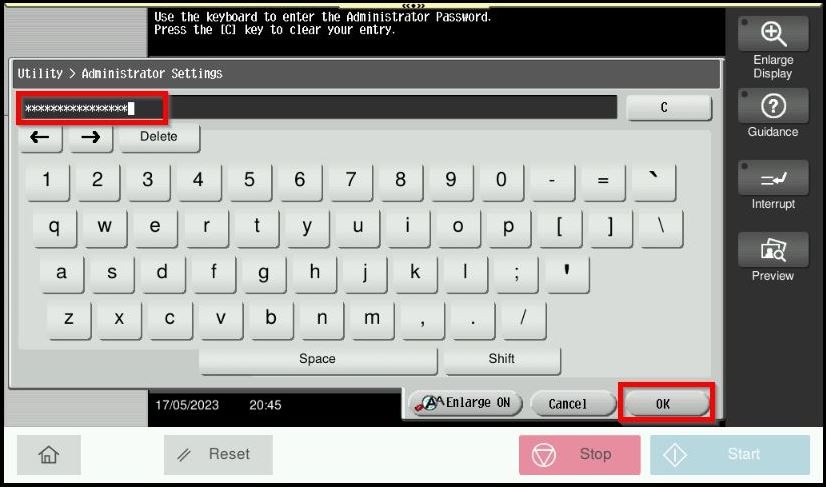
STEP 3 – Key in the default administrator password and click [OK] button.
Default administrator password: [7801261178012611] or [1234567812345678] or [12345678] or [12341234].
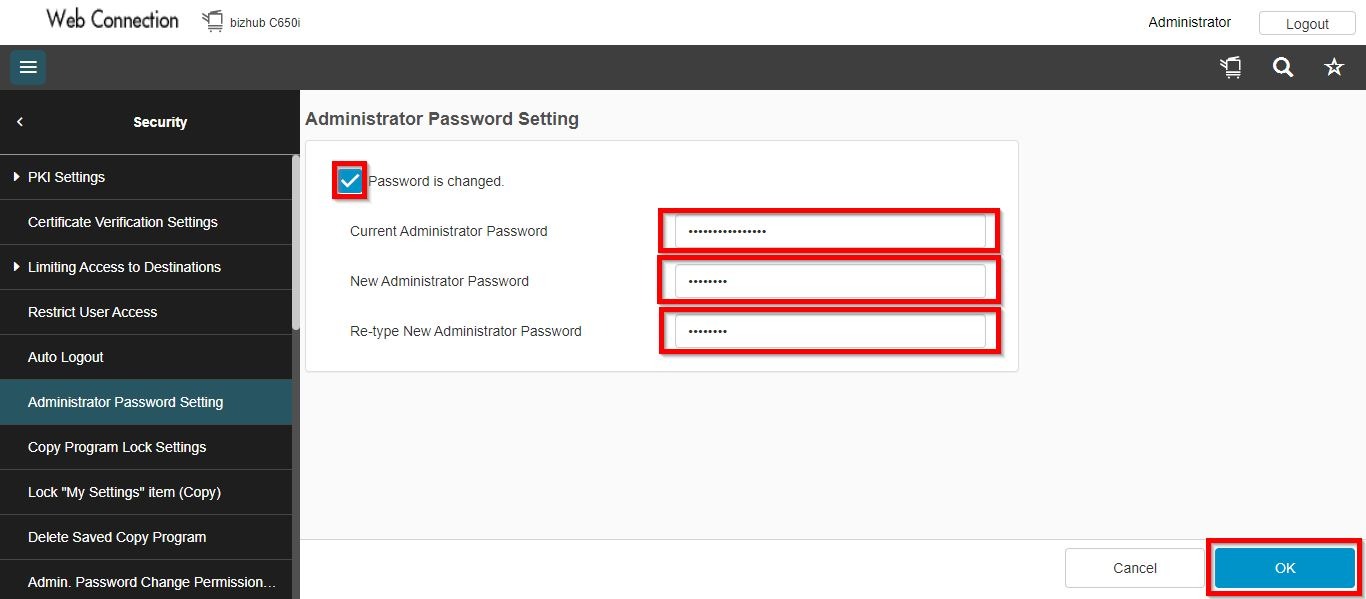
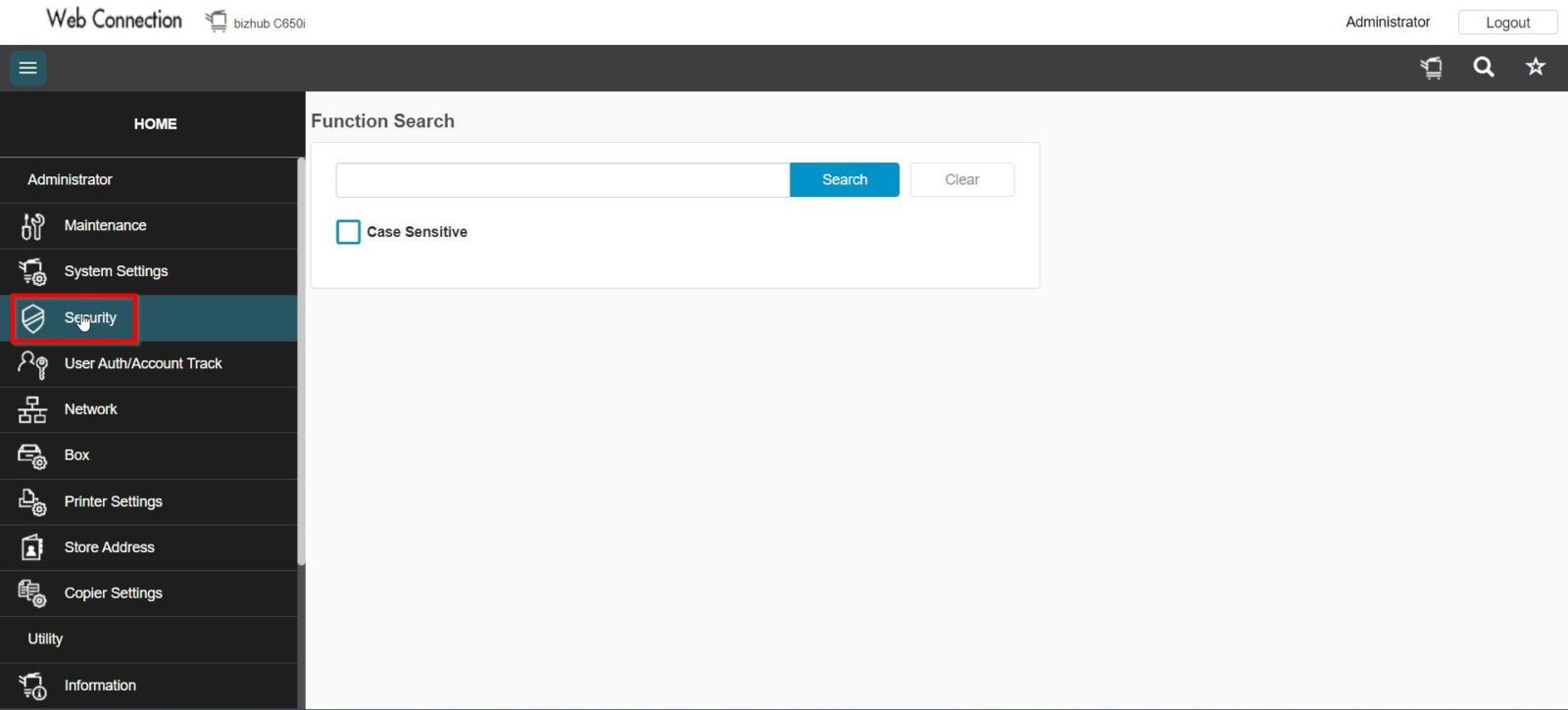
**On Web Connection login as admin mode by key in administrator password accordingly. The next step will be same option on below to change administrator password.
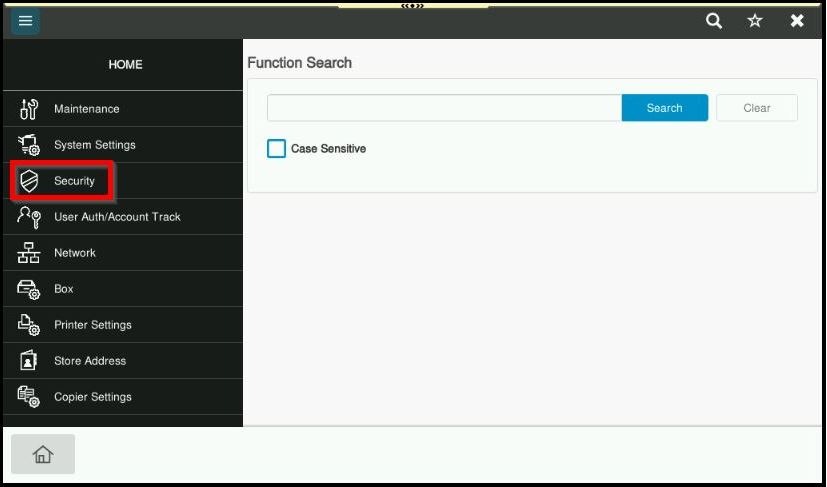
STEP 4 – Select [Security].
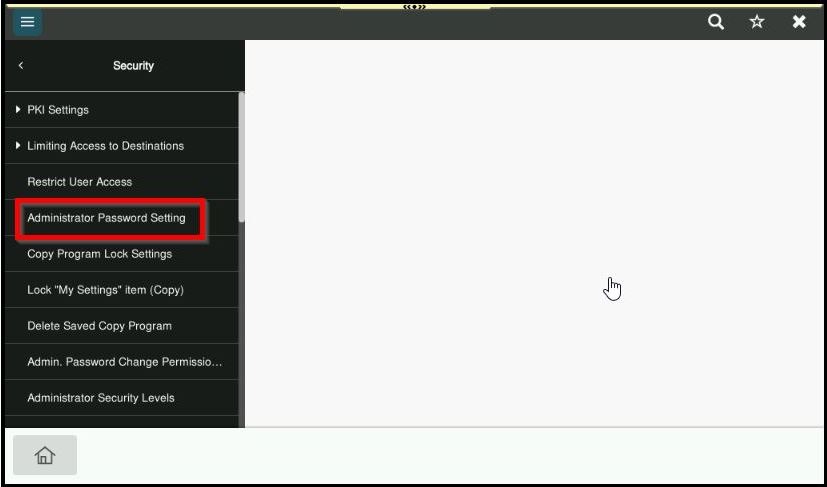
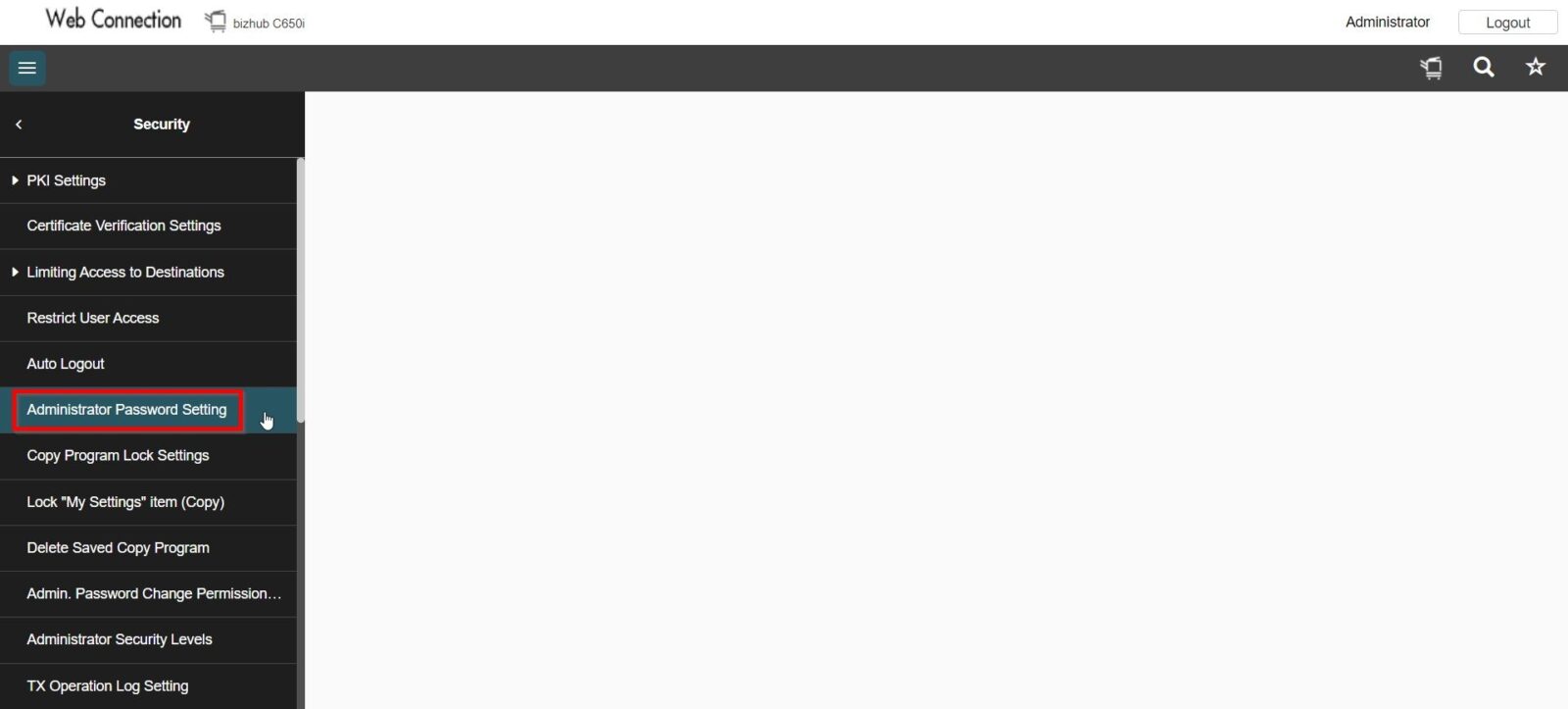
STEP 5 – Select [Administrator Password Setting].
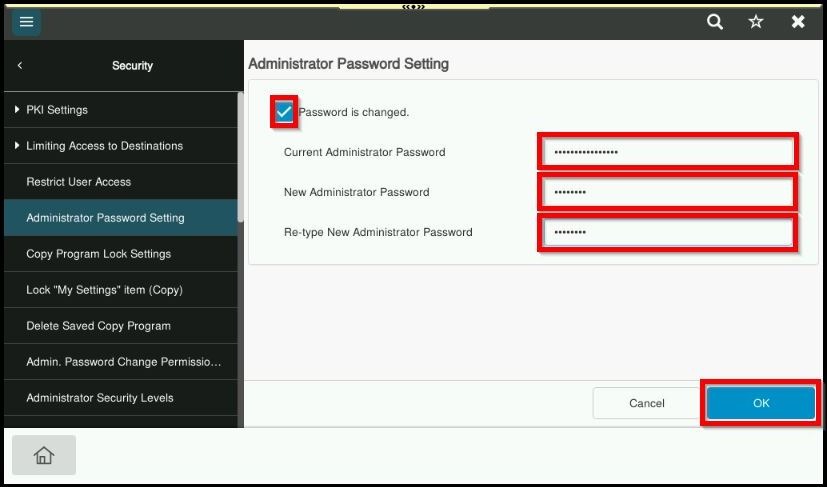
STEP 6 – Tick [Password is changed], key in default administrator password in [Current Administrator Password], key in new administrator password in [New Administrator Password] and [Retype New Administrator Password] column and click [OK] button to save.
Default administrator password: [7801261178012611] or [1234567812345678] or [12345678] or [12341234].