Guide on how to install the PC-FAX driver to be able to send out FAX from the PC.
NOTE: This will only work on machines that have a FAX kit installed to it. Konica Minolta FAX kit is not a standard add-on on all Konica Minolta machine and this one needs to be purchased and installed separately.
STEP 1 – Download and extract the PC-FAX Driver
- Download the printer driver by going to this link: Drivers & Downloads
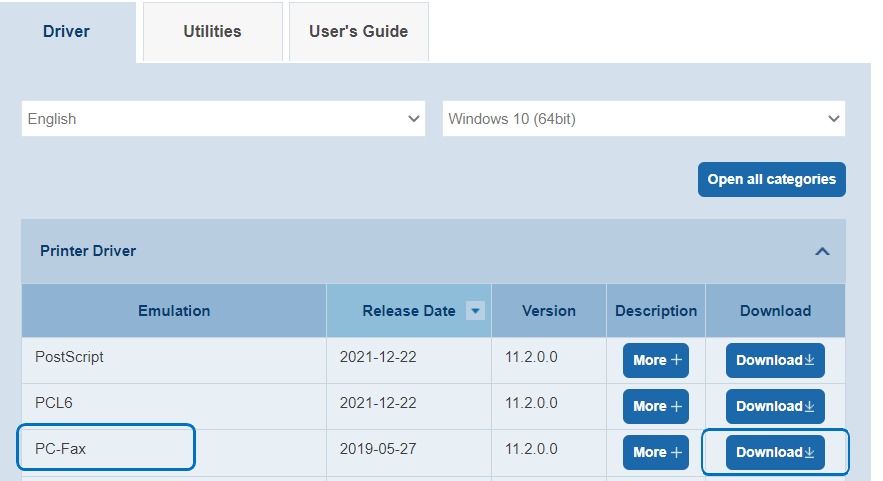
- Select the Compatibility Operating System, choose the PCL6 and select Download to download the driver.
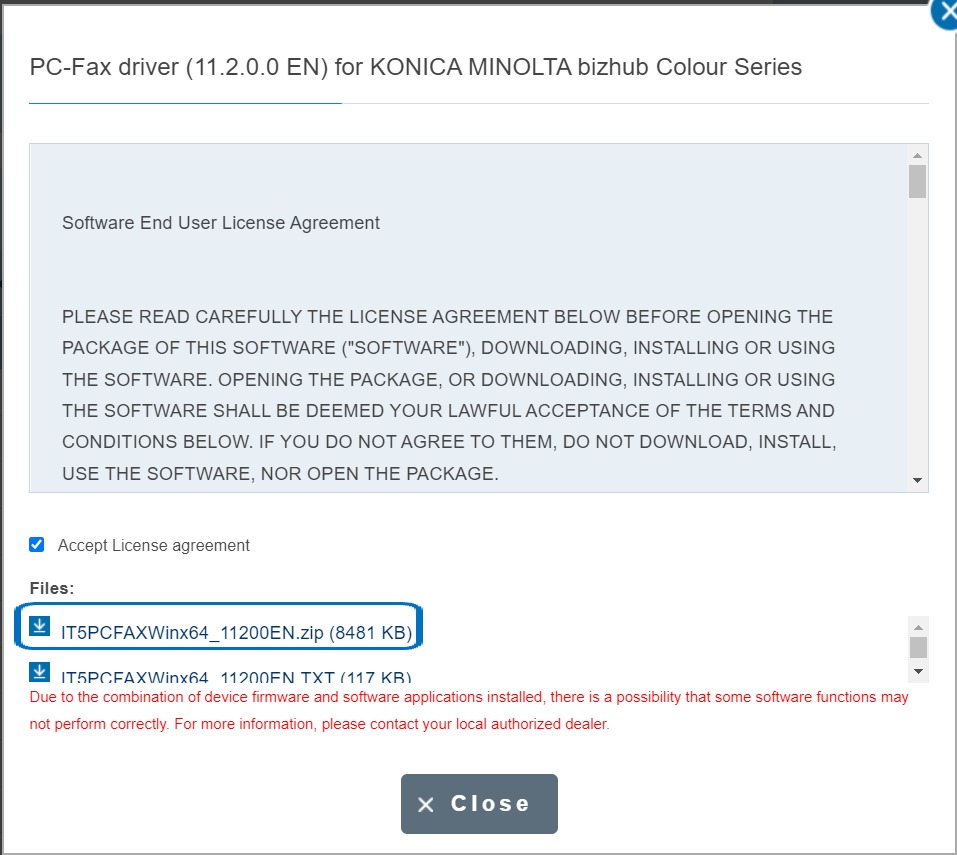
- Tick License Agreement and Select Zip.File to download the Printer Driver to the PC.
- Extract the Zip file after download and it will appear another folder on the same path, this will be used for Install Printer Driver later.

STEP 2 – Install the PC-FAX Driver on the PC/Laptop
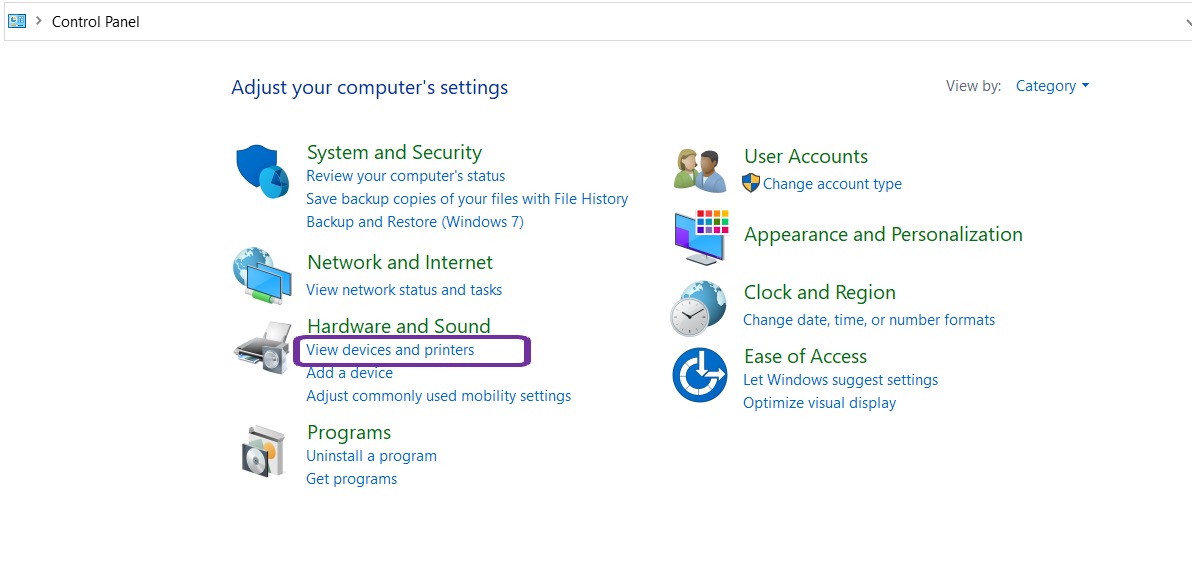
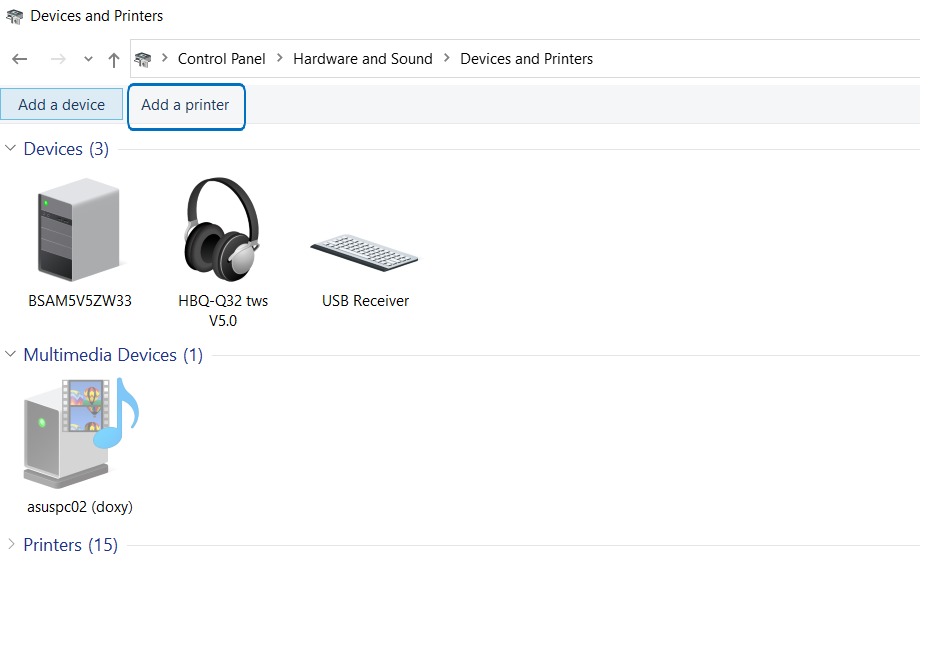
- Go to Control Panel, Select Devices and Printers.
- Select Add a printer.
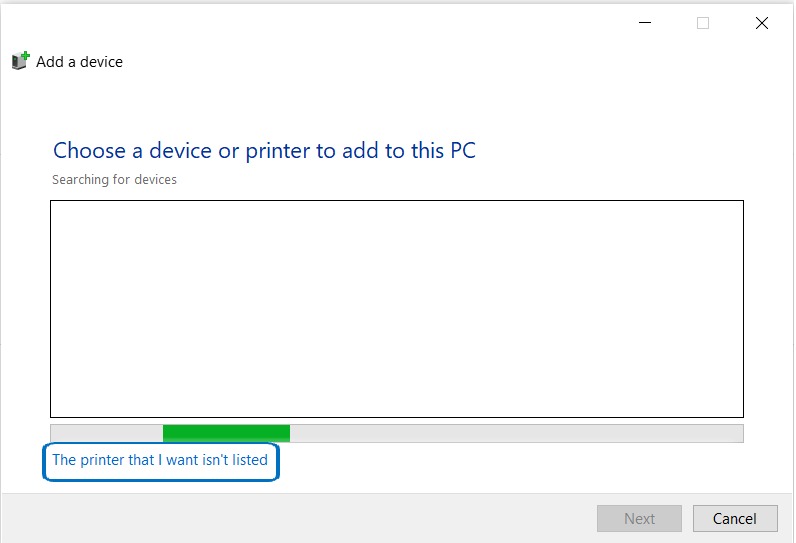
- Select The printer that i want isn’t listed.
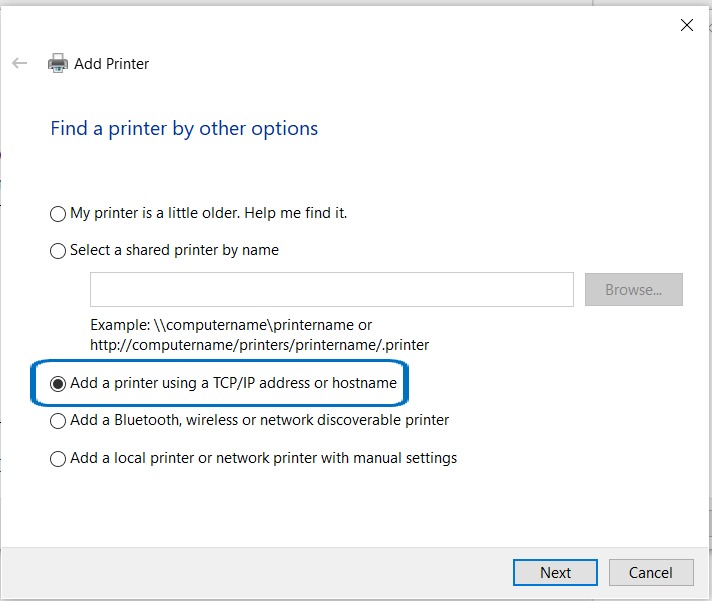
- Choose Add a printer using TCP/IP address or Hostname
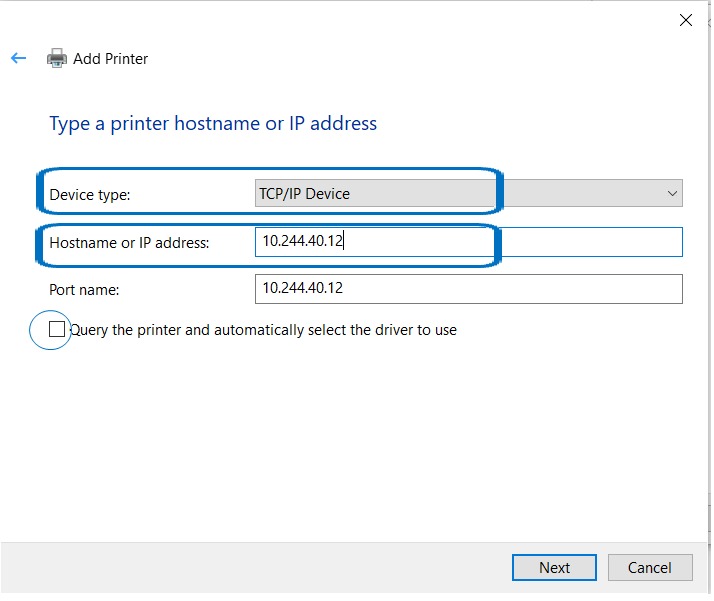
- Change Device Type to TCP/IP Device and Type in machine IP Address, and untick the Option Query the printer and automatically select the driver to use.
- Click on Have Disk, select Browse and select the Printer Driver previously that have been extracted.
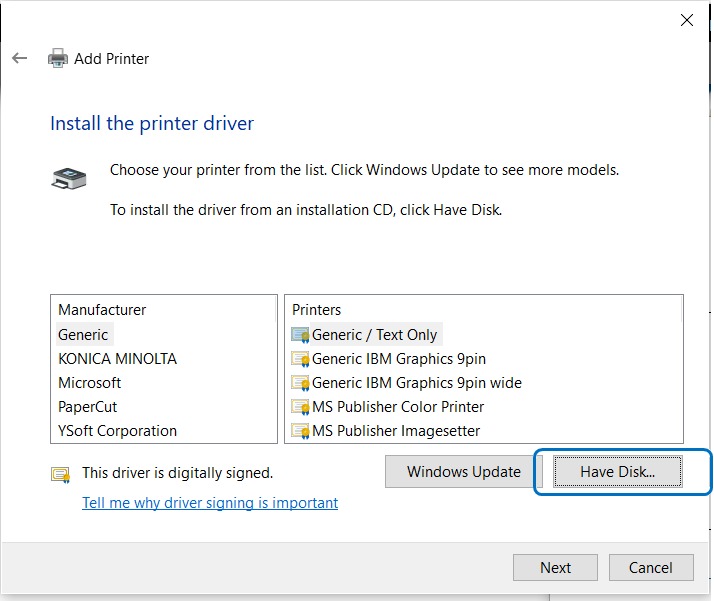
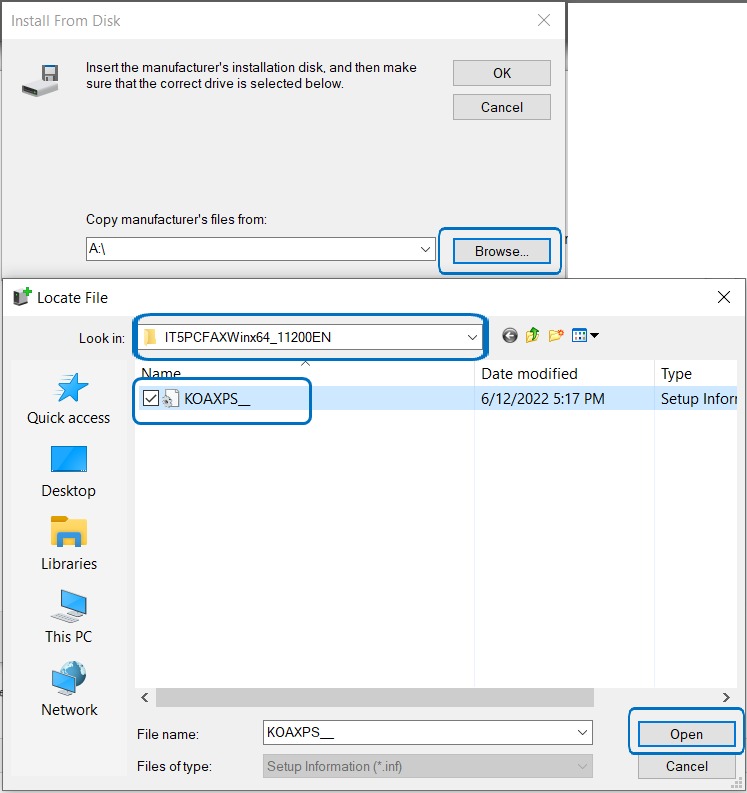
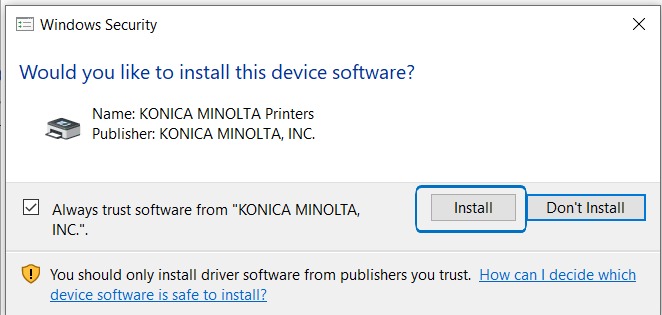
- Select Printer driver and click next to install Printer Driver.
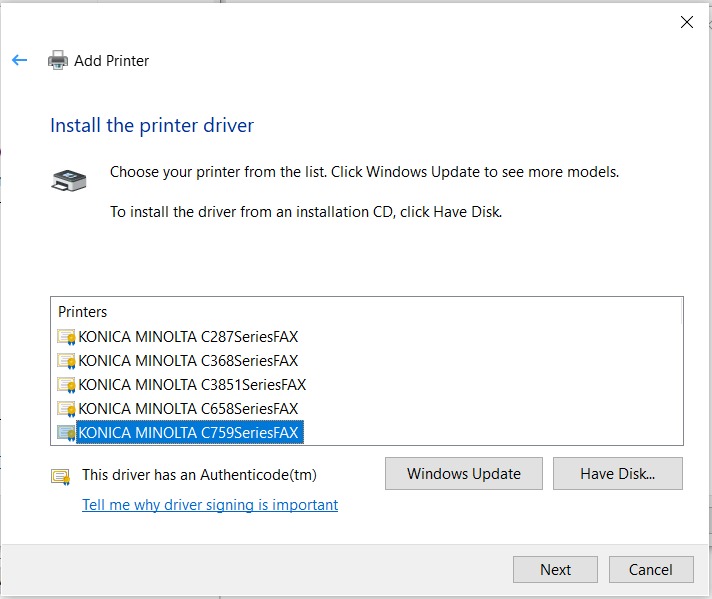
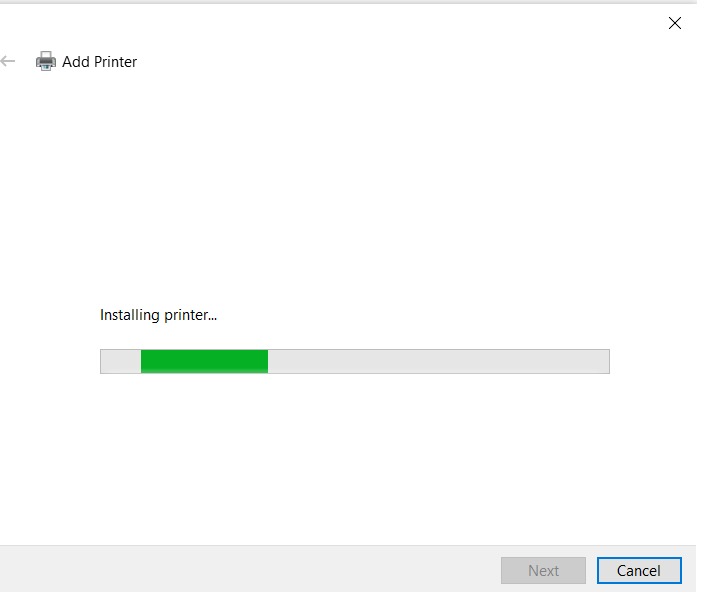
STEP 3 – Send a FAX from the PC/Laptop to test
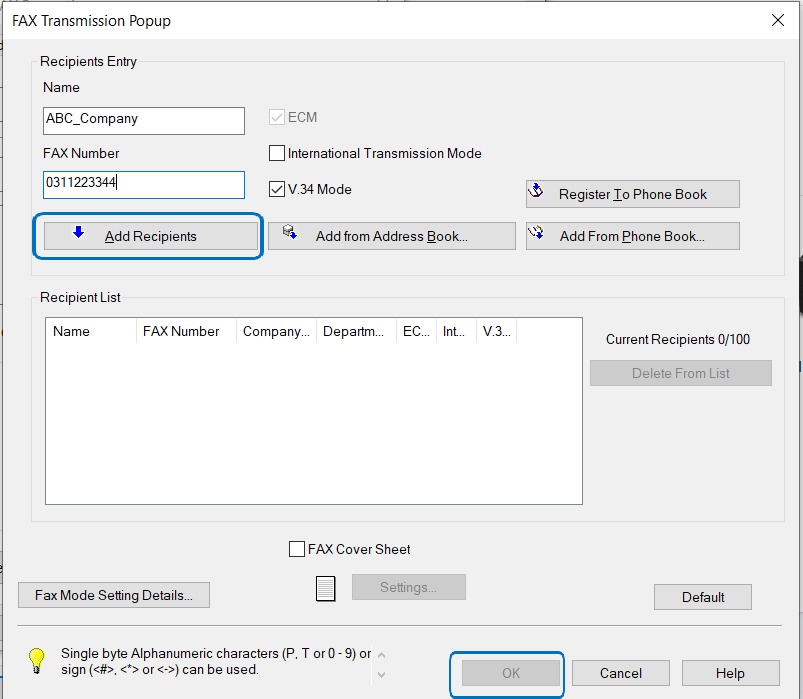
- Any Document that print using PC-Fax, need to key in info below before able to send fax from PC to recipient Fax Machine.
- Name: Company_Name_Recipient
- Fax Number: Receipient_Fax_Number