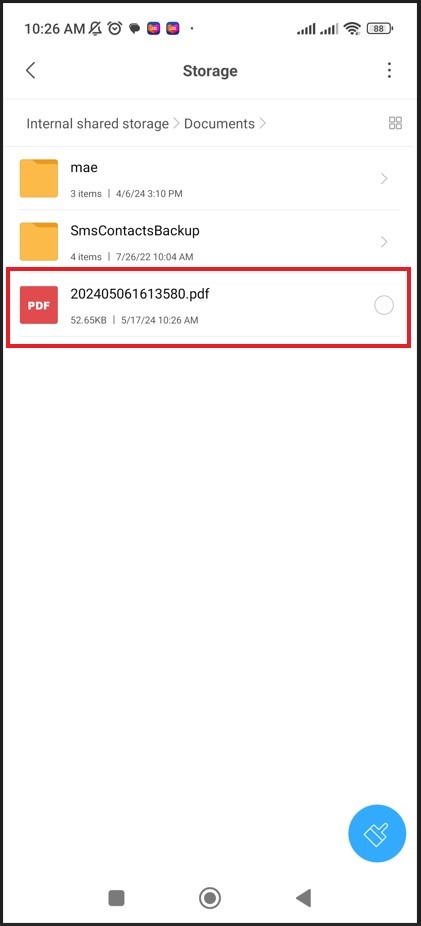
Guide on how to properly Scan Document from Konica Minolta Machine to Android using Mobile Print
REQUIREMENTS:
- Machine IP Address – click Here for the guide on how to get the machine IP Address
- Mobile Print App – click Here for the guide on how to download and install mobile print from google play store.
- Added printer under Mobile Print App – click Here for the guide on how to add a printer on mobile print app after install.
How to scan from machine to Mobile Print
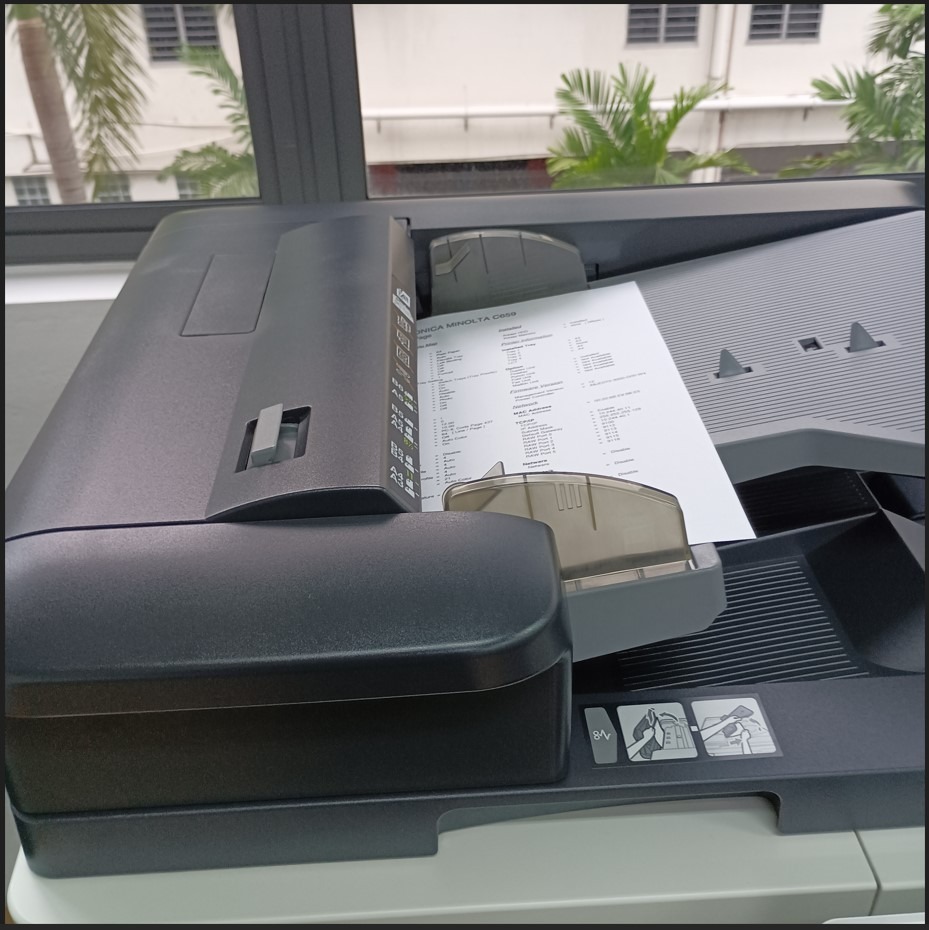
STEP 1 – Put a paper on the feeder or glass on the machine.
STEP 2 – Open the Mobile Print App on phone. Make sure the mobile are connected to same network with machine.
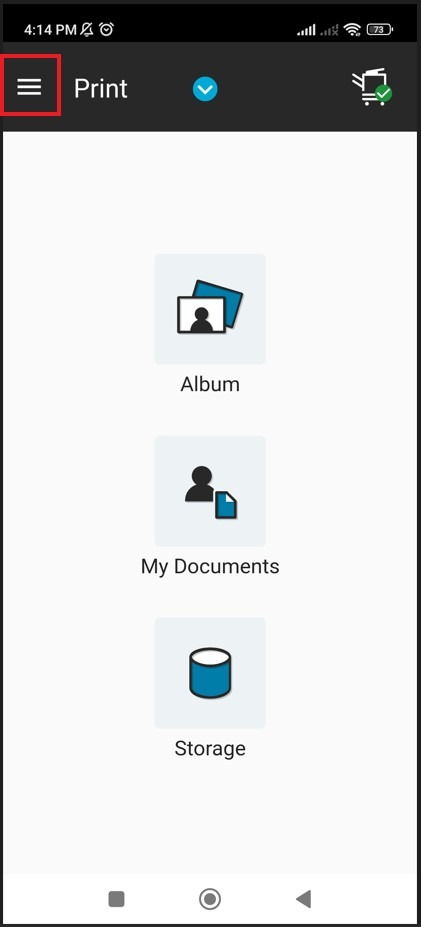
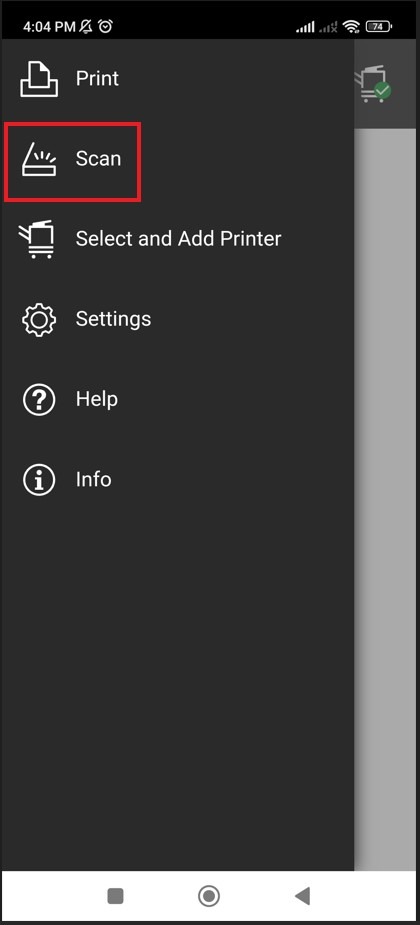
STEP 3 – Select three dash on left hand corner, select [Scan].
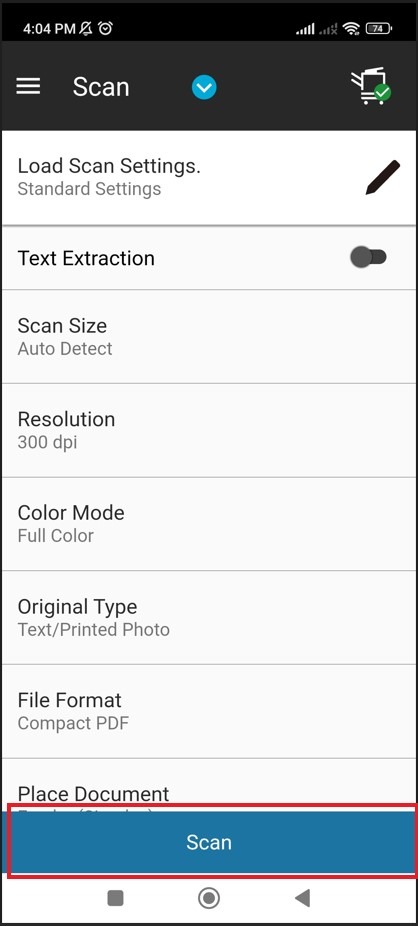
STEP 4 – Several setting will be showing, include resolution, scan size, file format and etc. Click on [Scan] to start scanning.
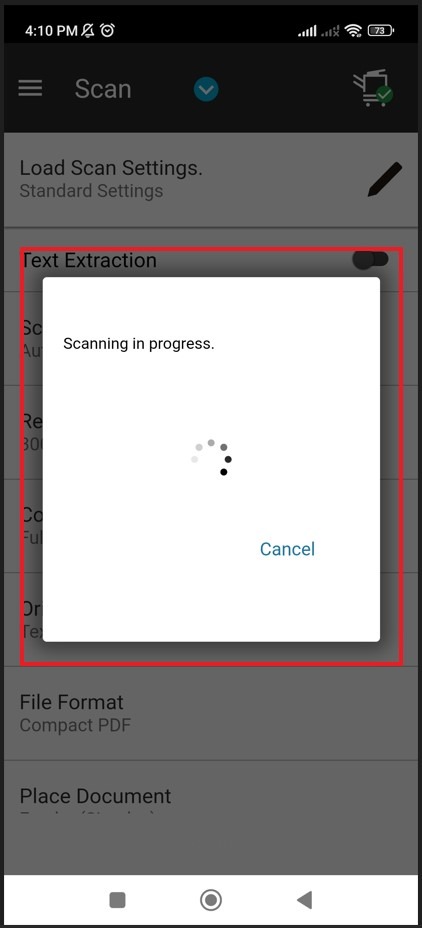
STEP 5 – The machine will start scanning the paper, and the mobile print will prompt scanning message and click on [Save] to save on [My Document]. If want to move the scan folder to phone storage, kindly proceed to next section.
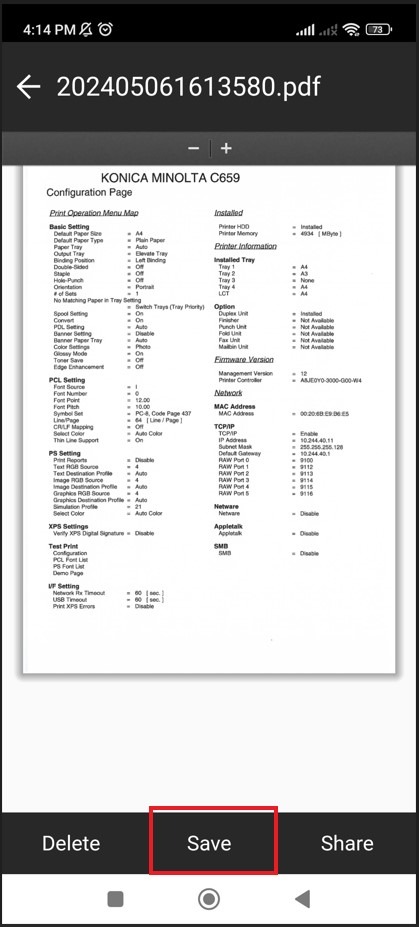
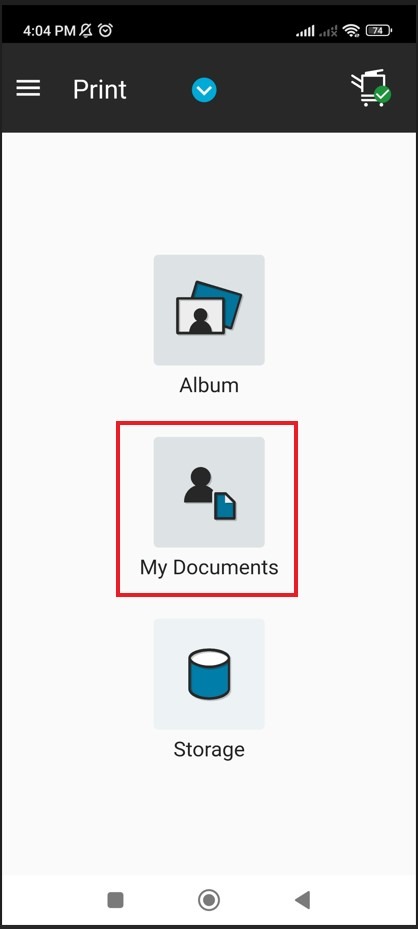
STEP 6 – The file will be stored under my document.
How to save a document from mobile print to phone storage
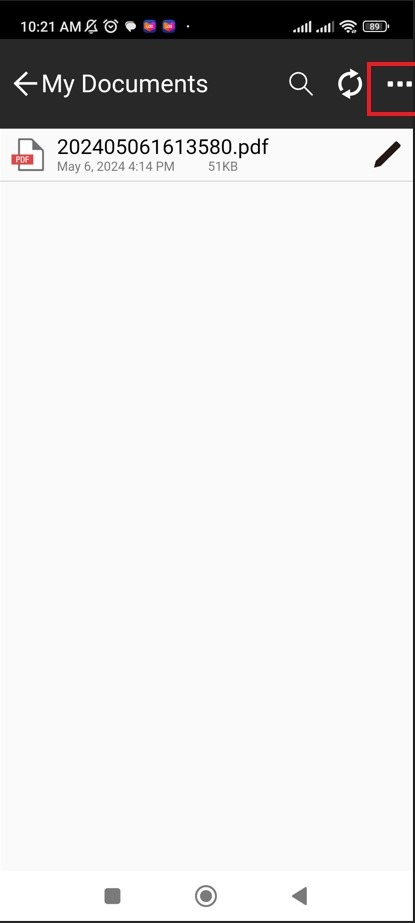
STEP 1 – Select my documents from mobile print, the file that scan will appear, In order to save the scanned document to phone storage, select 3 dash on right hand corner then select [Share].
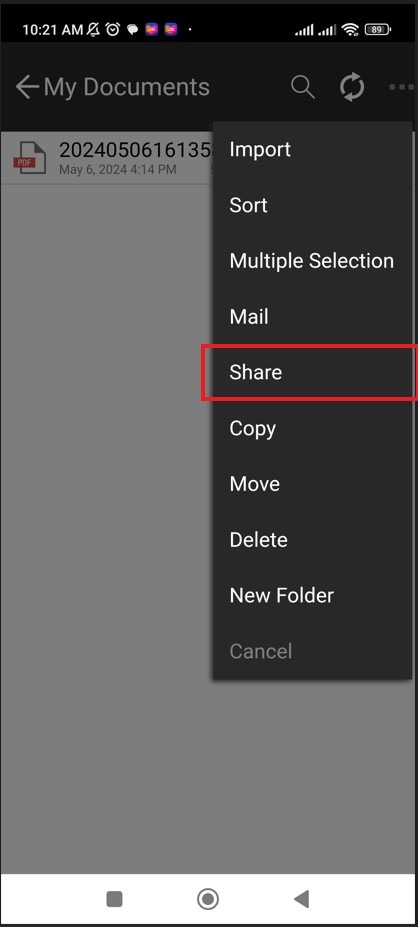
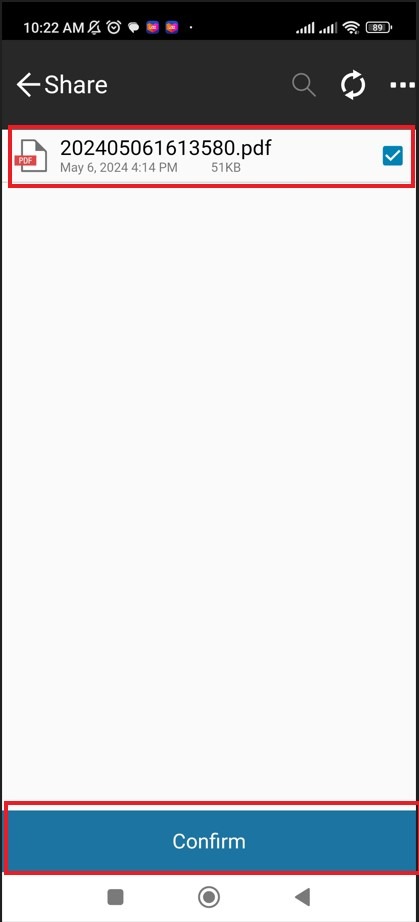
STEP 2 – Tick the scanned file that want to save then click [Confirm].
STEP 3 – Select [Copy] to or other similar option to save to phone storage. Alternatively, the scanned document can be shared directly via email or whatsApp to other person also.
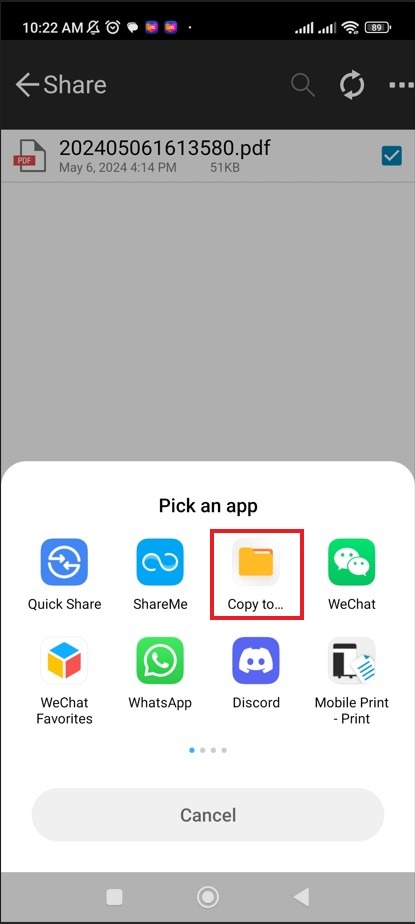
STEP 4 – Tick the file path that want to save the scanned document, click on [Paste] to paste the scanned document into particular folder.
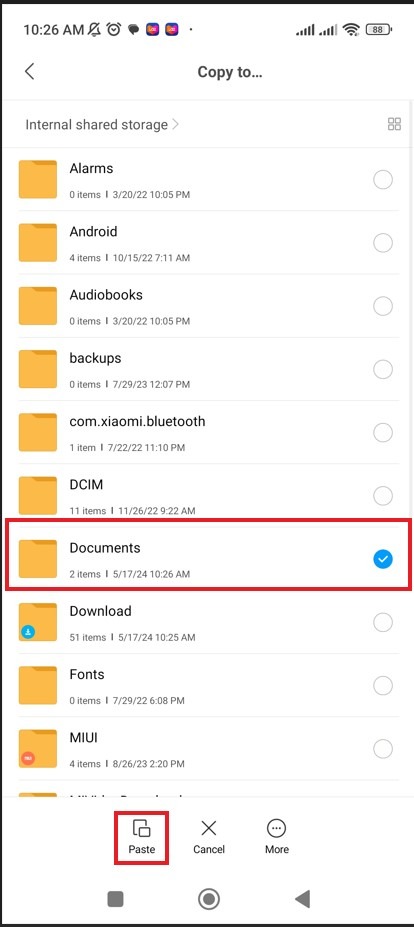
STEP 5 – The file will be at save at specific location.