Suggestion on how to setup booklet output on copying document. This will help us to making a copy of booklet output
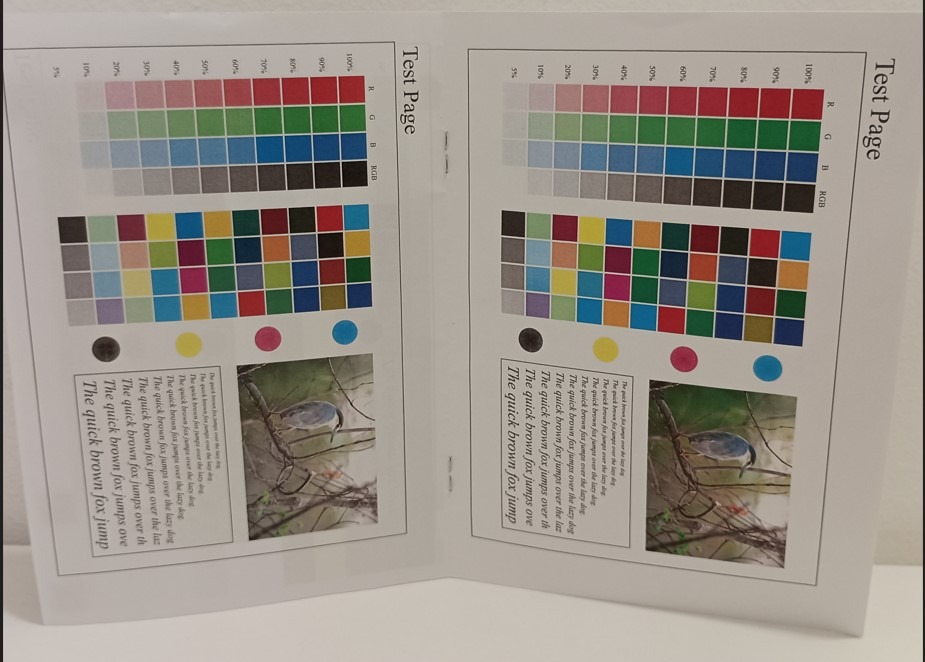
As per attachment below, once the booklet function has been enabled when copying document, the output of document will be shown as set of booklet.
REQUIREMENTS:
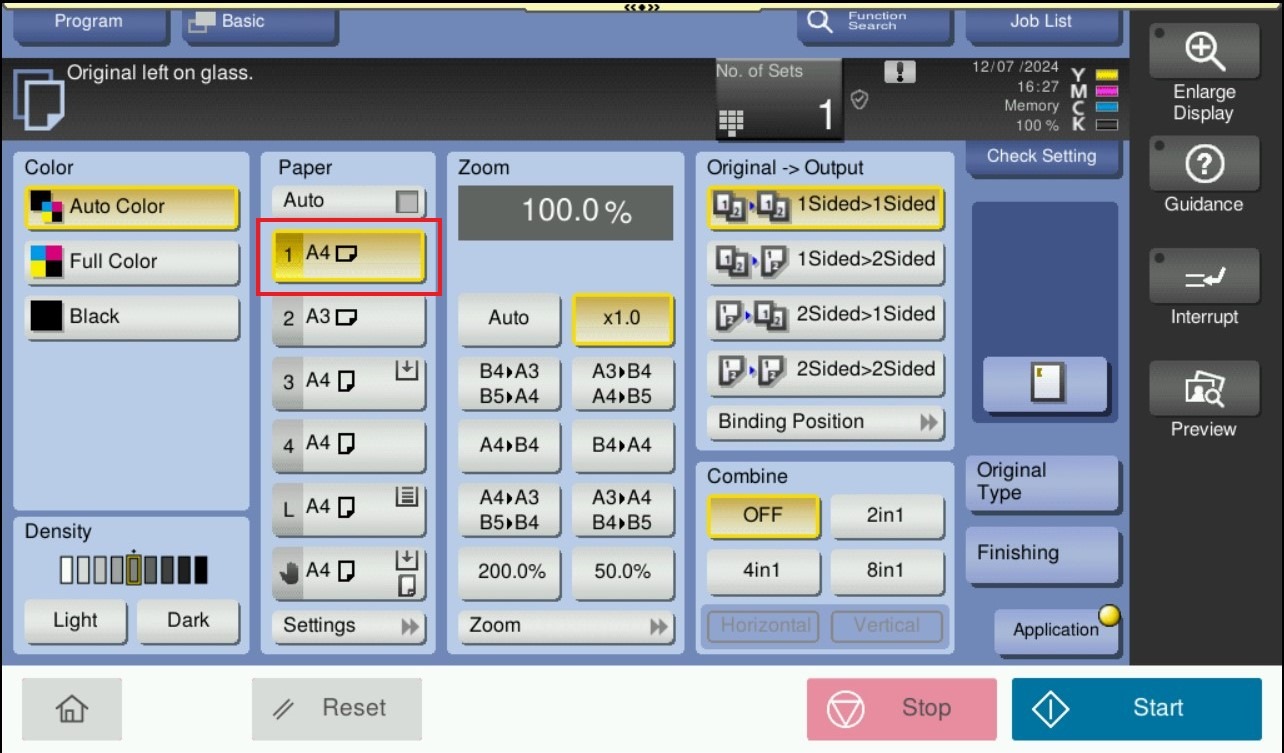
- Machine Tray Orientation – Output of the booklet paper need to be loaded in tray as landscape. For example, if want to print booklet output using A4 paper, the tray need to put in A4 paper in landscape orientation.
For the Older Machine series / Non I-Series Machine
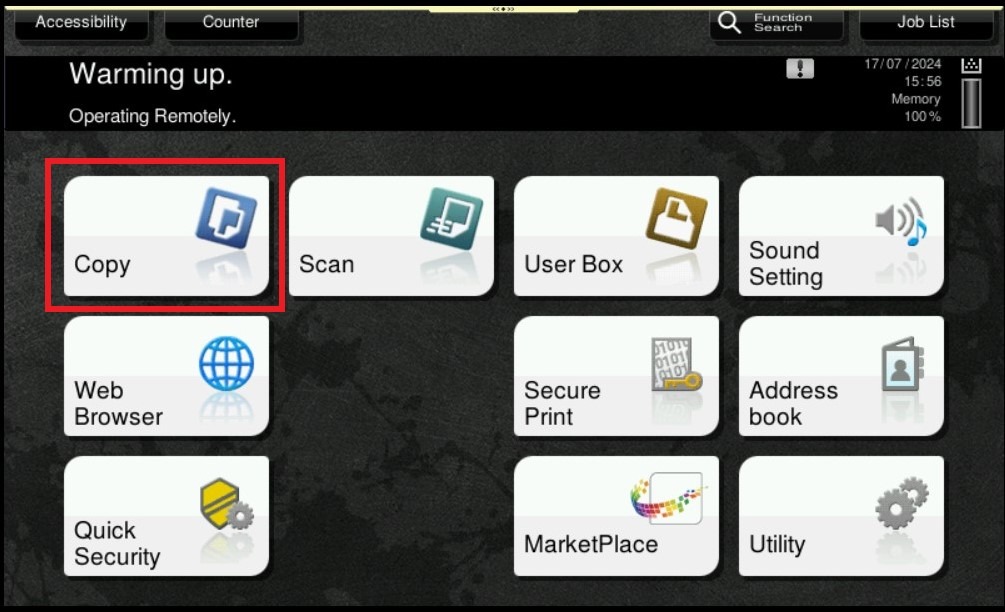
STEP 1 – On the Main Menu Screen, select [Copy].
STEP 2 – Select [Application] – [Booklet] under layout Tab.
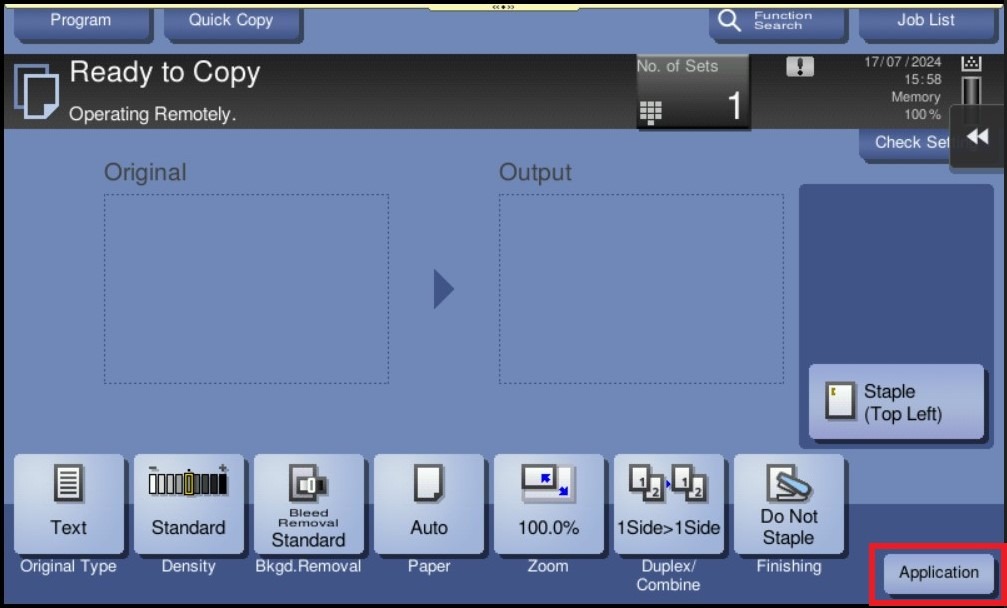
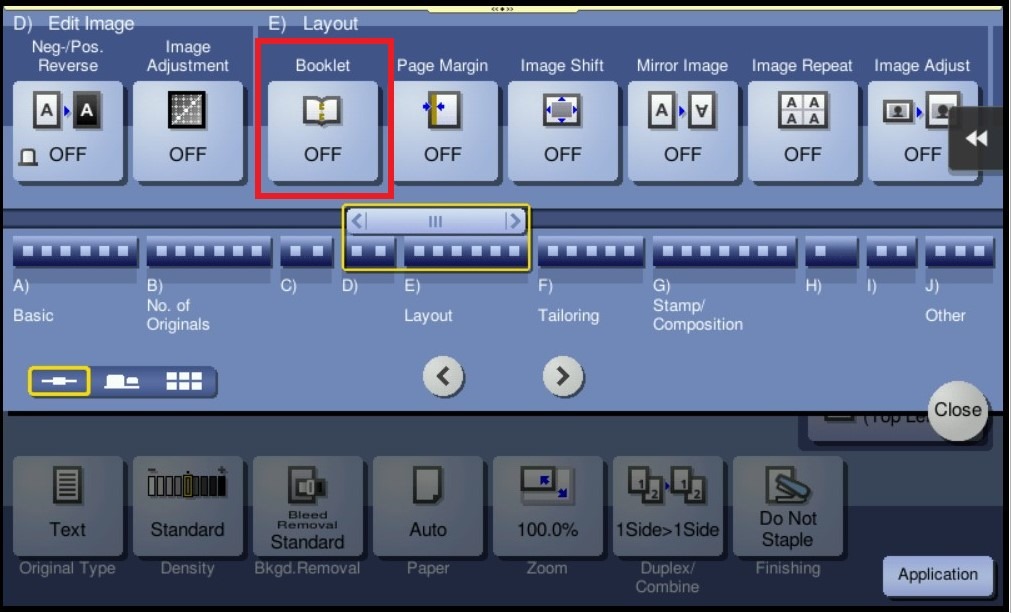
STEP 3 – Select [ON] to specify Booklet. Specify which function need to use, then click [OK] to save the settings.
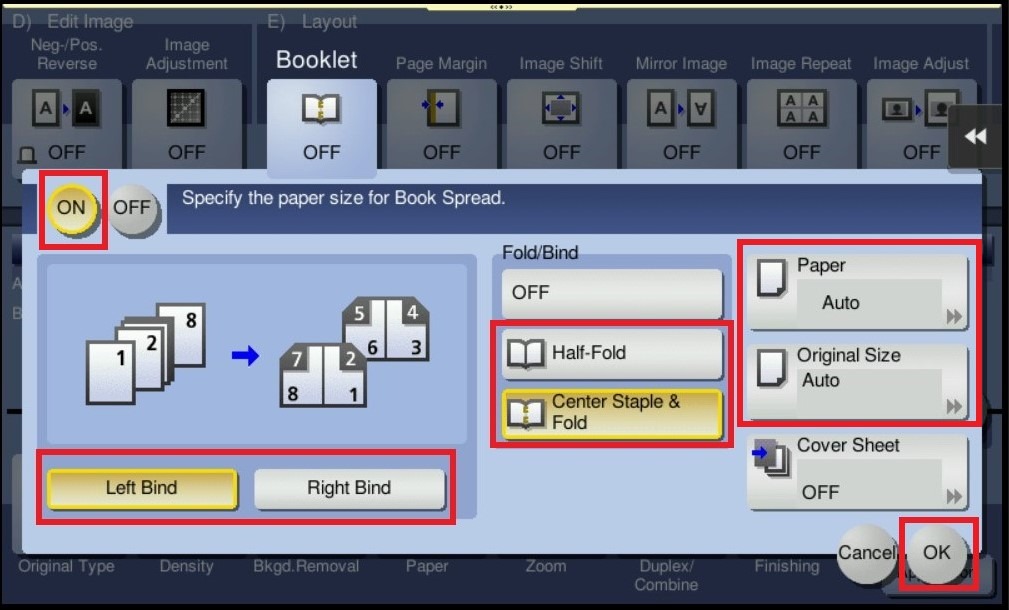
| Display Settings | Description |
|---|---|
| [Left Bind][Right Bind] | Select the binding position of the printed sheet. |
| [Fold/Bind] | Staples printed sheets in the center or fold them in the center before discharging. [Half-Fold] : Feeds out a printed sheet by folding it in two. [Center Staple & Fold] : Staples and feeds out a printed sheet by folding it in two. |
| [Paper] | Select paper for copying. Select paper which corresponds to the size of a two-page spread of the booklet. |
| [Original Size] | If the size of the original is not detected correctly, select a key indicating the size of the original to be scanned. If the machine cannot detect the size of irregular sized originals or photos, manually specify the size. |
**To use [Fold/Bind] function, the Finisher & Fold unit are required, Click on this to check how to print configuration page from machine. After that check the Finisher & Fold Unit under Option is it available in the configuration page.
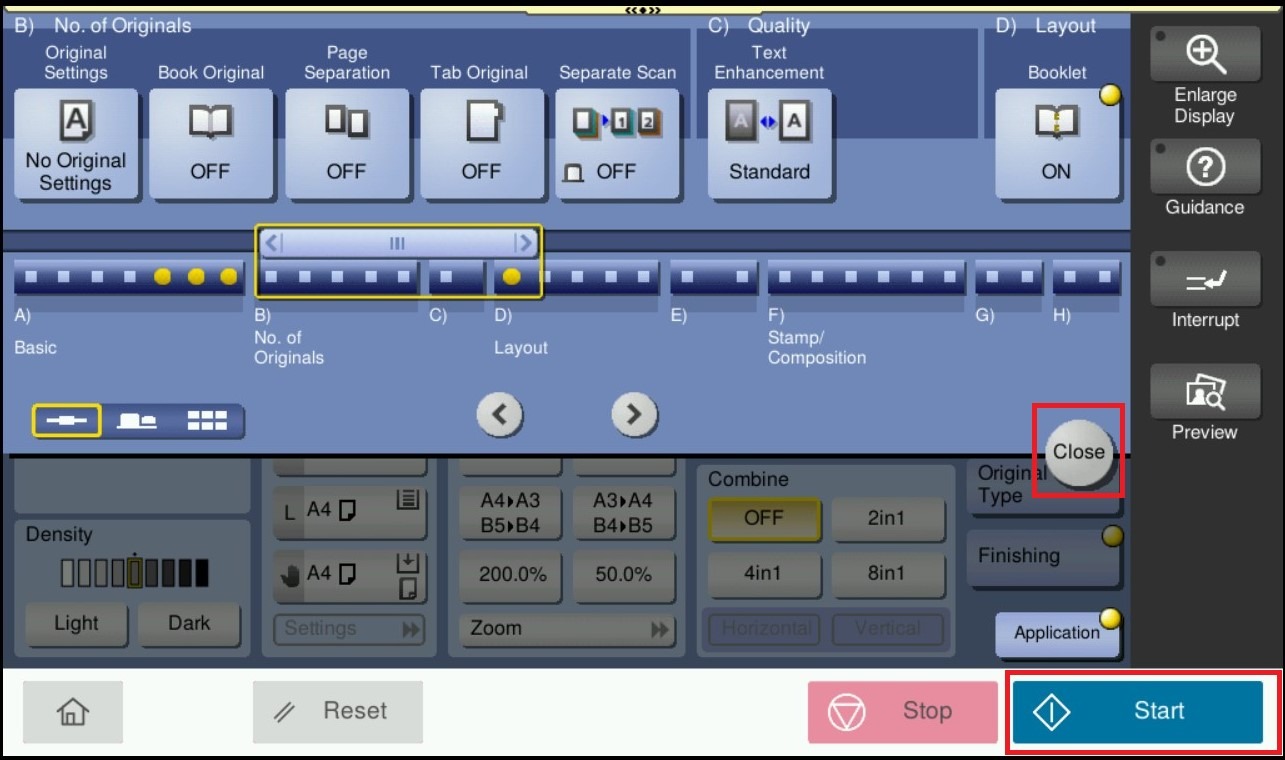
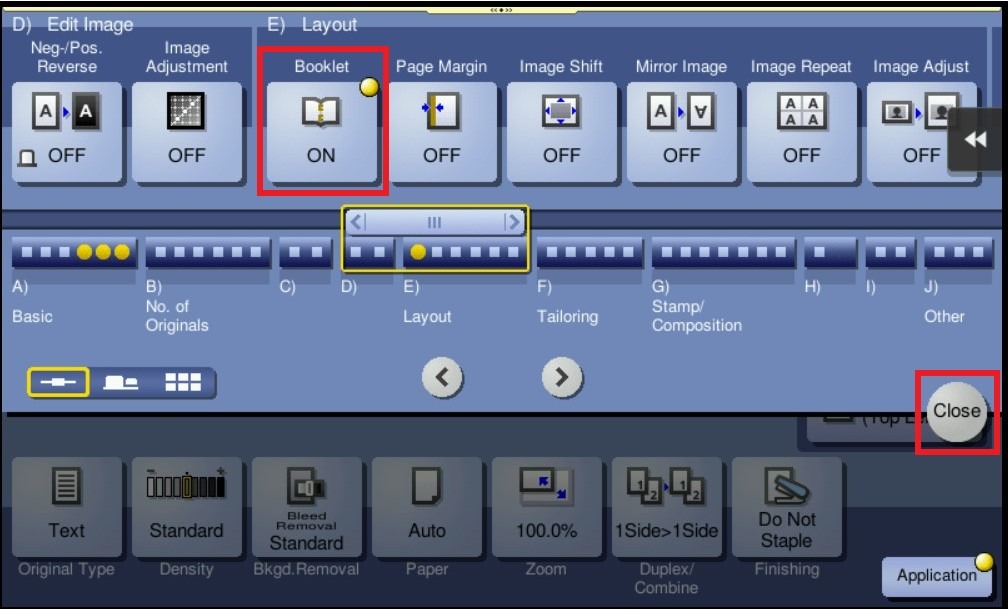
STEP 4 – After Adjust, click on [Close] to close the setting and start copying the original document into booklet format output.
For the Newer Machine series / I-Series Machine
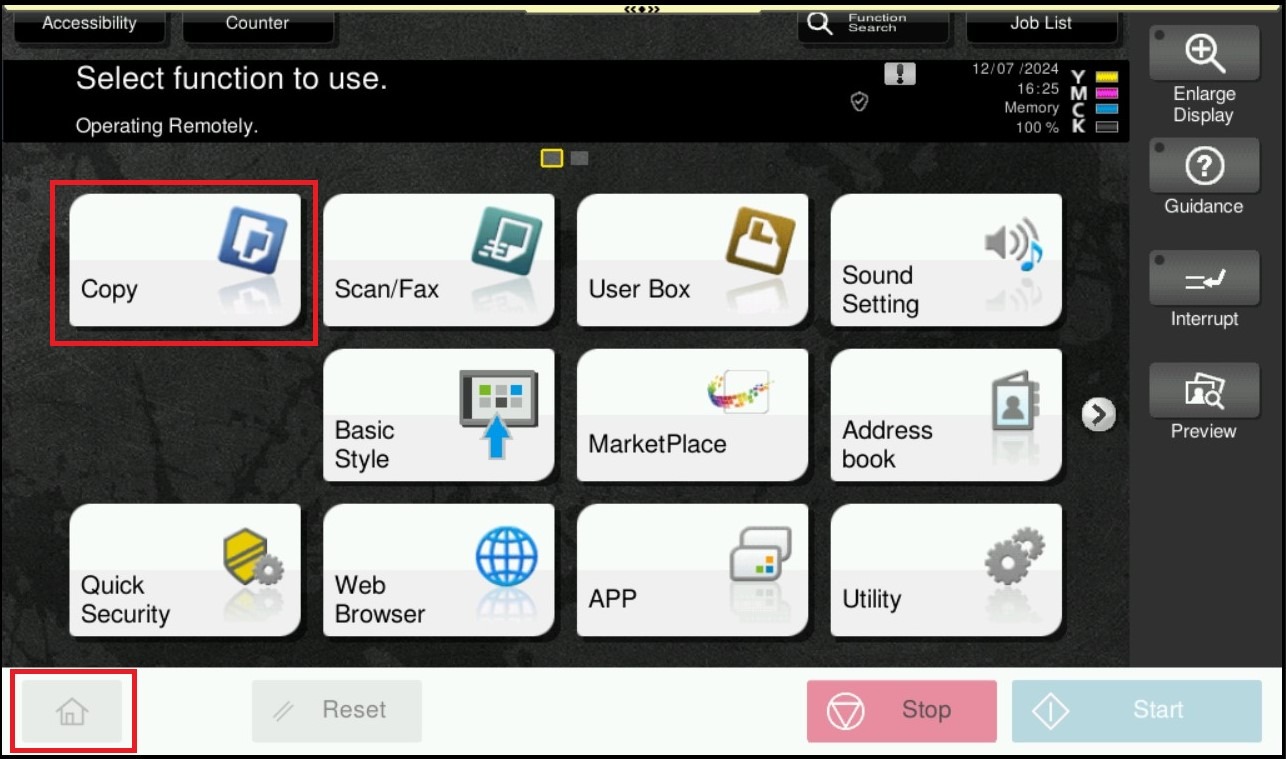
STEP 1 – On the Main Menu Screen, select [Home] – [Copy].
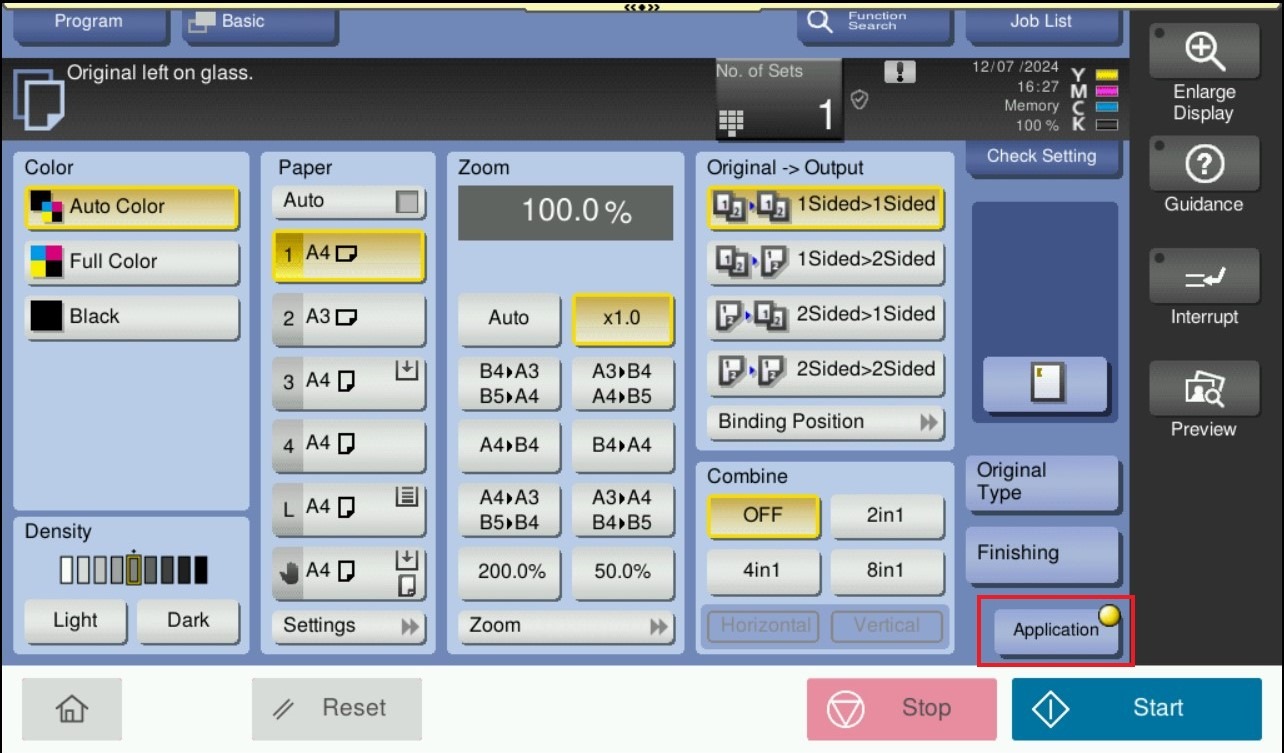
STEP 2 – Select [Application] – [Booklet] under layout Tab.
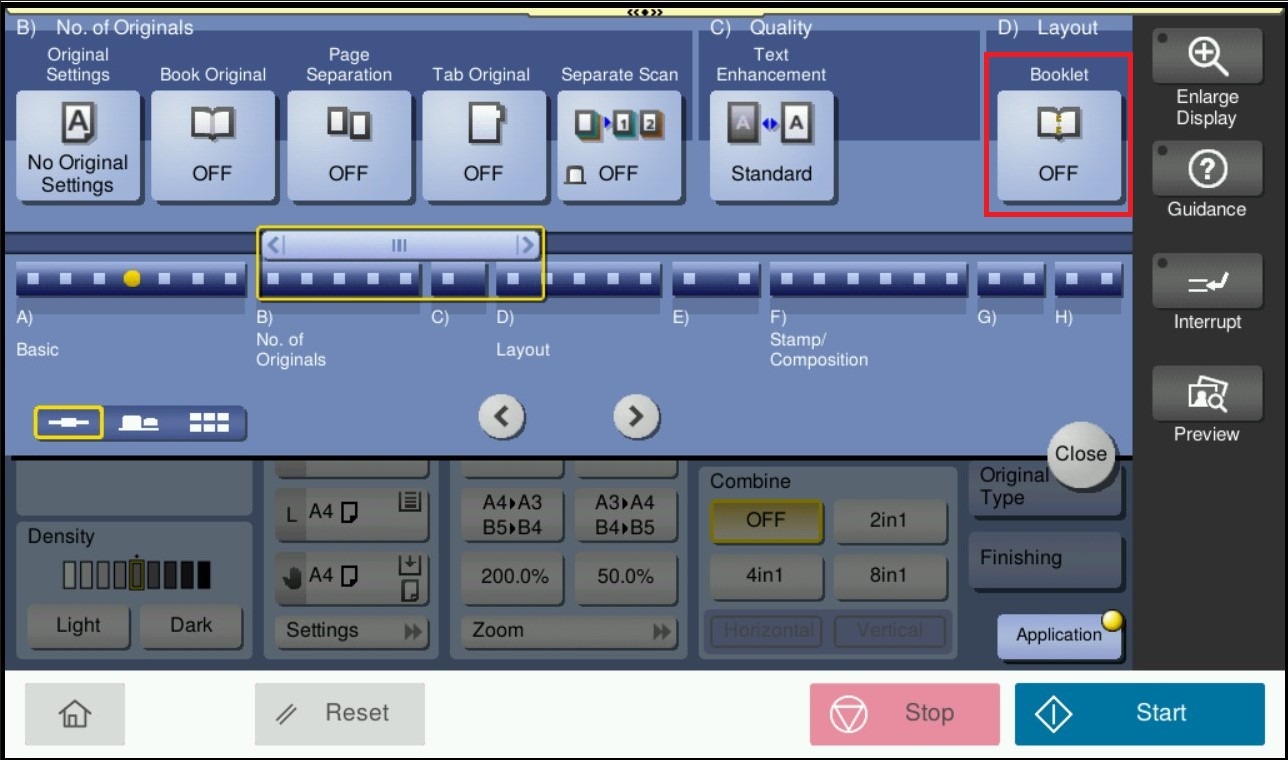
STEP 3 – Select [ON] to specify Booklet. Specify which function need to use, then click [OK] to save the settings.
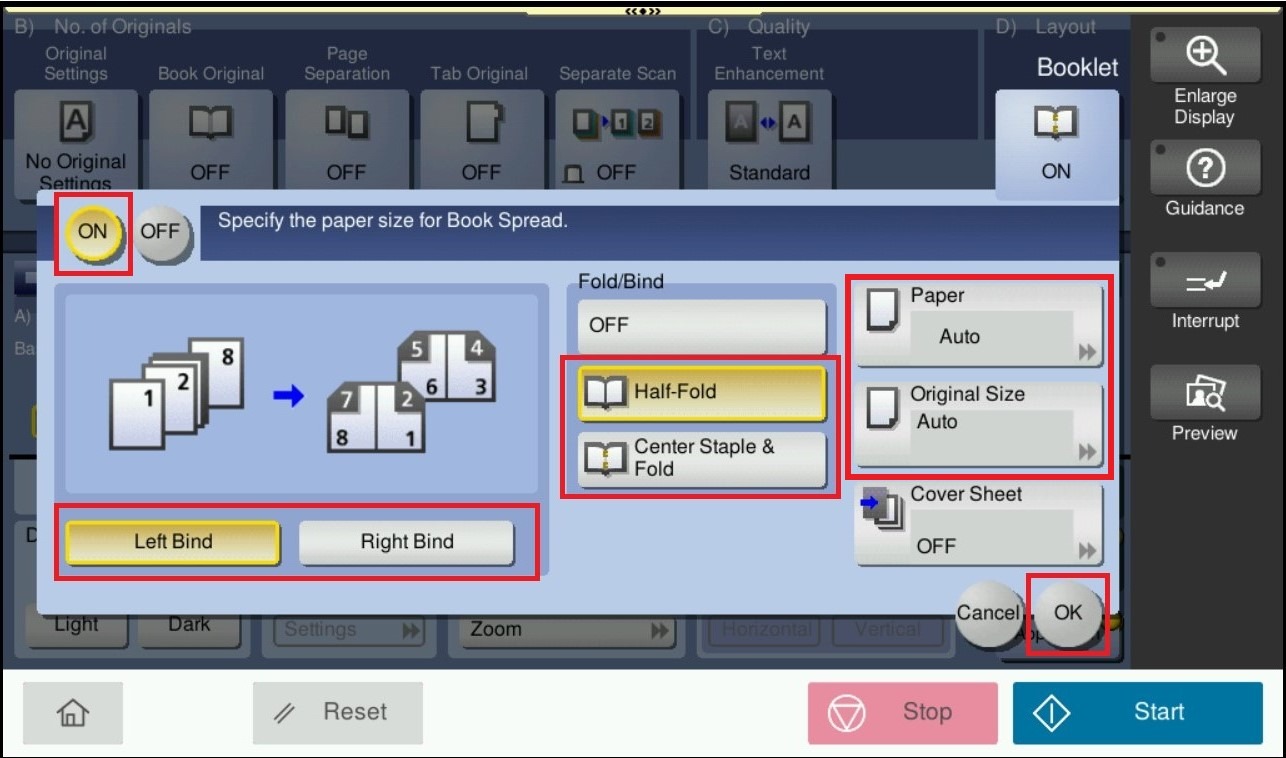
| Display Settings | Description |
|---|---|
| [Left Bind][Right Bind] | Select the binding position of the printed sheet. |
| [Fold/Bind] | Staples printed sheets in the center or fold them in the center before discharging. [Half-Fold] : Feeds out a printed sheet by folding it in two. [Center Staple & Fold] : Staples and feeds out a printed sheet by folding it in two. |
| [Paper] | Select paper for copying. Select paper which corresponds to the size of a two-page spread of the booklet. |
| [Original Size] | If the size of the original is not detected correctly, select a key indicating the size of the original to be scanned. If the machine cannot detect the size of irregular sized originals or photos, manually specify the size. |
**To use [Fold/Bind] function, the Finisher & Fold unit are required, Click on this to check how to print configuration page from machine. After that check the Finisher & Fold Unit under Option is it available in the configuration page.
STEP 4 – After Adjust, click on [Close] to close the setting and click on [Start] to copy the original document into booklet format output.