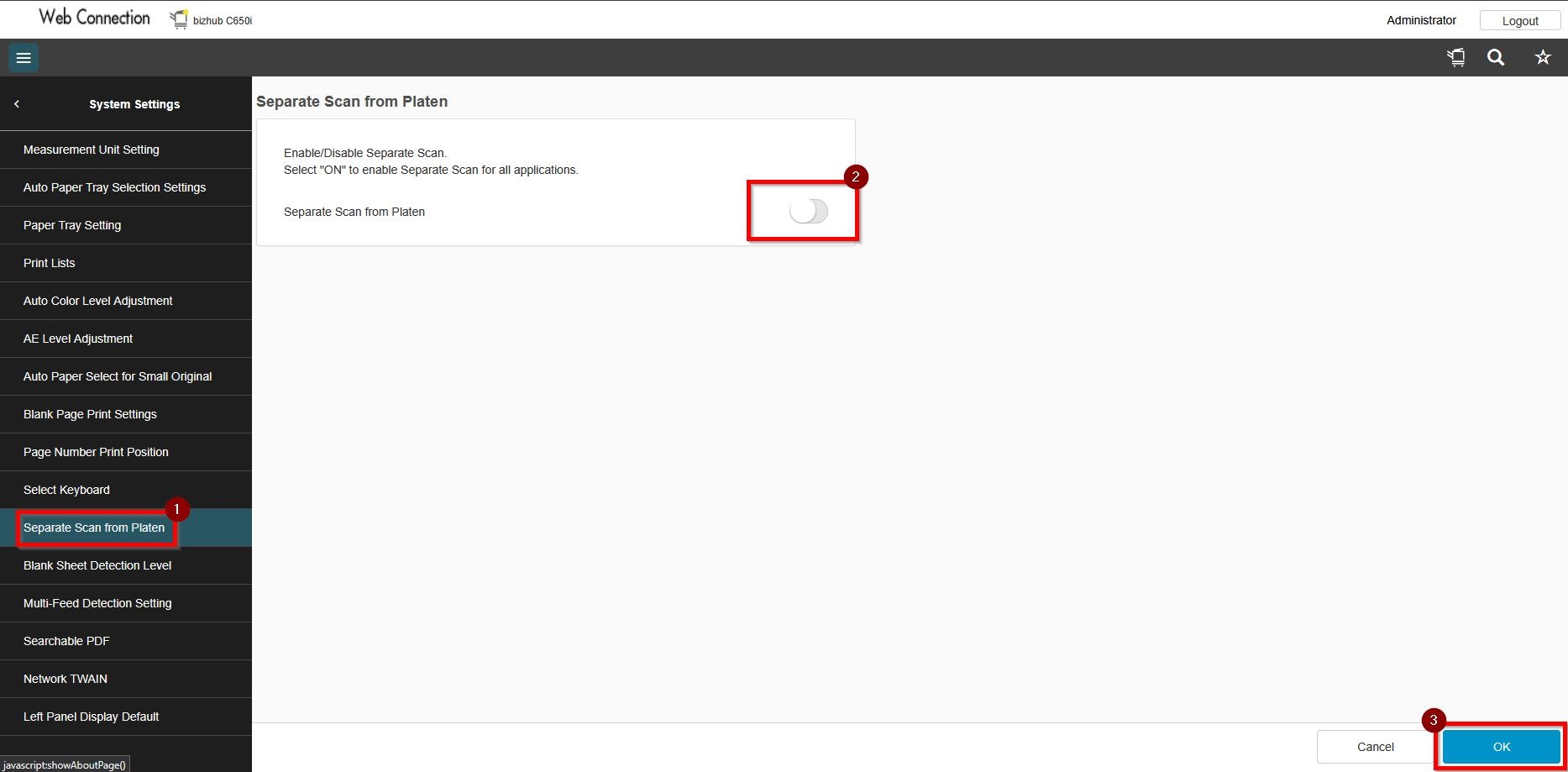
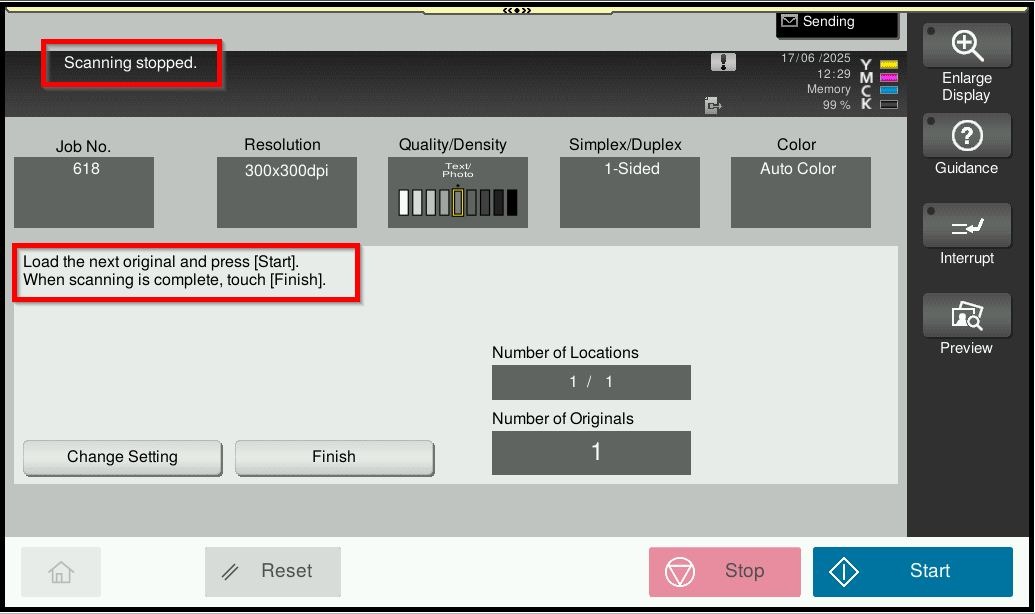
Guide On How To Resolve Scanning From The Glass Stopped While The Option Separate Scan Is Turn Off
Example attachment showing scanning stopped when scan using glass on the photocopier machine while the option separate scan is turn off.

For the Older Machine series / Non I-Series Machine
Via Photocopier Machine
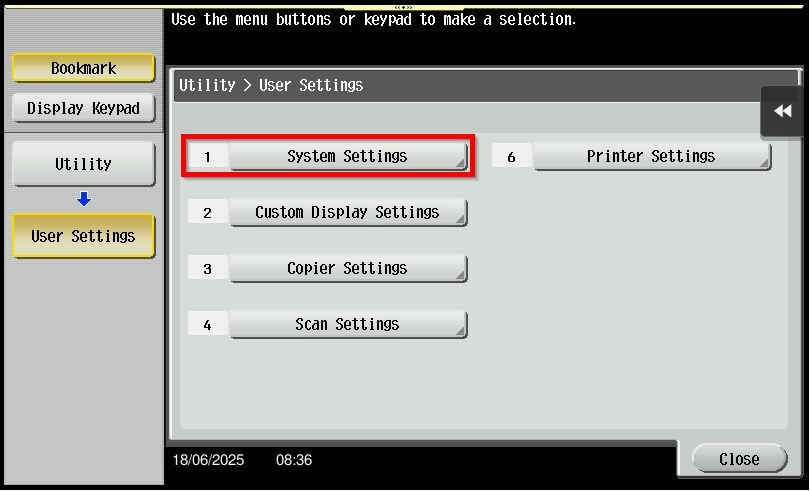
STEP 1 – On the Konica Minolta machine, Select [Utility].
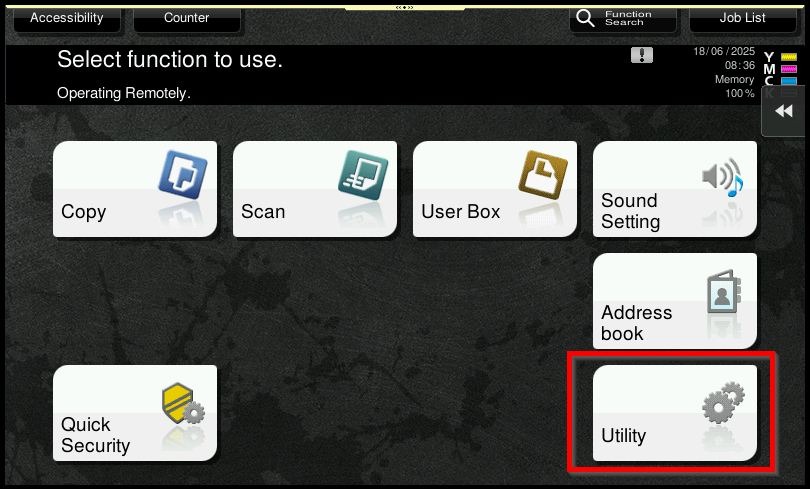
STEP 2 – Choose [User Settings].
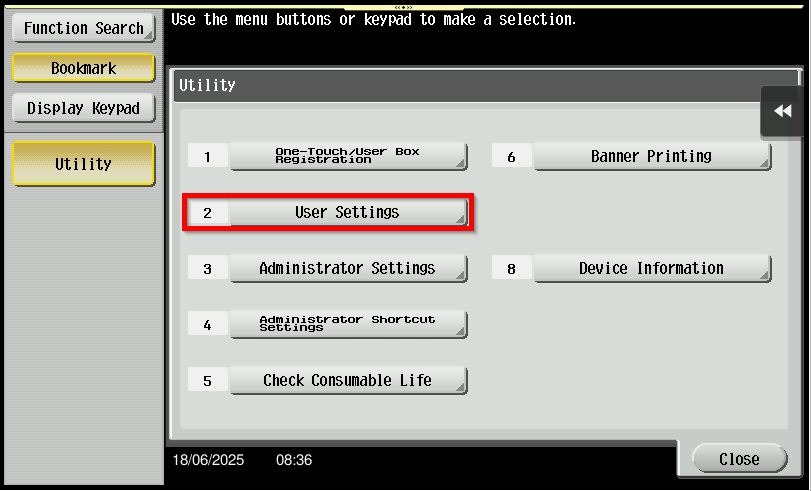
STEP 3 – Select [System Settings].
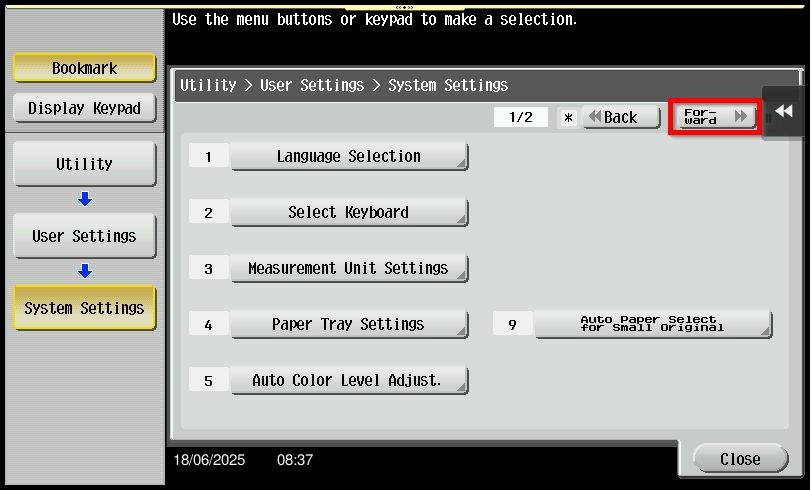
STEP 4 – Click on [Forward].
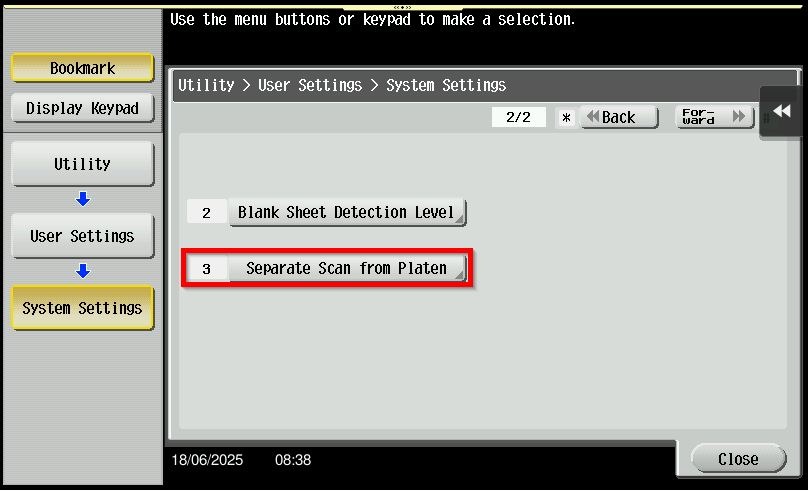
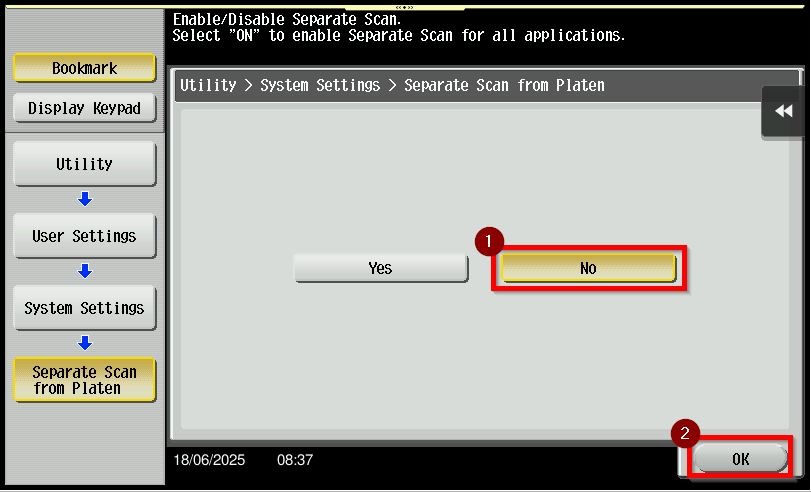
STEP 5 – Select [Separate Scan From Platen] – [NO] and click [OK] button to save.
For The Newer Machine Series / I-Series Machine
Via Photocopier Machine
STEP 1 – Press on [Home] icon, then select [Utility].
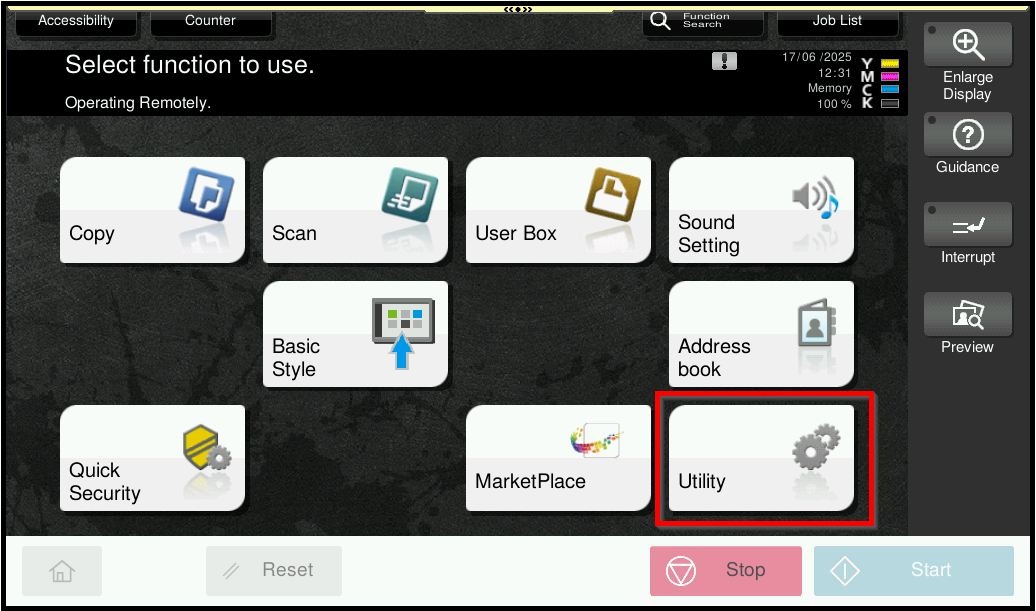
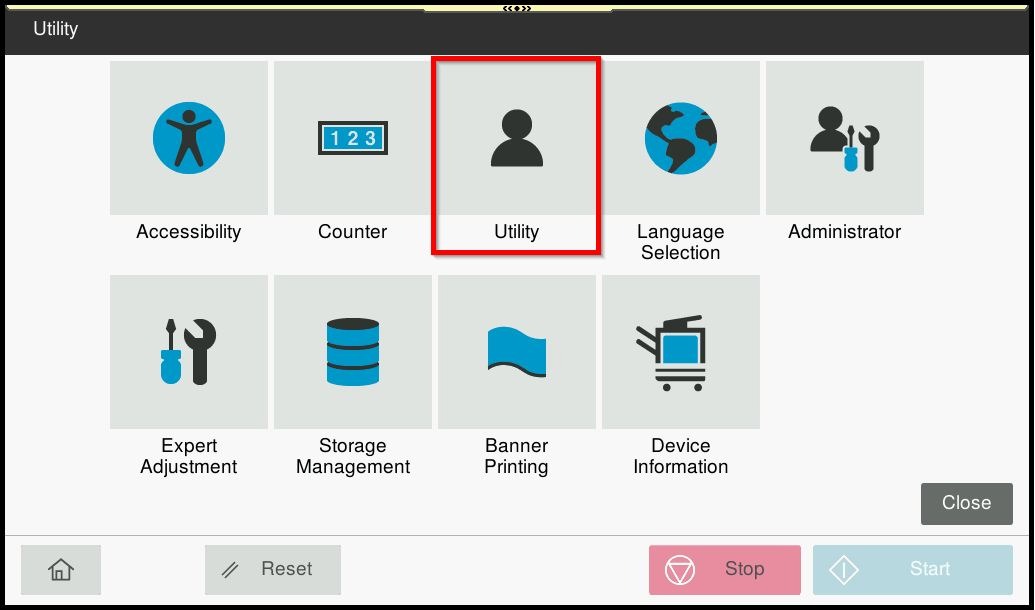
STEP 2 – Choose [Utility].
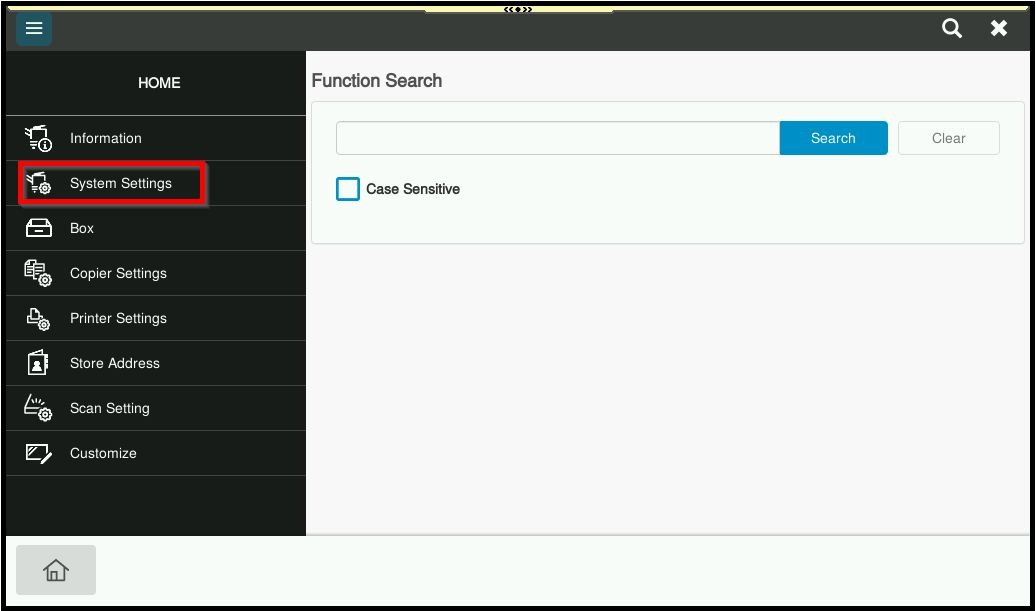
STEP 3 – Select [System Settings].
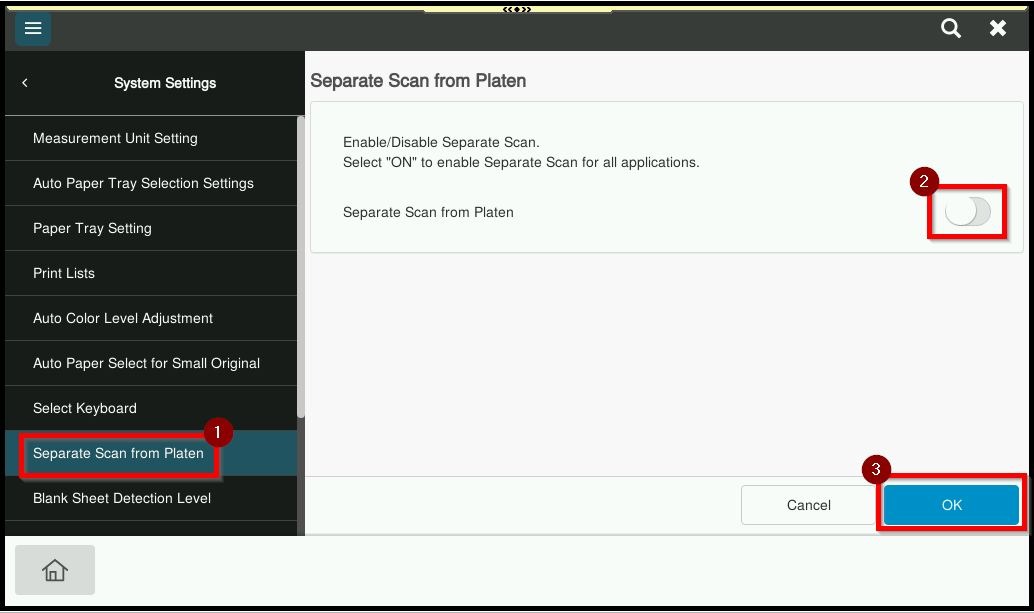
STEP 4 – Choose [Separate Scan From Platen], make sure the option is [Disable] and click on [OK] button to save.
Via Web Connection
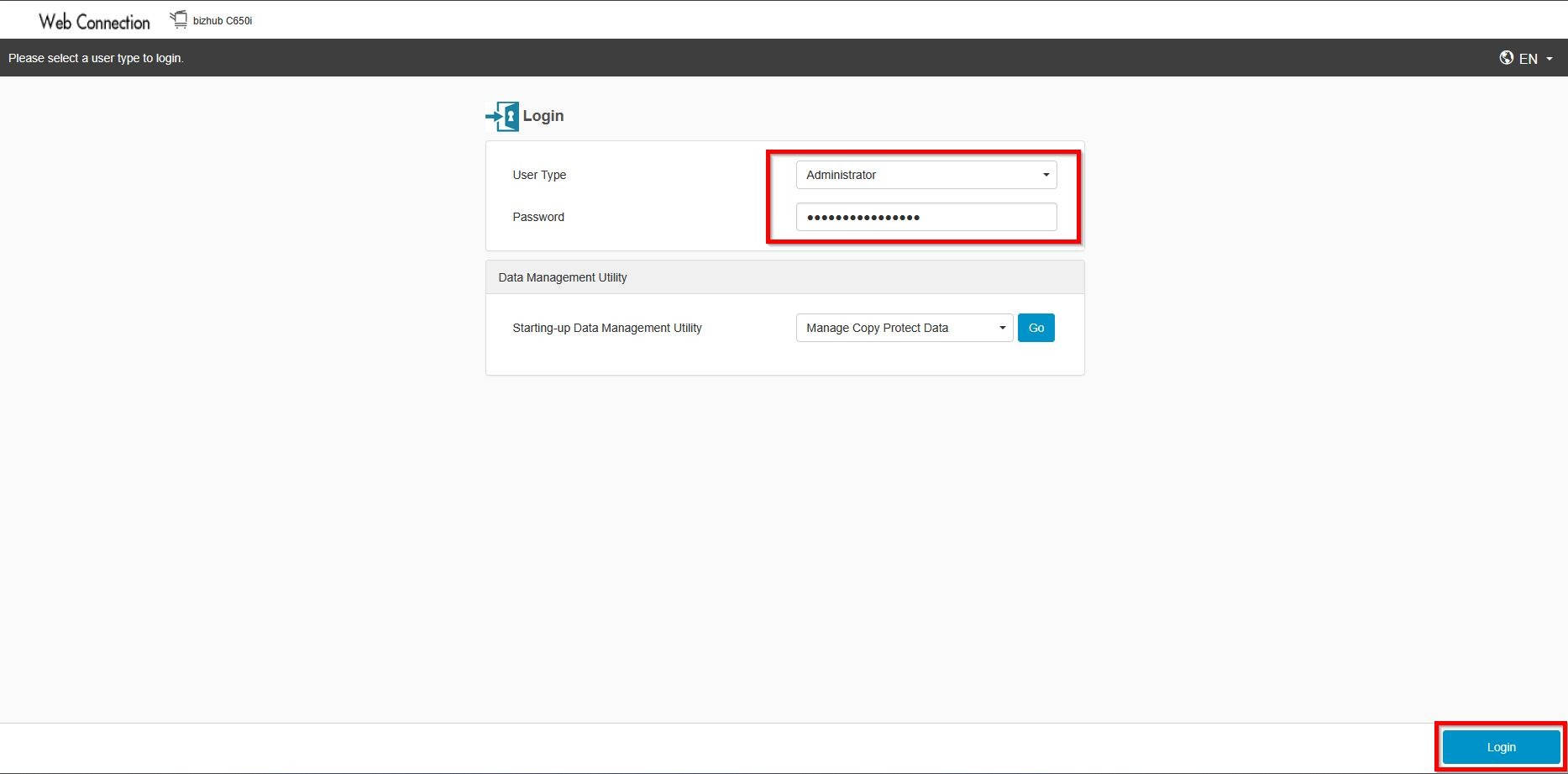
STEP 1 – Access to web connection via machine IP Address. Click on this to check how to get the IP Address from machine, then key in Konica Minolta Machine IP Address at web browser and log in as admin on the Web Connection.
STEP 2 – Key in the default administrator password and click [OK] button.
Default administrator password: [7801261178012611] or [1234567812345678] or [12345678] or [12341234].
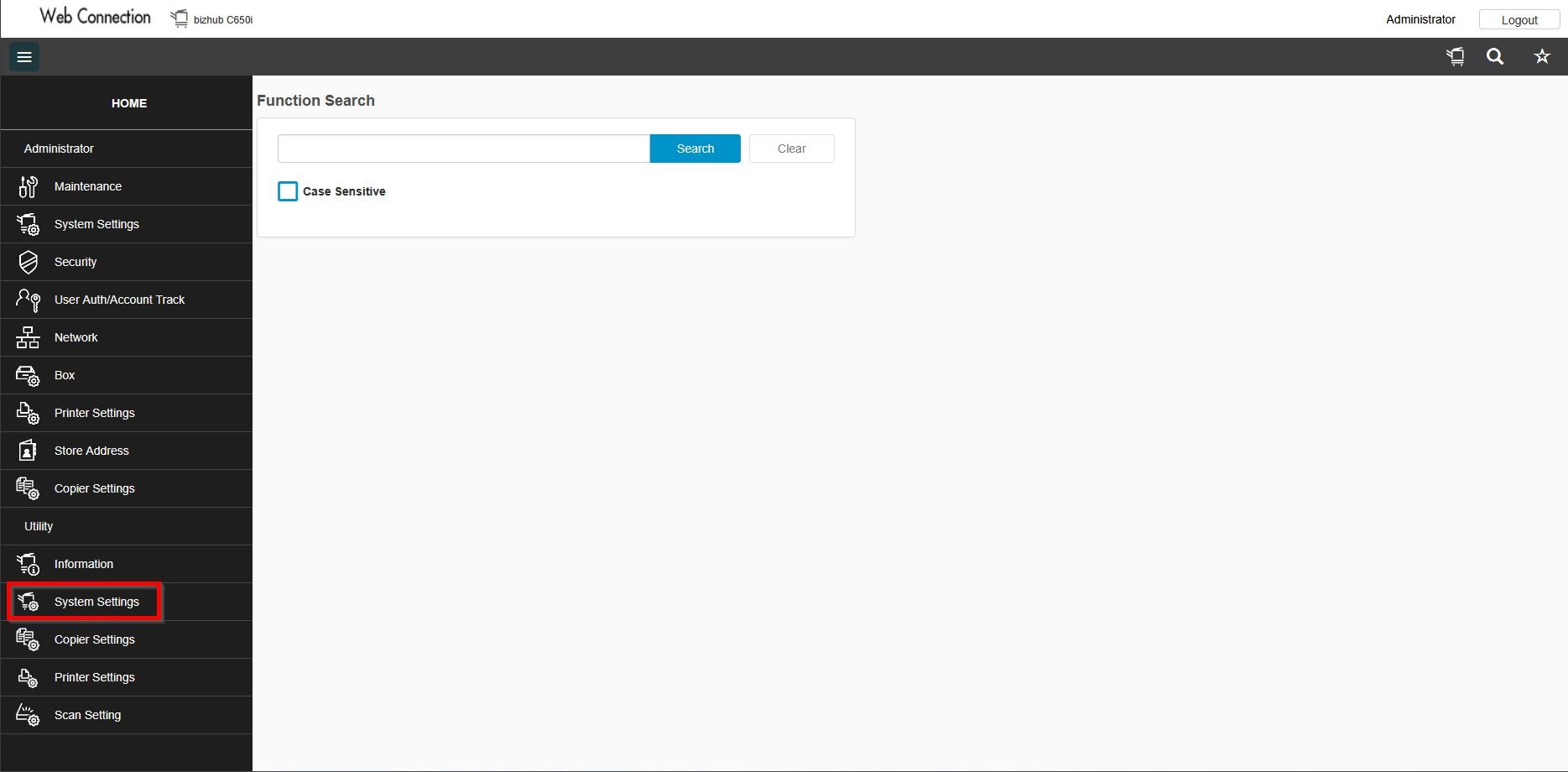
STEP 3 – Select [System Settings] under Utility.
STEP 4 – Choose [Separate Scan From Platen], make sure the option is [Disable] and click on [OK] button to save.