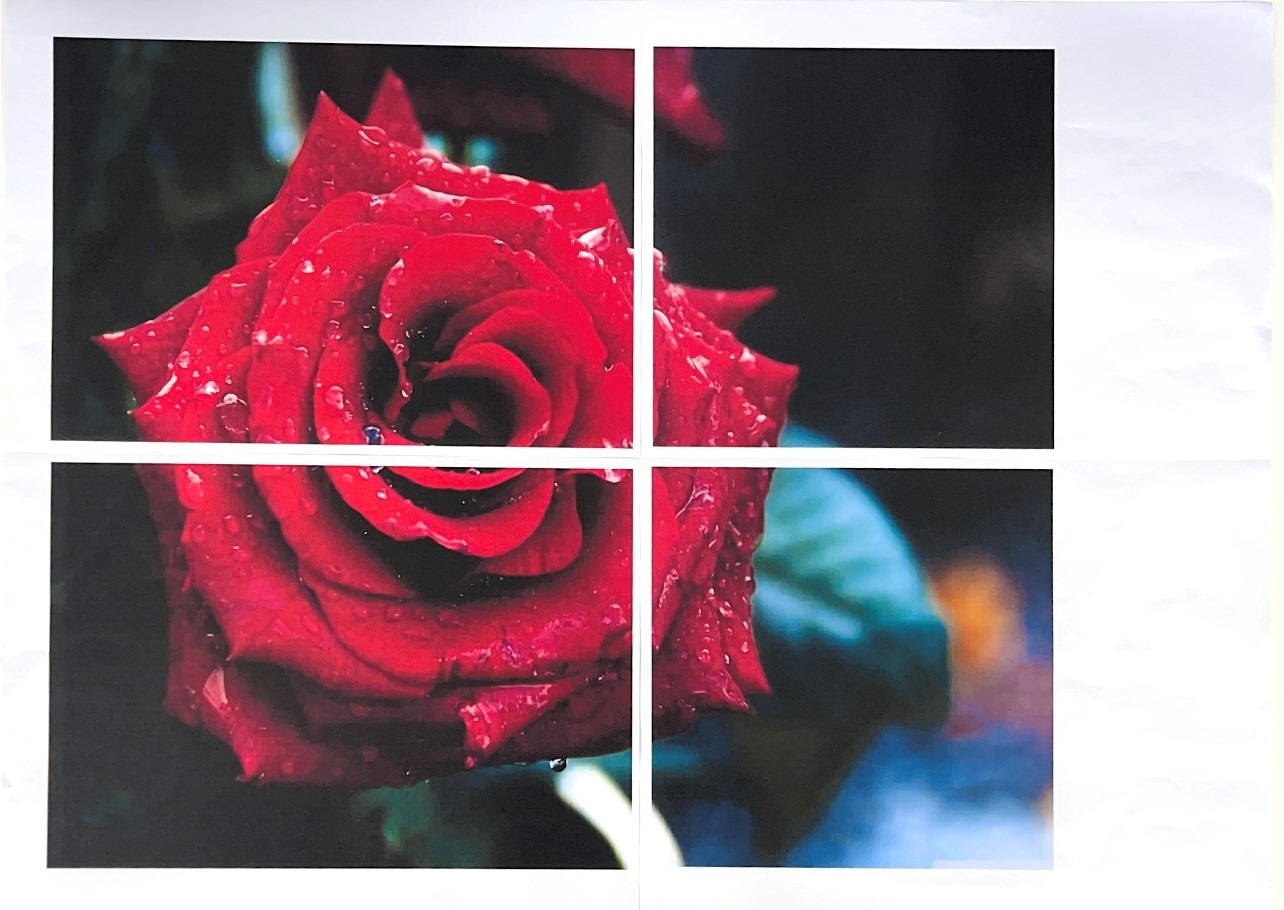
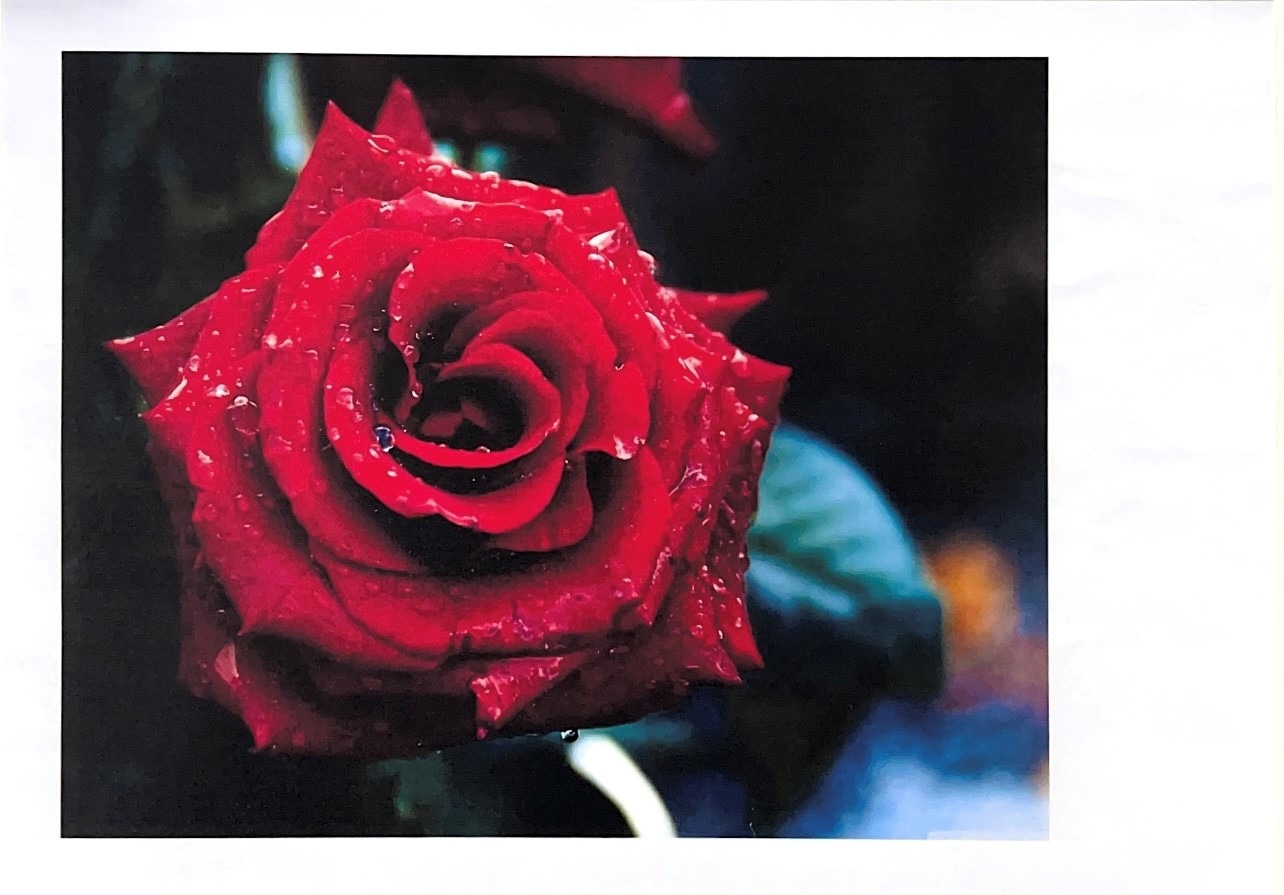
Suggestion on how to enlarge original document and printed on multiple sheet. When join the printed sheets, it will create a large poster.
As per attachment below, the original print document is printed in A4 size, in order to enlarge the size and printed in multiple sheet, kindly follow below guide on how to configure the setting. [Note: Only applicable to PCL Printer Driver only]
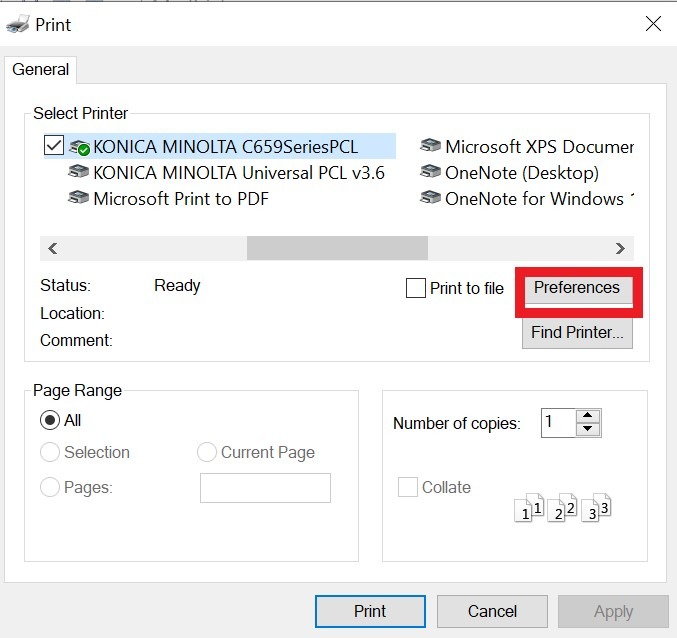
Step 1(a) – Open a document or image that want to print, press [ctrl+shift+p] shortcut key (available on window 10 & below) or [ctrl+shift+p] – [More settings] shortcut key (available on window 11) , select [Preferences] under print option then proceed to step 2.
(Note: this option is not available in Windows Photos application as Windows photos application is using newer print dialog, in order to configure the printer setting before printing for those image that open in Windows Photos application, kindly follow next step 1(b) & step 1(c) before going to step 2.)
Alternative way on how to select the printer setting for Windows Photos Application. (May direct skip to step 2 if the application is not Windows Photo Application)
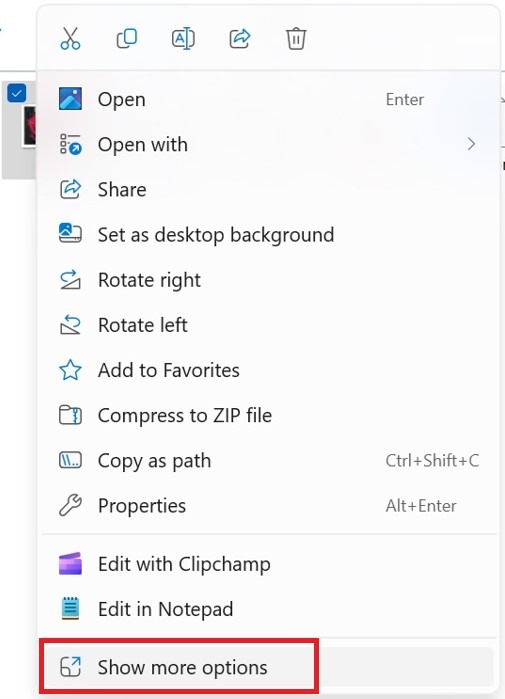
Step 1(b) – In order to print from Photos application, right click of the file that want to print, click on [Print] or [Show more options] – [Print] in windows 11 version.
*setting on window 11 version [Show more options] – [Print]
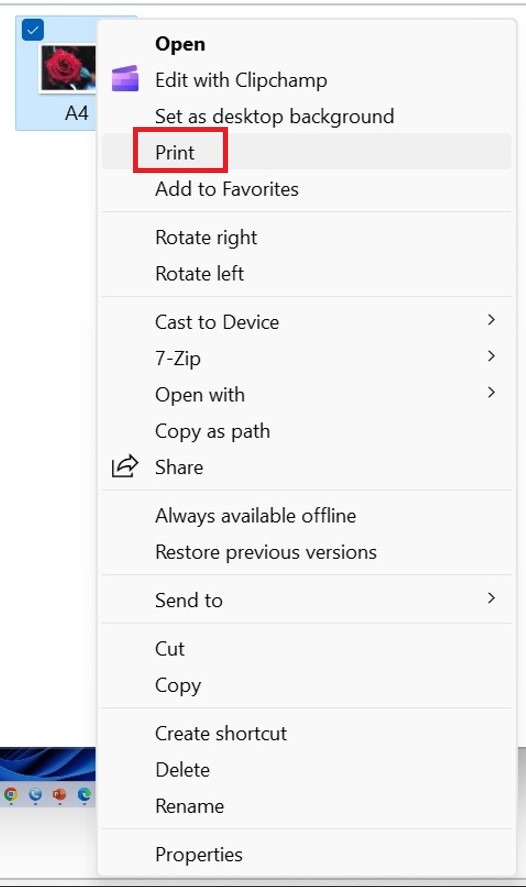
Step 1(c) – Select [Options] – [Printer Properties] – [Preferences] under print option.
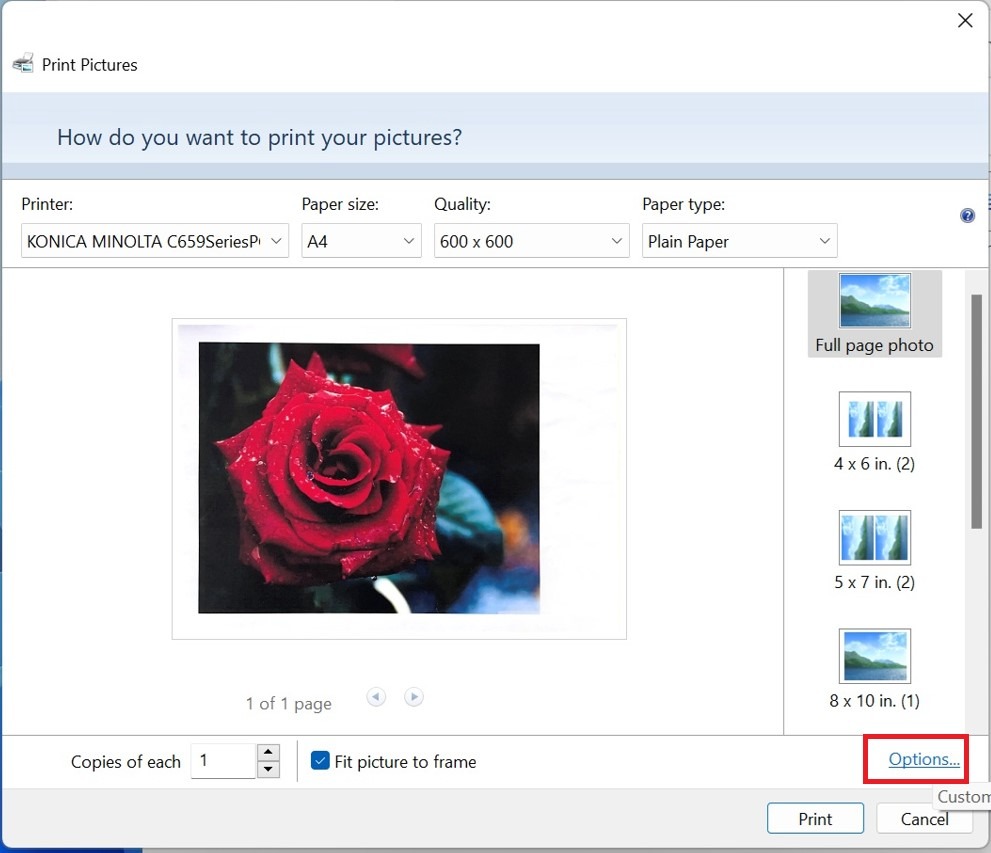
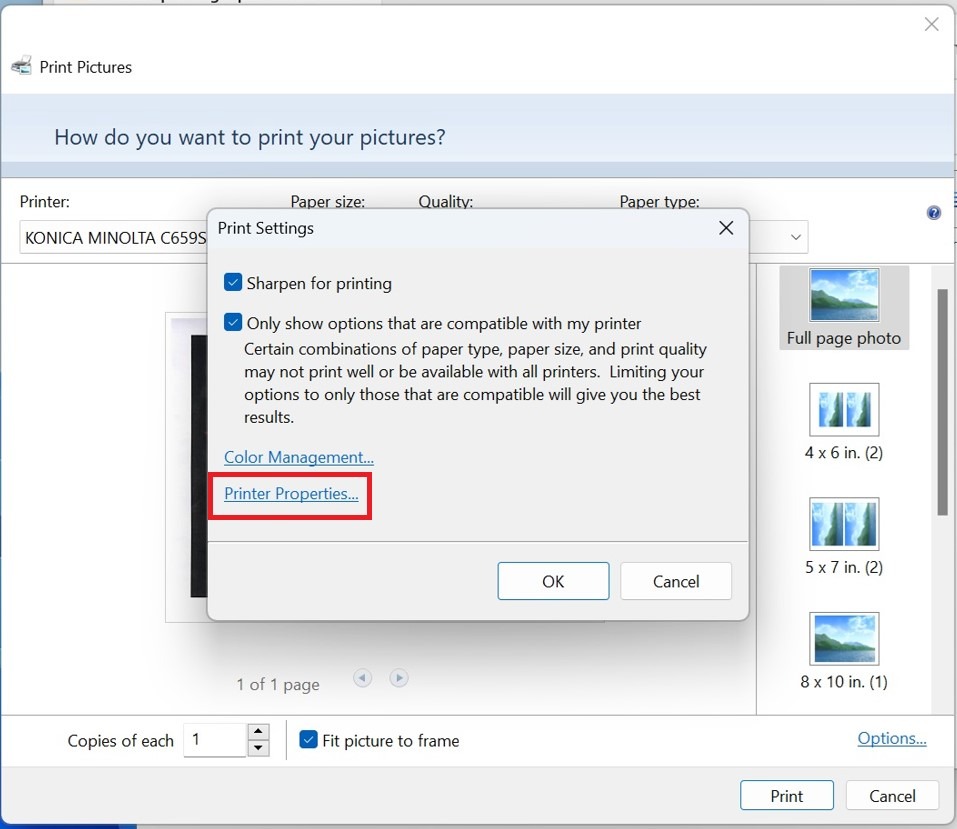
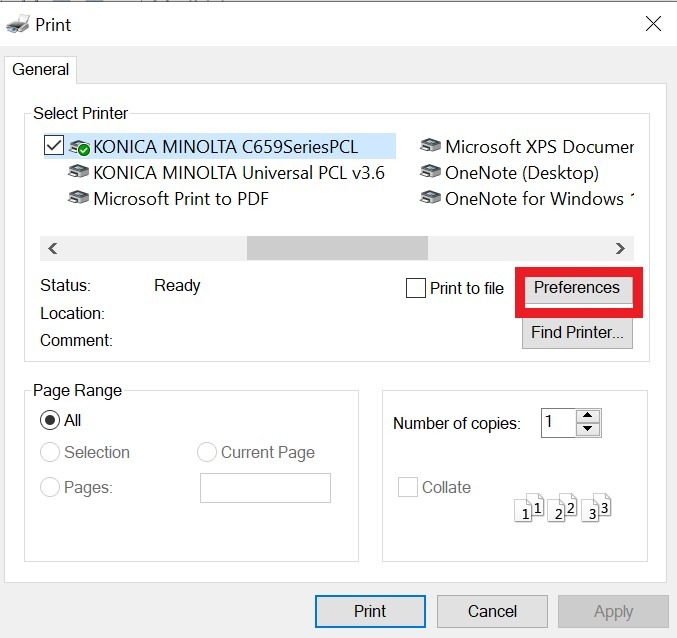
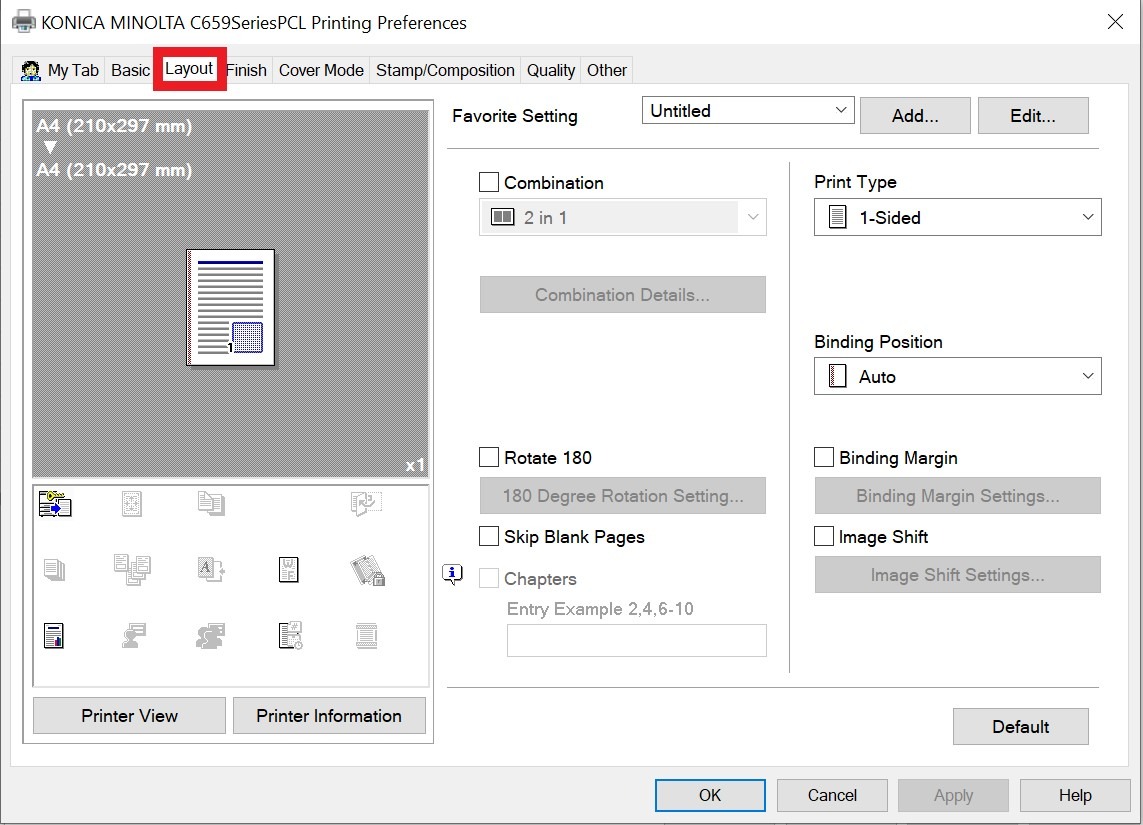
Step 2 – Select [Layout] – [Combination], select the combination that want to be printed out, may choose 2×2, 3×3 or 4×4 depending on requirement, then click [OK] to proceed for printing.
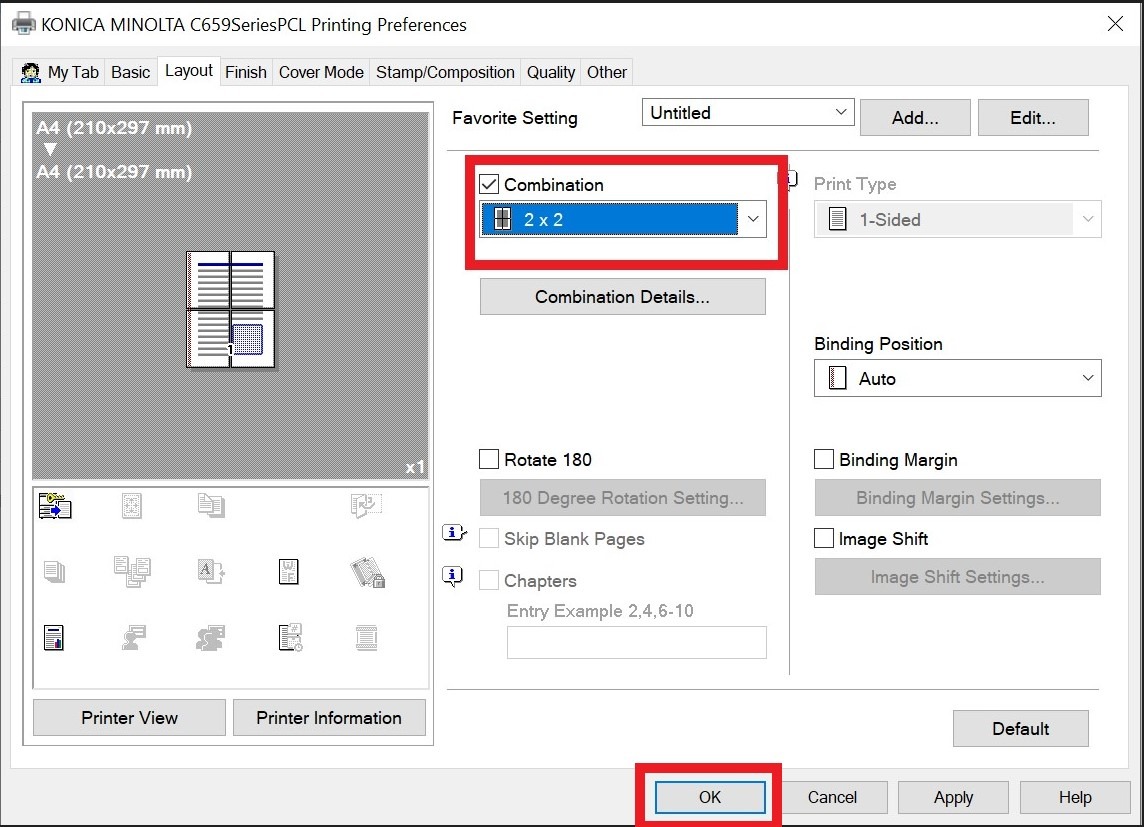
Step 3 – From previous setting example, the setting are set as 2X2, the print output will be a bigger poster size with A2 size with 4 piece paper of A4 size paper.